








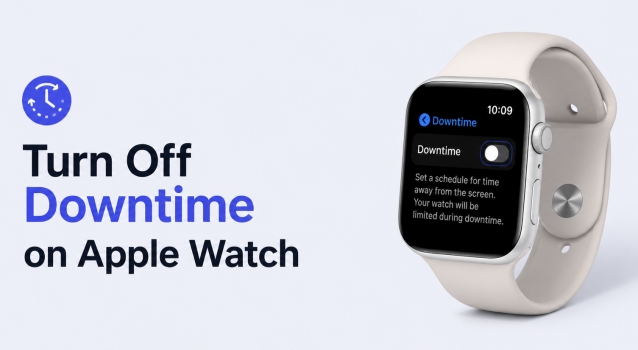
Downtime is a handy Screen Time feature designed to help you unplug from your devices. However, when it is synced on your Apple Watch and restricts essential apps on your Apple Watch when you need to use them most, it quickly becomes frustrating. In this guide, we will show you step-by-step instructions to turn off Downtime on Apple Watch, whether you need to keep the Downtime on iPhone or not. We will also help fix when Apple Watch Downtime won't turn off.
- Part 1. How to Turn Off Downtime on Apple Watch
- Part 2. Troubleshoot: Downtime Won't Turn Off on Apple Watch
- Part 3. Bonus Tip: Turn Off Downtime on Apple Watch without PasscodeHot
- Part 4. Conclusion
Part 1. How to Turn Off Downtime on Apple Watch
Since your Apple Watch is tied to your paired iPhone, if you want to turn off Downtime on your Apple Watch, you need to adjust Screen Time settings on your iPhone. Follow the steps below to completely turn off Downtime and ensure changes apply to your Apple Watch.
1. Turn Off Downtime on iPhone
If you only need to pause Downtime for a little while, you can temporarily turn it off without removing your set schedule. This allows you to regain access to your apps and features until Downtime automatically resumes at the next scheduled time.
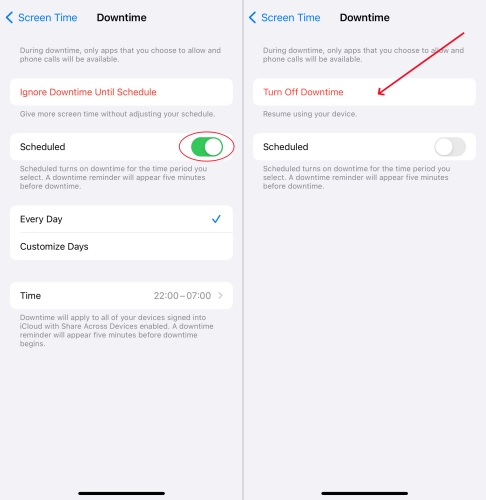
Step 1. Go to Settings > Screen Time on iPhone.
Step 2. Tap Downtime.
Step 3. If you have scheduled the downtime hours, disable Scheduled. If not, tap Turn Off Downtime to disable it across your devices.
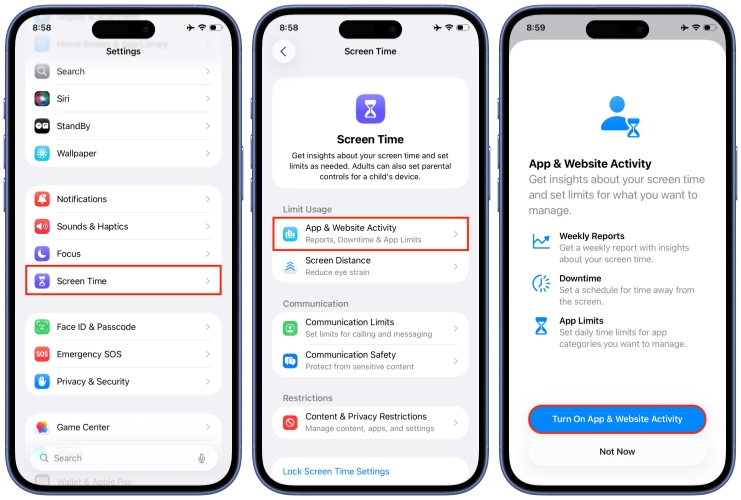
2. Turn Off App & Website Activity on iPhone
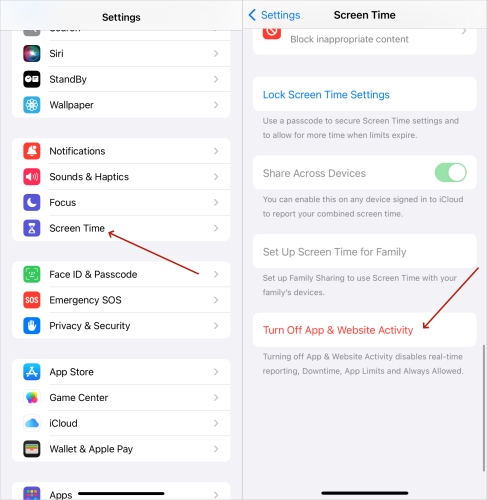
Step 1. Back to Screen Time settings.
Step 2. Tap Turn Off App & Website Activity at the bottom.
3. Turn Off Share Across Devices
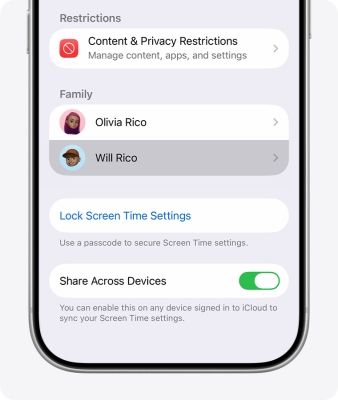
By default, Downtime settings sync across all devices logged into your Apple ID. If you want Downtime enabled on your iPhone but turned off on your Apple Watch, disable device sharing. Just disable Share Across Devices on the Screen Time settings page.
4. Reactivate Screen Time on iPhone
Following the steps above, the Downtime must be turned off on your Apple Watch successfully. If you need to keep using Downtime on iPhone, you can tap Turn On App & Website Activity to reactivate Screen Time and adjust the settings on your iPhone.
How to turn off Downtime on Apple Watch without phone?
Since Apple Watch is paired with your iPhone, you can't turn off Downtime on Apple Watch without your phone.
Part 2. Troubleshoot: Downtime Won't Turn Off on Apple Watch
If you followed the steps above but your Apple Watch is still affected by Downtime, an iCloud synchronization bug may be preventing the changes from applying. Try these troubleshooting solutions.
Method 1. Restart iPhone and Apple Watch
Restarting will clear temporary cache files and force a fresh Bluetooth and Wi-Fi sync between both devices.
Restart iPhone:
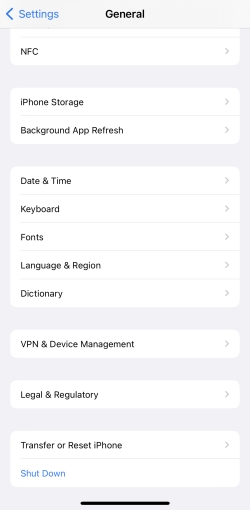
Step 1. Go to Settings on iPhone and tap General.
Step 2. Tap Shut Down at the bottom.
Step 3. Drag the slider to shut it down.
Step 4. Wait for a few minutes, then long-press the Power button to restart your iPhone.
Restart Apple Watch:
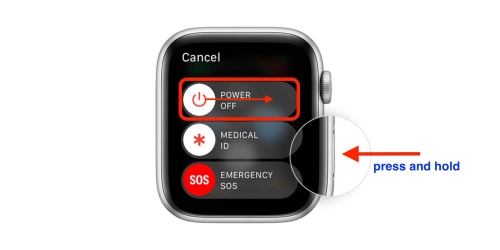
Step 1. Long-press the side button and tap Power Off.
Step 2. Drag the slider to power it off.
Step 3. Wait for a few minutes, and long-press the side button to power it on.
Method 2. Update both iPhone and Apple Watch
Outdated firmware can cause sync failures between iOS and watchOS. Updating the system version ensures a more stable connection between iPhone and Apple Watch.
Update iPhone:
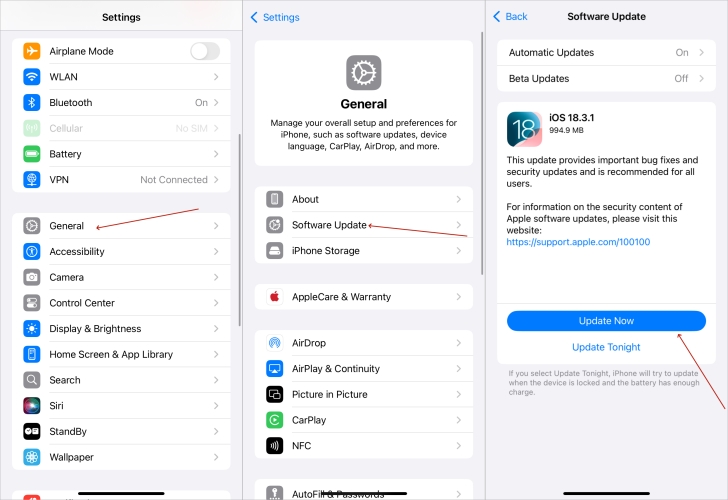
Step 1. Go to Settings on iPhone and tap General.
Step 2. Tap Software Update and check for an update.
Step 3. If there is newer software to be updated, tap Download Now or Install Now to update your iPhone.
Update Apple Watch on iPhone:
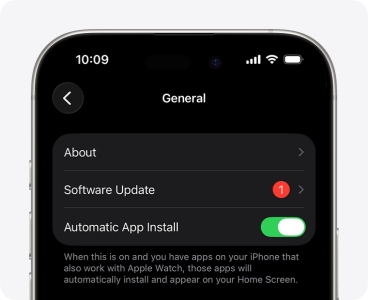
Step 1. Open the Apple Watch app on your iPhone.
Step 2. Tap General > Software Update.
Step 3. If there is a newer watchOS, tap Install to update. Your Apple Watch will be updated while it is charging and network.
Method 3. Reset All Settings on iPhone
If the Downtime still affects your Apple Watch, reset your iPhone's system settings to let you reconfigure Screen Time settings. But this will also affect other settings like network and privacy settings.
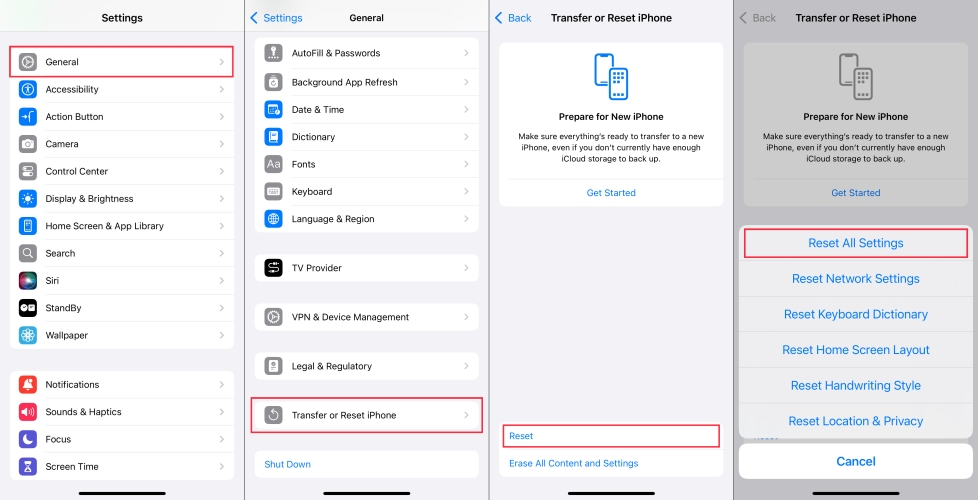
Step 1. Go to Settings on iPhone and tap General.
Step 2. Scroll down to the bottom and tap Transfer or Reset iPhone.
Step 3. Tap Reset > Reset All Settings.
Step 4. Enter the required iPhone passcode, and tap Reset to confirm.
Method 4. Unpair and Repair Apple Watch
When the Downtime changes are not synced on Apple Watch, you may consider unpairing the Apple Watch. Unpairing and repairing can re-establish a clean connection between your iPhone and watch.
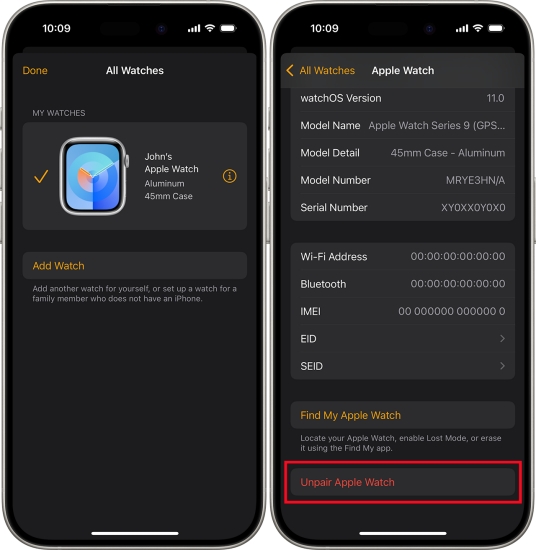
Step 1. Put your Apple Watch and iPhone close to each other.
Step 2. Open the Apple Watch app on your iPhone and tap My Watch.
Step 3. Tap the Info icon next to your Apple Watch.
Step 4. Tap Unpair Apple Watch at the bottom, then tap Unpair [Your Apple Watch Name].
Step 5. If there is a cellular plan on your Apple Watch, choose whether to remove it or keep it.
Step 6. Enter the Apple ID password and tap Unpair.
Step 7. After unpairing and erasing the Apple Watch, you can follow the instructions on your iPhone and Apple Watch to repair them.
Part 3. Bonus Tip: Turn Off Downtime on Apple Watch without Passcode
If you forgot your Screen Time passcode, you cannot access the Downtime menu on your iPhone to disable restrictions on your Apple Watch. There is a way to disable Downtime on iPhone and Apple Watch without the Screen Time passcode. If you don't want to lose data while bypassing Downtime on iPhone or Apple Watch, MagFone iPhone Unlocker can reliably reset Screen Time settings without affecting other settings or personal data on your iPhone. Follow the steps below to disable Downtime on your device without data loss. Afterwards, you can reconfigure your Screen Time settings.

MagFone iPhone Unlocker
Turn off Downtime permanently on iPhone, iPad – without Screen Time passcode.
Step 1 Install MagFone iPhone Unlocker on Computer
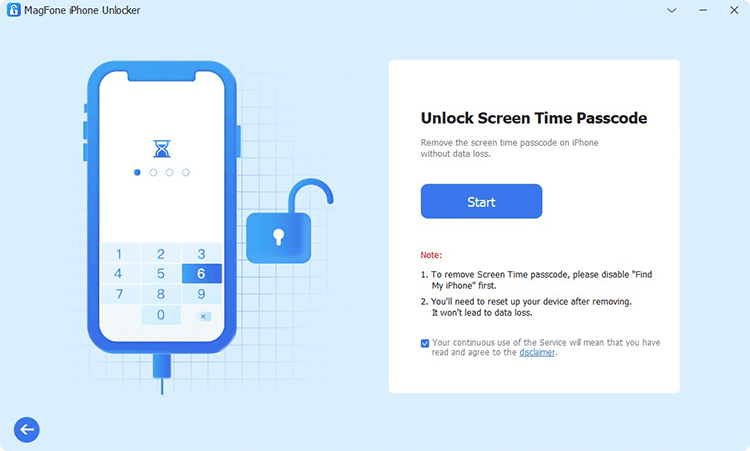
Click to download and install MagFone iPhone Unlocker software on your computer, then use a data cable to link your iPhone with the computer. After that, launch this software to start.
Step 2 Disable Downtime on iPhone and Apple Watch
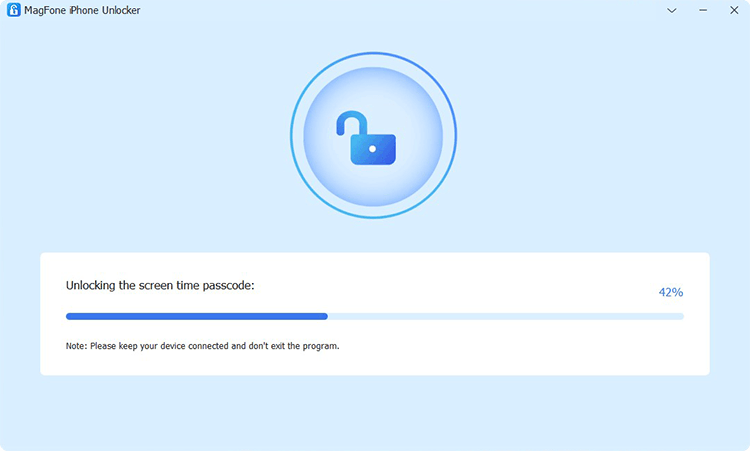
Choose Unlock Screen Time Passcode, and click Start to disable Downtime on your iPhone and Apple Watch without passcode and without data loss. If Find My is enabled on your iPhone, follow the onscreen prompts to first disable Find My on your iPhone, then remove Downtime.
Part 4. Conclusion
Turning off Downtime on your Apple Watch is straightforward once you know that controls are managed through your paired iPhone. Simply disable Downtime or turn off device sharing within your iPhone's Screen Time menu. If software glitches prevent settings from syncing to your watch, restarting, updating, or re-pairing your devices will quickly resolve the issue. If you need to remove Downtime on Apple Watch and iPhone without any data loss, MagFone iPhone Unlocker deserves a try.

Teresa Miller
Editor in chief




