








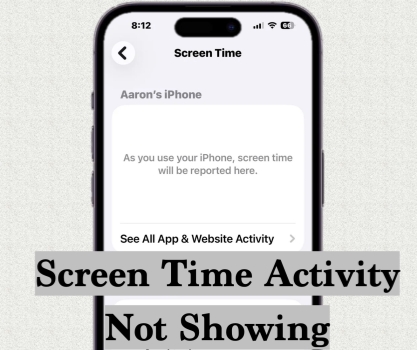
Have you ever opened Screen Time on your iPhone, only to be greeted by the message, "As you use your iPhone, screen time will be reported here," with no activity data in sight? It can be frustrating not to see your app and website usage, making it impossible to track or manage your screen usage. Don't worry. In this guide, we'll walk you through the reasons why Screen Time activity may not be showing and provide step-by-step fixes to help you get your usage data back.
- Part 1. Why Is Screen Time Not Showing Activity?
- Part 2. How to Fix Screen Time Activity Not Showing
- Part 3. Bonus Tip to Refresh Screen Time Activity without Passcode
- Part 4. FAQs about Screen Time Activity
- Part 5. Conclusion
Part 1. Why Is Screen Time Activity Not Showing?
Screen Time not displaying your activity can be confusing, but the issue usually falls into one of the following factors:
- Software or System Problems: Outdated iOS version, Apple's servers experience outages, and temporary glitches may cause Screen Time data to disappear.
- Device Settings Issues: Wrong date or time settings, network settings, and Screen Time settings can interfere with how activity is tracked or reported.
- Account and Syncing Factors: If there's an issue with your Apple ID or iCloud account, Screen Time may not sync correctly, especially across multiple devices.
Part 2. How to Fix Screen Time Activity Not Showing
Now that you know the common reasons why Screen Time might not show your activity, let's walk through a series of effective troubleshooting methods. Follow these steps in order, and you'll quickly identify and resolve the issue that's preventing Screen Time from tracking your usage data.
Method 1. Check Apple System Status
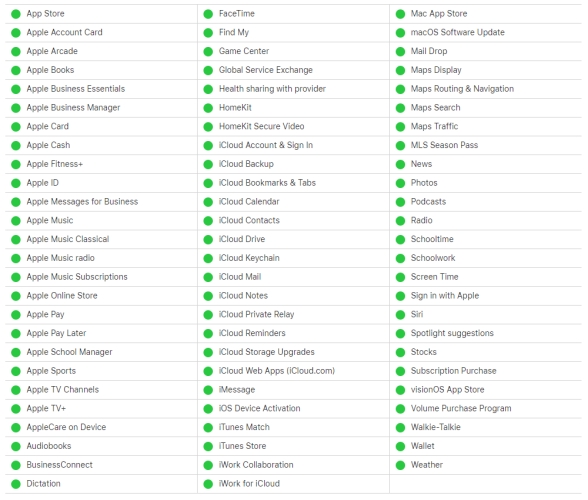
Before changing any settings on your device, you can go to the Apple System page to verify if the issue is on Apple's end or your device. Visit the Apple System Status page to see if Screen Time service is experiencing outages. If there's a temporary server issue, you may need to wait until Apple resolves it. If not, keep going to try other methods.
Method 2. Restart iPhone
A quick reboot can clear temporary software glitches that may be interfering with Screen Time. This quick fix often restores normal activity tracking.
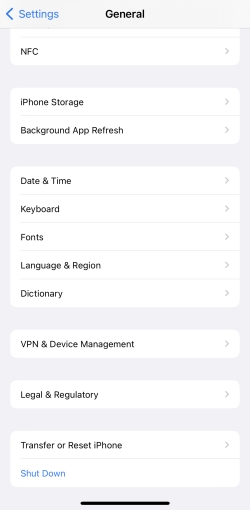
Step 1. Go to Settings and tap General.
Step 2. Tap Shut Down at the bottom.
Step 3. Drag the slide to the right to shut down the iPhone.
Step 4. Long-press the Power button to restart the iPhone.
Method 3. Turn Off App & Website Activity
If Screen Time is not showing your activity, turning off App & Website Activity and turning it on can reset the Screen Time usage.
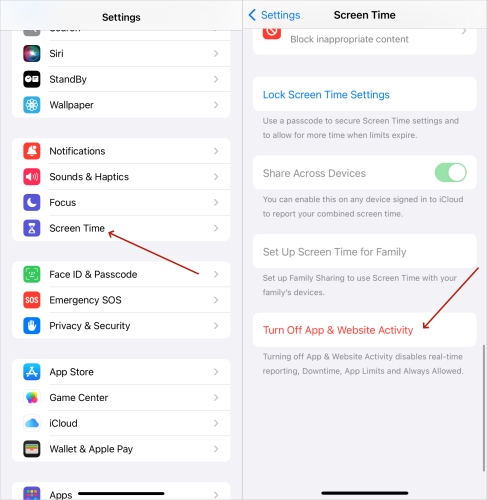
Step 1. Go to Settings > Screen Time.
Step 2. Scroll to the bottom and tap Turn Off App & Website Activity.
Step 3. Enter the Screen Time passcode if you set it before.
Step 4. Tap App & Website Activity > Turn on App & Website Activity. Then you can use your iPhone and check if the Screen Time activity is updating.
Method 4. Refresh Date & Time
Accurate date and time settings are crucial for Screen Time to function correctly. If the Screen Time activity is not showing, you can refresh it by adjusting the Date & Time settings.
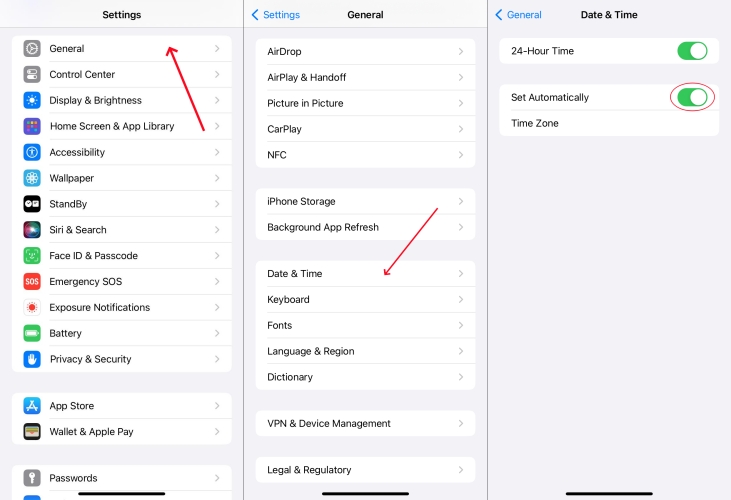
Step 1. Go to Settings > Date & Time.
Step 2. Disable Set Automatically, and change the time to a future time.
Step 3. Wait for several minutes, and enable Set Automatically. Then go to Screen Time to check if the activity has shown.
Method 5. Enable Share Across Devices
If you use more than one Apple device, make sure Share Across Devices is enabled. This feature allows Screen Time to sync and combine your usage data across all devices signed in with the same Apple ID. Once activated, you can view your Screen Time activity on any of your devices and confirm that your Screen Time usage is updating correctly.
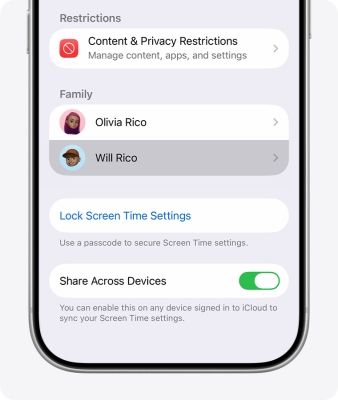
Step 1. Go to Settings > Screen Time.
Step 2. Enable Share Across Devices, and enter the Screen Time passcode to make changes.
Method 6. Reset All Settings
If other methods haven't worked, consider resetting all settings. This won't erase your data, but it will return system settings to their defaults. This can resolve configuration issues affecting Screen Time.
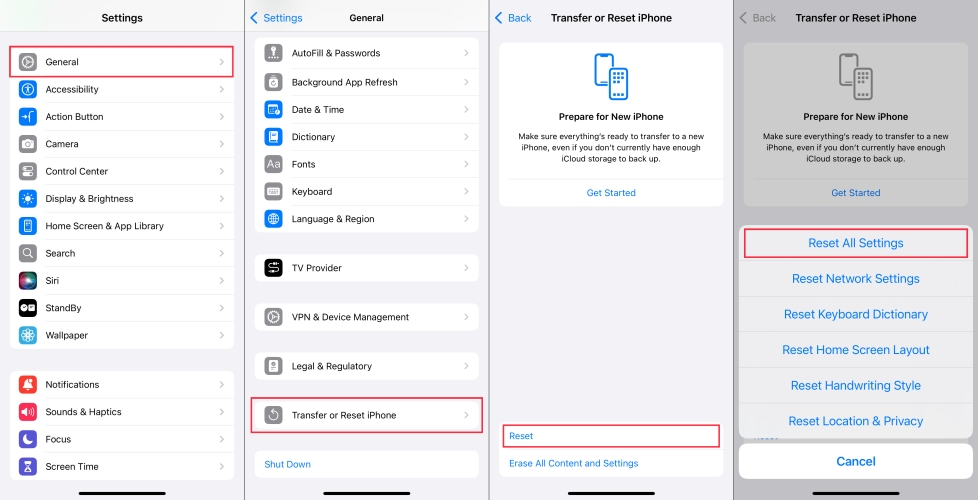
Step 1. Go to Settings > General.
Step 2. Tap Transfer or Reset iPhone at the bottom area.
Step 3. Tap Reset > Reset All Settings, and enter the iPhone passcode and Screen Time passcode in sequence.
Method 7. Update iOS Version
An outdated iOS can cause problems with Screen Time and other system features. Running the latest version of iOS ensures you have the newest features and bug fixes.
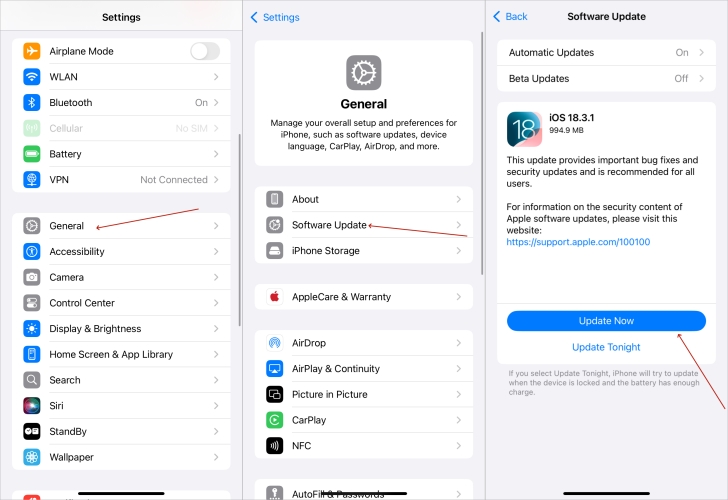
Step 1. Go to Settings > General.
Step 2. Tap Software Update and check for an update.
Step 3. If there is a newer iOS version, tap Download Now or Install Now to update your iPhone to the newer iOS version.
Method 8. Sign Out and Sign Back In to Apple ID
Problems with your Apple ID can interfere with Screen Time, especially if you use iCloud syncing. Signing out of your Apple ID and getting back in can refresh your account connection and restore Screen Time functionality.
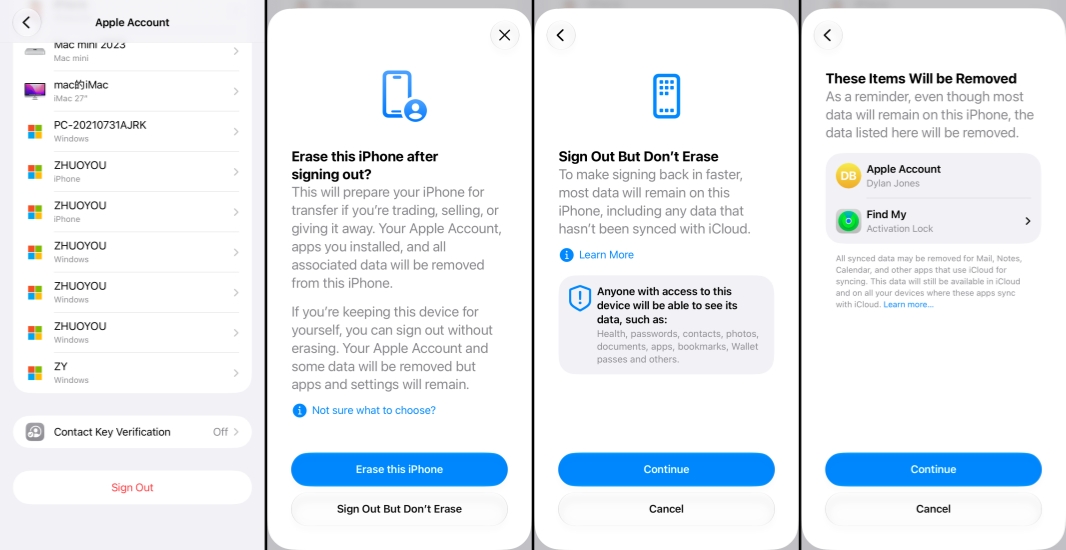
Step 1. Go to Settings > Apple ID.
Step 2. Scroll to the bottom and tap Sign Out.
Step 3. Choose Sign Out But Don't Erase and enter your Apple ID password to sign out.
Step 4. After signing out completely, tap Sign In to sign back into your Apple ID.
Part 3. Bonus Tip to Refresh Screen Time Activity without Passcode
If you've forgotten your Screen Time passcode or are locked out, you can use a tool like MagFone iPhone Unlocker to disable Screen Time on your iPhone or iPad without needing the passcode. It allows you to reset Screen Time and start fresh. After disabling Screen Time, you can easily set it up again and enable App & Website Activity to ensure your device accurately records your usage data moving forward. The operation is quite easy as follows:

MagFone iPhone Unlocker
Remove Screen Time passcode and regain control of your Screen Time features without hassle.
Step 1 Open MagFone iPhone Unlocker
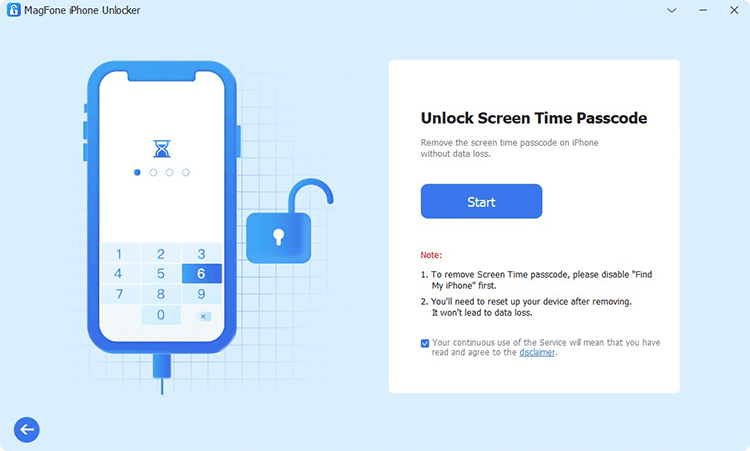
Download the MagFone iPhone Unlocker package on your computer. Then install and launch it on your computer.
Step 2 Refresh Screen Time Activity without Passcode
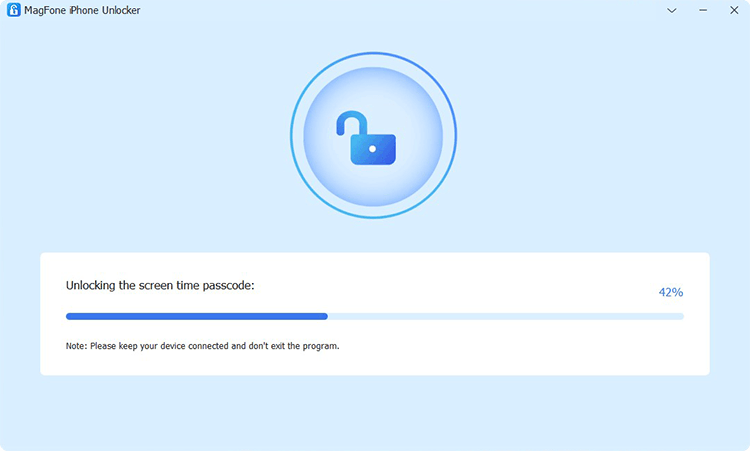
Use a data cable to connect your iPhone to the computer. Click Unlock Screen Time Passcode on the MagFone interface, then click Start to turn off Screen Time on iPhone.
Part 4. FAQs about Screen Time Activity
How to make an app not show on Screen Time?
Screen Time will show app activities once you have used the app. If you want to keep an app from showing up in Screen Time, you can either delete all Screen Time history or remove the app from your iPhone.
Why is my child's Screen Time not showing?
If your child's Screen Time is not showing on your phone, this is usually caused by disabled tracking settings, iCloud sync stalls, or minor iOS communication glitches between the parent and child Apple IDs.
How to fix Screen Time not showing for child?
If your child's Screen Time activity is not showing on your iPhone, you can try refreshing your child's Screen Time settings on Family Sharing.
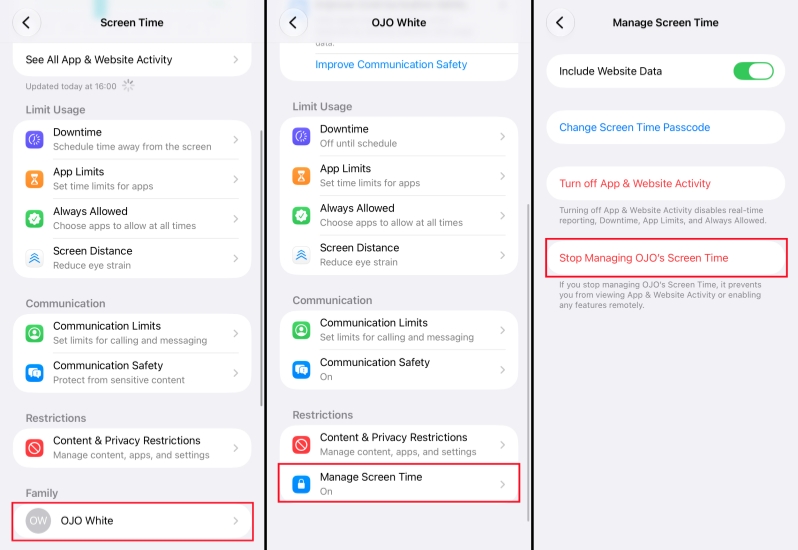
Step 1. On the parent's iPhone, go to Settings > Screen Time.
Step 2. Tap your child's name under Family.
Step 3. Tap Manage Screen Time > Stop Managing Child's Screen Time.
Step 4. Enter the Screen Time passcode and tap Stop Managing Child's Screen Time to confirm.
Step 5. Wait for several minutes, and tap Set Up Screen Time for Child and follow the prompts to re-configure the settings.
Part 5. Conclusion
Screen Time is a valuable tool for understanding and managing your digital habits, but it's not uncommon to encounter issues where your activity isn't displayed. By following the troubleshooting steps outlined in this guide, you can quickly identify and resolve the underlying causes, whether they're settings errors, glitches, or syncing problems. With your Screen Time activity restored, you'll be able to monitor your and your child's device usage.

Dylan Jones
Editor in chief





