








Apple's Screen Time feature is designed to help users manage their digital habits and monitor app usage on their devices. However, reaching App Limits can sometimes interrupt leisure time or other important activities. Whether you need a temporary reprieve from a limit, want to disable time limits permanently, or find yourself locked out because of a forgotten passcode, this guide will walk you through every option to turn off time limit on iPad.
- Part 1. How to Turn Off Screen Time Limit on iPad with Passcode
- Part 2. How to Turn Off Time Limit on iPad without Passcode
- Part 3. FAQs about Removing Time Limit on iPad
- Part 4. Conclusion
Part 1. How to Turn Off Time Limit on iPad with Passcode
When you have reached the app limit, your iPad will display a screen with a Time Limit prompt. You can temporarily extend your usage directly from this screen or permanently turn off App Limits across your device.
Option 1. Remove Time Limit on iPad Temporarily
When you reach your daily quota on a specific app or app category, or reach the scheduled Downtime, you can ask for more time on the Time Limit screen.
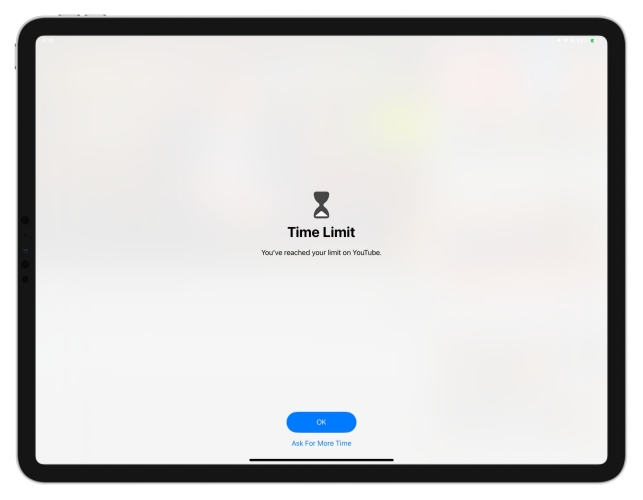
Step 1. Open the app that has reached its time limit.
Step 2. On the Time Limit screen, tap Ask for More Time or Ignore Limit at the bottom.
Step 3. Select the extension timer and enter your Screen Time passcode if asked.
Option 2. Turn Off Time Limit on iPad Completely
If you want to turn off the time limit for a specific app, or want to turn off all app limits on iPad, you can disable App Limits in iPad Settings completely.
Delete Time Limit for Specific App:
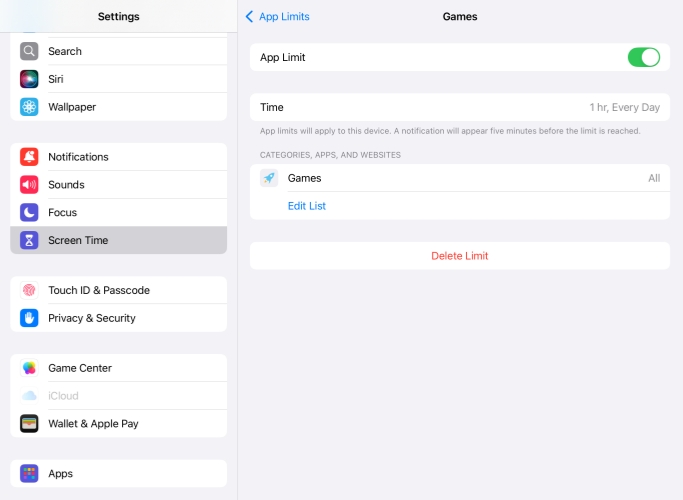
Step 1. Go to Settings > Screen Time > App Limits.
Step 2. Enter your Screen Time passcode.
Step 3. Tap on the specific app or category you wish to unblock.
Step 4. Tap Delete Limit, then confirm by tapping Delete again.
Turn Off App Limit Completely:
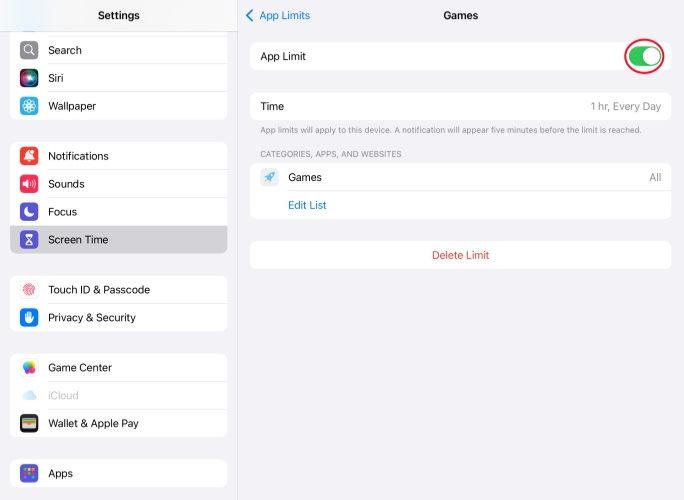
Step 1. Go to iPad Settings and tap Screen Time.
Step 2. Tap App Limits and disable App Limits. Your previous app limits preference will still be stored, and you can enable it again at any time.
Turn Off Time Limit via Family Sharing
If your iPad is parentally controlled by your family, you cannot directly turn off Screen Time Limit on the iPad. You need the family member to turn off Screen Time Limit from Family Sharing.
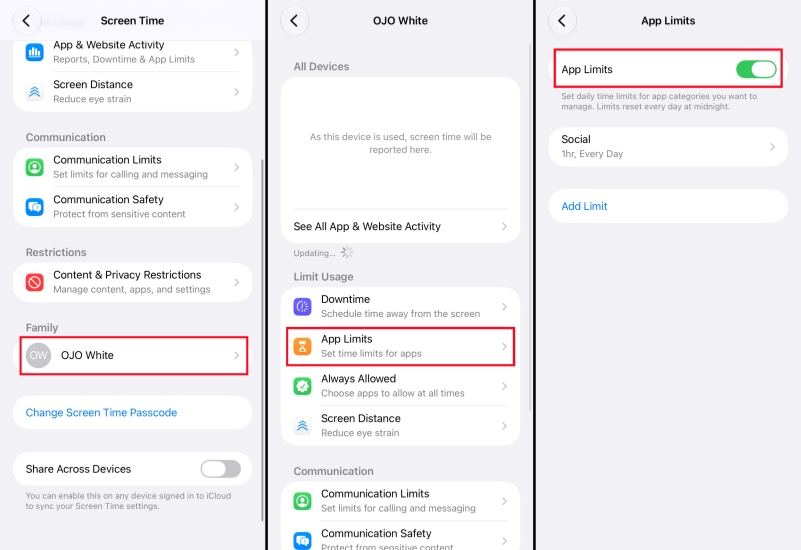
Step 1. Open Settings on the parent's iPhone.
Step 2. Go to Screen Time and tap the child's Apple Account.
Step 3. Tap App Limits, and turn off Screen Time limits on the child's iPad.
Part 2. How to Turn Off Time Limit on iPad without Passcode
If you can't turn off the time limit on an iPad due to a forgotten Screen Time passcode, there are two ways to help you remove the time limit without a passcode and data loss.
Option 1. Turn Off Time Limit on iPad via Screen Time Passcode Recovery
If you no longer have the Screen Time passcode, you can recover it with your trusted Apple ID and password. This requires that you have provided an Apple ID when locking the Screen Time settings.
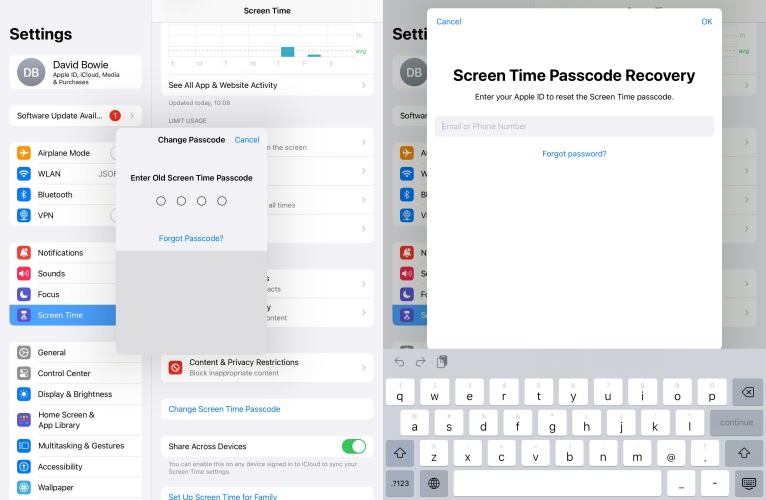
Step 1. Go to iPad Settings > Screen Time.
Step 2. Tap Change Screen Time Passcode > Turn Off Screen Time Passcode > Forgot Passcode?.
Step 3. Enter the Apple Account and password you set for recovery.
Step 4. After verifying your Apple Account, enter the new Screen Time passcode twice to reset the Screen Time passcode.
Option 2. Remove Time Limit on iPad with MagFone (No Data Loss)
As long as you have provided an Apple ID when locking the Screen Time settings before, you can easily reset a new Screen Time passcode on iPad. But if you haven't set one or the Forgot Passcode? option not showing up, you may consider a Screen Time remover to turn off Time Limit on iPad. MagFone iPad Unlocker is effective for disabling time limits on iPad without a passcode, without data loss, and without notification. Besides, it is also effective in removing lock screen passcode, MDM password, Apple ID password, iCloud Activation password, as well as scanning saved passwords on iPhone and iPad. No matter what password issue you encounter, MagFone always offers a solution. Now follow the steps below to completely remove the Screen Time limits on your iPad.

MagFone iPhone Unlocker
Unlock various locks on iOS devices, including screen locks, MDM, Apple ID, and Activation Lock without needing a password.
Step 1 Launch MagFone iPad Unlocker
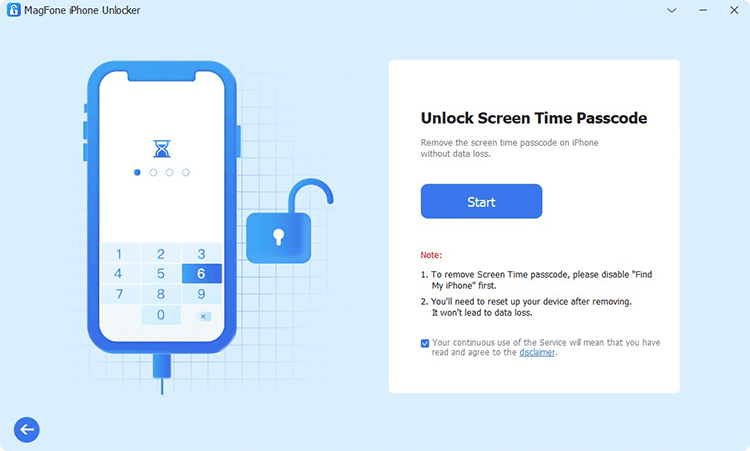
First, download and install MagFone iPad Unlocker on your computer, then use a data cable to link your iPad to the computer. When all is ready, launch MagFone iPad Unlocker to start.
Step 2 Disable Time Limits on iPad without Passcode
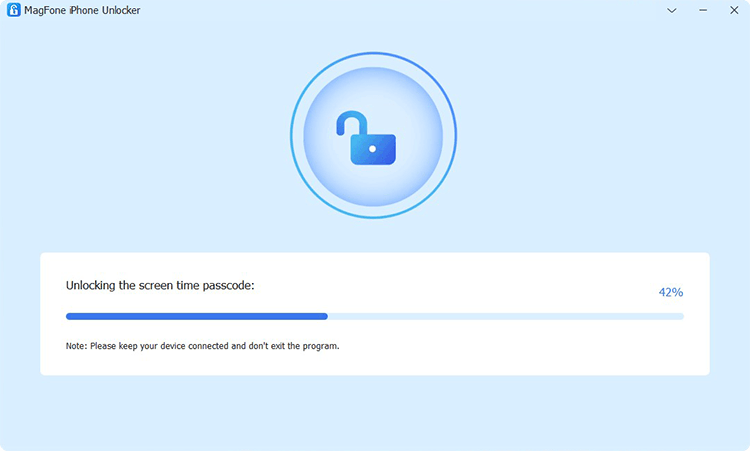
Click Unlock Screen Time Passcode from MagFone's main screen, and click Start; then MagFone will disable Screen Time limits on the iPad without data loss.
Part 3. FAQs about Removing Time Limit on iPad
How to turn off Ignore Time Limit on iPad?
You can't remove the Ignore Limit option on iPad. But you can set a Screen Time passcode and enable Block At the End of Limit to avoid further use of apps.
How to change time limit on iPad?
If you want to adjust the time limit for a specific app or app category, you can go to Settings > Screen Time > App Limit, then tap the limit you have created to adjust the timer.
Part 4. Conclusion
Removing time limits on an iPad is a simple task when you know your Screen Time passcode. You can easily grant temporary extensions or turn off App Limits entirely within your iPad's Settings. When a passcode is forgotten, Apple's built-in Apple ID recovery option provides a reliable fix. For instances where Apple ID credentials are lost or recovery options are inaccessible, dedicated solutions like MagFone iPhone Unlocker offer an efficient way to remove Screen Time restrictions without any data loss on your device.

Teresa Miller
Editor in chief





