








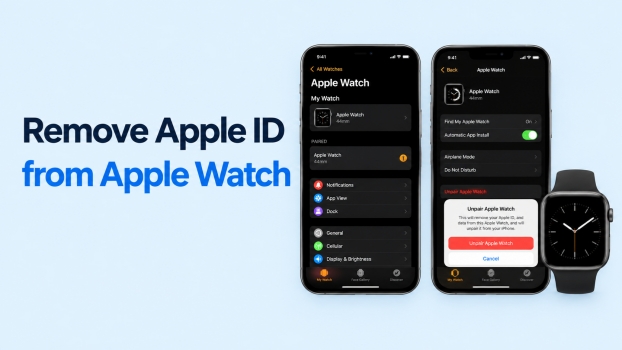
Removing an Apple ID from an Apple Watch can help prepare the device for a new owner, fix account-related issues, or remove it from your Apple account before selling or resetting it. In this guide, we'll explain several practical methods, including unpairing the watch, using the iCloud Find website, and removing it through the Find My app.
- Part 1. How to Remove Apple ID from Apple Watch
- Part 2. Bonus: Remove Apple ID on iPhone/iPad without Password
- Part 3. FAQs about Removing Apple ID from Apple Watch
- Part 4. Conclusion
Part 1. How to Remove Apple ID from Apple Watch
If you are preparing to sell or give away your Apple Watch, removing the linked Apple ID is an important step. There are three methods available. The right way depends on whether you still have the paired iPhone and have the Apple ID credentials. Follow the steps below to remove the Apple ID from Apple Watch.
Option 1. Remove Apple ID by Unpairing Apple Watch
Unpairing your Apple Watch from its connected iPhone erases the Apple Watch and removes the Apple ID from the iPhone. If the paired iPhone is available, follow the steps below.
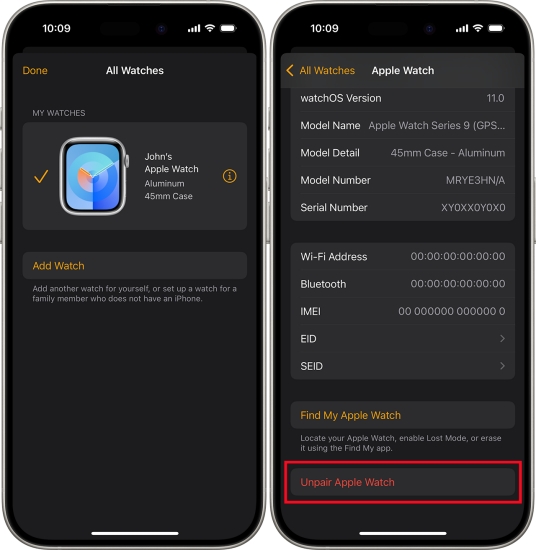
Step 1. Open the Watch app on your iPhone and tap My Watch.
Step 2. Tap the i icon next to your Apple Watch.
Step 3. Tap Unpair Apple Watch at the bottom, and tap Unpair Apple Watch again to confirm.
Step 4. Tap Unpair Apple Watch again, enter the Apple ID password to turn off Activation Lock, then tap Unpair to confirm.
Option 2. Remove Apple ID on iCloud Find Website
If you no longer have access to the paired iPhone, you can manage the Apple Watch remotely through the iCloud Find website. As long as you still have the Apple ID credentials, you can log in to the iCloud Find website and erase the Apple Watch.
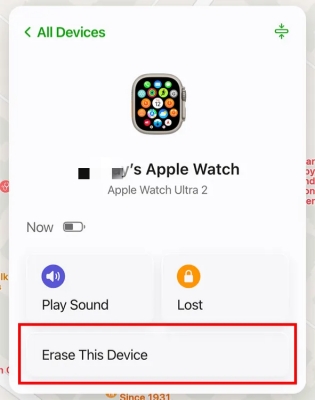
Step 1. Log in to your Apple ID account on the iCloud Find website.
Step 2. Choose your Apple Watch in the device list.
Step 3. Click Erase > Next, and enter the Apple ID password to remove all data from the Apple Watch, as well as the Apple ID.
Option 3. Remove Apple ID in Find My App
If you no longer have access to the paired iPhone, the Find My app may also help you remove the Apple ID from the Apple Watch remotely. As long as you have any other Apple devices linked to the same Apple ID, follow the steps below to erase your Apple Watch.
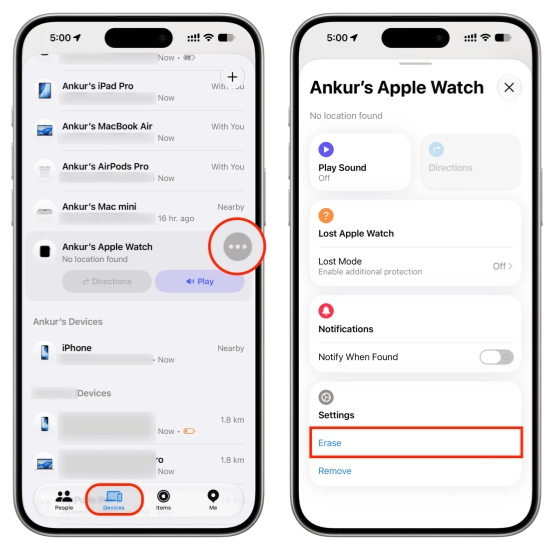
Step 1. Open the Find My app on your iPhone.
Step 2. Tap Devices at the bottom, then tap the triple-dot icon next to your Apple Watch.
Step 3. Tap Erase > Continue, and enter the Apple ID password to remove the Apple ID from your Apple Watch.
Part 2. Bonus: Remove Apple ID on iPhone/iPad without Password
Removing Apple ID from iPhone or iPad can also be challenging, especially if you cannot remember the password. In this case, a third-party tool such as MagFone Apple ID Password Remover may provide an alternative solution. MagFone iPhone Unlocker is a comprehensive unlocking tool that is available to remove Apple ID from iPhone and iPad without a password, remove the lock screen passcode, remove Screen Time passcode, and remove MDM password. Whether you want to remove the previous owner's Apple ID from your iPhone or there is a security issue with your Apple ID, MagFone iPhone Unlocker can remove the Apple ID without a password and allows you to log in with a new Apple ID. If you have any Apple ID issue, follow the steps below to fix it.

MagFone iPhone Unlocker
Fix Apple ID issues and remove Apple ID on iPhone and iPad without password.
Step 1 Install MagFone iPhone Unlocker on Computer
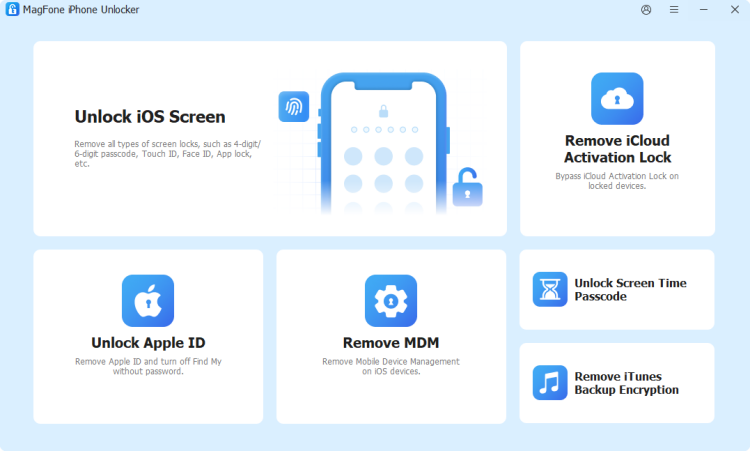
First, install MagFone iPhone Unlocker on a computer. Then link your iPhone or iPad to the computer using a data cable. Then launch this tool to start.
Step 2 Check Lock Screen and 2FA Status
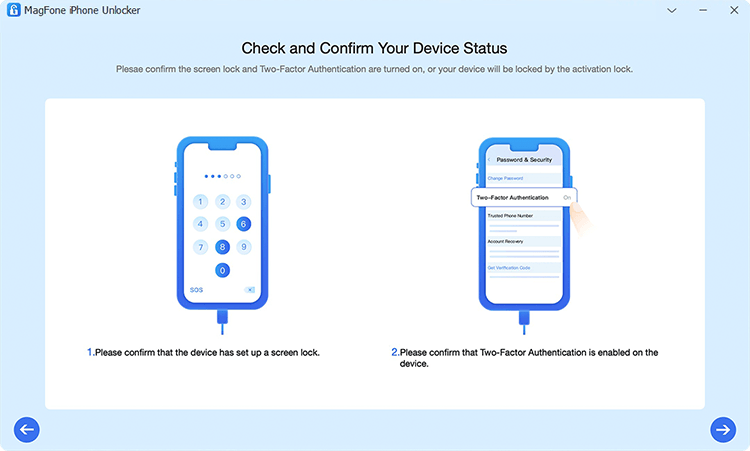
Choose Unlock Apple ID on the screen, and click Start. Then confirm that the lock screen passcode and 2FA are set on the iPhone. If not, follow the on-screen instructions to do it. Then click the Next button twice to continue.
Note:
When Find My is enabled on the iPhone, you will go through this step. Otherwise, you will be directed to the last step.
Step 3 Download Firmware Package

Check the device information on the screen. If it's correct, click Download to download the firmware package.
Step 2 Remove Apple ID from iPhone/iPad without Password
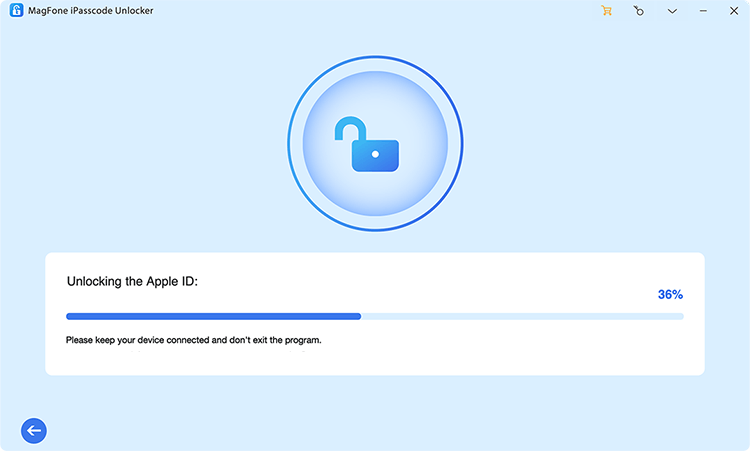
After downloading and verifying the firmware package, click Unlock to remove the Apple ID from the device without a password.
Part 3. FAQs about Removing Apple ID from Apple Watch
How to remove Apple Watch from Apple ID?
You can remove Apple Watch from your Apple ID via the iCloud Find website.
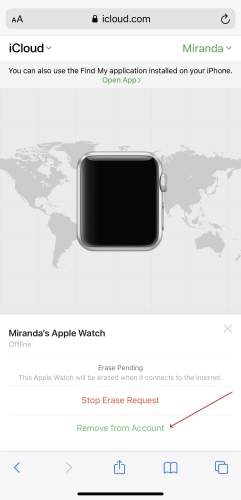
Step 1. Log in to your Apple ID on the iCloud Find website.
Step 2. Choose your Apple Watch and choose Remove or Remove from Account.
Step 3. Click Next and enter your Apple ID password to unlink the Apple Watch from your Apple ID.
How to remove Apple ID from Apple Watch without iPhone?
If the paired iPhone is not available, you can remove your Apple ID from your Apple Watch remotely from the iCloud Find My website.
Step 1. Go to the iCloud Find Website, and log in to your Apple Account.
Step 2. Choose your Apple Watch, and choose Erase.
Step 3. Click Next and enter the Apple ID password to remove the Apple ID from the Apple Watch without an iPhone.
If you have any other Apple devices that are linked with the same Apple ID, you can also do this in the Find My app.
How to remove Apple ID from Apple Watch without password?
If you forgot the Apple ID password, you can first reset the password on iforgot.apple.com. Then remove the Apple ID from the Apple Watch via the Watch app, iCloud Find website, or Find My app.
Part 4. Conclusion
paired iPhone or your Apple account. You can unpair the watch, manage it through the iCloud Find website, or remove it using the Find My app. In addition, if you need to remove an Apple ID from an iPhone or iPad without a password, a tool such as MagFone iPhone Unlocker can offer you a quick solution.

Teresa Miller
Editor in chief





