








Parental controls are widely used to manage children's Apple devices. With Apple's parental controls, parents can monitor how often their children use an iPad and help ensure a safe experience. However, in some cases, the settings that were originally enabled to limit a child's usage later become an obstacle for parents. For example, when you want to disable parental controls on an iPad because the device is being transferred or the child has grown up, you may find you can't turn them off successfully.
Don't worry. In this guide, we will show you all the possible methods to turn off parental controls on an iPad, whether or not you remember the Screen Time passcode.
- Part 1. Where Are Parental Controls on iPad?
- Part 2. How to Turn Off Parental Controls on iPad Directly
- Part 3. How to Disable Parental Controls on iPad with Family Sharing
- Part 4. How to Remove Parental Controls on iPad without Passcode
- Part 5. FAQs about Parental Controls on iPad
- Part 6. Conclusion
Part 1. Where Are Parental Controls on iPad?
Parental controls are part of the Screen Time settings on an iPad. You can access and manage these controls in the Screen Time section of the Settings app. With parental controls on iPad, you can adjust a series of activities like:
- Limit how long a child can use certain apps.
- Block adult websites and unsafe content.
- Restrict app downloads, in-app purchases, and installing or deleting apps.
Part 2. How to Turn Off Parental Controls on iPad Directly
You can easily turn off parental controls on an iPad under Screen Time settings using the Screen Time passcode or Apple ID password.
Method 1. Disable Parental Controls on iPad Using Screen Time Passcode
One of the simplest ways to turn off parental controls is to enter the Screen Time passcode you originally set up. If you still remember the passcode, follow the steps below to disable restrictions directly.
iPadOS 11 and earlier versions:
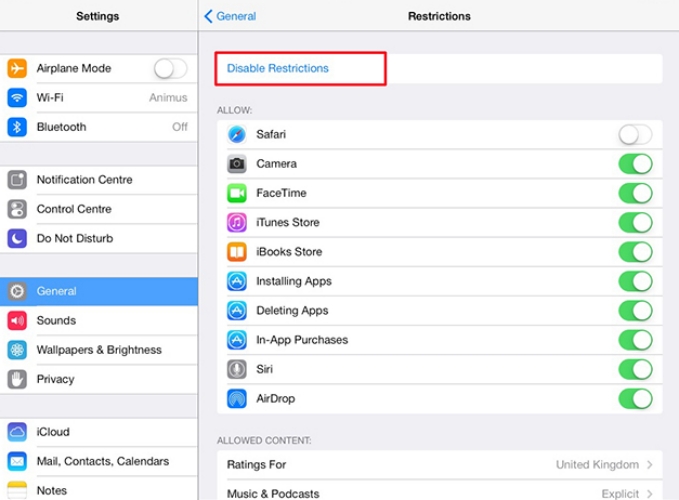
Step 1. Open iPad Settings and tap General.
Step 2. Find Restrictions and enter the Restrictions passcode.
Step 3. Tap Disable Restrictions to disable parental controls on iPad.
iPadOS 12 and later versions:
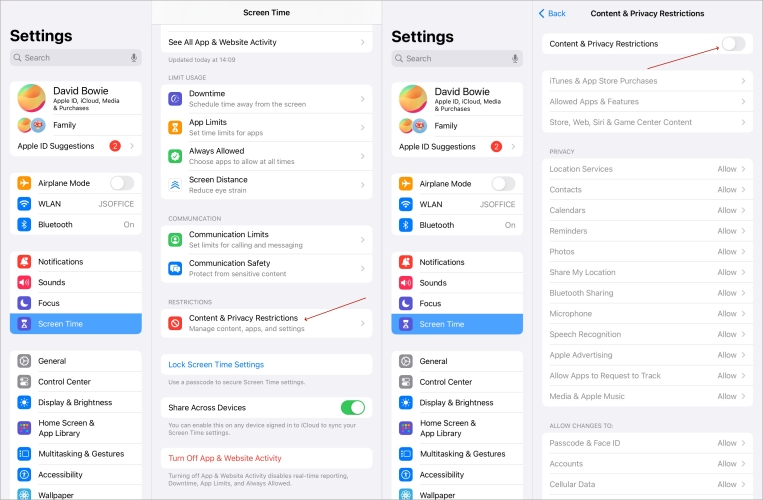
Step 1. Go to iPad Settings > Screen Time.
Step 2. Scroll down to find Content & Privacy Restrictions.
Step 3. Tap the button next to Content & Privacy Restrictions and enter the passcode to disable it.
Method 2. Remove Parental Controls on iPad Using Apple ID Password
If you've forgotten your Screen Time passcode or Screen Time passcode doesn't work, you can still remove parental controls using your Apple ID. This method lets you reset the passcode and regain full access to your iPad's features.
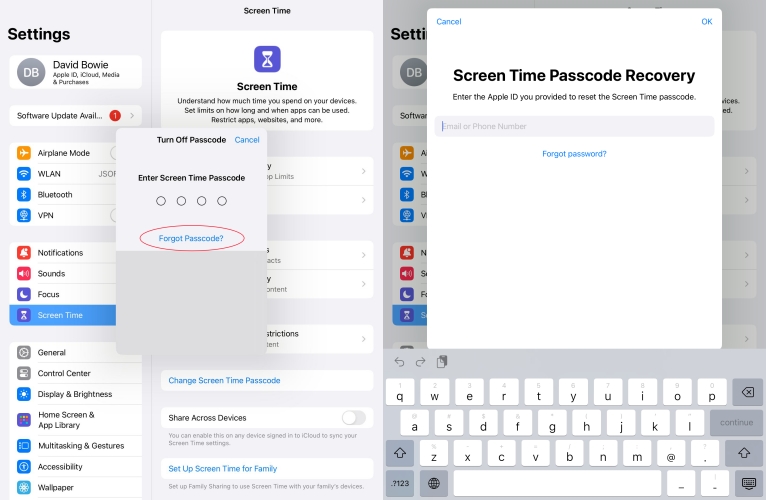
Step 1. Head for iPad Settings > Screen Time.
Step 2. Tap Change Screen Time Passcode and then choose Turn Off Screen Time Passcode.
Step 3. Tap Forgot Passcode? and you'll be required to enter your Apple account to reset the Screen Time passcode.
Part 3. How to Disable Parental Controls on iPad with Family Sharing
In some cases, parental controls are managed through Family Sharing by a parent or guardian on their own device. If that's how your iPad is set up, you can also adjust or turn off the restrictions from the family organizer's account.
Disable Parental Controls on iPad in Screen Time Settings
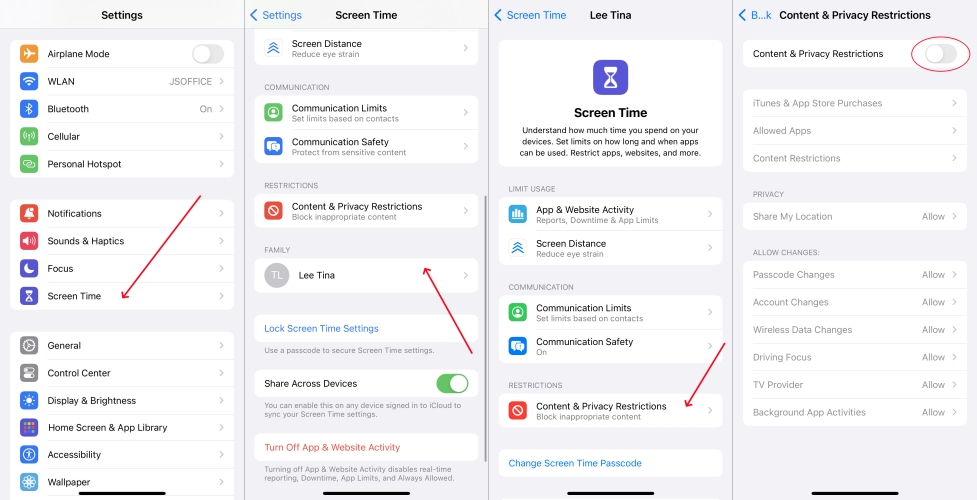
Step 1. Open the Settings app on the organizer's Apple device.
Step 2. Tap Screen Time and access the account under the Family section.
Step 3. Tap Content & Privacy Restrictions and disable it.
Disable Parental Controls on iPad in Family Settings
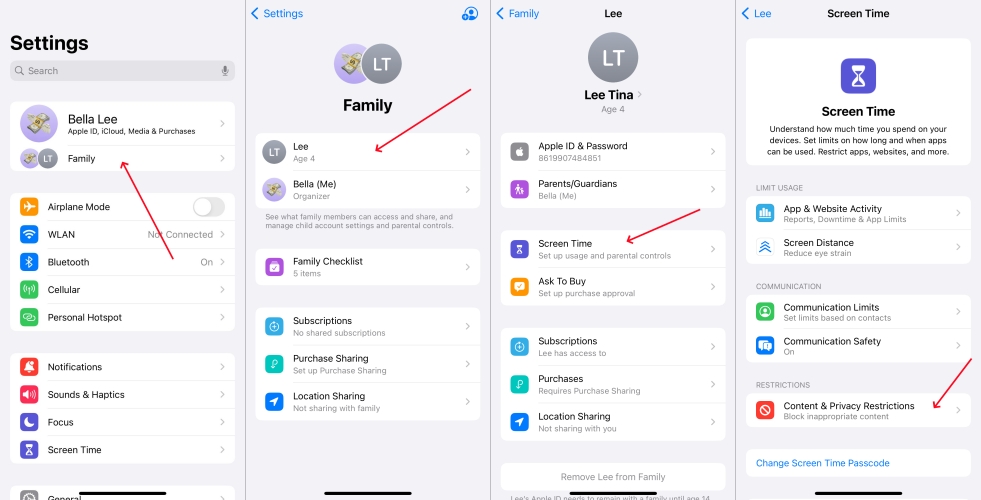
Step 1. Open Settings on the parent's iPhone and tap Family under the Apple ID icon.
Step 2. Access the child's Apple account and tap Screen Time > Content & Privacy Restrictions.
Step 3. Turn off Content & Privacy Restrictions to disable parental controls on iPad.
Part 4. How to Remove Parental Controls on iPad without Passcode
You have likely forgotten the Screen Time passcode if it's been a long time since you set the Screen Time passcode on your child's iPad. Then how can you remove parental controls on an iPad without the passcode? In this part, we will show you 4 methods to help you bypass the Screen Time passcode effectively.
| Methods | Data Loss | Apple ID Password | Find My Status | Recommendation |
|---|---|---|---|---|
| MagFone iPhone Unlocker | ❌ | ❌ | Disabled | ⭐⭐⭐⭐⭐ |
| iTunes | ✔️ | ❌ | Disabled | ⭐⭐⭐⭐ |
| iCloud.com | ✔️ | ✔️ | Enabled | ⭐⭐⭐ |
| Find My App | ✔️ | ✔️ | Enabled | ⭐⭐⭐ |
Method 1. Bypass Parental Controls on iPad via Screen Time Remover [No Data Loss]
When it's hard for you to remember the Screen Time passcode, the most recommended solution is to use a Screen Time passcode remover. As a professional Screen Time removal, MagFone iPad Unlocker supports removing various screen locks, from digit passcode to touch or face ID passcode. Besides, it offers a safe and efficient solution to remove parental controls on iPad without any data loss. If you are hesitating among these methods, you can't miss it. Here's how to bypass parental controls on iPad via MagFone iPad Unlocker:

MagFone iPhone Unlocker
Unlock various locks on iOS devices, including screen locks, MDM, Apple ID, and Activation Lock without needing a password.
Step 1 Launch MagFone iPad Unlocker
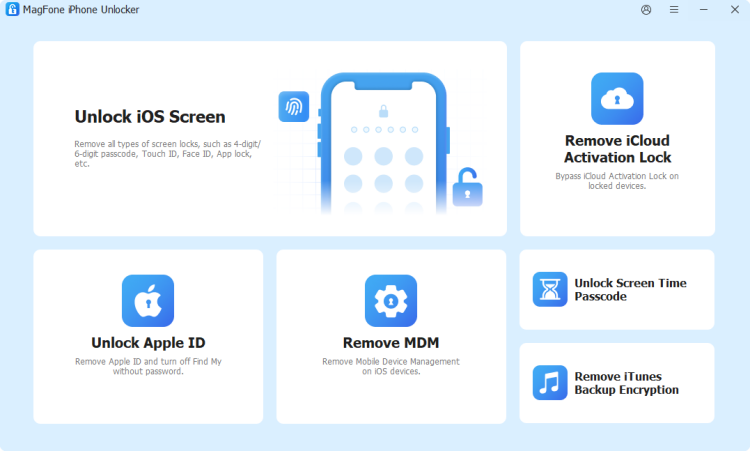
Download and install MagFone iPad Unlocker on your computer first. Then connect your iPad to your computer using a data cable. After the installation, launch MagFone iPad Unlocker.
Step 2 Remove Parental Controls on iPad
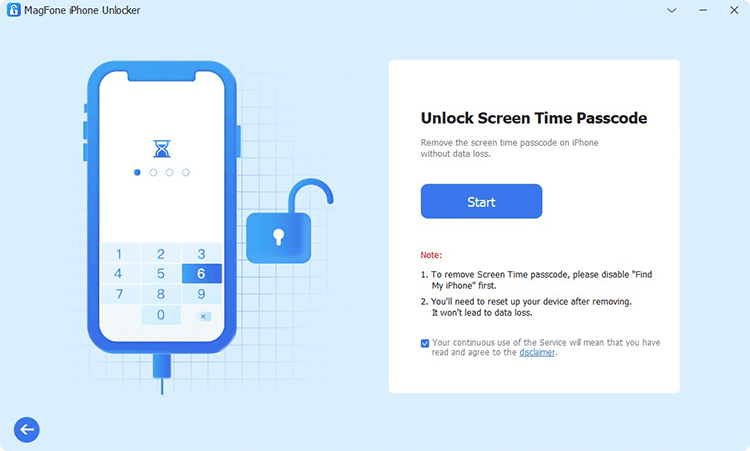
Click the Unlock Screen Time Passcode button on the main interface. Click Start, and your iPad will be detected. Click Unlock to remove the Screen Time passcode.
Step 3 Set Up Your iPad
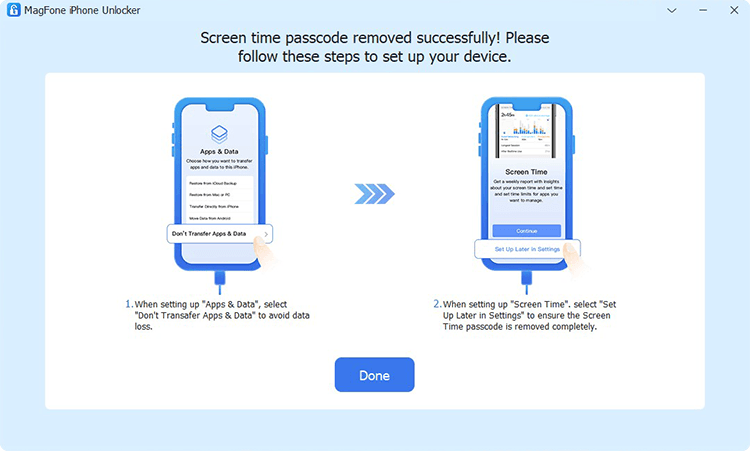
After the parental controls on the iPad have been removed, follow the on-screen instructions to set up your iPad. Choose Don't Transfer Apps & Data when prompted to the Apps & Data page. Choose Set Up Later in Settings when prompted to the Screen Time page.
Method 2. Get Rid of Parental Controls on iPad via iTunes [Data Loss]
Apart from a Screen Time remover, you can also use iTunes on a computer instead to get rid of parental controls on iPad. This method erases all data and settings on your device, so it's best used when you've backed up your iPad or don't mind starting fresh.
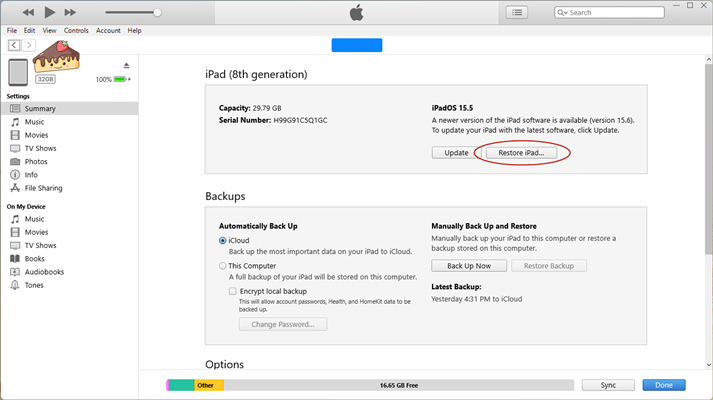
Step 1. Connect your iPad to a computer and launch iTunes.
Step 2. Click the Device icon and click Summary in the left directory.
Step 3. Click Restore iPad to reset your iPad to its original status, and the parental controls will also be removed.
Method 3. Remove Parental Controls on iPad via iCloud.com [Data Loss]
If you don't have access to a computer with iTunes installed, another option is to remove parental controls remotely via iCloud.com. It should be noted that this method will also reset your iPad to factory status and delete all existing data, so make sure you've saved anything important beforehand.
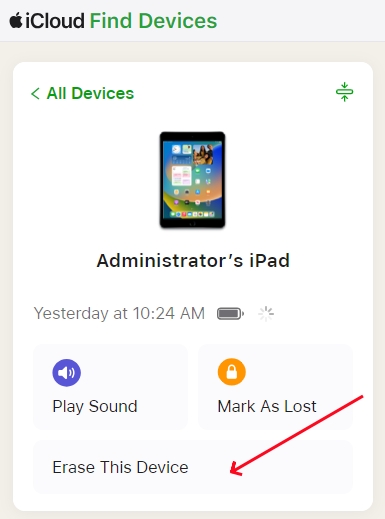
Step 1. Open a browser on your device and head to iCloud.com.
Step 2. Enter your Apple account and password to forward.
Step 3. Tap the Find My option, and you can see all signed devices under this Apple ID.
Step 4. Access the target iPad device. Tap Erase and then tap Next to enter your Apple ID password to confirm the operation.
Method 4. Take Off Parental Controls on iPad via Find My App [Data Loss]
If you have more than one Apple device, you can also turn off parental controls via the Find My app. Similarly, this process will erase everything on your iPad, so use it only if you've backed up your data or are comfortable losing the current content.
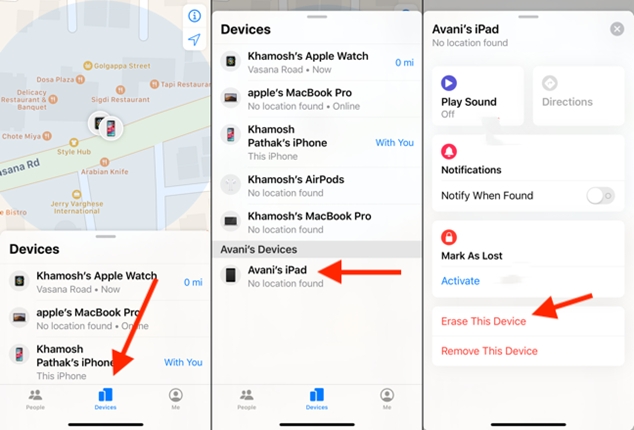
Step 1. Open the Find My app on another Apple device.
Step 2. Tap Devices at the bottom and then access your iPad device.
Step 3. Choose Erase and tap Continue to input your phone number or not.
Step 4. Tap Erase and enter your Apple ID password. Then tap Erase again to perform the operation.
Part 5. FAQs about Parental Controls on iPad
How to set parental control on iPad?
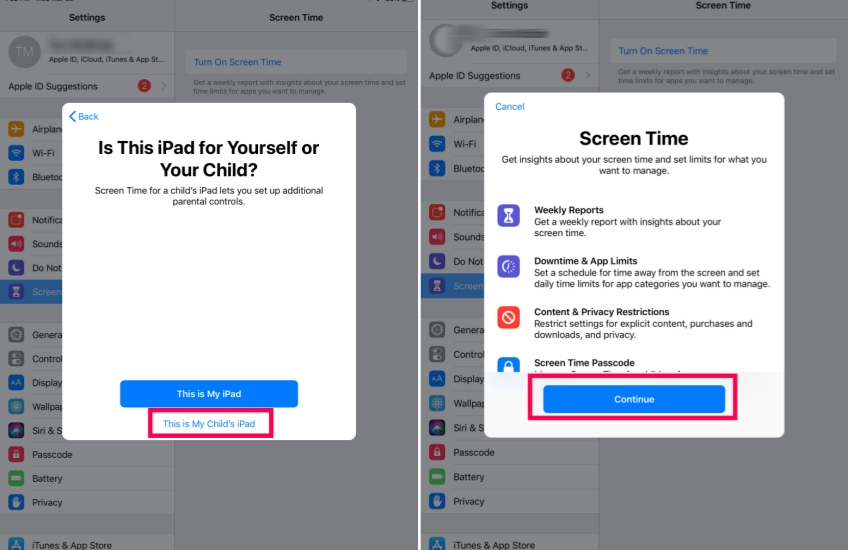
You can set up parental controls through Screen Time settings. Open Settings > Screen Time, tap Turn on Screen Time, select This is My Child's iPad. You can then follow the on-screen instructions to set a Screen Time passcode and customize specific settings, such as limit app time, block inappropriate content, and restrict app downloads and in-app purchases as needed.
How to delete apps on iPad with parental control?
If an iPad is restricted from deleting apps and adjusting Screen Time settings, then you can change the Screen Time settings on the parent's device.
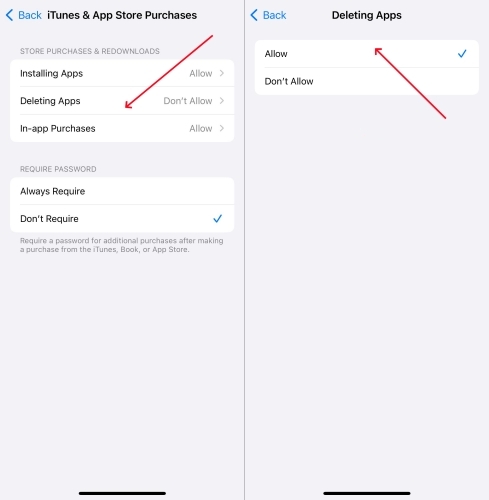
Step 1. Go to Settings > Screen Time and tap the child's account.
Step 2. Tap Content & Privacy Restrictions > iTunes & App Store Purchases, and set Delete App to Allow. Then you can delete apps on the iPad.
How to download apps on an iPad with parental control?
If an iPad is set to restrict downloading apps by parental controls, you can't download apps on the iPad directly. You can adjust the settings on the parent's device:
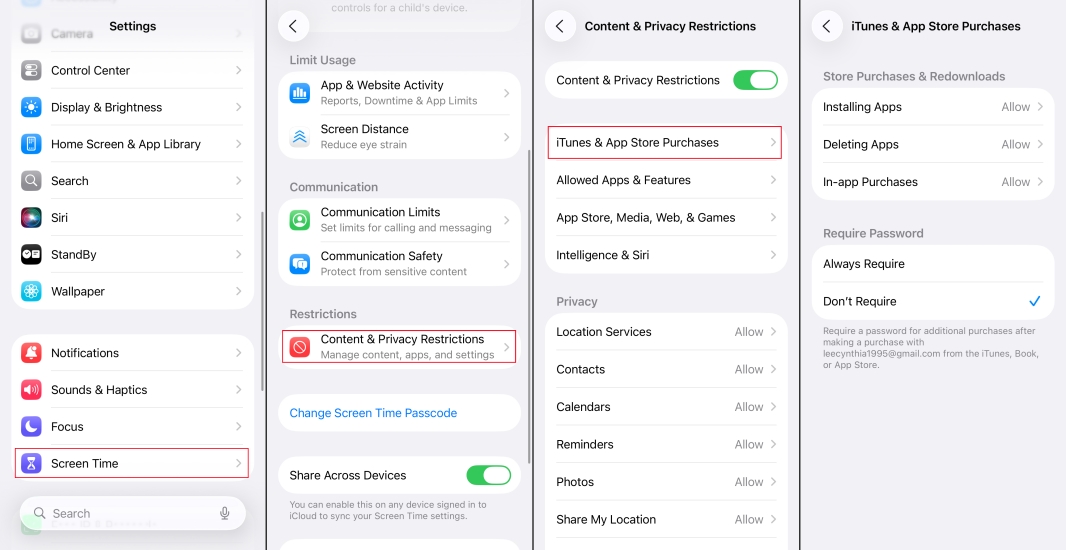
Step 1. Go to Settings > Screen Time and tap the child's account icon.
Step 2. Tap iTunes & App Store purchases, set Install Apps to Allow, and turn off Always Require Passcode if needed.
Part 6. Conclusion
There are several ways to turn off parental controls on an iPad, and it’s even possible to remove them without the passcode. If you want to disable parental controls most safely and avoid any data loss, MagFone iPhone Unlocker is a great option to consider. If you decide to use other methods that may cause data loss, it’s strongly recommended that you back up your iPad before proceeding.

Dylan Jones
Editor in chief





