








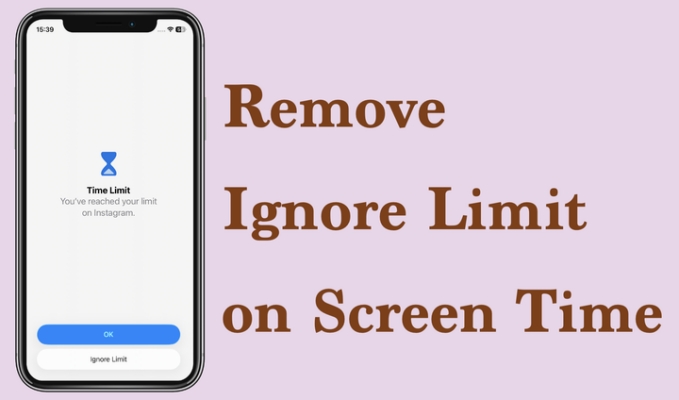
Screen Time is a powerful tool for managing how you and your children use iPhone and iPad, but the Ignore Limit option often makes parents feel like it doesn't really work. Kids can tap the Ignore Limit button and keep using apps, even after the limit is reached. In this guide, we'll explain why Ignore Limit appears, how to remove Ignore Limit option on Screen Time, and what you can do if you've forgotten the Screen Time passcode.
- Part 1. Why Does Screen Time Allow Ignore Limit?
- Part 2. How to Remove Ignore Limit on Screen Time
- Part 3. How to Ignore Screen Time Limit without Password HOT
- Part 4. FAQs about Ignore Limit
- Part 5. Conclusion
Part 1. Why Does Screen Time Allow Ignore Limit?
Screen Time includes the Ignore Limit option to give you more flexibility rather than locking you out of apps the moment a limit is reached. Apple designed Screen Time to encourage healthier digital habits while still allowing you to finish what you're doing when necessary.
But this convenience can become a loophole if Screen Time isn't configured correctly. Without a proper Screen Time passcode or the right restrictions in place, children can easily tap Ignore Limit and continue using apps past their allowed time. To make Screen Time truly effective, you need to set it up carefully so that limits can't be bypassed so easily.
Part 2. How to Remove Ignore Limit on Screen Time
Many parents find Apple's Screen Time confusing and even assume it's buggy when it doesn't seem to control their child's iPhone as expected. In reality, Screen Time's Ignore Limit behavior is controlled by a few less obvious settings. There are three key options that affect how Ignore Limit works, and you can change them either directly on your child's iPhone or from your own device if you use Family Sharing. Adjusting these settings correctly is the key to truly removing or locking down the Ignore Limit option on Screen Time.
Method 1. Set Screen Time Passcode
The first and most important step is to set a Screen Time passcode. Without a passcode, your child can freely tap Ignore Limit and keep using apps, and you also won't see some of the stricter block options under App Limits and Downtime.
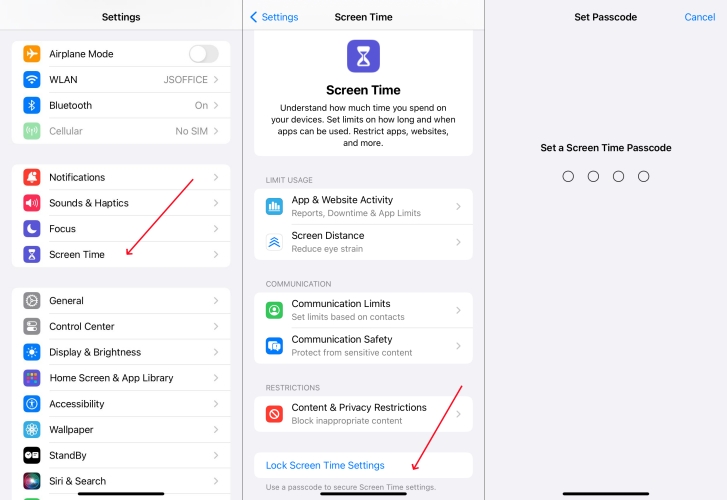
Step 1. Head for iPhone Settings > Screen Time.
Step 2. Tap Lock Screen Time Settings and enter a passcode twice to set a Screen Time passcode.
Once a Screen Time passcode is enabled, you'll be able to:
- Turn on Block at End of Limit for specific apps or app categories.
- Turn on Block at Downtime so apps are fully blocked during scheduled quiet hours.
- Prevent your child from changing Screen Time settings or extending their own limits.
Method 2. Turn On Block at End of Limit
If you set App Limits on your child's iPhone, but Block at End of Limit is not turned on, they will still see the Ignore Limit option and can easily bypass the restriction. By enabling Block at End of Limit, you can disable Ignore Limit on iPhone.
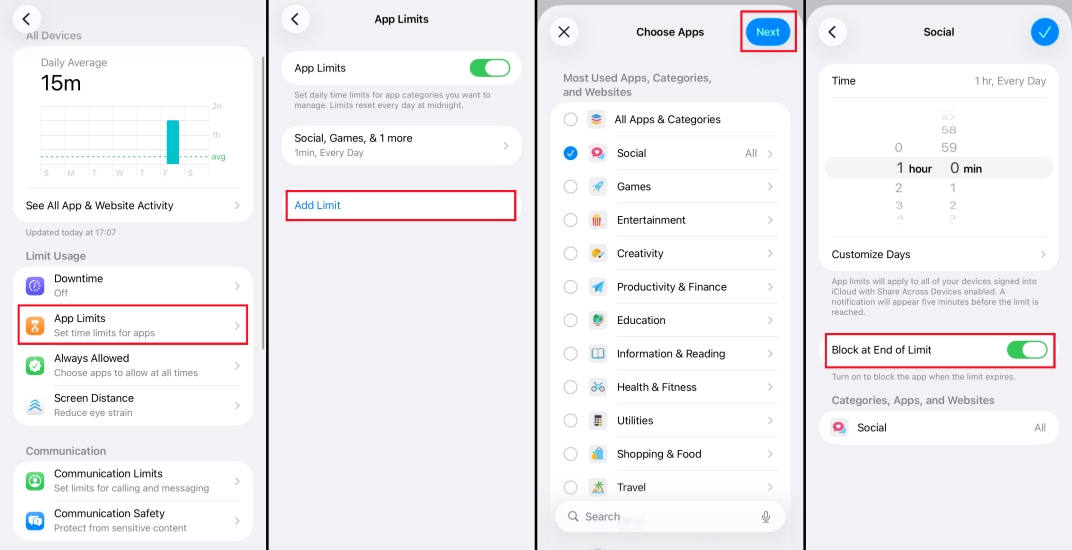
Step 1. Go to iPhone Settings > Screen Time.
Step 2. Tap App Limits > Add Limit, choose the app or app category you want to restrict, then tap Next and set the daily time limit.
Step 3. Then enable Block at End of Limit to remove Ignore Limit option on Screen Time.
Once this is enabled, when the set time is used up, the app will be fully blocked instead of showing an easy Ignore Limit option. This makes it much harder for a child to continue using the app past the allowed time without your Screen Time passcode.
Method 3. Turn On Block at Downtime
Downtime controls which apps are accessible during specific hours, such as bedtime or study time. When Downtime is enabled and properly configured, apps outside the allowed list will be blocked automatically.
If Downtime is turned on but Block at Downtime is not enabled, your child can still tap Ignore Limit and use restricted apps during those hours without needing your approval. To prevent this and effectively turn off Ignore Limit during Downtime, you need to adjust the settings:
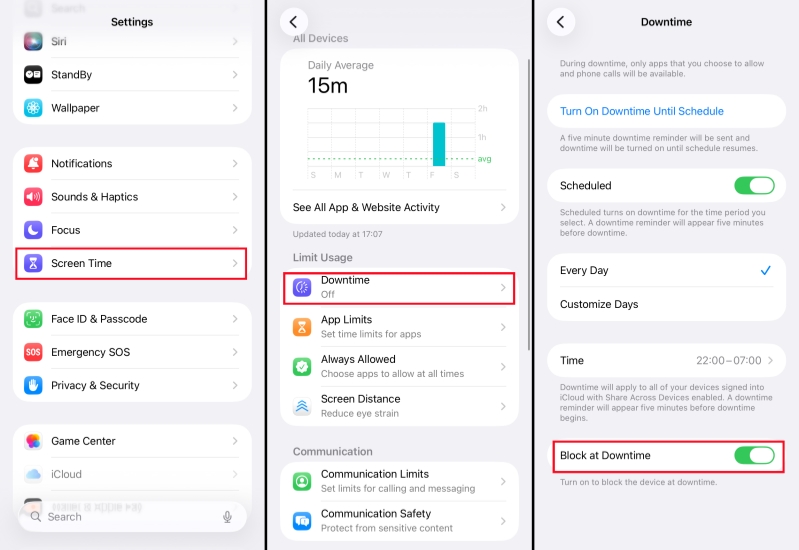
Step 1. Head for Settings on iPhone and find Screen Time.
Step 2. Tap Downtime, turn on Scheduled to set a preferred downtime, and enable Block at Downtime to remove Ignore Limit on Screen Time.
Note:
If your child's device is part of your Family Sharing group, you can adjust Screen Time settings from your own iPhone instead of using their device directly. Go to Settings > Screen Time, tap your child's name under the Family section, and then update the relevant Screen Time settings as needed.
Part 3. How to Ignore Screen Time Limit without Password
The Screen Time passcode is essential for managing your child's iPhone or iPad and keeping restrictions in place. But if you've forgotten the Screen Time passcode or your child has changed it without you knowing, you can quickly lose control over Screen Time settings. In this case, adjusting or removing limits directly from the device becomes almost impossible. One practical solution is to use a reliable third‑party tool, like MagFone iPhone Unlocker, to remove Screen Time restrictions without needing the passcode and data loss. The steps are quite simple as follows:

MagFone iPhone Unlocker
Unlock various locks on iOS devices, including screen locks, MDM, Apple ID, and Activation Lock without needing a password.
Step 1 Download and Install MagFone iPhone Unlocker
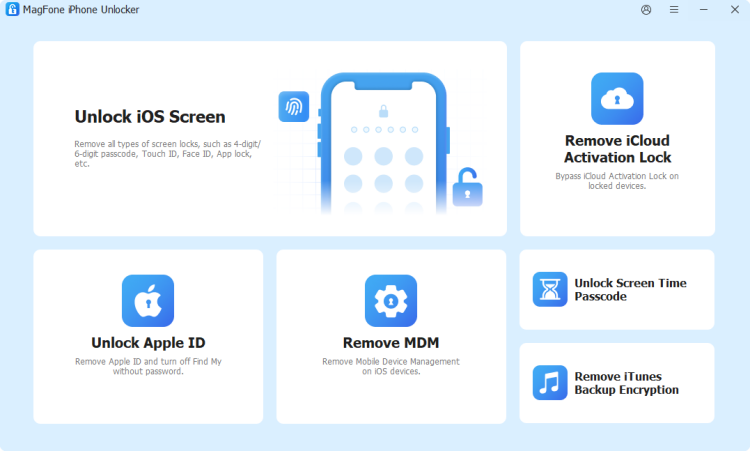
Start by downloading and installing MagFone iPhone Unlocker on your computer. Then launch the tool after installation.
Step 2 Ignore Screen Time Limit without Password
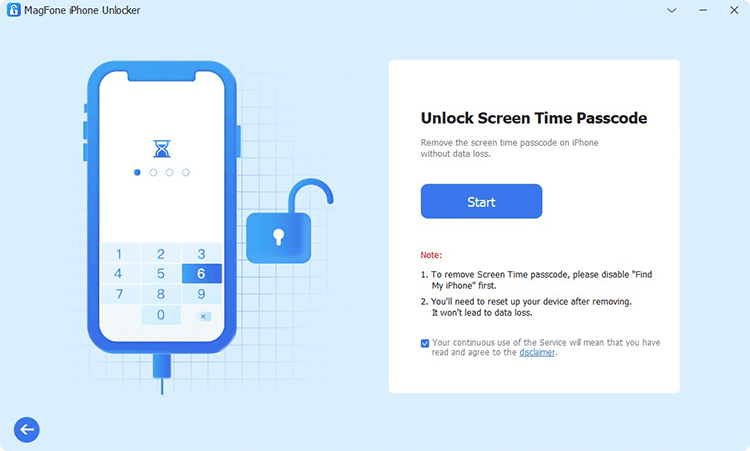
Connect your iPhone or iPad to the computer using a data cable. Choose Unlock Screen Times Passcode and click Start to ignore the Screen Time limit without password.
Part 4. FAQs about Ignore Limit
How to turn off ignore time limit on iPad?
To turn off Ignore Limit on iPad, set a Screen Time passcode, then go to Settings > Screen Time > App Limits and turn on Block at End of Limit for the apps you want to control. You can also enable Downtime and turn on Block at Downtime so apps are fully blocked during scheduled hours instead of showing an Ignore Limit button.
How to change screen time from ignore limit to ask for more time?
First, create a Screen Time passcode so your child can't change settings alone. Then, enable Block at End of Limit for your app limits. After that, when time is up, your child will see Ask For More Time instead of Ignore Limit, and you can approve extra time using your passcode or through Family Sharing.
Why can my child ignore the Screen Time limit on my iPhone?
Your child can usually ignore Screen Time limits because there's no Screen Time passcode, Block at End of Limit or Block at Downtime is turned off, or the apps are in Always Allowed. You can adjust relevant settings to avoid this issue.
Part 5. Conclusion
Ignore Limit is meant to keep Screen Time flexible, but it can turn into an easy workaround if settings aren't configured correctly. By setting a Screen Time passcode, turning on Block at End of Limit and Block at Downtime, you can remove Ignore Limit on Screen Time easily. If you're locked out because you don't know the passcode, a trusted tool like MagFone iPhone Unlocker can help you remove the Screen Time limit and set everything up again from scratch.

Dylan Jones
Editor in chief





