








Screen Time is a great feature developed for smartphones, computers, televisions, and video game consoles. With Screen Time, you can track how much time you spend on your device and set limits for what you want to manage. What's more, you can use this feature to control the usage of a child's device if you are a parent.
To prevent others from changing Screen Time settings, you can set up a Screen Time passcode. If you have created a passcode for Screen Time, you can also reset it at any time. But when you forget the Screen Time passcode on your iPhone or iPad, it can be a problem. In this article, we'll show you how to change Screen Time passcode for your own and your child and how to change it even when forgot it. Now, let's get started.
- Part 1. How to Change Screen Time Passcode With Passcode
- Part 2. How to Change Screen Time Passcode When You Forgot [With Apple ID Password]
- Part 3. How to Change Screen Time Passcode If You Forgot It [No Apple ID Password]
- Part 4. FAQs about Changing Screen Time Passcode
- Part 5. Conclusion
Part 1. How to Change Screen Time Passcode With Passcode
Changing the Screen Time passcode varies slightly depending on who is being managed. For parents managing their child's device, updating the passcode ensures they retain control over the settings. For personal use, changing the passcode enhances privacy and security. In this section, we'll explain how to update the Screen Time passcode for both your own device and your child's device.
How to Change Screen Time Passcode on Own iPhone
It's pretty easy to change the Screen Time passcode if you can remember the current passcode. You can remove the passcode you've set up and then create a new passcode by following the steps below.
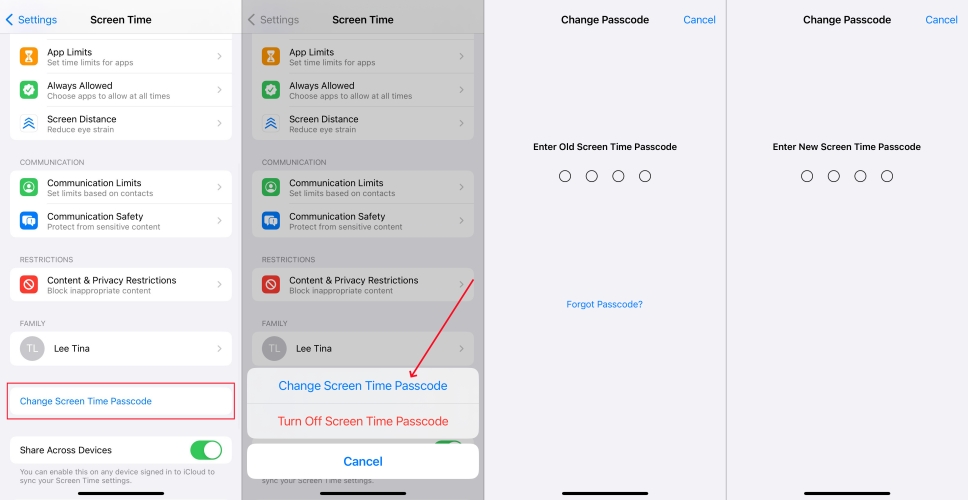
Step 1. Head to Settings > Screen Time on your iPhone or iPad.
Step 2. Tap Change Screen Time Passcode, then tap Change Screen Time Passcode again.
Step 3. Enter the old Screen Time Passcode you're using on your device.
Step 4. Enter a new Screen Time passcode, then enter it again to confirm.
How to Change Screen Time Passcode on Child's Phone
To change your child's Screen Time passcode, you can use the aforementioned method on your child's iPhone. However, if you're using Family Sharing to parental control your child's account, there is no option to change the Screen Time passcode on their device. Simply perform the operations below on the family organizer's device to reset the Screen Time passcode for your child.
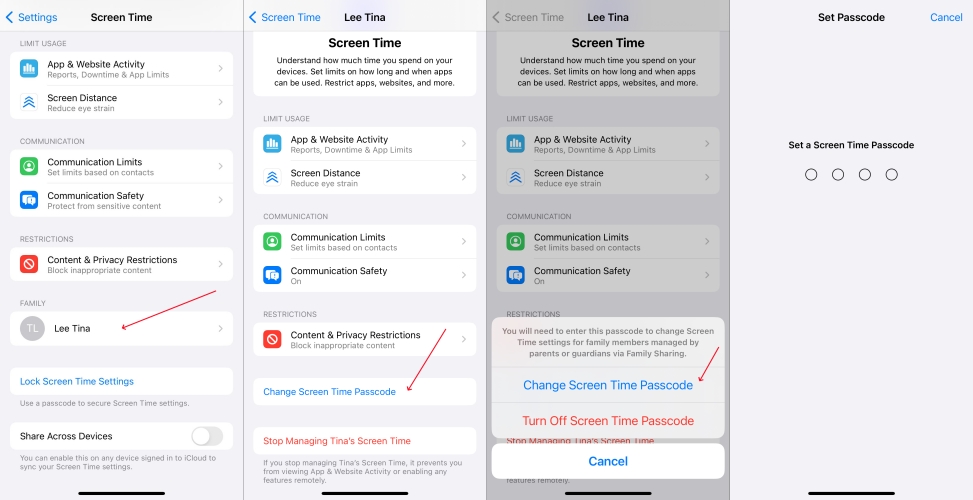
Step 1. Go to Settings > Screen Time on the family organizer's device.
Step 2. Find your child's name under Family, then tap Change Screen Time Passcode.
Step 3. Tap Change Screen Time passcode again. You'll be asked to authenticate with Face ID, Touch ID, or your device passcode.
Step 4. Set up a new Screen Time passcode, then enter it again to confirm.
Part 2. How to Change Screen Time Passcode When You Forgot [With Apple ID Password]
If you do not remember the current Screen Time passcode, there are other options for you to remove it from your device by using your Apple ID. Then you can use a new passcode for Screen Time on your iPhone or iPad. Here's how to change the Screen Time passcode when you forgot it.
Method 1. Reset Screen Time Passcode Using Apple ID [No Data Loss]
If you entered your Apple ID when you first set up the Screen Time passcode, you can reset it directly from your iPhone or iPad settings without losing any data. As long as you remember the Apple ID and password used for Screen Time recovery, follow these steps:
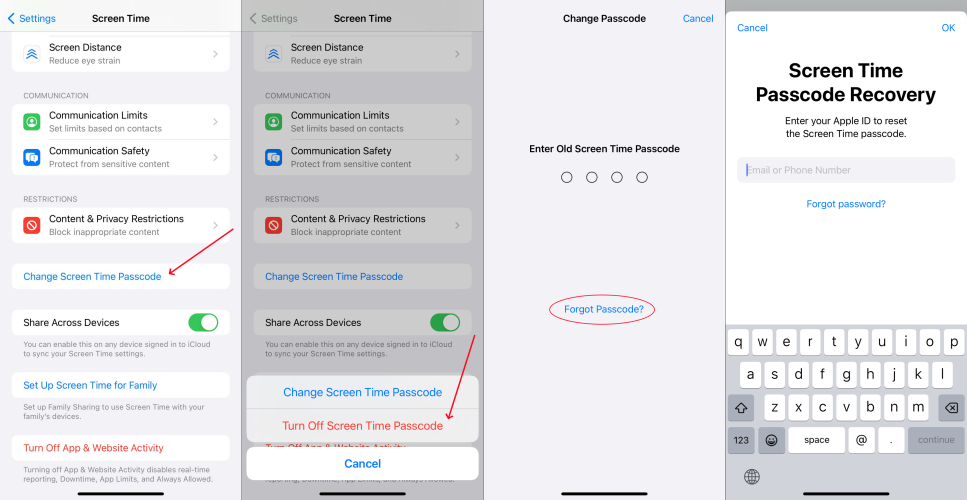
Step 1. Head over to Settings on your iPhone or iPad and tap on Screen Time.
Step 2. Under Screen Time, select Change Screen Time Passcode.
Step 3. On the pop-up window, tap Change Screen Time Passcode again.
Step 4. When prompted to enter the current passcode, tap on Forgot Passcode?.
Step 5. Enter your Apple ID and password used for setting up the Screen Time passcode and tap on OK to continue.
Step 6. Set up a new Screen Time passcode, then enter it again to verify.
Method 2. Erase Screen Time Passcode on iCloud Web [Data Loss]
If you remember the Apple ID and password and you have enabled Find My on the device, another method is to erase the Screen Time passcode on the iCloud website. With Find My enabled, you can erase an Apple device, including the Screen Time passcode, remotely. But keep in mind that this will cause data loss.
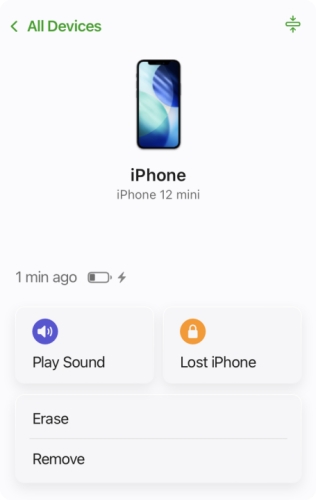
Step 1. Open a web browser and navigate to icloud.com on your device.
Step 2. Sign in to iCloud by entering your Apple ID credentials.
Step 3. Select your iPhone or iPad, click Erase > Next. Then enter an optional phone number and the required Apple ID password to confirm erasing the device.
Step 4. Set up your device and turn on Screen Time, then create a new passcode.
Part 3. How to Change Screen Time Passcode If You Forgot It [No Apple ID Password]
What to do when you forget your Screen Time passcode and Apple ID details? So, just consider the methods below. Even without an Apple ID and password, you still have the chance to get rid of the Screen Time passcode on your iPhone and then use a new passcode for Screen Time. Here's how to change the Screen Time passcode without the Apple ID password.
Method 1. Remove Screen Time Passcode Using MagFone [No Data Loss]
When forgetting the Screen Time passcode, the best thing is often to change it directly on your device by entering your Apple ID and password. However, there can be cases where you didn't set an Apple ID for Screen Time passcode recovery, or you don't know the Apple ID password. Using a Screen Time passcode remover could be a good option.
Coming to this Screen Time passcode remover, we do recommend MagFone iPhone Unlocker . It specializes in removing Screen Time passcode, Apple ID, screen locks, and MDM restrictions from iPhone, iPad, and iPod touch. With the help of MagFone iPhone Unlocker, you can delete forgotten Screen Time passcode on your device without losing any data. Then you can reset a new passcode for Screen Time. The following is a detailed guide to removing the Screen Time passcode via MagFone iPhone Unlocker.

MagFone iPhone Unlocker
Unlock various locks on iOS devices, including screen locks, MDM, Apple ID, and Activation Lock without needing a password.
Step 1 Connect iPhone to Computer and Open MagFone
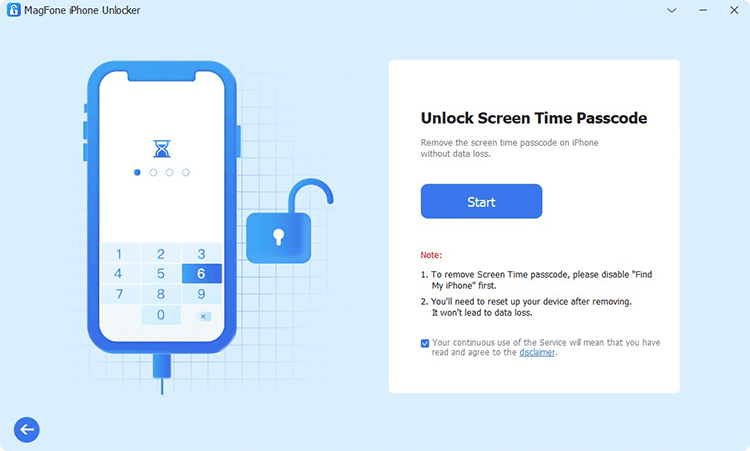
Go to connect your iPhone to your computer by using a USB cable first. Then after your device appears on the computer, open MagFone iPhone Unlocker and select the Unlock Screen Time option then click on the Start button.
Step 2 Start to Get Rid of Forgotten Screen Time Passcode
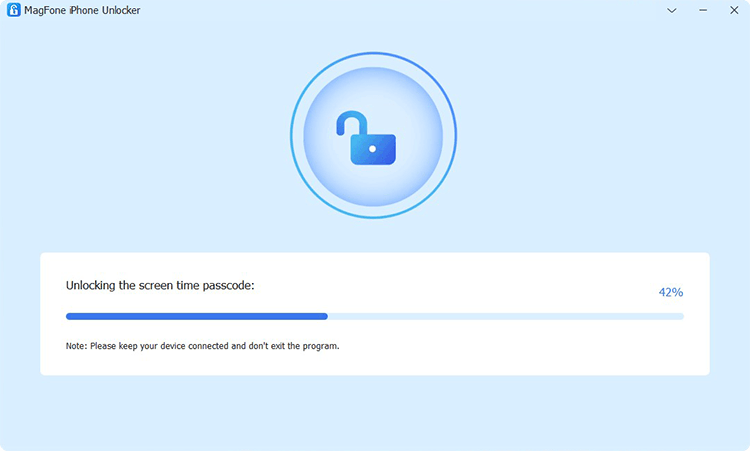
Ensure that you have turned the Find My feature off on your device. Then you can click on the Unlock button to delete the Screen Time passcode from your device. If not, you need to disable Find My and then start removing the passcode.
Step 3 Follow the On-screen Instructions to Set up iPhone
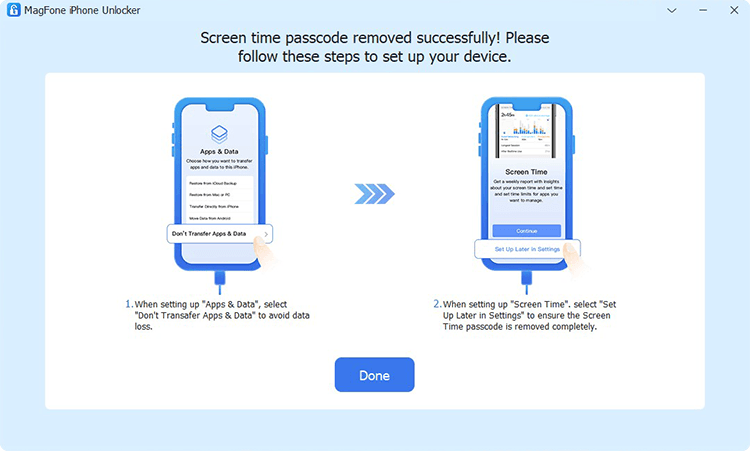
The final step is to set up your iPhone by following the on-screen instruction. On the Apps & Data page, choose Don't transfer Apps & Data. Then go on to choose Set Up Later in Settings on the screen of your device.
Method 2. Erase Screen Time Passcode Using iTunes [Data Loss]
If Find My is disabled on your device, you can also use iTunes to restore it. Restoring an iPhone or iPad via iTunes can help erase all contents on the device, including the Screen Time passcode. After the restore, you can configure your device as new and set a new Screen Time passcode.
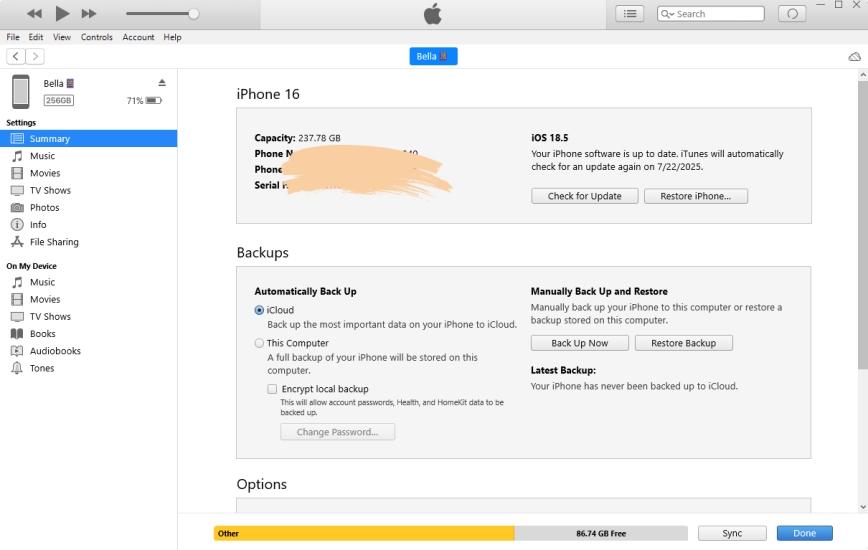
Step 1. Establish the connection between your iPhone and your computer through a USB cable.
Step 2. After your device is detected by the computer, open iTunes and go to the Summary tab.
Step 3. Click on the Restore iPhone button and choose the Back up option if you don't make a backup of your device.
Step 4. After backing up all the content and settings, click on the Restore button.
Step 5. Click on the Done button to finish the process, then you can restart your device and use the Screen Time feature again.
Part 4. FAQs about Changing Screen Time Passcode
-
How to find out Screen Time passcode without changing it?
Only the person who set the Screen Time passcode can find out it. If you forgot your Screen Time passcode, you can perform a Screen Time passcode recovery using your Apple ID.
-
How to change Screen Time passcode for family sharing?
If you are the organizer of the Family Sharing group, you can change the Screen Time passcode for the member on your own device.
Step 1. Go to Settings > Screen Time, tap the member under Family.
Step 2. Tap Change Screen Time Passcode twice. Enter your iPhone passcode and set a new Screen Time passcode.
-
How to change Screen Time passcode after failed attempts?
Tap the Forgot Passcode? link under the Failed Passcode Attempts message. Enter the Apple ID to reset the Screen Time passcode.
Part 5. Conclusion
This guide introduces how to change the Screen Time passcode on iPhone or iPad. Whether you need to update the passcode for yourself or manage restrictions for your child, this guide provides you with a way to achieve your goal. Besides, we also presented feasible ways to change the Screen Time passcode for different scenarios. By following the steps outlined in this guide, you can regain control over your Screen Time settings and ensure your device

Dylan Jones
Editor in chief





