








Want to switch to a different browser from Chrome or need to back up your saved login credentials on Chrome? You may be paused by the exporting and importing process. Don't worry. This comprehensive guide will walk you through how to export passwords from Chrome across all devices and how to import passwords from Chrome to other browsers if you need.
- Part 1. How to Export Chrome Passwords on Desktop (Windows & Mac)
- Part 2. How to Export Chrome Passwords on Mobile (Android & iPhone)
- Part 3. How to Import Chrome Passwords to Other Browsers
- Part 4. Conclusion
Part 1. How to Export Chrome Passwords on Desktop (Windows & Mac)
Exporting passwords from Google Chrome on a computer takes less than a minute. If you want to export Chrome saved passwords on your computer, make sure you have the computer's administrator password. Then follow the steps below to export your passwords.
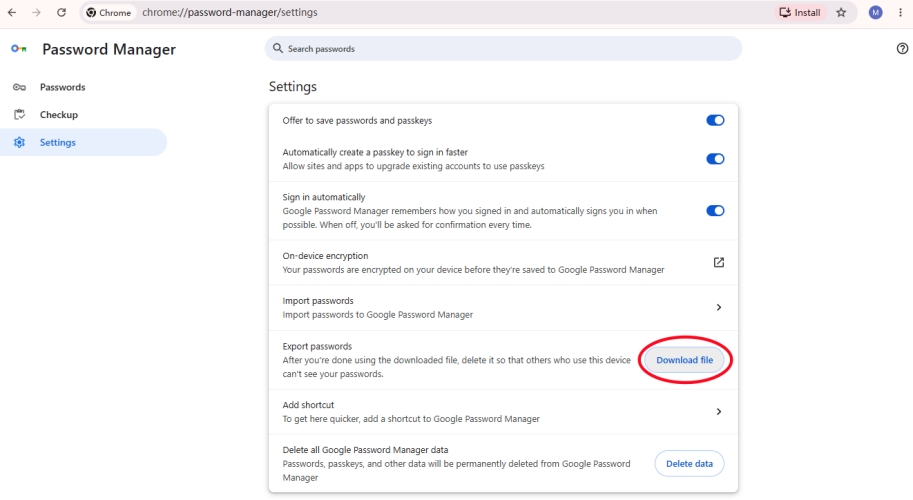
Step 1. Open Chrome on your computer and click the triple-dot icon in Chrome.
Step 2. Click Password and autofill > Google Password Manager.
Step 3. Click Settings and click Download file in the Export passwords section.
Step 4. Enter your computer user password to verify your identity.
Step 5. Choose a location on your computer and click Save to export saved passwords from Chrome.
Note:
If you want a more quick action to download Chrome passwords, you can paste chrome://password-manager/settings in the Chrome search box and navigate to the address to download.
Part 2. How to Export Chrome Passwords on Mobile (Android & iPhone)
You can also easily export Chrome saved passwords on your mobile phone. Whether you have signed in to your account or not, you can manage passwords in Google Chrome. Just follow the steps below to export Chrome passwords on your phone.
On Android:
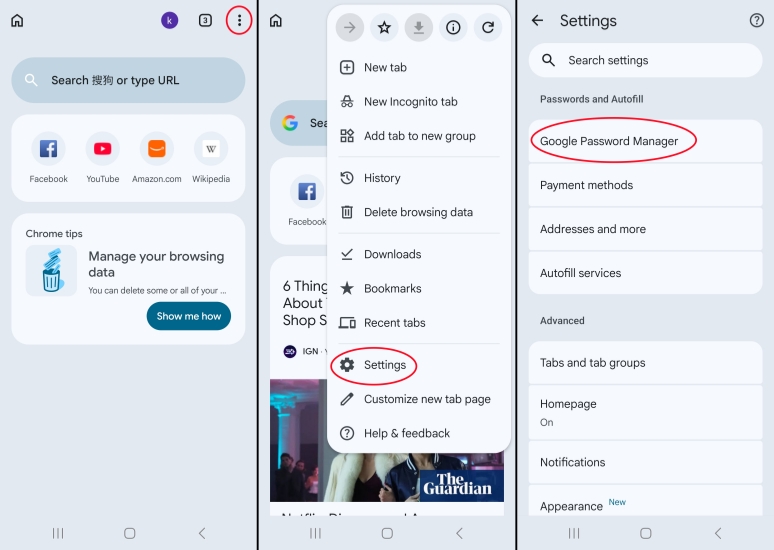
Step 1. Open Google Chrome and tap the triple-dot icon in the upper-right corner.
Step 2. Select Settings and tap Google Password Manager.
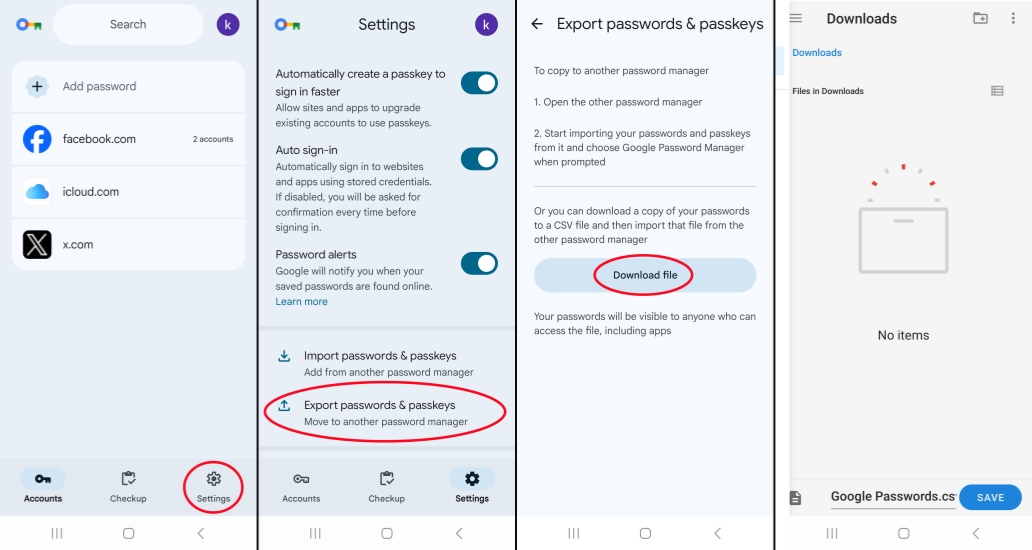
Step 3. Tap Settings > Export passwords & passkeys.
Step 4. Tap Download file, and authenticate using your fingerprint, face unlock, or screen lock PIN.
Step 5. Choose where to store the exported Chrome passwords and tap Save.
On iPhone:
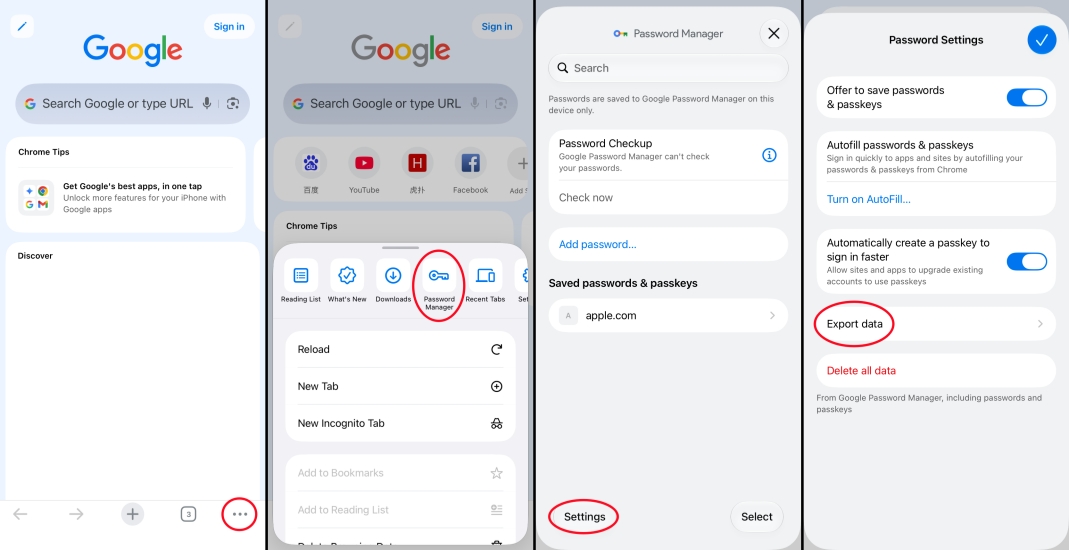
Step 1. Open Chrome and tap your profile icon.
Step 2. Tap Password Manager and authenticate with your iPhone passcode, Face ID, or Touch ID.
Step 3. Tap Settings > Export data.
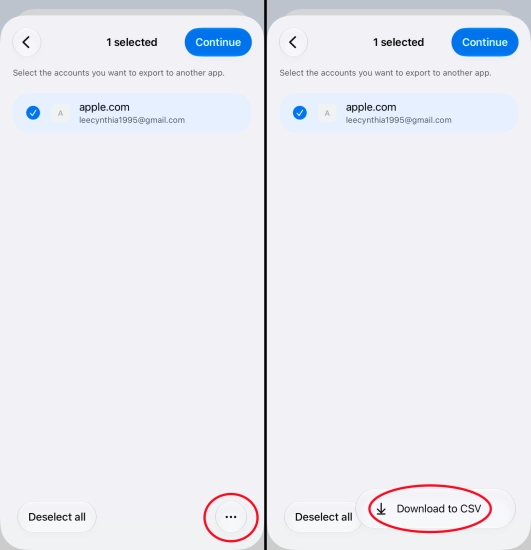
Step 4. Tap the triple-dot icon and tap Download to CSV.
Step 5. Authenticate your identity again and choose the location you want to save the Chrome passwords.

MagFone iPhone Unlocker
Export Chrome saved passwords on iPhone and share to anywhere you want.
Part 3. How to Import Chrome Passwords to Other Browser
3.1 How to Import Passwords from Chrome to Brave
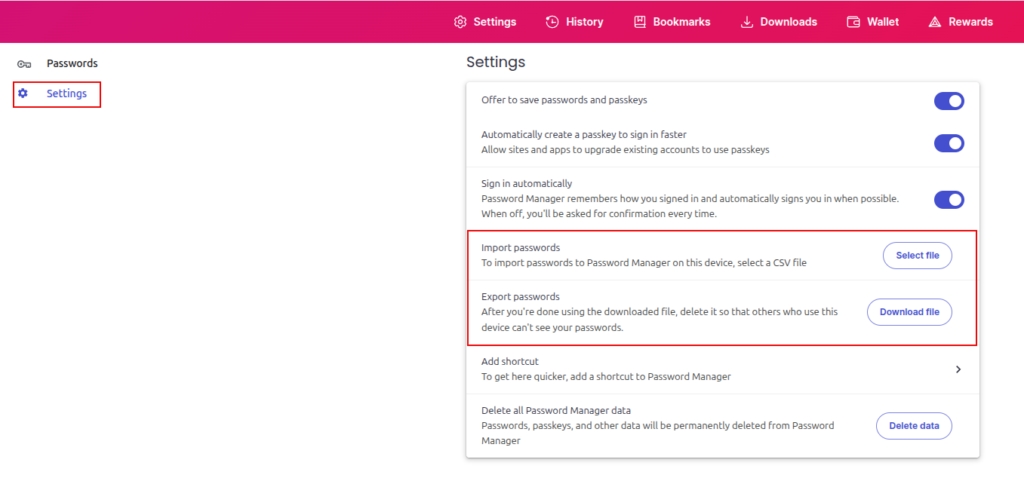
Step 1. Open Brave on your desktop.
Step 2. Click the three lines in the top-right corner and go to Settings.
Step 3. Click Autofill and passwords > Password Manager.
Step 4. Click Settings on the left panel, then click Select file in the Import passwords section.
Step 5. Choose your exported Chrome passwords file on your computer and click Open. Then your Google Chrome passwords will be transferred to Brave.
3.2 How to Import Passwords from Chrome to Firefox
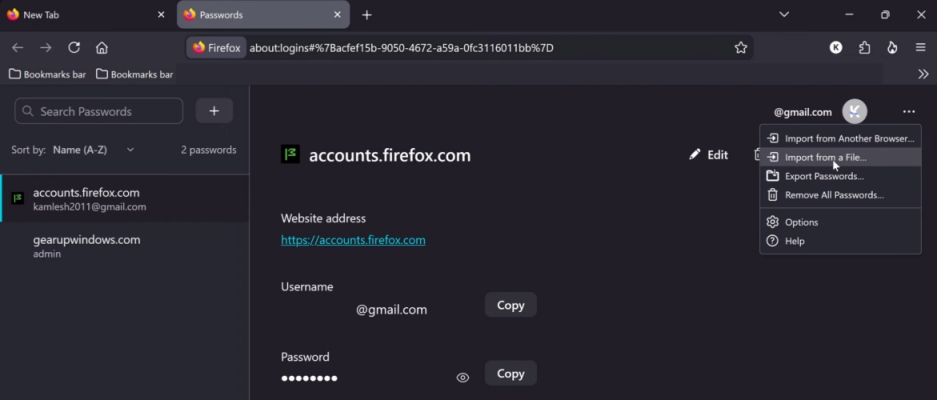
Step 1. Open Firefox and click the three horizontal lines icon.
Step 2. Click Passwords.
Step 3. Click the triple-dot icon in the upper-right corner of Firefox password manager.
Step 4. Choose Import from a File and select your Chrome passwords file.
Step 5. Click Open and your Chrome passwords will be imported.
3.3 How to Import Passwords from Chrome to Opera GX
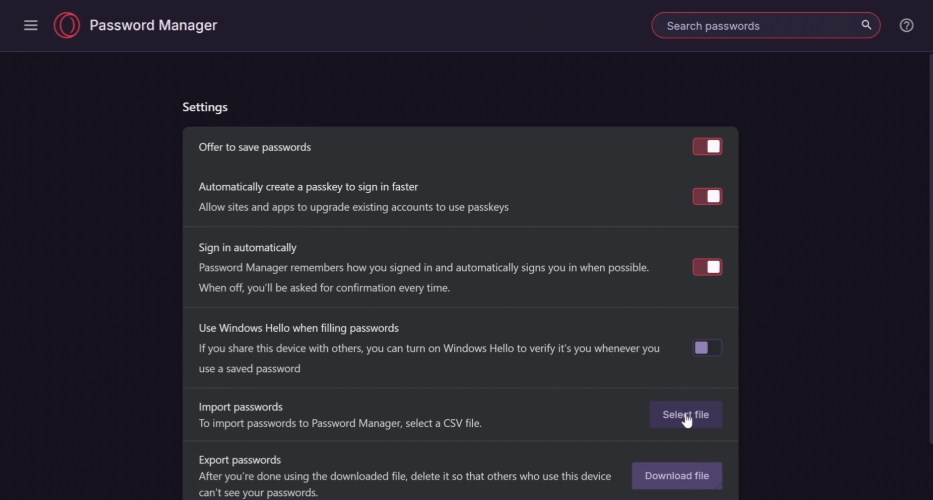
Step 1. Open Opera GX on your computer.
Step 2. Click the Opera icon to open Settings.
Step 3. Search for Password in the settings search box, then open Password Manager.
Step 4. Click Settings in the left panel, then click Select file next to the Import passwords heading.
Step 5. Choose your exported CSV file from Chrome and click Open. Then you can click View passwords to check them.
3.4 How to Import Passwords from Chrome to Safari
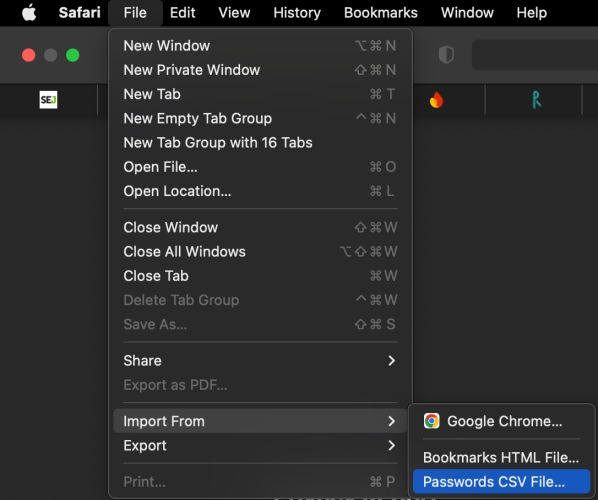
Step 1. Open Safari on your Mac.
Step 2. In the top menu bar, click File > Import From.
Step 3. Select Passwords CSV File and click Choose File.
Step 4. Choose the CSV file you exported from Chrome and click Import.
Step 5. Enter your Mac system password if requested to allow Safari access to your Keychain.
Note:
As long as you finish importing your passwords into your new browser or dedicated password manager, remember to delete the CSV file from your device.
Part 4. Conclusion
Knowing how to export passwords from Chrome gives you full control over your digital identity, whether you are backing up your data or transitioning to a different browser like Firefox, Brave, or Safari. While the export process takes only a few clicks across desktop and mobile platforms, always prioritize security. Treat your exported CSV file as a high-risk security hazard, keep it off unencrypted cloud storage, and destroy it completely once your credential migration is complete.

Dylan Jones
Editor in chief





