








If you've forgotten your iCloud email password, don't worry. It's a common problem and usually easy to fix. In this guide, we'll walk you through the practical ways to find your iCloud email password, whether it's saved in your device settings, the Passwords app, Keychain Access, or Safari. And we will also show you how to reset your iCloud email password and get back into your account safely if you encounter an issue logging in to your iCloud Mail.
- Part 1. What to Do If You Forgot Your iCloud Email Password?
- Part 2. How to Find iCloud Email Password If Forgotten
- Option 1. Find Forgotten iCloud Email Password in Settings
- Option 2. Find Forgotten iCloud Email Password in Passwords App
- Option 3. Find Forgotten iCloud Email Password in Keychain Access
- Option 4. Find Forgotten iCloud Email Password in Safari Passwords
- Option 5. Find Forgotten iCloud Email Password with MagFone
- Part 3. How to Reset Password for iCloud Email
- Part 4. Conclusion
Part 1. What to Do If You Forgot Your iCloud Email Password?
If you've forgotten your iCloud email password, you have two main options: find it on your Apple device if it has been saved before, or reset it to regain access to your iCloud email account. In the following section, we will share with you how to find and reset the iCloud Mail password, helping you choose the fastest and most effective solution.
Part 2. How to Find Forgotten iCloud Email Password
If your iCloud email password has already been saved on one of your Apple devices, you may be able to find and view it directly instead of resetting it. Here are the most common places to check.
Option 1. Find Forgotten iCloud Email Password in Settings [Before iOS 18]
On iOS versions before iOS 18, your email login details are often stored directly in iPhone Settings. If you choose to save the password for the first time when you sign in to your iPhone, you can go to Settings to check it.
On iPhone/iPad:
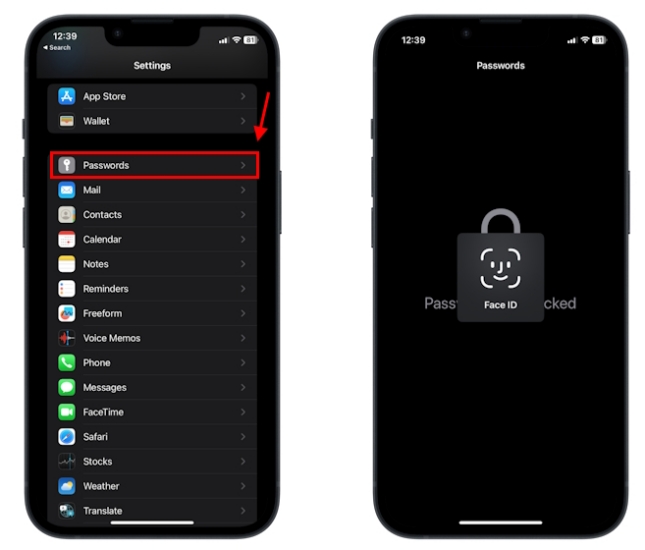
Step 1. Open Settings on your iPhone or iPad.
Step 2. Find Passwords or Passwords & Accounts.
Step 3. Tap Apps & Websites Passwords and find the website or account related to Apple.
Step 4. If your iCloud email login was stored here, you may tap it and tap the Password area to view it with Face ID, Touch ID, or your device passcode.
On Mac:
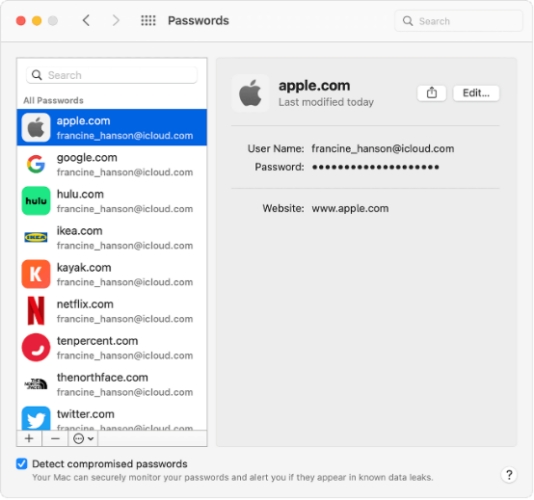
Step 1. Open System Preferences and click Passwords.
Step 2. Enter your Touch ID or unlock passwords to see the saved passwords.
Step 3. Click apple.com to see your Apple ID or iCloud Mail password.
Option 2. Find Forgotten iCloud Email Password in Passwords App [iOS 18 and Later]
If you're using iOS 18 and newer versions, the Passwords app is a convenient place to look for your saved iCloud email password. It stores website and account credentials in one secure location, making it easy to search for your Apple account and view the saved password if it's available.
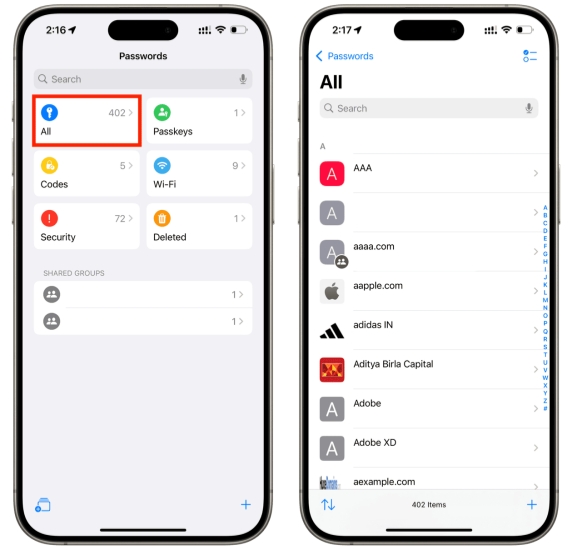
Step 1. Open the Passwords App on your iPhone or iPad and unlock with your identity.
Step 2. Tap All or Passkeys and find the account related to the Apple website.
Step 3. Tap the account to view its details, and tap the Password area to reveal your iCloud email password.
Option 3. Find Forgotten iCloud Email Password in Keychain Access
For Mac users, Keychain Access is another useful tool for finding saved passwords. It keeps login information for apps, websites, and accounts that have been stored on your Mac, so you can search for your Apple account and check whether your iCloud email password is saved there.
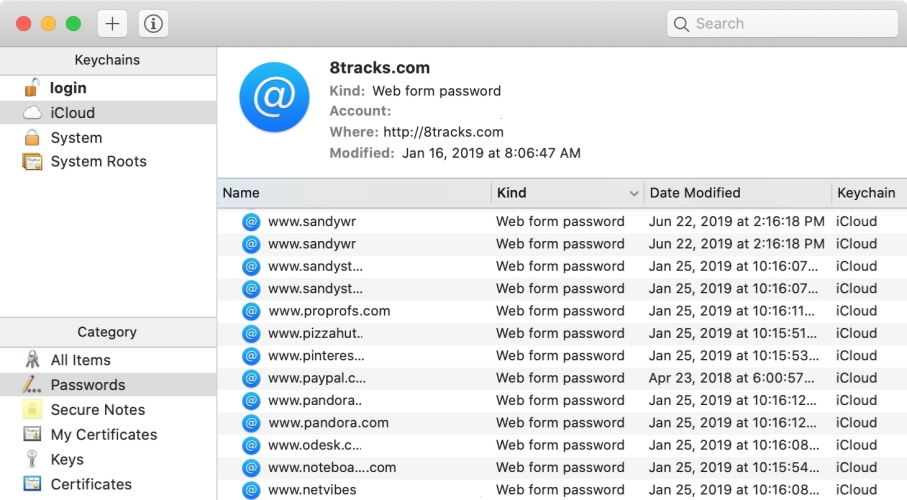
Step 1. Open Keychain Access on your Mac.
Step 2. Search for your Apple Account in the Search box.
Step 3. Double-click the result and click Show Password.
Step 4. Enter your Mac login password, and you can reveal your Apple ID password as well as the iCloud Mail password.
Option 4. Find Forgotten iCloud Email Password in Safari Passwords
If you signed in to iCloud email through Safari, your browser may have saved the password automatically. You can open Safari's password manager to search for your Apple account and view the stored login details if they were saved during a previous sign-in.
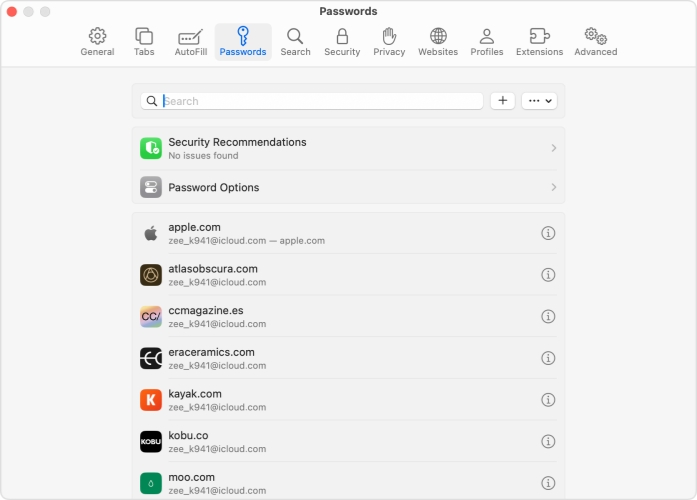
Step 1. Open Safari on your Mac.
Step 2. Click Safari in the Menu and click Preferences.
Step 3. Click Passwords and unlock with your Touch ID or login password.
Step 4. Find your Apple Account under All Passwords, then put your mouse on the password to reveal it.
Option 5. Find Forgotten iCloud Email Password with MagFone
Besides Apple's built-in methods, MagFone iPhone Unlocker can help you regain access to your Apple Account and iCloud Mail more easily. It provides a practical solution when you've forgotten your iCloud email password and need a quick way to sign back in. It can also manage other saved passwords on your iPhone, including Wi-Fi passwords, app and website passwords, and your Apple ID password. Next, let's see how to use MagFone iPhone Unlocker to find your forgotten iCloud email password.

MagFone iPhone Unlocker
Find saved email passwords and login credentials on iOS device quickly and securely.
Step 1 Install MagFone iPhone Unlocker
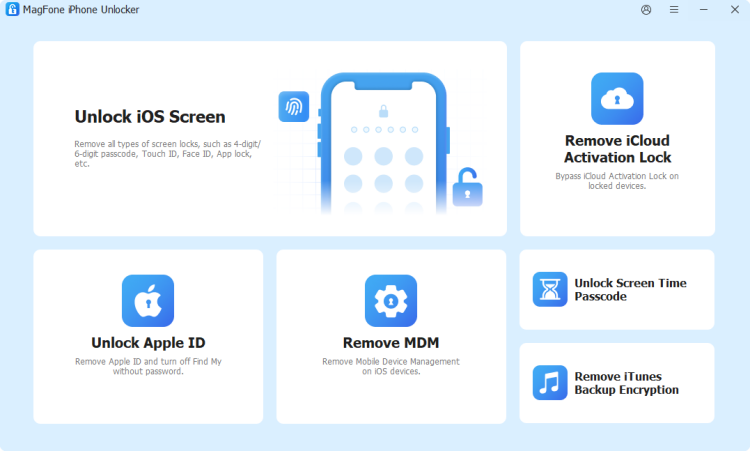
You need to download and install MagFone iPhone Unlocker on a computer to find your forgotten iCloud email password. Then open MagFone after installation.
Step 2 Scan iCloud Email Password
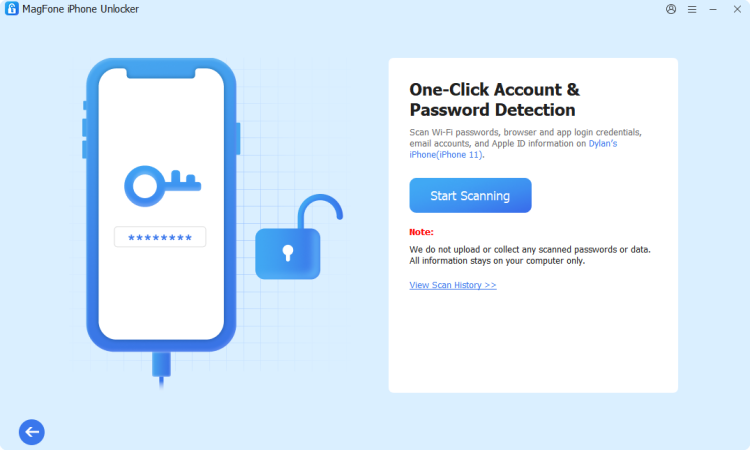
Click Password Manager and use a data cable to connect your iPhone to the computer. Then click Start Scanning to scan for all saved passwords on your iPhone.
Step 3 Recover iCloud Email Password
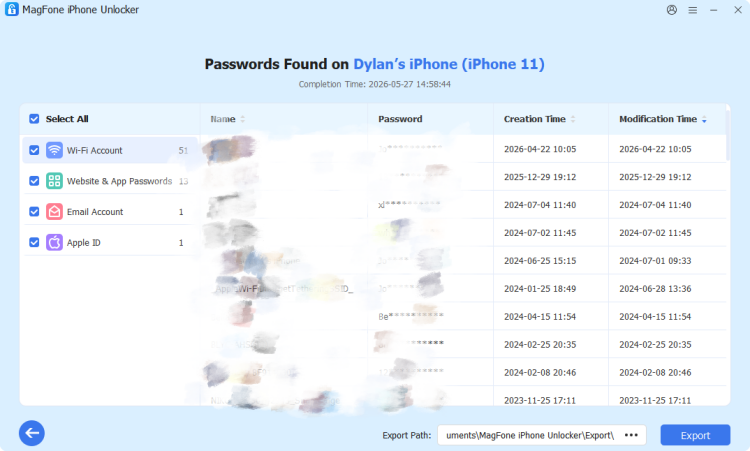
After scanning, click App & Website Passwords. Find your Apple Account and click the view icon to reveal your iCloud email password. You can also click the copy icon and sign in to iCloud Mail.
Part 3. How to Reset Forgotten iCloud Email Password
In most cases, you can find your iCloud email account and password by following the above methods. If you have changed and never updated the iCloud email password or the Apple ID password on your device, the next step is to reset it. Resetting will let you create a new password and regain access to your iCloud email account.
Step 1. Open the iCloud Mail website and enter your Apple ID account.
Step 2. Click Forgot Password? under the Password box, and you will be brought to reset your iCloud Mail password.
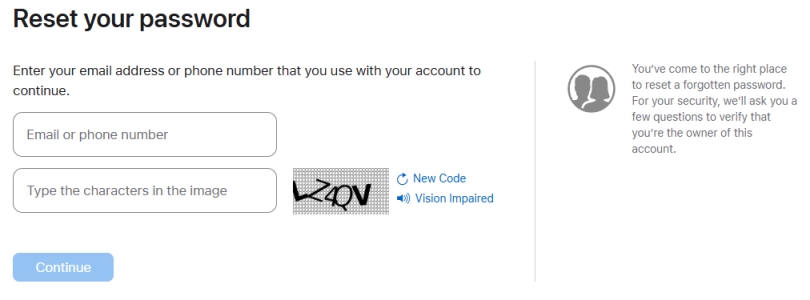
Step 3. Enter your Apple Account and verification code, then enter the trusted phone number to verify your identity.
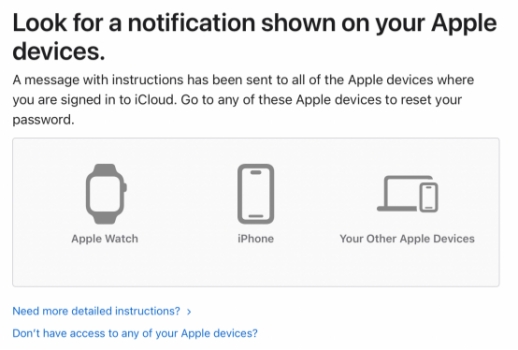
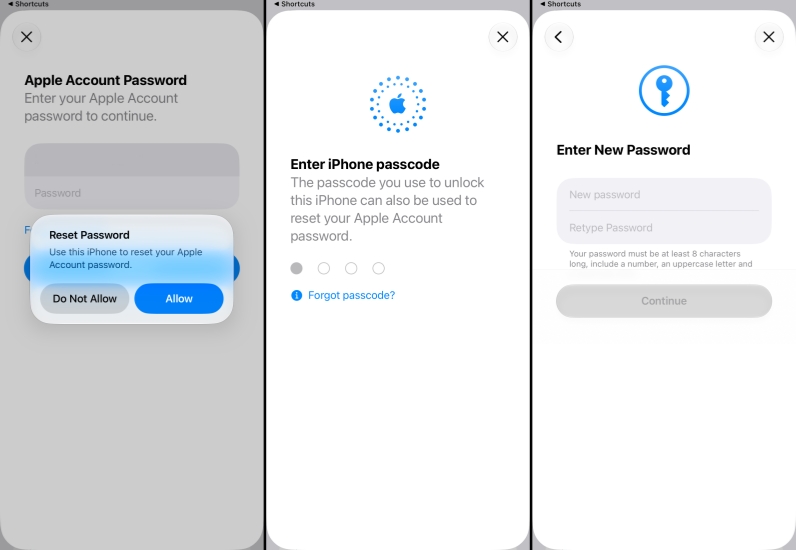
Step 4. You will get a Password Reset prompt on all your Apple devices that are linked with this Apple ID. Choose Allow and follow the prompts to reset the iCloud Mail password.
Part 4. Conclusion
Whether you're able to find your iCloud email password on your Apple device or need to reset it, you can regain access in just a few steps. If you want a faster and easier solution when forgot the iCloud email password, MagFone iPhone Unlocker can also be a helpful option to consider. To avoid future login problems, be sure to save your iCloud email password securely and update it whenever you change it.

Dylan Jones
Editor in chief




