








By offering an affordable price and respectable performance, Apple's iPad remains the best tablet for most people. Increasingly, businesses and schools are opting for the iPad, which has become an integral part of our daily lives. Sometimes, however, users run into challenges with remote management settings on their company or school-owned iPads. Without the remote manager login credentials, you cannot do anything you want on your iPad with remote management. So a crucial step toward free use of your device is by removing remote management from iPad. Let's delve into how to remove remote management from iPad, even without a password.
- Part 1. Can You Remove Remote Management from iPad?
- Part 2. How to Remove Remote Management from iPad without Computer
- Part 3. How to Remove Remote Management from iPad with Computer [Free & Data Loss]
- Part 4. Best Method to Get Rid of Remote Management [No Password & Safe]
- Part 5. FAQs about Remote Management on iPad
- Part 6. Conclusion
Part 1. Can You Remove Remote Management from iPad?
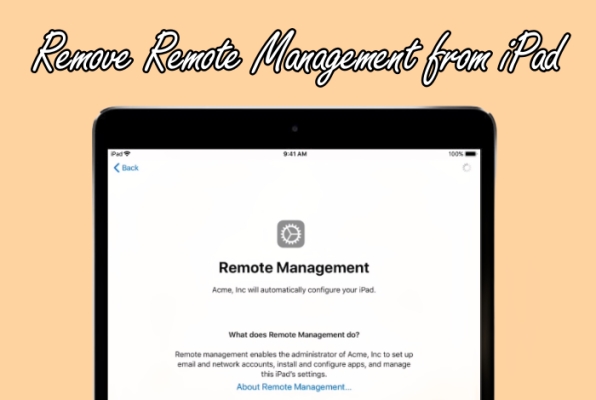
What Is Remote Management on iPad?
Remote management, a kind of Mobile Device Management (MDM), involves the administrator of iPad settings and features from a center location. This is commonly used in educational or corporate settings to control device configurations. So it's not surprising that an iPad from a school or company is set up with remote management. In general, most school or corporate-owned iPads come with an MDM profile installed.
When an iPad is set up with an MDM profile, this means that certain features and settings on the device are strictly forbidden by the administrator. Only the administrator has full control of those iPads with remote management installed. While it serves a purpose in certain scenarios, many users prefer full control over their iPads, prompting the need to remove remote management.
Where Is Remote Management on iPad?
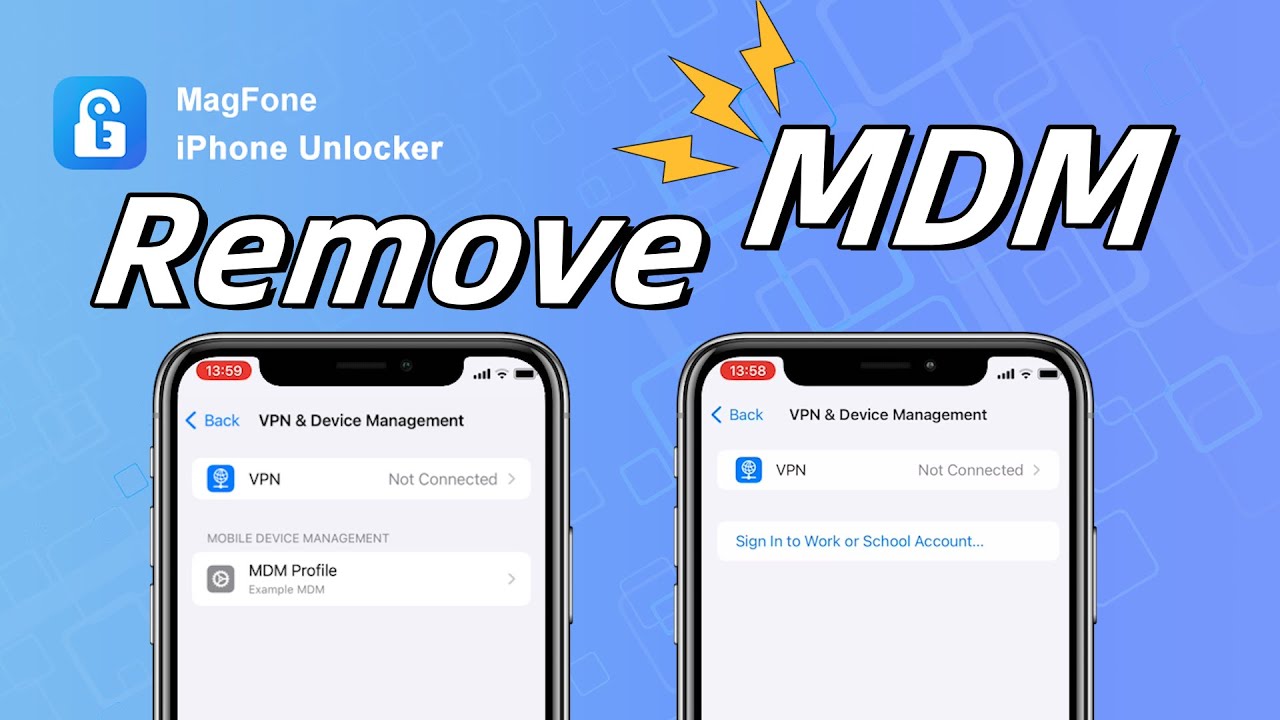
You can check if your iPad is controlled by remote management in the Settings. Simply open the Settings app and tap General > VPN & Device Management. Then you can find any existing management profiles installed on the iPad.
Can You Remove Remote Management from iPad?
Yes, you can remove remote management from an iPad in many cases. If you know the removal password or have administrator credentials, you can delete the management profile directly from the settings. If you do not have the password, you may need to use an iPad remote management removal tool or reset the device to get rid of the MDM restrictions, depending on your situation and ownership of the device.
In the next sections, we'll walk you through different ways to remove or bypass remote management, with and without a computer. Before diving into the details, you can also check this quick table and watch the following video tutorial to quickly learn how to remove remote management from iPad.
| Method | Device Needed | Need Password? | Difficulty | Data Loss | Risk |
|---|---|---|---|---|---|
| iPad Settings | iPad | MDM removal password | Easy | ❌ | ❌ |
| ASM/ABM | Any device | Managed Apple Account password | Easy | ❌ | ❌ |
| 3uTools | Computer | ❌ | Difficult | ✔️ | Moderate |
| Apple Configurator 2 | Mac | ❌ | Easy | ✔️ | ❌ |
| Jailbreaking | Computer | ❌ | Difficult | ✔️ | High |
| MagFone iPad Unlocker | Computer | ❌ | Easy | ❌ | ❌ |
Part 2. How to Remove Remote Management from iPad without Computer
As long as you have the MDM credentials or you can access the MDM administrator, you can follow the methods below to remove remote management from iPad without a computer.
Method 1. Remove Remote Management from iPad in Settings
It is pretty easy to turn off remote management on your iPad if you can get in touch with the administrator or know the MDM login credentials. To disable remote management on iPad with password, follow the steps below.

Step 1. On your iPad, tap Settings > General > VPN & Device Management.
Step 2. Find the remote management profile and tap the Remove Management button.
Step 3. Enter the login credentials, then tap the Remove button to confirm.
| Requirements | MDM account and password |
| Computer | Not require |
| Technical Skills | Not require |
| Security | ✔️ |
| Data Loss | ❌ |
| Success Rate | 100% |
Method 2. Remove Remote Management from iPad via Apple School Manager
When your iPad is under remote management by an organization like Apple School Manager or Apple Business Manager, the administrator or manager can delete remote management on your iPad from the ABM or ASM system.
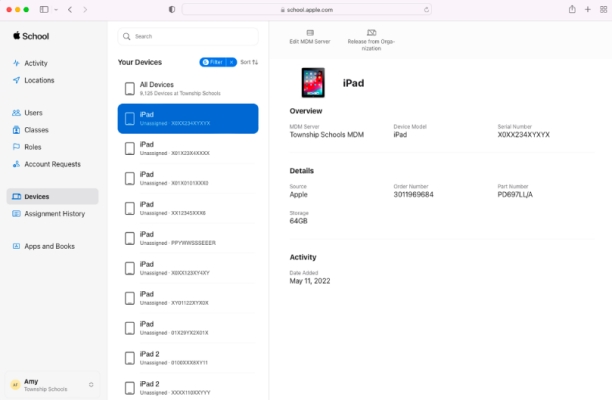
Step 1. Open Apple School Manager or Apple Business in a browser to log in.
Step 2. Click the Devices button in the sidebar and find your supervised iPad.
Step 3. Click Release Device or Release from Organization.
Step 4. Check the box "I understand that this cannot be undone," then click Release to unenroll the iPad from the organization.
| Requirements | Managed Apple Account credentials |
| Computer | Not require |
| Technical Skills | Not require |
| Security | ✔️ |
| Data Loss | ❌ |
| Success Rate | 100% |
Part 3. How to Remove Remote Management from iPad with Computer [Free & Data Loss]
With the required MDM removal password or managed Apple account password, you can easily delete remote management in the Settings or on the ASM/ABM platform. However, if you don't know the removal credentials, you can opt for other methods to disable remote management on the iPad without a password. In the following section, we will introduce how to remove remote management from iPad without password for free.
Method 1. Bypass Remote Management on iPad via 3uTools
3uTools is a comprehensive iOS management tool that can help you back up and restore iOS data and may also help you bypass remote management on an iPad. In older versions of 3uTools, there was a Skip MDM Lock feature to bypass remote management on Apple devices. And the steps as follows:
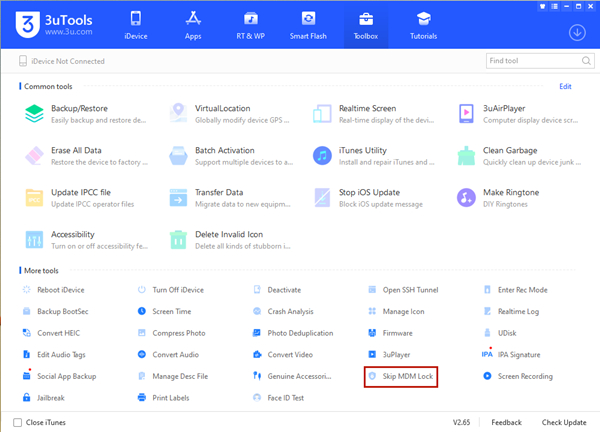
Step 1. Open 3uTools and click Toolbox > Skip MDM Lock.
Step 2. On the pop-up window, click on the Skip Now button.
Step 3. Click on the Deactivate button to remove the remote management.
Note:
Although this feature is no longer available in newer versions of 3uTools, there is still a way to remove remote management using the software. You can check this video for a detailed guide.
| Requirements | Only compatible with iPadOS 12 and 13 |
| Computer | Windows or Mac |
| Technical Skills | Require |
| Security | ✔️ |
| Data Loss | ✔️ |
| Success Rate | High |
Method 2. Bypass Remote Management on iPad via Apple Configurator 2
Apple Configurator 2 is a tool only available on a Mac. With this tool, users can remove configuration profiles from Apple devices like iPad and iPhone with ease. If you want to remove remote management from your iPad without a password, you can use Apple Configurator 2, but it will erase the device.
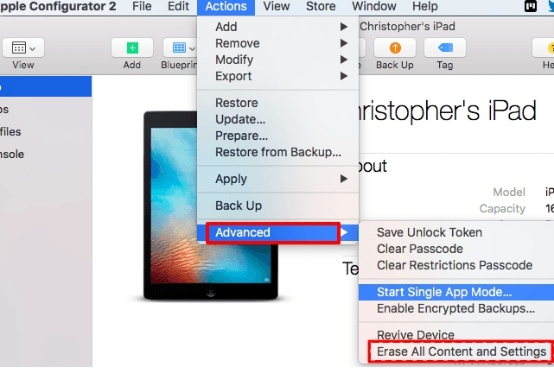
Step 1. Run Apple Configurator 2 on a Mac, then connect your iPad using a USB cable.
Step 2. Select your iPad in Apple Configurator 2 and click Actions.
Step 3. Click Advanced and select Erase All Content and Settings.
| Requirements | Apple ID and password |
| Computer | A Mac |
| Technical Skills | Require |
| Security | ✔️ |
| Data Loss | ✔️ |
| Success Rate | High |
Method 3. Bypass Remote Management on iPad by Jailbreaking
Another way to bypass remote management on iPad free is to jailbreak your iPad. Jailbreaking iPad can completely delete remote management without password. But it will cause some virus attacks, software glitches, and system issues on the device.
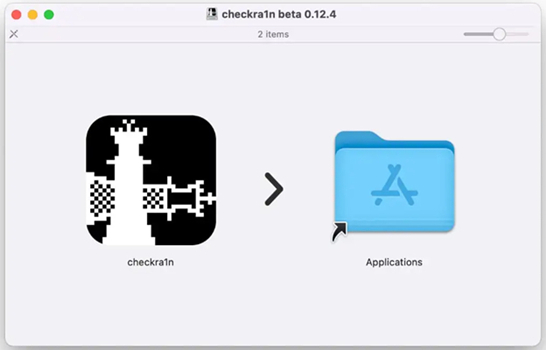
Step 1. Go to download and install Checkra1n from the official website.
Step 2. Launch Checkra1n and use a USB cable to connect your iPad to your computer.
Step 3. Go to SHH into it and start the whole process by running "cd../../". Then your iPad will be put into the root directory.
Step 4. Proceed to run "cd /private/var/containers/Shared/SystemGroup/", and you'll find MDM files in the folder.
Step 5. Restart and set up your iPad, then go back to Remove Management.
| Requirements | Only compatible with iPadOS 14 or below |
| Computer | A Windows PC |
| Technical Skills | Require |
| Security | ❌ |
| Data Loss | ✔️ |
| Success Rate | High |
Part 4. Best Method to Get Rid of Remote Management [No Password & Data Loss]
Although you can remove remote management from iPad by using the above methods, there are some drawbacks. To delete remote management from iPad in Settings, you'll need to enter the MDM login credentials. If you don't have the MDM login credentials, you can use 3uTools or jailbreak your iPad to get rid of remote management, but it will erase all the settings and data on your iPad.
Fortunately, there is a tool that can help you remove remote management from iPad without password while not deleting any data on your device. MagFone iPhone Unlocker is such a tool to delete various kinds of MDM profiles on iPhone, iPad, and iPod touch without password and data loss. In addition, the process of removing remote management from iPad through MagFone iPhone Unlocker is pretty easy.

MagFone iPhone Unlocker
Remove Remote Device Management on iPad without password and without data loss.
Step 1 Connect iPhone and Open MagFone iPhone Unlocker
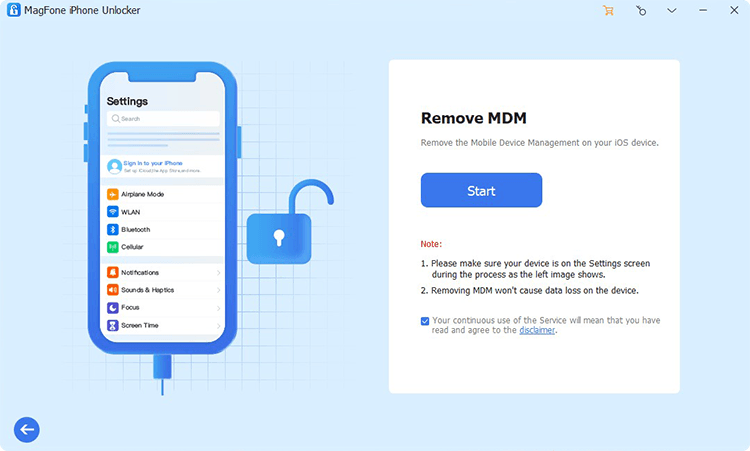
Start by connecting your iPad to your computer through a USB cable, then launch MagFone iPhone Unlocker. When your device is detected by the MagFone software, select the Remove MDM option and click on the Start button.
Step 2 Disable Remote Management on iPad without Password
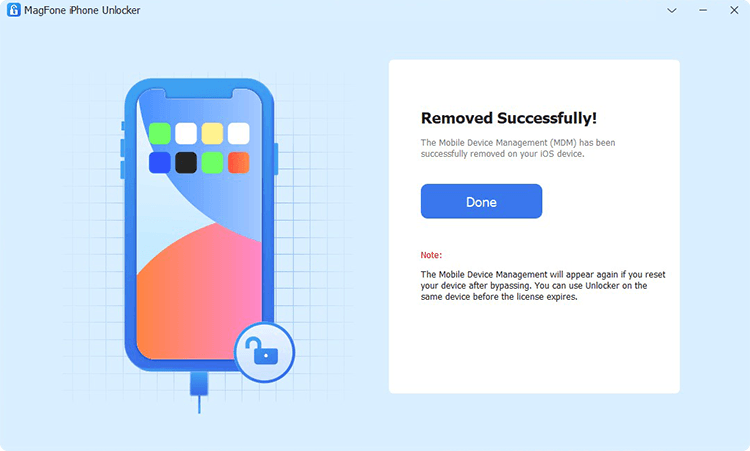
Make sure that you have disabled Find My iPad. If not, go to Settings > Your Apple ID > Find My and disable Find My iPad. Go to remove the remote management from your iPad by clicking on the Remove button.
Part 5. FAQs about Remote Management on iPad
How to factory reset iPad with Remote Management?
If you want to factory reset your iPad with remote management directly, you need to delete the profile first. Or you can use Apple Configurator 2 on a Mac to factory reset your iPad with remote management.
How to remove Remote Management from iPad after restore?
To remove remote management from iPad after restore, you can use Apple Configurator 2 on a Mac. By connecting your iPad with remote management, you can reset the device in Apple Configurator 2 and delete remote management after restore.
How to remove Remote Management from iPad during setup?
To remove remote management from iPad during setup, you can use 3uTools. This tool can help in resetting an iPad with remote management, which will delete remote management during setup. Before using 3uTools, you can make a backup of your device.
Part 6. Conclusion
All the above methods can help you remove remote management from iPad. When you have the MDM profile account and password, you can get past remote management in Settings. Without the MDM profile credentials, using MagFone iPhone Unlocker could be a good option. You don't need to worry about your device losing the data.

Dylan Jones
Editor in chief




