








iPad restrictions, often used to limit access to certain content or apps, are particularly useful for parental controls or work-related limitations. However, there may come a time when you need to disable these restrictions to regain unrestricted access to the iPad's features, settings, and apps. Unlocking all of your iPad's functionalities by turning off restrictions can greatly enhance your experience with the iPad. This guide provides a comprehensive overview of how to turn off restrictions on iPad, both with and without a passcode, so that you can easily take control of your iPad.
- Part 1. How Do I Turn Off Restrictions on My iPad?
- Part 2. How to Disable Restrictions on iPad (30 Seconds)
- Part 3. How to Remove Restrictions on iPad If You Forget the Code
- Part 4. How to Delete Restrictions on iPad without Passcode
- Part 5. FAQs about Turning Off Restrictions on iPad
- Part 6. Conclusion
Part 1. How Do I Turn Off Restrictions on My iPad?
Restrictions on your iPad, now managed through Screen Time, are designed to limit apps, features, and content for safety or productivity. They're often set up to reduce distractions or block inappropriate content. However, if you no longer need these limits, you can turn them off in a few simple steps. Depending on whether you can figure out the Screen Time passcode, here are 6 methods to remove restrictions on iPad.
| Method | Apple ID & Password | Find My iPhone | Data Loss | Difficulty |
|---|---|---|---|---|
| Use Passcode | ❌ | / | ❌ | ⭐⭐ |
| Use Forgot Passcode? | ✔️ | / | ❌ | ⭐⭐⭐ |
| Screen Time Remover | ❌ | Disabled | ❌ | ⭐ |
| iTunes | ❌ | Disabled | ✔️ | ⭐⭐⭐ |
| iCloud | ✔️ | Enabled | ✔️ | ⭐⭐⭐ |
| Screen Time Remover | ✔️ | Enabled | ✔️ | ⭐⭐⭐ |
To make things easier, we've also prepared a video tutorial that walks you through the basic steps of turning off restrictions on your iPad. Watch the video first to see the process in action, and then follow the detailed methods below based on your situation.
Part 2. How to Disable Restrictions on iPad (30 Seconds)
You can disable restrictions on iPad at once, and you can also change restrictions for a specific aspect in Settings. Follow the steps below to adjust iPad restrictions.
How to Disable All Restrictions at Once
If you want a more fluent use of your iPad, you can turn off Content & Privacy Restrictions to remove all restrictions on the iPad.
For iPadOS 12 or later:
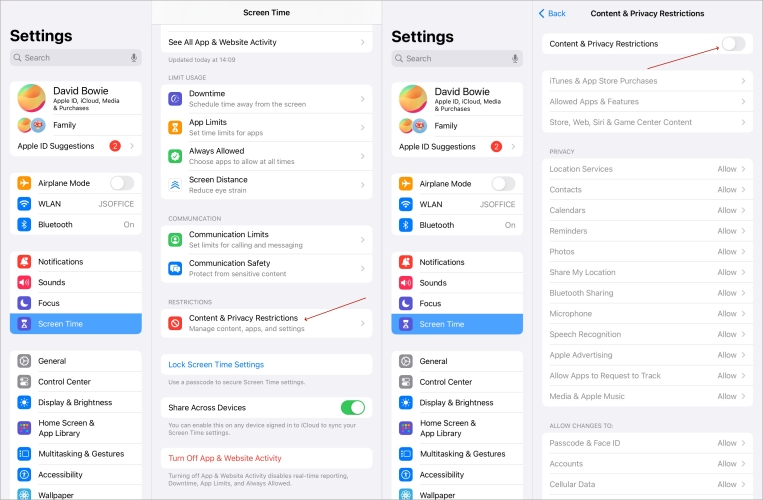
Step 1. Launch the Settings app.
Step 2. Hit Screen Time and then swipe up to press the Content & Privacy Restrictions option.
Step 3. Switch it off by entering your Screen Time passcode.
For iPadOS 11 or earlier:
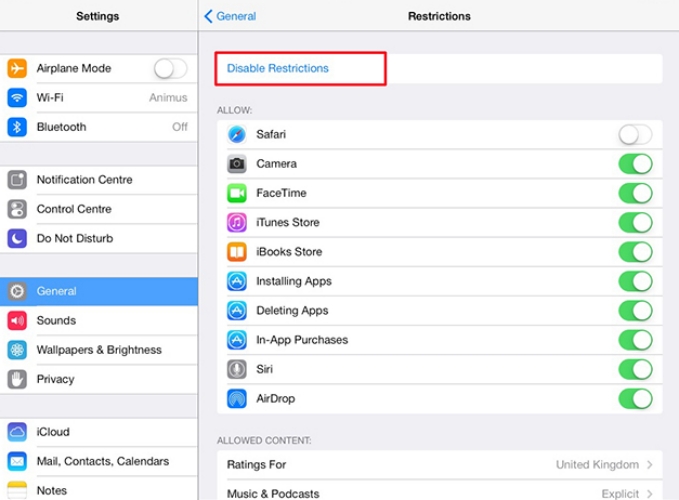
Step 1. Enter Settings.
Step 2. Head to General and press on Disable Restrictions.
Step 3. Next, input the Screen Time passcode to switch it off.
How to Disable Specific Restrictions
Restrictions can be set to limit certain functions, content, or apps on the device. If you want to keep some restriction settings while disabling some, you can customize the specific settings under Content & Privacy Restrictions.
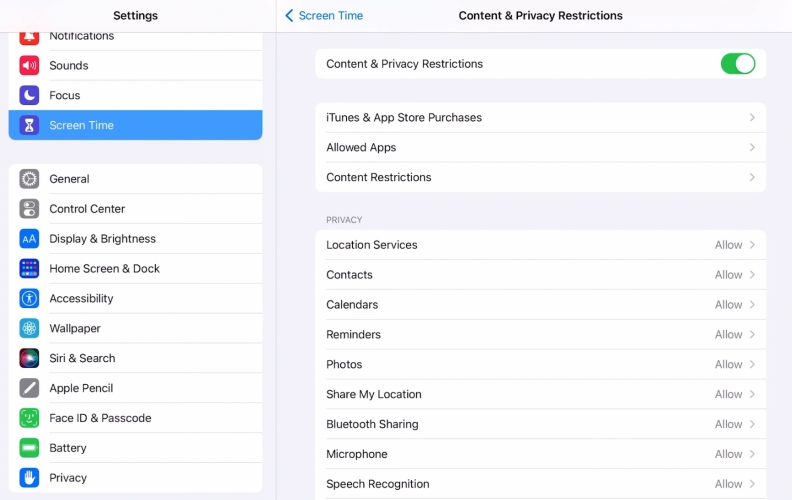
Step 1. Go to iPad Settings > Screen Time > Content & Privacy Restrictions.
Step 2. Here you can access and change restrictions based on your needs.
Part 3. How to Remove Restrictions on iPad If You Forget the Code
If you can't figure out the Screen Time passcode, don't worry. You can still use your Apple ID to reset the Screen Time passcode. If you have set an Apple ID when you lock the Screen Time settings, follow the steps below to remove restrictions on iPad:
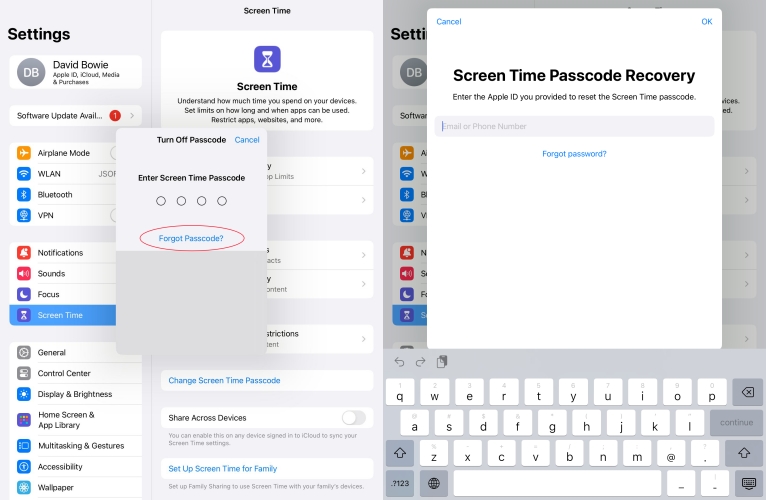
Step 1. Run the Settings app.
Step 2. After selecting Screen Time, tap on Change Screen Time Passcode.
Step 3. Pick the Turn Off Screen Time Passcode option and touch Forgot Passcode.
Step 4. Enter the previously provided Apple ID and password to reset the Screen Time Passcode.
Step 5. Then access Content & Privacy Restrictions to disable it.
Part 4. How to Delete Restrictions on iPad without Passcode
If you skip the Screen Time passcode recovery setting when you lock it, or you are no longer able to access the Apple ID and password, there are four other methods to help remove restrictions on iPad.
Method 1. Use an iPad Screen Time Remover
Using your Apple ID makes this process secure and simple, as you are not required to remember the Screen Time passcode specifically. This method is ideal for users who have already linked their Apple ID with the iPad's restriction settings.
To seamlessly and efficiently remove the iPad restrictions, MagFone iPhone Unlocker stands out as an excellent tool. MagFone is created to help users unlock Screen Time passcodes and disable restrictions without an Apple ID or original passcode. It's ideal for those who may have forgotten these details. With MagFone's intuitive interface, you can quickly access your device with just a few steps. Besides, MagFone iPhone Unlocker has a high success rate for unlocking different restrictions on your iPhone, iPad, and iPod touch. Now let's move on to follow the specific steps.

MagFone iPhone Unlocker
Unlock various locks on iOS devices, including screen locks, MDM, Apple ID, and Activation Lock without needing a password.
Step 1 Launch MagFone iPhone Unlocker
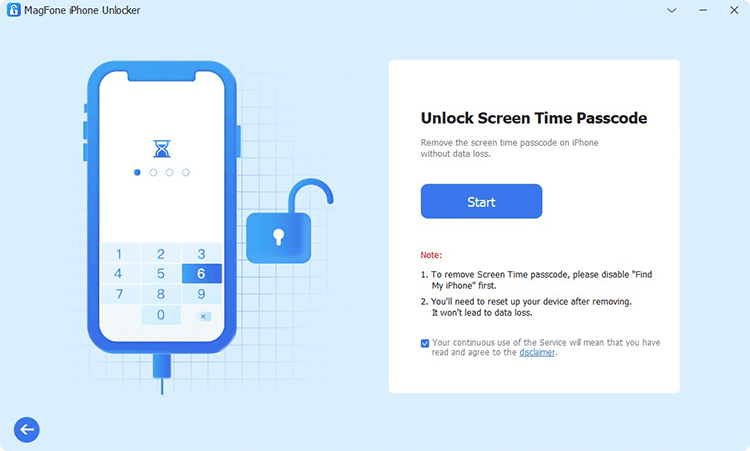
Connect your iPad to your computer using a USB cable, then run MagFone iPhone Unlocker on that computer. Once the iPad is detected, choose Unlock Screen Time Passcode from the main menu on MagFone.
Step 2 Begin Removing iPad Restrictions
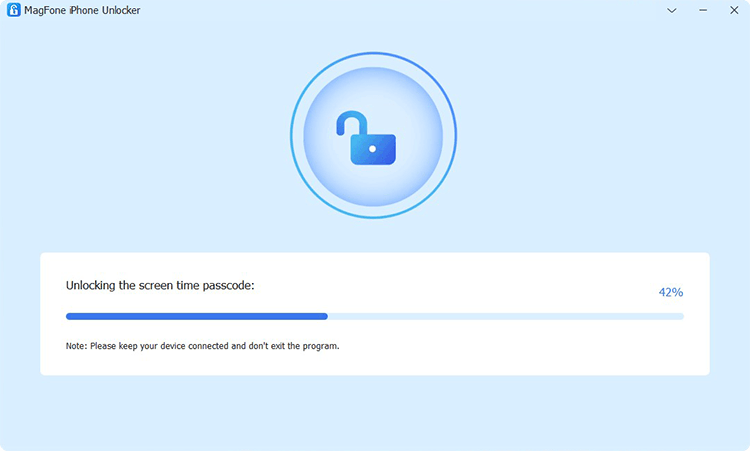
Ensure the Find My iPad feature is turned off. If it's on, enter Settings > [Your Profile] > Find My icon, and switch it off. Once disabled, click on Start on the screen to begin removing the Screen Time restrictions.
Step 3 Continue to Finish iPad Setup
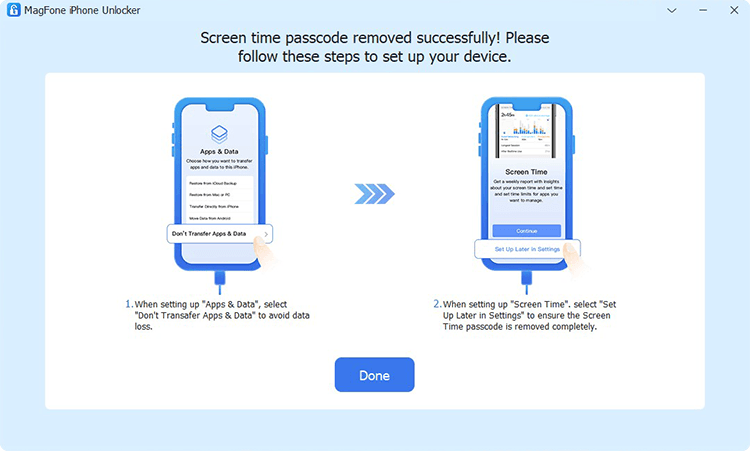
After successfully removing restrictions, follow the onscreen steps to set up your iPad. On the Apps & Data screen, select Don't Transfer Apps & Data and then complete the setup process on this iPad.
Method 2. Use iTunes Recovery (Data Loss)
iTunes provides a practical solution for managing and adjusting your iPad's restriction settings. Using iTunes to restore an iPad can erase all data and settings, including Screen Time restrictions.
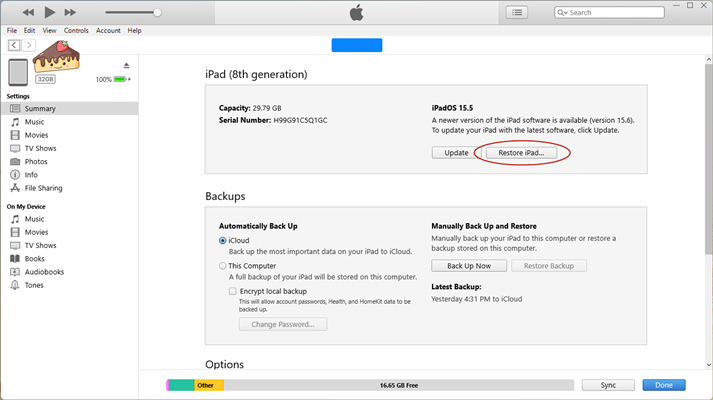
Step 1. Link your iPad and your PC using a data cable.
Step 2. Launch iTunes and click the device icon.
Step 3. Click Summary, then click Restore iPad to delete restrictions.
Method 3. Use iCloud Remote Wipe (Data Loss)
Using iCloud.com to remove restrictions is another effective option, especially for managing your device remotely. This method enables you to turn off restrictions by erasing your iPad. It's convenient if you're away from your iPad and the Find My iPad is enabled.
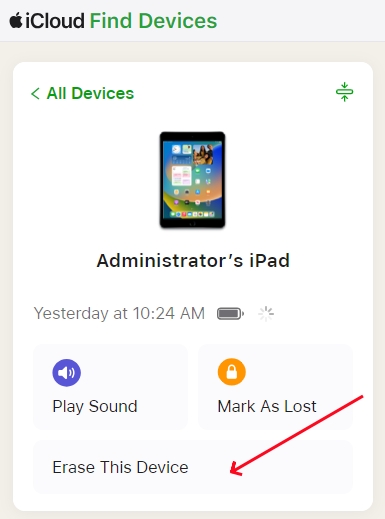
Step 1. Log into iCloud.com using your Apple ID account.
Step 2. Choose your iPad in the devices list.
Step 3. Select Erase, and then enter a phone number and type the Apple ID password when asked.
Step 4. Confirm by clicking the Erase iPad option again.
Method 4. Use Find My App (Data Loss)
You can also utilize the Find My app to remove the iPad restrictions with your Apple ID. This app-based approach works well if Find My is activated on your iPad. This method also deletes everything on the device, along with the Screen Time passcode. By doing that, you can take off the restrictions of your iPad.
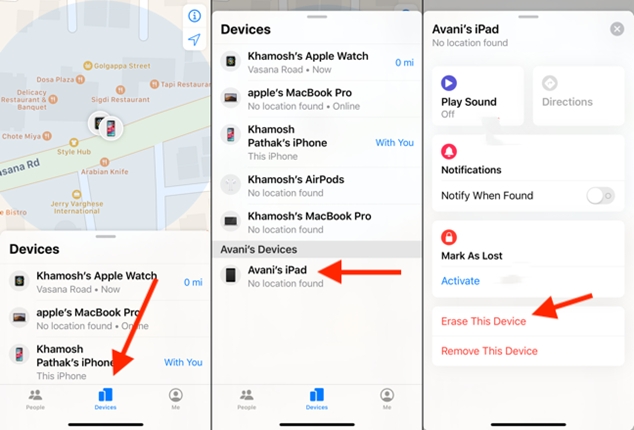
Step 1. Access the Find My app and tap Devices at the bottom.
Step 2. Find and press your iPad with restrictions.
Step 3. Tap Erase This Device and input your Apple ID password. Then select Erase iPad one more time.
Part 5. FAQs about Turning Off Restrictions on iPad
How to remove age restriction on iPad?
If your iPad is set with age-related restrictions, you can adjust them in Settings.
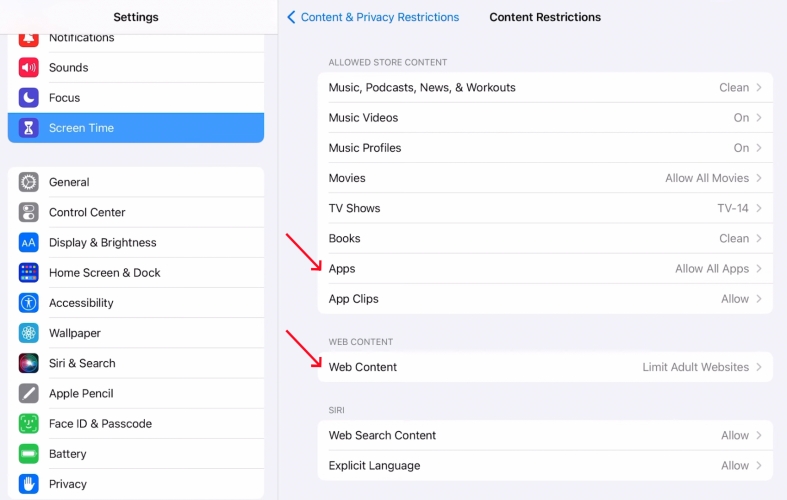
Step 1. Go to Screen Time > Content & Privacy Restrictions.
Step 2. Tap Content Restrictions and set to Allow All for Apps and Unrestricted for Web Content.
How to turn off app restrictions on iPad?
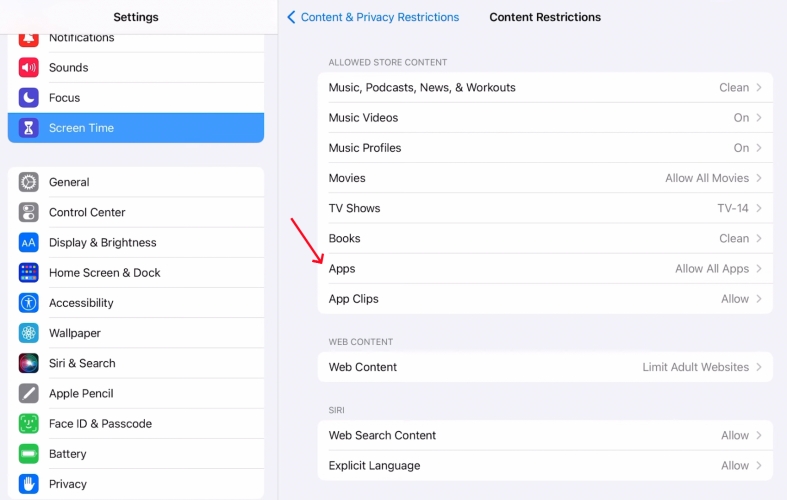
To turn off app restrictions on iPad, you can go to Screen Time in Settings. Tap Content & Privacy Restrictions > Apps and choose Allow all. Then you can use all supported apps on your iPad.
How to turn off restrictions for Roblox on iPad?
If you're blocked from playing Roblox on your iPad, the app is likely being limited by Screen Time or a management profile. You can use MagFone iPhone Unlocker to quickly remove both Screen Time and Device Management restrictions.
How to turn off parental restrictions on iPad?
If your iPad is under parental control but you're now old enough to use it without limits, how you remove the restrictions depends on whether you know the Screen Time passcode. If you know the passcode, simply check Part 2. If you don't know the passcode, follow the methods in Part 4.
Part 6. Conclusion
In conclusion, turning off restrictions on your iPad is achievable by using the methods in this article, each offering flexibility based on your access to a passcode or Apple ID. For users seeking a streamlined solution, MagFone iPhone Unlocker is an efficient way to unlock the iPad restrictions and doesn't need any passcode.

Teresa Miller
Editor in chief





