








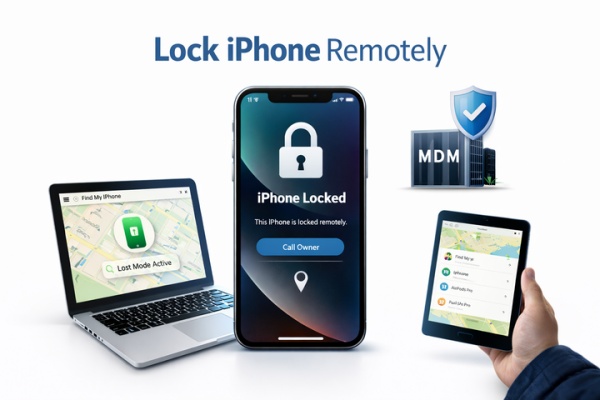
When your iPhone is lost, stolen, or temporarily out of your possession, remotely locking the device immediately is often a crucial step in protecting your privacy and data security. Whether it's personal photos, chat logs, work emails, or company documents, unauthorized access can have serious consequences. The good news is that Apple provides multiple ways to remotely lock your iPhone, allowing you to take swift action even when the device is not physically present. In this guide, we will introduce 3 methods to lock iPhone remotely and a bonus tip when the iPhone is locked by MDM lock.
- Part 1. Can I Lock an iPhone Remotely?
- Part 2. How to Lock an iPhone Remotely
- Part 3. Bonus Tip: Bypass MDM Remote Lock on iPhoneHOT
- Part 4. Conclusion
Part 1. Can I Lock an iPhone Remotely?
Can you lock an iPhone remotely? The answer is yes. As long as your iPhone is signed in with your Apple ID and Find My is turned on, you can lock it remotely using Lost Mode. In addition, for company-issued or school-issued devices, administrators can remotely manage device status, including locking screens through MDM systems.
Part 2. How to Lock an iPhone Remotely
Depending on the specific situation, the way to remotely lock an iPhone is also different. Everyday users often rely on Apple's official Find My feature, while enterprise or institutional devices are more managed through an MDM system. You can follow the steps below to lock an iPhone remotely.
Method 1. Lock iPhone Remotely at iCloud.com/find
When your iPhone is lost or stolen, you can track and manage it using the Find My feature. The prerequisite is that you are signed in with your Apple ID on the device and that Find My has been enabled beforehand. In this case, you can sign in to your Apple account on the iCloud website and mark the iPhone as lost to lock it remotely.
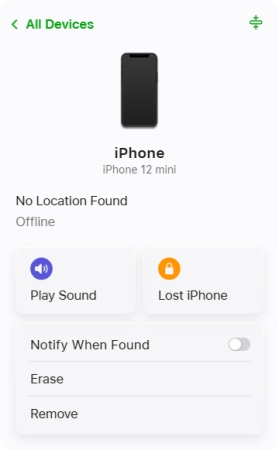
Step 1. Log in to your Apple account at iCloud.com/find.
Step 2. Access the target iPhone on the list.
Step 3. Choose Lost iPhone and follow the instructions to lock the iPhone remotely.
Method 2. Lock iPhone Remotely on Find My App
In addition to locking an iPhone remotely via the web, you can also do it through the Find My app. If you're signed in with the same Apple ID on another Apple device, or you're part of a Family Sharing group, you can follow the steps below on your own device or a Family Sharing member's device to lock the iPhone remotely.
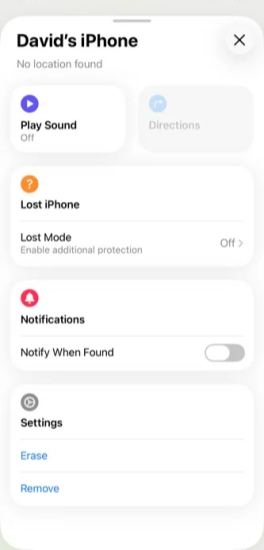
Step 1. Open the Find My app on another Apple device.
Step 2. Tap Devices and access the target iPhone from the list of devices.
Step 3. Choose Lost Mode and follow the instructions to to lock the iPhone remotely.
Method 3. Lock iPhone Remotely via MDM Control
For iPhones managed by a company or school, an IT administrator can lock the device using a Mobile Device Management system. This can range from official MDM services, including Apple School Manager or Apple Business Manager, to third-party solutions such as Scalefusion, or similar tools. Through the MDM system, the admin can access the target iPhone and perform the remote lock or lost mode command. Then the device will be locked, restricted in use, and can display custom messages that the admin set.
Part 3. Bonus Tip: Bypass MDM Remote Lock on iPhone
While MDM remote lockout can be effective in securing devices in business and school environments, it can sometimes lead to usage frustrations, such as legacy administrative restrictions on used iPhones. In these cases, the device owner may not be able to use their iPhone normally, and it's time to find a way to remove MDM restrictions to restore the device's basic functionality. Here, MagFone iPhone Unlocker is to rescue, which can help iPhone users to bypass the MDM profile without data loss. Follow the steps below if you are stuck with an MDM lock.

MagFone iPhone Unlocker
Unlock various locks on iOS devices, including screen locks, MDM, Apple ID, and Activation Lock without needing a password.
Step 1 Launch MagFone iPhone Unlocker
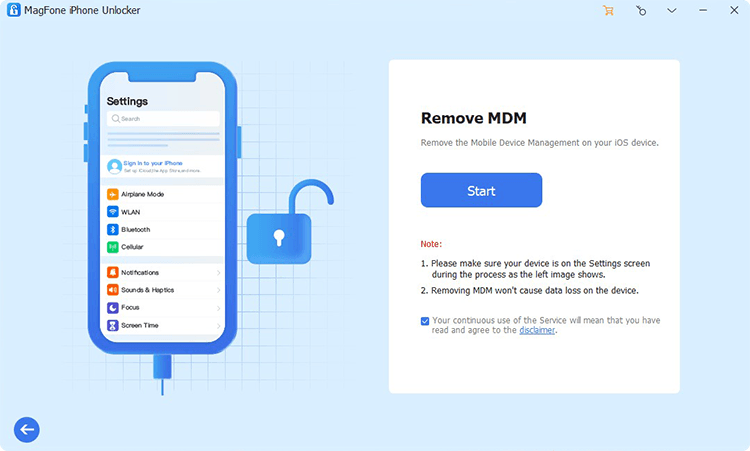
Start by downloading and installing MagFone iPhone Unlocker on a computer. Then plug your iPhone into the computer using a data cable. Click Remove MDM to forward.
Step 2 Bypass Remote MDM Lock on iPhone
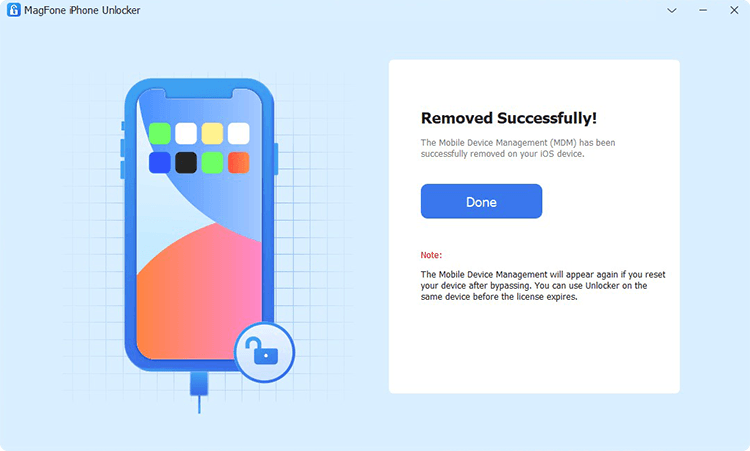
Click Start. And disable the Find My service on your iPhone when prompted with instructions. Then click Unlock to remove the MDM lock from your iPhone.
Part 4. Conclusion
Overall, Lost Mode on iPhone is a very practical security feature when your device is lost or stolen. Whether you use iCloud, the Find My app, or MDM controls, locking iPhone remotely helps protect your data and privacy when it matters most. However, if your iPhone has been locked remotely via MDM and you can no longer use it normally, you can use MagFone iPhone Unlocker to remove the MDM profile.

Teresa Miller
Editor in chief





