








Forgetting your iPhone passcode is a frustrating experience. Whether your device displays iPhone Unavailable or iPhone is Disabled, finding a fast solution is a priority. Many users turn to the web, searching for ways to unlock iPhone passcode online without needing a computer or visiting a repair shop. This guide will show you detailed steps to unlock iPhone passcode online and alternative ways to unlock iPhone passcode.
- Part 1. Can You Unlock iPhone Passcode Online?
- Part 2. How to Unlock iPhone Passcode Online [Screen Lock]
- Part 3. Alternative Ways to Unlock iPhone Passcode Online
- Part 4. How to Unlock iPhone Passcode Online [Carrier Lock]
- Part 5. Conclusion
Part 1. Can You Unlock iPhone Passcode Online?
Yes, you can unlock an iPhone screen passcode online. Apple's official iCloud service allows you to remotely erase a device. If you meet the necessary prerequisites - knowing your linked Apple ID credentials, having "Find My" enabled, and keeping the locked iPhone connected to Wi-Fi or cellular data - you can unlock your iPhone online within minutes.
Part 2. How to Unlock iPhone Passcode Online [Screen Lock]
The official and safe way to unlock an iPhone passcode online is through iCloud Find My Device service. This method works from any web browser on another phone, tablet, PC, or Mac. If you meet the requirements below, then follow the steps to remove the passcode from the iPhone remotely.
Prerequisites for iCloud Online Unlock:
- You must know the Apple ID and password currently signed in on the locked iPhone.
- The Find My iPhone feature must have been turned on.
- The locked iPhone must have an active internet connection.
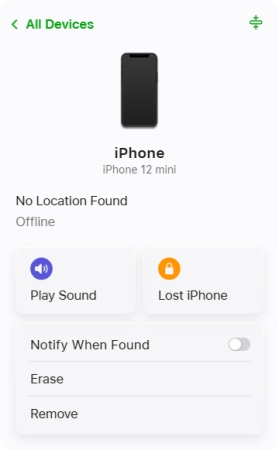
Step 1. Load iCloud Find My on any browser and log in with the Apple ID.
Step 2. Choose the iPhone you want to unlock online, and click Erase.
Step 3. Click Next, then enter the Apple ID password to confirm the operation.
Note:
If you have another Apple device that is linked to the same ID, you can also unlock the iPhone online on another Apple device.
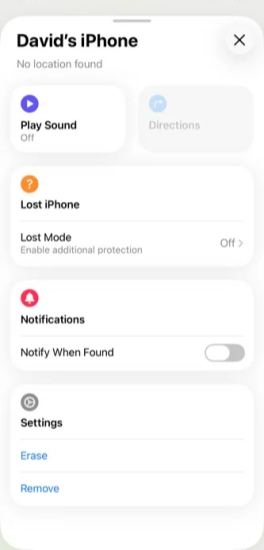
Step 1. Open the Find My app on an Apple device.
Step 2. Tap Devices, then tap the triple-dot icon next to the iPhone you want to unlock.
Step 3. Tap Erase > Continue, and enter the Apple ID password to confirm.
Part 3. Alternative Ways to Unlock iPhone Passcode Online
iCloud Find My Device allows you to erase a device and remove the passcode online. But if Find My is disabled, or you can't remember the linked Apple ID password, this method doesn't work. Don't worry. There are two alternative ways to unlock iPhone passcode.
Method 1. Unlock iPhone Passcode with MagFone
MagFone iPhone Unlocker is a dedicated tool for removing various passcodes and passwords on iPhone, including lock screen passcode, Screen Time passcode, MDM password, Apple ID password, and iCloud activation password. Using MagFone to unlock an iPhone passcode works no matter the Find My status or network status on the iPhone. As long as you have a data cable to connect the locked iPhone to a computer, MagFone can help you remove the iPhone passcode.

MagFone iPhone Unlocker
Unlock various locks on iOS devices, including screen locks, MDM, Apple ID, and Activation Lock without needing a password.
If you need to unlock an iPhone without a passcode and Apple ID password, follow the steps below.
Step 1 Run MagFone iPhone Unlocker
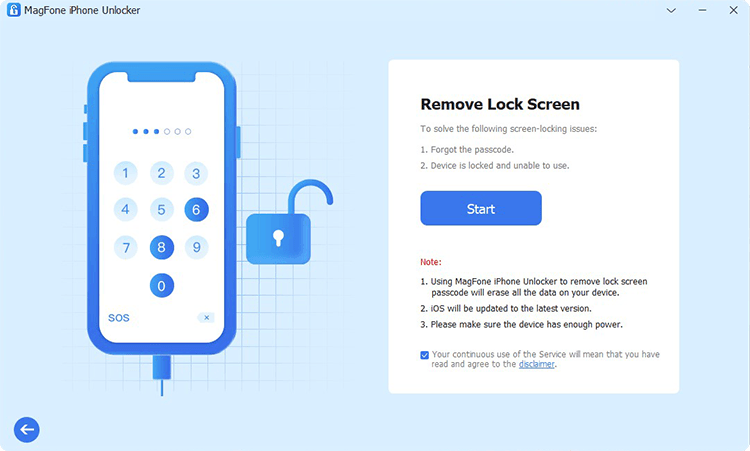
First, download and install MagFone iPhone Unlocker on a computer. Then launch this tool to start unlocking the iPhone passcode.
Step 2 Put iPhone into Recovery Mode
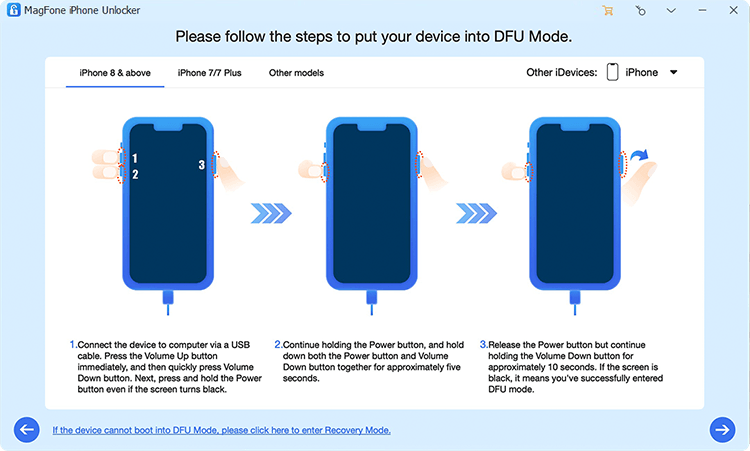
Choose Unlock iOS Screen on MagFone. Then use a data cable to link the locked iPhone to the computer, and follow the on-screen instructions to get the locked iPhone into recovery mode.
Step 3 Download Firmware Package

When the iPhone enters recovery mode, the Next icon should be clickable. Click it. Then click Download to download a firmware package.
Step 4 Unlock iPhone Passcode Successfully
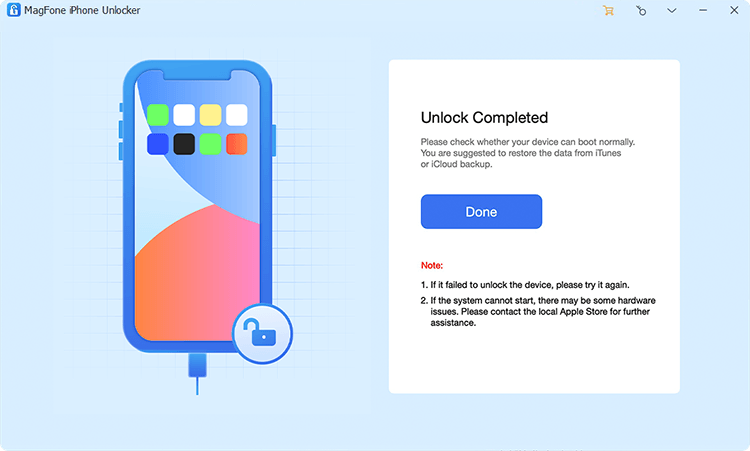
Wait for the firmware package to be downloaded and verified. Then click Unlock to remove the passcode from the iPhone.
Method 2. Unlock iPhone Passcode with iTunes
iTunes and Finder also provide a solution if your iPhone is completely locked. You can use iTunes or Finder to restore a locked iPhone in recovery mode. This can remove the iPhone passcode and update the iPhone to the latest system.
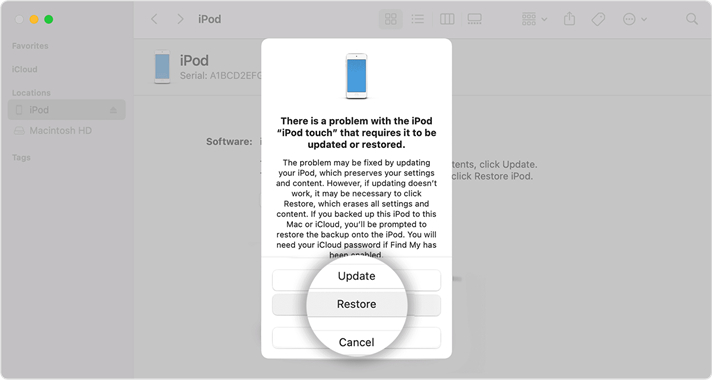
Step 1. Use a data cable to connect your iPhone to a computer and open iTunes.
Step 2. Put the iPhone into recovery mode.
- iPhone 8 and later: Press the Volume Up button. Quickly press the Volume Down button. Then press and hold the Power button until a computer image appears.
- iPhone 7 series: Press and hold the Power button and the Volume Up button until a computer image appears.
- iPhone 6 and earlier: Press and hold the Power button and the Home button until a computer image appears.
Step 3. Once the iPhone is detected by iTunes, click Restore in iTunes to restore the iPhone to factory settings.
Part 4. How to Unlock iPhone Passcode Online [Carrier Lock]
If you have trouble with a carrier lock on an iPhone, there is also is solution to unlock carrier lock. You can contact the carrier and ask them to remove the carrier lock for you.
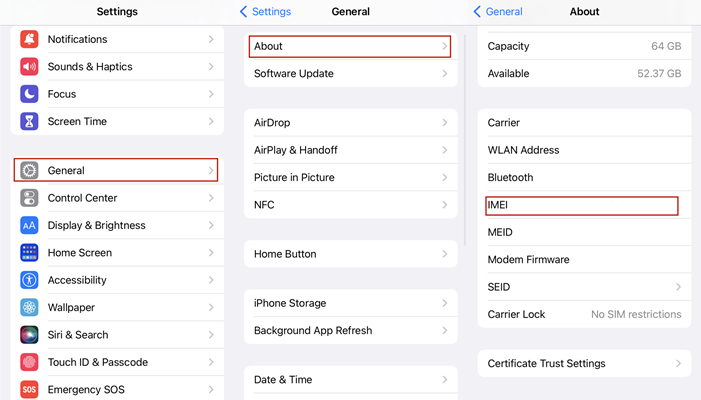
Step 1. Go to Settings > General > About, and find your 15-digit IMEI.
Step 2. Visit your official carrier's unlock portal.
Step 3. Enter your IMEI number, account details, and phone number, then submit the Unlock Request.
There are also many online services to remove SIM lock. If you can't contact the carrier to unlock your iPhone, you may consider a reliable carrier unlocker to remove the SIM lock. The cost depends on your iPhone model and carrier type.
Part 5. Conclusion
No matter whether you want to unlock the lock screen passcode or carrier lock online, there is a solution. For the lock screen passcode, you may consider removing it via iCloud Find My service. For carrier lock, you may consider a third-party tool to help you. In addition, if you have access to the locked device, using iTunes or MagFone can be a comprehensive solution.

Teresa Miller
Editor in chief





