








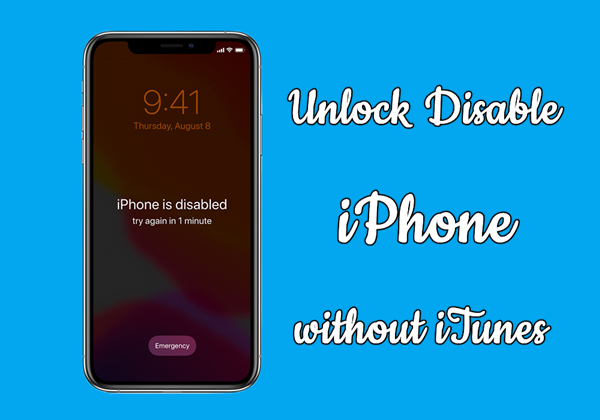
If you enter the wrong passcode too many times, your iPhone may display messages such as iPhone is disabled, iPhone Unavailable, or Security Lockout. In many cases, people think iTunes is the only way to fix the problem, but that is not absolute. Depending on your iPhone model, iOS version, and available tools, there are several ways to unlock a disabled iPhone without using iTunes. In this guide, we will walk you through the practical methods available to unlock a disabled iPhone without iTunes, including options that work with Finder, iCloud, the Find My app, an unlocking tool, or directly from the iPhone's lock screen.
- Part 1. How Do You Unlock a Disabled iPhone without iTunes?
- Part 2. How to Unlock a Disabled iPhone without iTunes or WiFi
- Part 3. How to Unlock a Disabled iPhone without iTunes or Computer
- Part 4. How to Unlock a Disabled iPhone without iTunes Using Finder
- Part 5. Conclusion
Part 1. Can You Unlock a Disabled iPhone without iTunes?
If you cannot remember your passcode when trying to unlock your iPhone, you will get your iPhone disabled. In this case, you can use a computer to put your iPhone in Recovery Mode and use iTunes to reset your device. But more users are concerned about unlocking a disabled iPhone without iTunes. Even without iTunes, there are some other methods to help you unlock a disabled iPhone, including using an iPhone passcode unlocker, iCloud website, or the Find My app.
There are several frequently asked questions about unlocking a disabled iPhone without iTunes. Here we compare each method, and after reading this table, you will get the answer. We will also introduce the steps in detail in the following sections.
| Methods | Apple ID & Password | Find My iPhone | Data Loss | Easy-to-use | Recommendations |
|---|---|---|---|---|---|
| MagFone iPhone Unlocker | ❌ | ❌ | ✔️ | Easy | ⭐⭐⭐⭐⭐ |
| Security Lockout | ✔️ | ❌ | ✔️ | Easy | ⭐⭐⭐⭐ |
| iCloud | ✔️ | ✔️ | ✔️ | A bit complex | ⭐⭐⭐ |
| Find My App | ✔️ | ✔️ | ✔️ | A bit complex | ⭐⭐ |
Part 2. How to Unlock a Disabled iPhone without iTunes or WiFi
Using an iPhone passcode unlocker is a convenient way to unlock a disabled iPhone without iTunes, and also the only way to unlock a disabled iPhone without WiFi. There are many iPhone unlocking tools available online, and MagFone iPhone Unlocker is highly recommended for its super-easy-to-use features. With MagFone iPhone Unlocker, you can easily fix a disabled iPhone with iTunes.
MagFone iPhone Unlocker is great for removing screen locks like Face ID, Touch ID, and digit code on the iPhone, iPad, and iPod touch. Designed with advanced decryption technology, MagFone iPhone Unlocker can remove Apple ID from the device, delete Screen Time passcode, and remove MDM without a password. Here's how to unlock iPhone when disabled without iTunes.

MagFone iPhone Unlocker
Unlock various locks on iOS devices, including screen locks, MDM, Apple ID, and Activation Lock without needing a password.
Step 1 Connect iPhone to Computer and Open MagFone
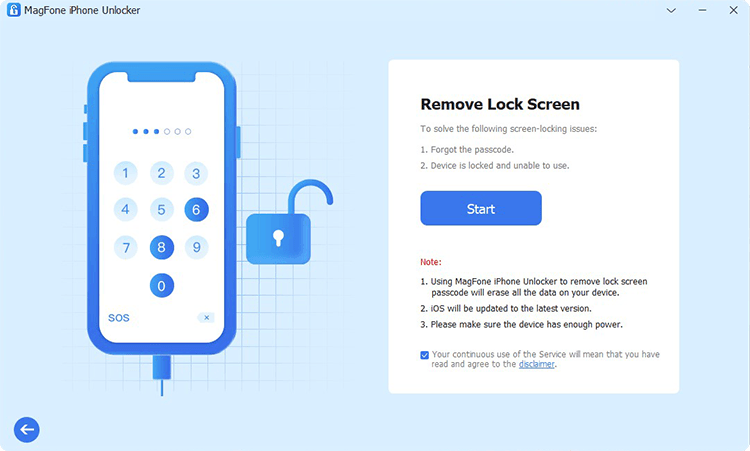
First up, you need to use a USB cable to connect your disabled iPhone to your computer. Go to open MagFone iPhone Unlocker on the computer and select the Unlock iOS Screen option, then click on the Start button.
Step 2 Put iPhone into Recovery Mode or DFU Mode
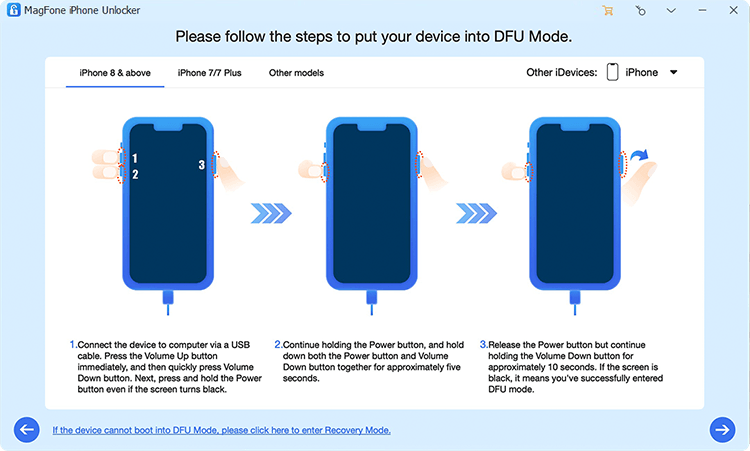
Before fixing a disabled iPhone without iTunes, you have to boot your disabled iPhone into recovery mode or DFU mode by following the onscreen instructions. Then click the next icon to go to the next page.
Step 3 Download the Firmware Package for iPhone
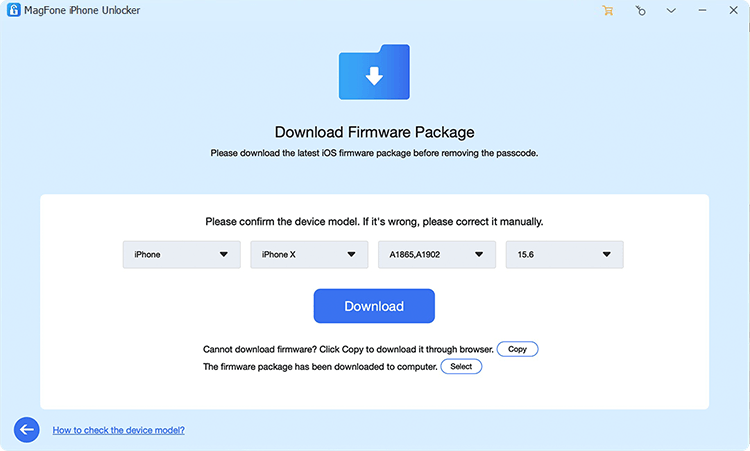
After that, you would see the device information of your disabled iPhone on the software. Carefully check the device information, and correct it if there is anything wrong. Then you can click on the Download button.
Step 4 Start to Unlock Disabled iPhone without iTunes
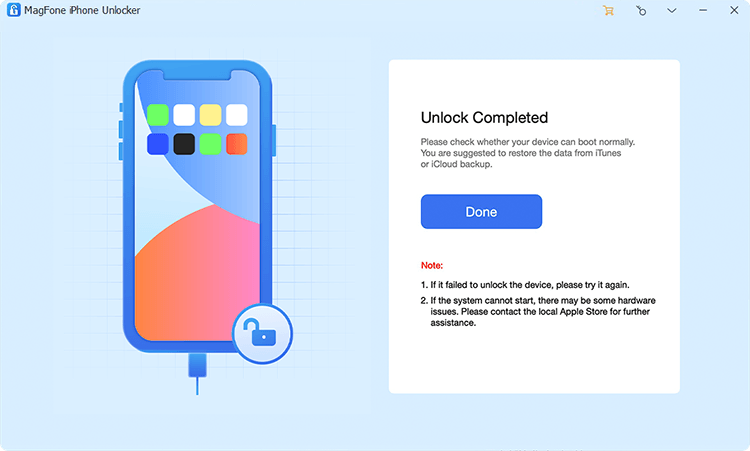
After downloading the firmware, you can click on the Unlock button, and MagFone iPhone Unlocker will quickly unlock a disabled iPhone. Keep your iPhone connected to the computer until the process finishes.
Part 3. How to Unlock a Disabled iPhone without iTunes or Computer
Say you can remember your Apple ID password and you want to unlock a disabled iPhone without iTunes, there are some other options for you to choose from. One way is to directly log out of your Apple ID and erase your disabled iPhone on the Security Lockout screen. Another way is to remotely reset your disabled iPhone at iCloud.com or through the Find My app to set it up again. Check detail steps below to unlock an iPhone without iTunes when disabled.
Method 1. Unlock a Disabled iPhone on Security Lockout Screen
If your iPhone is locked after too many incorrect passcode attempts, the message shown on the screen matters. When the screen says "iPhone is disabled", you will not see an Erase iPhone option on the device, especially on older iOS versions. In this case, you typically need to use another recovery method to regain access. However, if the screen shows "iPhone Unavailable" or "Security Lockout", you may see an Erase iPhone or Forgot Passcode? entry at the bottom of the screen. These options allow you to erase the device directly from the lock screen after verifying your Apple ID password.
📝Requirements:
iPhone running iOS 15.2 or later
An Apple ID password
A stable WiFi or cellular network
When you see the Erase iPhone entry on the lock screen:
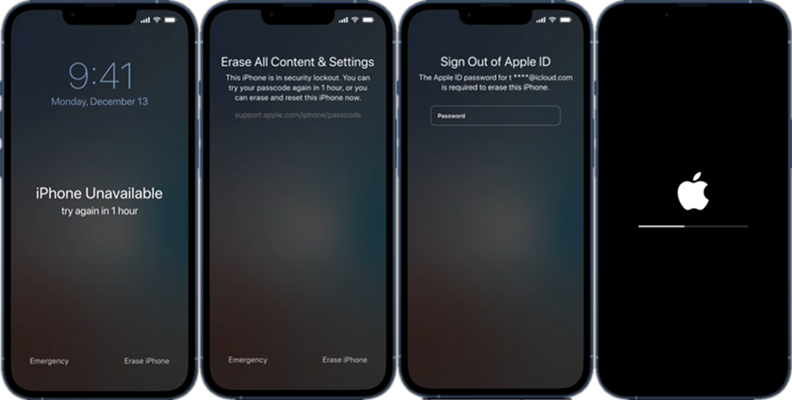
Step 1. On the iPhone Unavailable screen, tap Erase iPhone at the bottom of the screen.
Step 2. Tap Erase iPhone again and enter your Apple ID password to log out of your Apple ID.
Step 3. Tap Erase iPhone to confirm and start resetting your disabled iPhone.
When you see Forgot Passcode? entry on the lock screen:
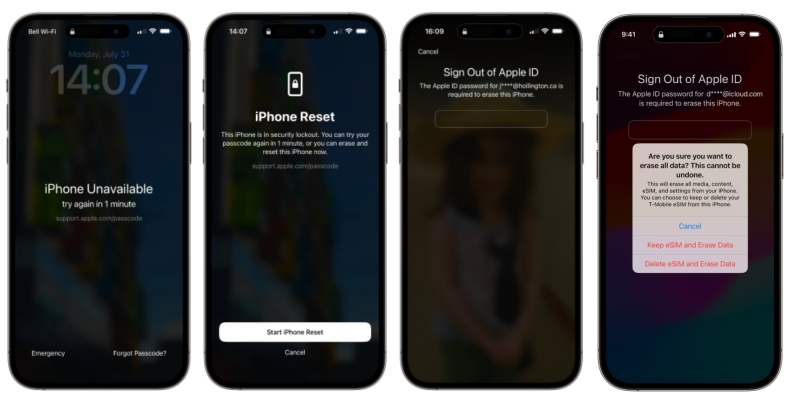
Step 1. Tap Forgot Passcode? option on the lock screen.
Step 2. Tap Start iPhone Reset and enter the Apple ID password to sign out.
Step 3. Tap Erase iPhone to proceed with the operation.
Method 2. Unlock a Disabled iPhone at iCloud.com
Remotely erasing a disabled iPhone at iCloud.com to its normal state is a foolproof method. Only if you can remember your Apple ID and password can you erase all the settings, including the screen lock on your iPhone. Then you can set up your device again. Here's how to reset a disabled iPhone at iCloud.com.
📝Requirements:
A device connected to the network
An Apple ID and password
Find My iPhone in enabled
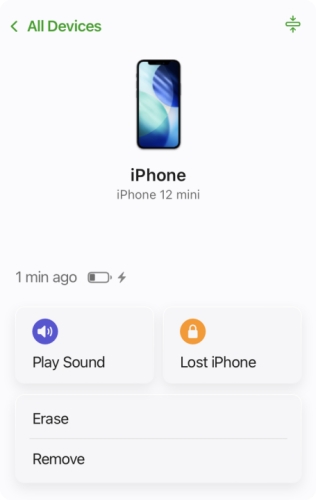
Step 1. Open iCloud.com in a web browser and log in with your Apple ID credentials.
Step 2. Choose your disabled iPhone from the device list and click the Erase button.
Step 3. Click Next and input an optional phone number.
Step 4. Enter your Apple ID password and click Erase to confirm.
Method 3. Unlock a Disabled iPhone via the Find My App
The Find My app is preinstalled on all Apple devices. With this app, you can manage and control all of your Apple devices where you sign into the same Apple ID. When your iPhone is disabled, you can reset it by using the Find My app. Follow the steps below to unlock a disabled iPhone without iTunes or computer.
📝Requirements:
An Apple device using the same Apple ID
An Apple ID and password
Find My iPhone in enabled
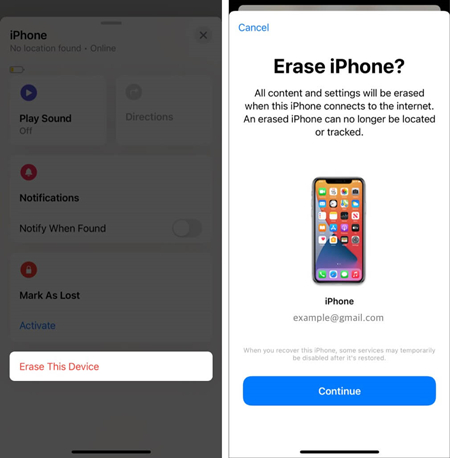
Step 1. Launch the Find My app on your Apple device and tap the Devices button.
Step 2. Select your disabled iPhone and tap the Erase This Device button.
Step 3. Tap the Continue button and enter your trusted phone number.
Step 4. Tap Erase and enter the Apple ID password to confirm the erasing.
Part 4. How to Unlock a Disabled iPhone without iTunes Using Finder
On Macs running macOS Catalina or later, iTunes has been replaced by Finder. Therefore, you can use Finder to unlock a disabled iPhone without iTunes. The steps are as follows.
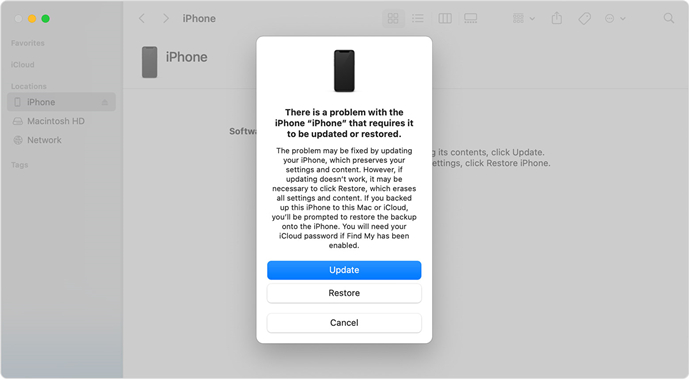
Step 1. Use a data cable to connect your disabled iPad to a Mac and open Finder.
Step 2. Get your iPhone into recovery mode:
- iPhone 8 and newer: Quickly press and release the Volume Up button, then the Volume Down button, then press and hold the Power button until the image of a computer appears.
- iPhone 7 models: Press and hold the Power button and the Volume Down button together until the computer icon shows.
- iPhone 6 and earlier: Press and hold the Power button and the Home button at the same time until the computer icon appears.
Step 3. When a window pops up, choose Restore to restore your iPhone to factory settings and unlock it.
Part 5. Conclusion
With iTunes, you can restore a disabled iPhone to use. But if you don't want to unlock a disabled iPhone without iTunes, you can directly reset it on the Security Lockout screen or remotely erase it at iCloud.com or using the Find My app. To quickly and efficiently enable your disabled iPhone, you can use MagFone iPhone Unlocker. With this tool, you can get a normal iPhone efficiently.

Dylan Jones
Editor in chief





