








Want to sign in to Facebook on another device but forgotten your password? Facebook will not save your password in the app and allows you to view the plain text. So, if you have the Facebook password saved on your device, you may be able to find it quickly. This guide will walk you through how to find your Facebook password on iPhone, Android phone, PC, and Mac. We will also show you how to reset a forgotten Facebook password whether you are logged in or logged out.
- Part 1. How to Find Facebook Password on iPhone
- Part 2. How to Find Facebook Password on Android
- Part 3. How to Find Facebook Password on PC
- Part 4. How to Find Facebook Password on Mac
- Part 5. How to Find Facebook Password by Resetting
- Part 6. Conclusion
Part 1. How to Find Facebook Password on iPhone
If you have logged in to Facebook and saved your Facebook password on your iPhone, you can find the password inside the Settings app, the Passwords app, or via a password manager.
Option 1. Find Facebook Password in iPhone Settings [~iOS 17]
Before iOS 18, you can find all saved app and websites passwords in iPhone Settings.
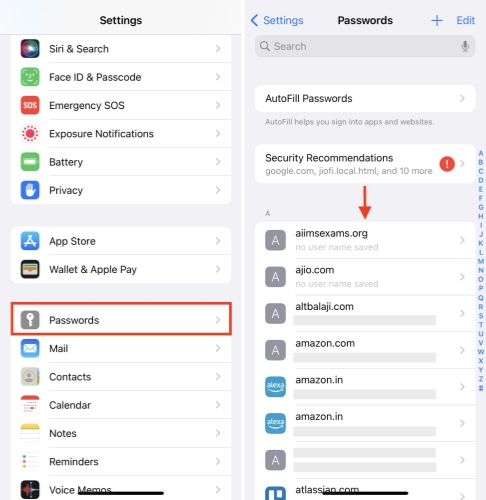
Step 1. Go to iPhone Settings and tap Passwords or Passwords & Accounts.
Step 2. Verify your identity, then tap App & Websites.
Step 3. Search for your Facebook username or email.
Option 2. Find Facebook Password in iPhone Passwords App [iOS 18+]
On iOS 18 and later, you can find all saved passwords on iPhone in the Passwords app.
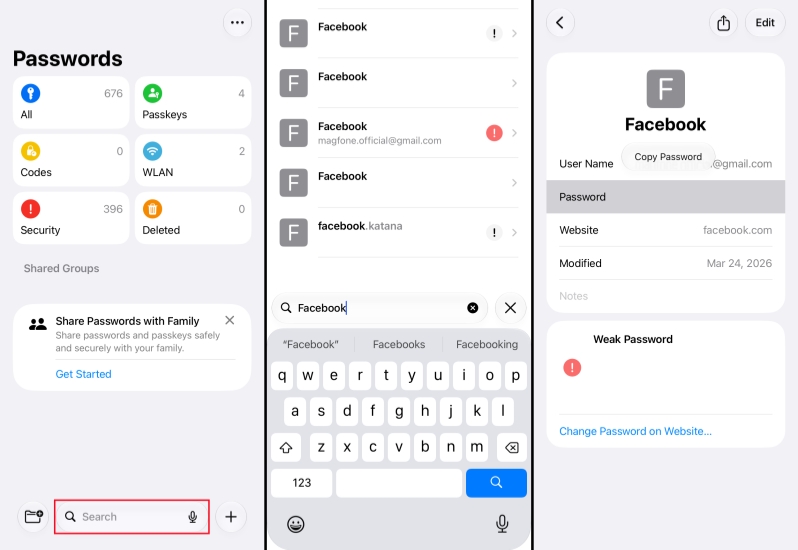
Step 1. Open the Passwords app and unlock with your passcode or Face ID.
Step 2. Search for Facebook and tap the result.
Step 3. Tap the Password field to reveal your Facebook password.
Option 3. Find Facebook Password with MagFone Password Manager
manager to scan your passwords. MagFone iPhone Unlocker is helpful for scanning saved passwords on iPhone and iPad, from WiFi passwords to app and website passwords. If you can't find your Facebook password on your device, download MagFone iPhone Unlocker and follow the steps below to recover it.
MagFone iPhone Unlocker
One-click to find saved app and website passwords on iPhone, compatible with all iOS versions.
Step 1 Run MagFone iPhone Unlocker
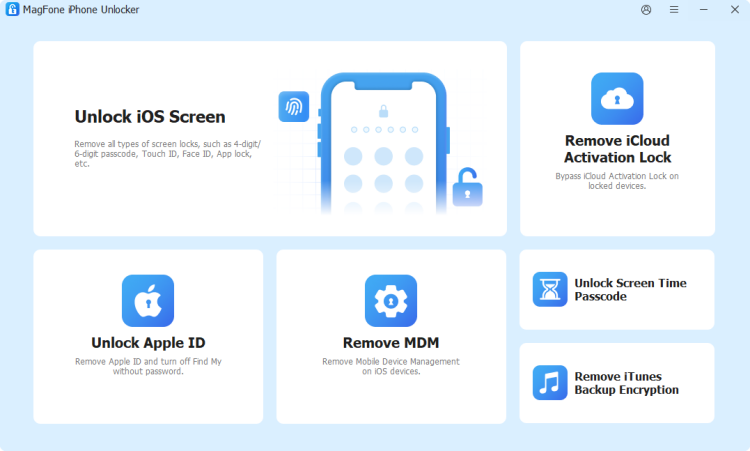
Open MagFone iPhone Unlocker on your computer and use a data cable to link your iPhone to the computer. Then click Password Manager on MagFone's main interface.
Step 2 Scan App Passwords on iPhone
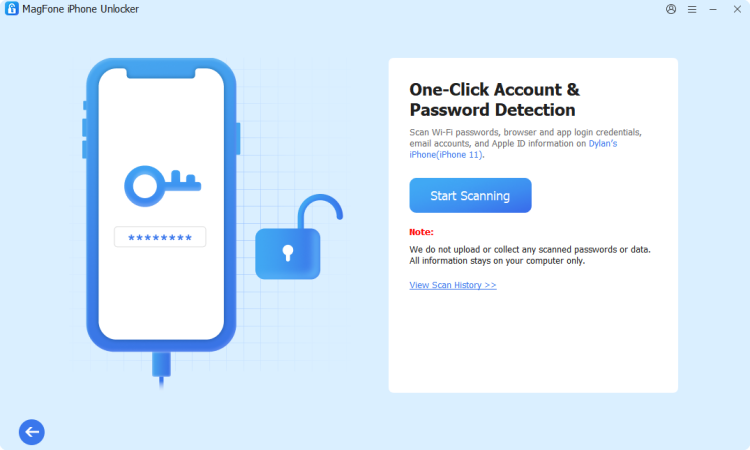
Click Start Scanning, and MagFone will scan all saved passwords on your iPhone.
Step 3 Recover Facebook Password
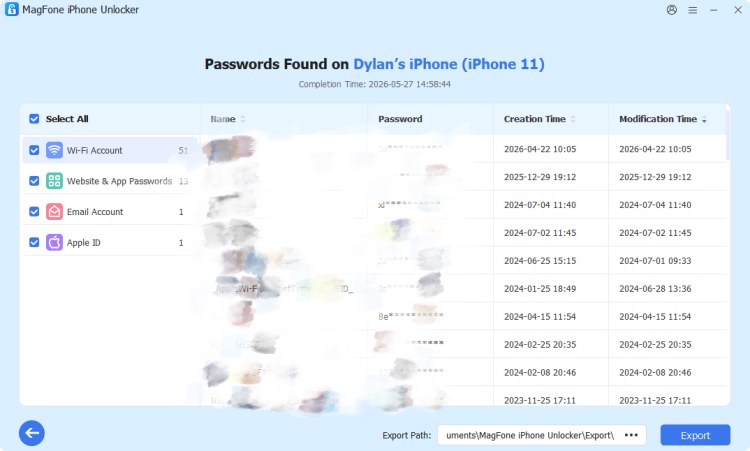
After scanning, click Website & App Passwords. Browse to find your Facebook account, and click the View icon to reveal your Facebook password.
Part 2. How to Find Facebook Password on Android
On Android, saved Facebook passwords may be available through Google Password Manager or your device's settings.
Option 1. Find Facebook Password in Google Password Manager
Step 1. Open the Google Password app on your phone.
Step 2. Search for Facebook, then tap Facebook to see all saved accounts.
Step 3. Tap the view icon to reveal the Facebook password.
Option 2. Find Facebook Password in Android's Settings
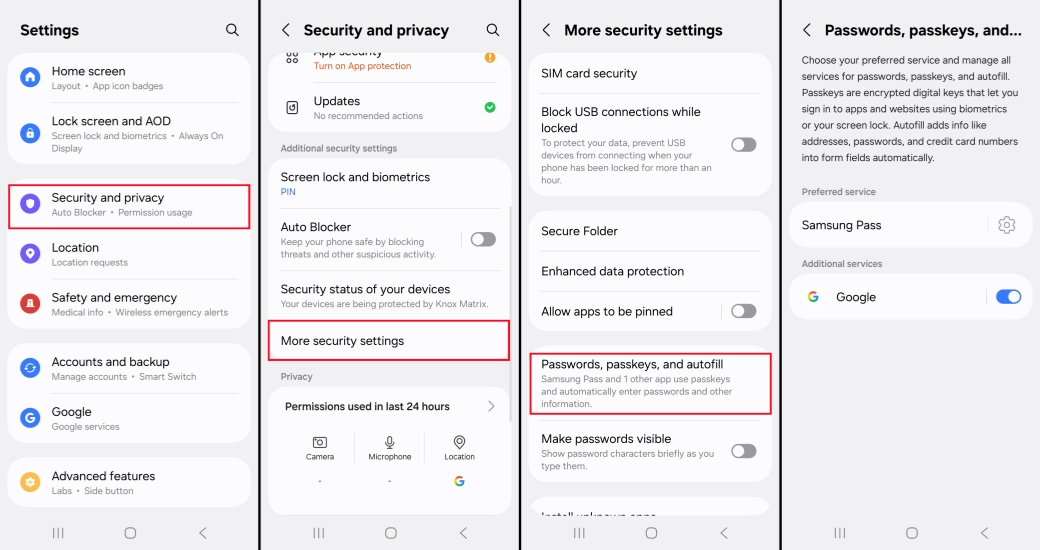
Step 1. Open Settings and tap Security and privacy.
Step 2. Tap More security settings > Passwords, passkeys, and autofill.
Step 3. You will see all password managers on your phone. You can tap any of them, like Samsung Pass or Google Password Manager, to find your Facebook password.
Part 3. How to Find Facebook Password on PC
If you signed in to Facebook using a web browser or desktop app, the password may be saved in the browser's password manager or Credential Manager on Windows.
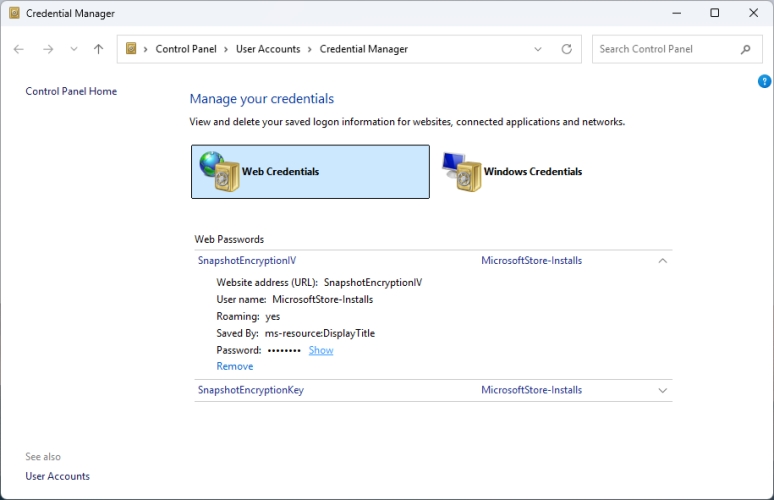
Step 1. Search for Credential Manager in the search field.
Step 2. Double-click Credential Manager and find your Facebook account.
Step 3. Click Show and enter your computer password to confirm.
Part 4. How to Find Facebook Password on Mac
On a Mac, saved Facebook credentials will be stored in macOS settings or Keychain Access. You can find your Facebook password in System Preferences or Keychain Access on a Mac.
Option 1. Find Facebook Password in System Preferences
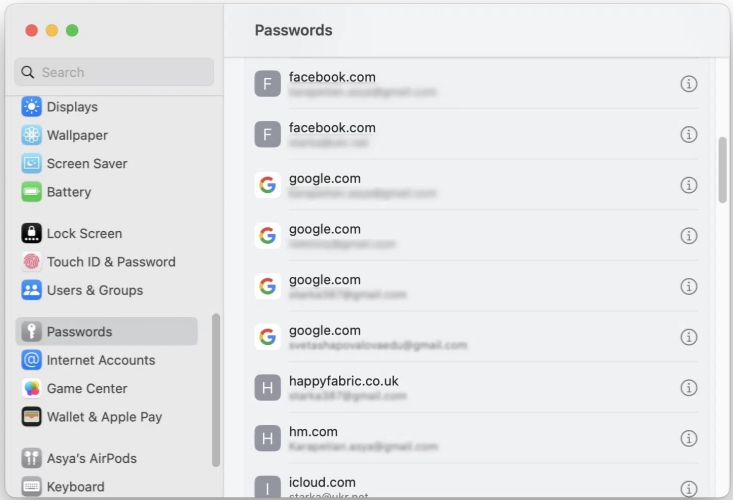
Step 1. Open System Preferences on your Mac and click Password.
Step 2. Enter your login password to see all passwords.
Step 3. Search for your Facebook account and click the account to view details.
Option 2. Find Facebook Password in Keychain Access
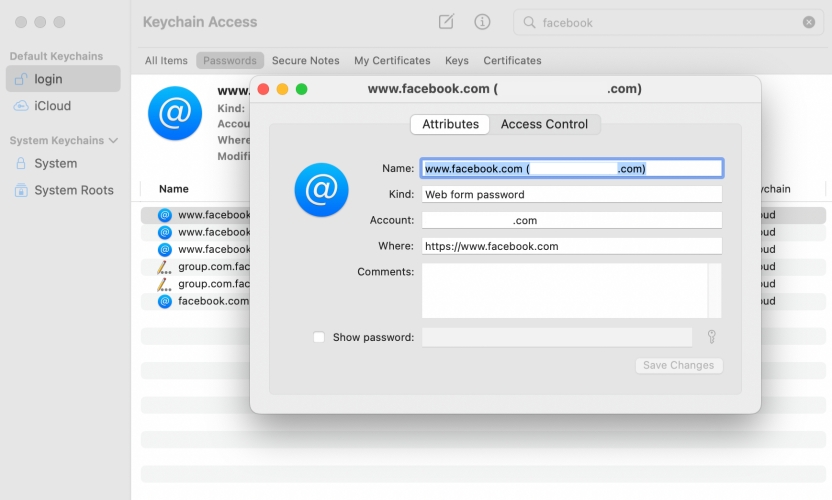
Step 1. Open Keychain Access on your Mac.
Step 2. Search for your Facebook account and double-click your account.
Step 3. Click Show password and enter your Mac password to reveal it.
Part 5. How to Find Facebook Password with Resetting
If you can't find your saved Facebook password on your device or haven't saved your Facebook password on any of your devices before, you can reset your Facebook password to recover it.
Option 1. Reset Facebook Password While Logged In
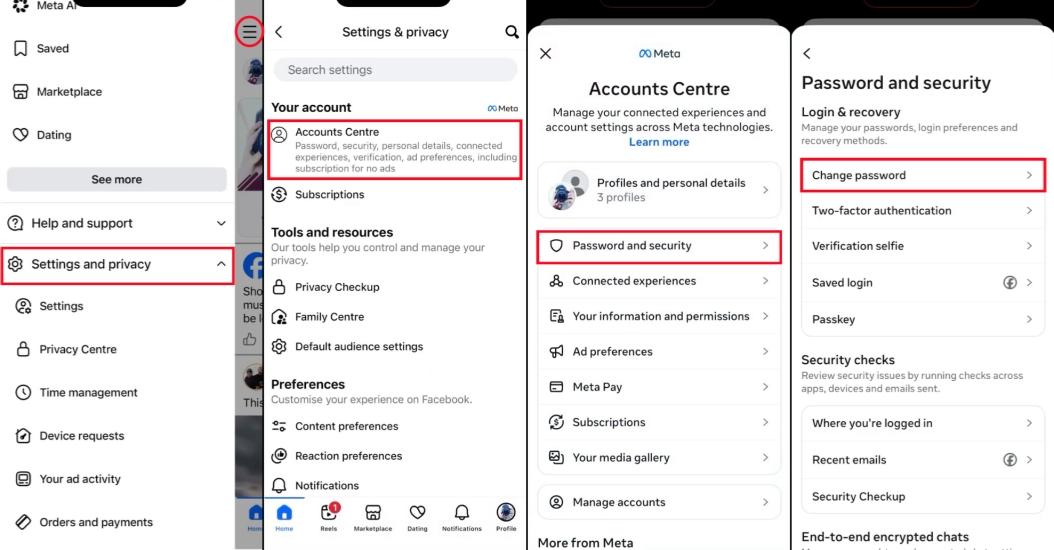
Step 1. Open Facebook and tap the hamburger icon in the upper-left corner.
Step 2. Tap Settings and privacy > Settings > Accounts Centre > Password and security.
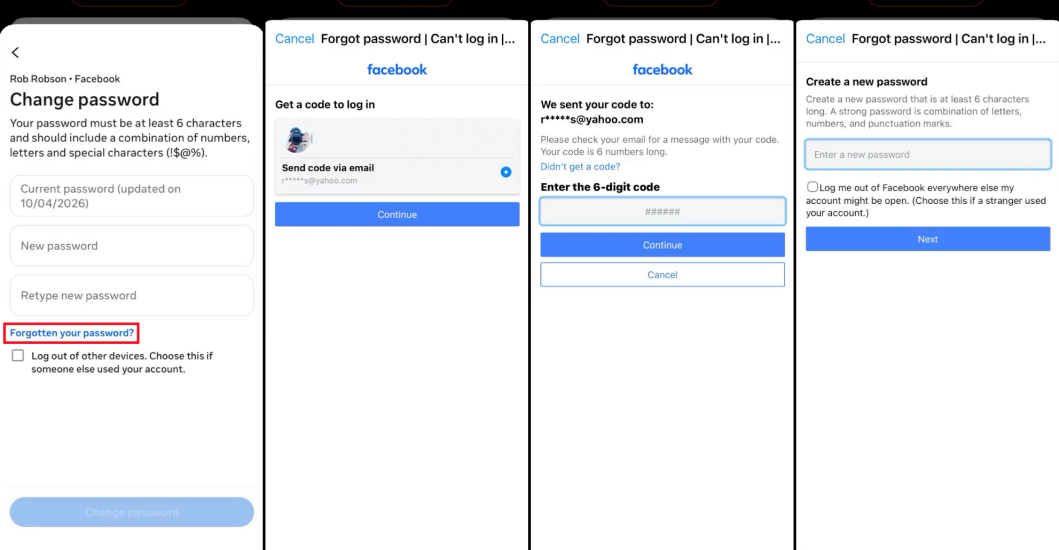
Step 3. Tap Change password, then tap Forgotten your password?.
Step 4. Get a code via email or mobile number, then enter the code and tap Continue.
Step 5. Create a new Facebook password and tap Next to confirm.
Option 2. Reset Facebook Password While Logging In
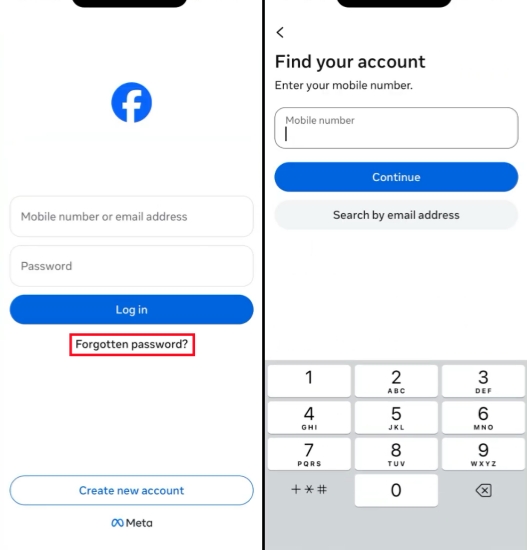
Step 1. Open Facebook and tap Forgot Password?.
Step 2. Enter your phone number or tap Search by email to enter your email, then tap Continue.
Step 3. Choose to confirm your account via the mobile number, email, or password, and tap Continue.
Step 4. Enter the verification code Facebook sent to your email or mobile number.
Step 5. Create a new password and tap Continue.
Part 6. Conclusion
Once you've checked the password managers on your devices, you'll know whether your Facebook login was saved anywhere. If it wasn't, use Facebook's recovery process to regain access and set a new password.

Dylan Jones
Editor in chief




