








Forgot your email password on your iPhone? Don't panic. Your iPhone may have stored and managed many of your passwords behind the scenes. With the right steps, you can quickly view or recover your email login details. In this guide, we'll walk you through several easy ways to find email password on iPhone, from using Settings and the Passwords app to tapping into AutoFill, Siri, and professional tools like MagFone iPhone Unlocker. We'll also show you how to securely save your email password for future use, so this problem doesn't catch you off guard again.
- Part 1. How Can I Find My Email Password on My iPhone?
- Part 2. How to Find Email Password on iPhone
- Option 1. Find Email Password on iPhone in Settings [Before iOS 18]
- Option 2. Find Email Password on iPhone in Passwords App [iOS 18 and Later]
- Option 3. Find Email Password on iPhone via Password AutoFill
- Option 4. Find Email Password on iPhone via Siri
- Option 5. Find Email Password on iPhone via MagFone iPhone Unlocker
- Part 3. How to Save Email Password for Future Use
- Part 4. Conclusion
Part 1. How Can I Find My Email Password on My iPhone?
If you forgot your email password on your iPhone, you might not need to reset it right away to regain access. Your device may already have it saved. iOS can securely store and autofill your login details in places like iPhone Settings or the Passwords app, depending on your iOS version. Besides, you may also find your email password via the password autofill feature, Siri, or a third-party password manager. We will guide you to find and check your email password in the following section.
Part 2. How to Find Email Password on iPhone
If you used to save the email password on your iPhone when you first signed in on your iPhone, you can find it in some locations. In this part, we'll walk you through these options to find your email password on your iPhone, whether you're using an older iOS version with Settings, the new Passwords app on iOS 18 and above, or convenient features like AutoFill and Siri, as well as a professional unlocking tool.
Option 1. Find Email Password on iPhone in Settings [Before iOS 18]
On iOS versions before iOS 18, your email login details are often stored directly in iPhone Settings. If you choose to save the password for the first time when you sign in to your iPhone, you can go to Settings to check it.
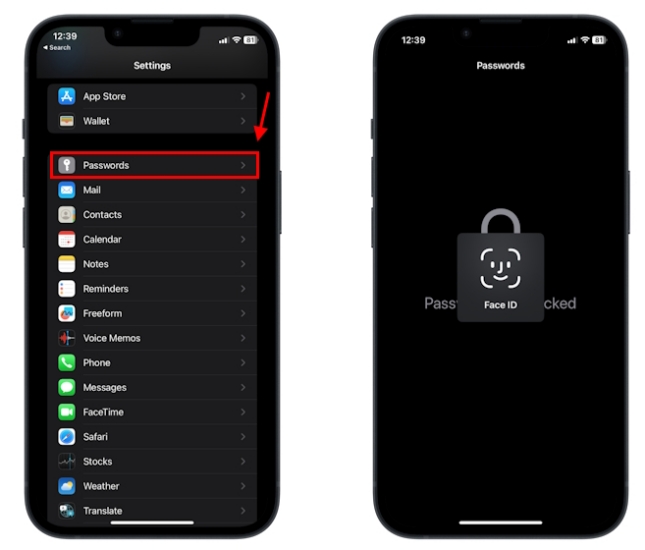
Step 1. Open Settings and tap Passwords, unlock with your iPhone passcode, Touch ID, or Face ID.
Step 2. Tap the Search box and type mail, then find the email server you want to find.
Step 3. Tap the Password field to reveal the email password.
Option 2. Find Email Password on iPhone in Passwords App [iOS 18 and Later]
For devices running iOS 18 and later, the dedicated Passwords app centralizes all your saved logins, including your email accounts. You can also find and check saved email passwords in the Passwords app.
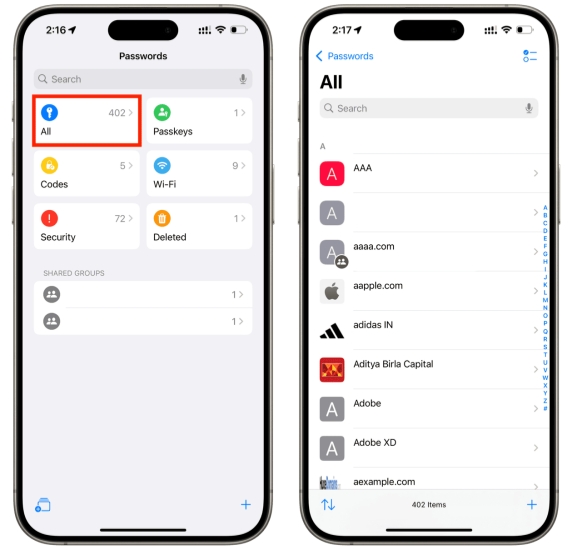
Step 1. Open the Passwords app on your iPhone and unlock it with your passcode or Face ID.
Step 2. Tap the search box and search for mail, then check the corresponding email server.
Step 3. Access the email account, and tap the Password field to reveal the email password.
Note:
If you have changed the email password but haven't updated it on your device, you can tap Edit on the password page to update the password, then tap the Done button to save it.
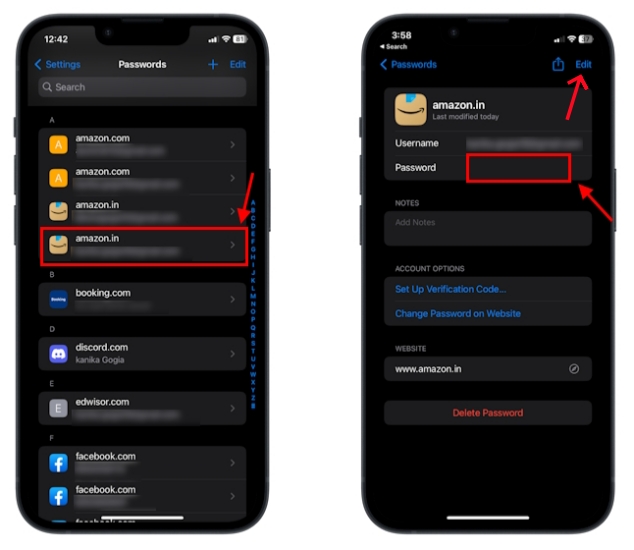
If you have changed the email password and also have forgotten it, you can tap the Change Password on Website option on the email account password information page and follow the on-screen instructions to reset the email password.
Option 3. Find Email Password on iPhone via Password AutoFill
If you have saved an email password on your iPhone previously, you can also enable Password AutoFill to access it. You need to first enable essential settings in advance:
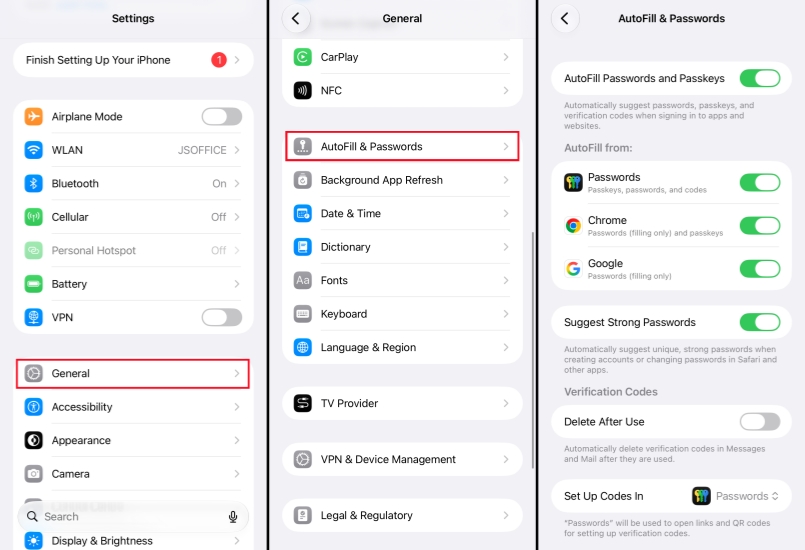
Step 1. Go to iPhone Settings and search for AutoFill Passwords in the Search box.
Step 2. Tap AutoFill Passwords or AutoFill & Passwords, depending on your iOS version, in the search results.
Step 3. Enable AutoFill Passwords or AutoFill Passwords and Passkeys.
Step 4. Under Allow Filling From, enable the password managers or services you use, for example, iCloud Keychain or any other search engine server.
After these settings are enabled, your iPhone can automatically fill in saved email passwords when you sign in to apps or websites that use those credentials.
Option 4. Find Email Password on iPhone via Siri
Siri can act as a shortcut to your saved passwords, making it quicker to get to what you need. With simple voice commands like "What's my password for email account…", you can ask Siri to show passwords related to a specific email service.
Option 5. Find Email Password on iPhone via MagFone iPhone Unlocker
If you can't find and access your saved passwords through normal iOS options, a professional password dealer like MagFone iPhone Unlocker may help. It can not only help find saved passwords on your iPhone and iPad, including the email password, app and website password, Wi-Fi password, and Apple ID password. It can also help remove forgotten passcodes from iPhone and iPad, including the screen passcode, Screen Time passcode, Apple ID password, MDM password, and iTunes encryption password. Though you can't find your saved email password on iPhone via Apple's official entry, MagFone can scan those items on your iPhone and allow you to reveal it. Now, follow the steps below to check the email password not showing on iPhone.

MagFone iPhone Unlocker
Locate saved email passwords and login credentials on iOS device quickly and securely.
Step 1 Download and Install MagFone iPhone Unlocker
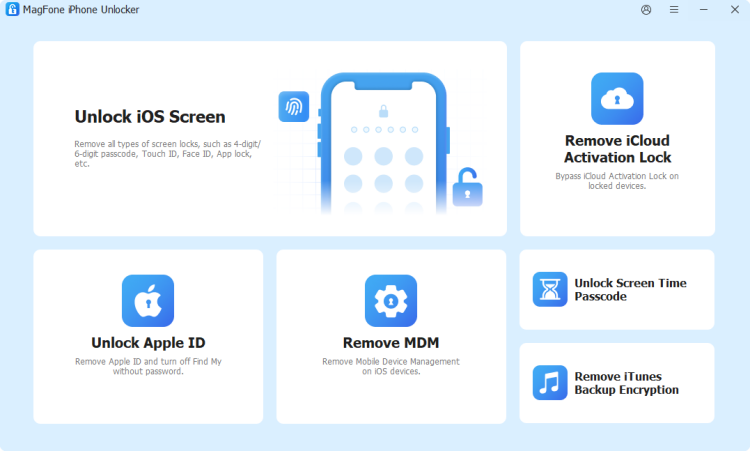
First, download and install MagFone iPhone Unlocker on your computer, then run this tool to start.
Step 2 Scan Saved Email Passwords on iPhone
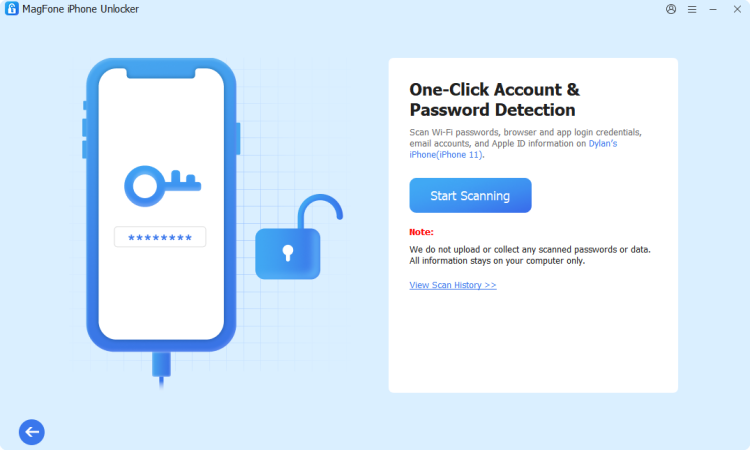
Click Password Manager from the provided features, and connect your iPhone to the computer via a data cable. Then you will see the Start Scanning button. Click it. In the meantime, enter the passcode on your iPhone to give permissions.
Step 3 Reveal Email Passwords on iPhone
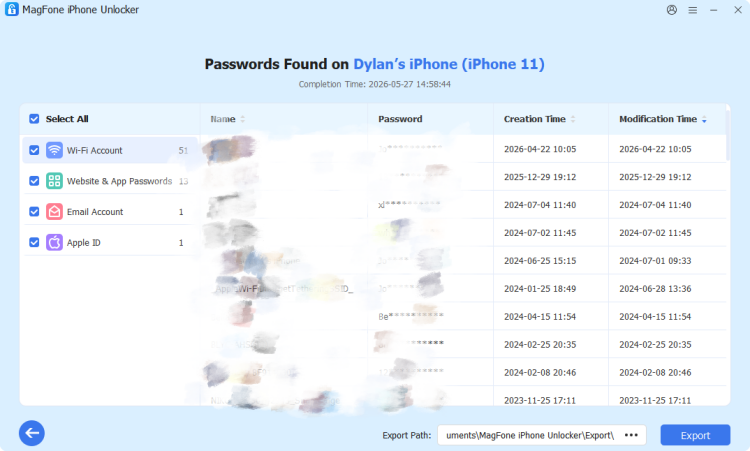
After scanning, you can click Email Account or App & Website Passwords to find your email account and corresponding password. You can also select the email accounts and click Export to export them in a CSV file for additional backup.
Part 3. How to Save Email Passwords for Future Use
If you've regained access to an email account password that wasn't previously saved on your iPhone, you can now add it to your device so it's securely stored and easy to reuse in the future.
Option 1. Save Email Password in Settings
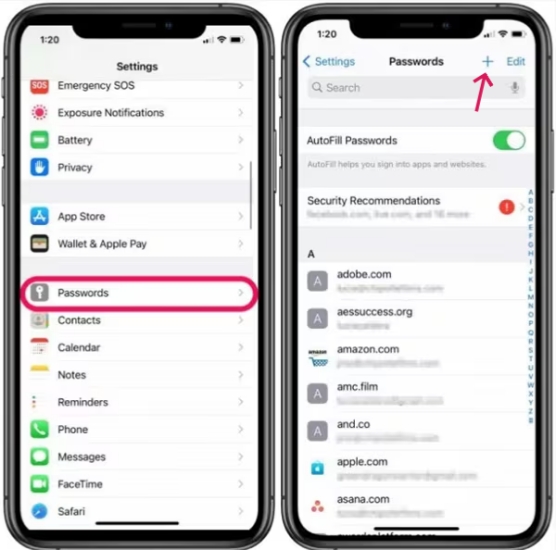
Step 1. Go to iPhone Settings > Passwords or Passwords & Accounts.
Step 2. Tap the + icon, and enter the required information, including email account, password, and website.
Step 3. Tap Done to save the email password on your iPhone.
Option 2. Save Email Password in Passwords App
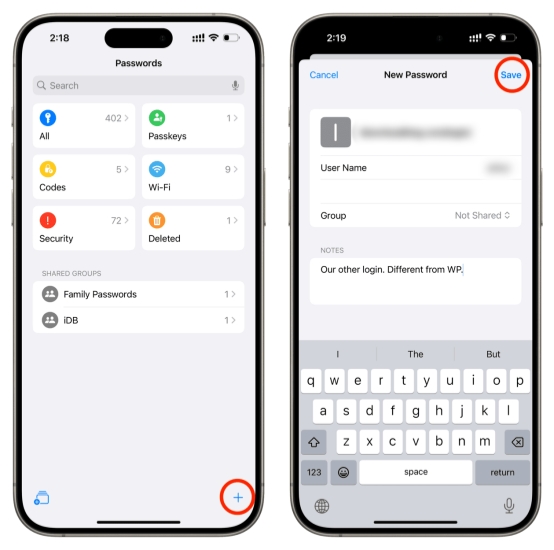
Step 1. Open the Passwords app and tap the + icon.
Step 2. Enter the required email account, password, and the mail website.
Step 3. Tap the ok icon to save it on your iPhone.
Part 4. Conclusion
By using the methods above, you can usually find your email password on your iPhone, whether it was previously saved or completely forgotten. From checking Settings and the Passwords app to enabling AutoFill, using Siri, or turning to MagFone iPhone Unlocker, there's almost always a way to regain access. Once you've recovered your password, remember to save it on your iPhone so you can sign in quickly and securely in the future without worrying about forgetting it again.

Dylan Jones
Editor in chief





