








Chrome can securely save your login details, making it easier to access websites without entering your passwords every time. However, you may occasionally need to view a saved password, check your account information on another device, or manage passwords stored in your browser. In this guide, we'll explain how to view saved passwords in Chrome on iPhone, Android, desktop, and other browsers, as well as how to export and sync your passwords across devices.
- Part 1. How Can I See Saved Passwords in Google Chrome?
- Part 2. How to View Saved Passwords on Chrome
- Part 3. How to Manage Saved Passwords in Chrome
- Part 4. Conclusion
Part 1. How Can I See Saved Passwords in Google Chrome?
As long as you save a password in Chrome, you can find it and see it in the Chrome Password Manager. You can see saved passwords via Chrome Settings or directly head to the Google Password Manager page to see all passwords.
Part 2. How to View Saved Passwords on Chrome
You can view saved passwords either in the Chrome app or the Google Password Manager tool on the web. The steps vary slightly among devices; follow the method that matches your device.
View Saved Chrome Passwords on iPhone
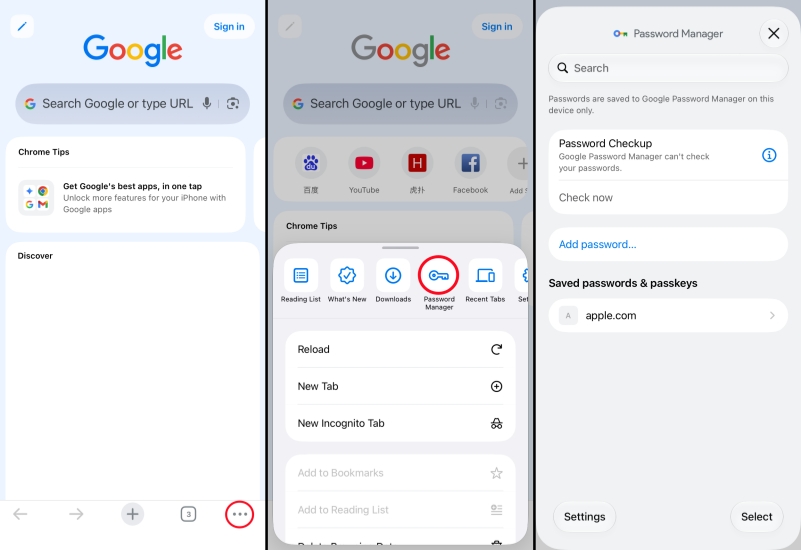
Step 1. Open Chrome on your iPhone and tap the triple-dot icon.
Step 2. Tap Password Manager and verify your identity; then you can view all saved passwords in Chrome.
Step 3. Tap any account, and tap the view icon to reveal the password.
View Saved Chrome Passwords On Android
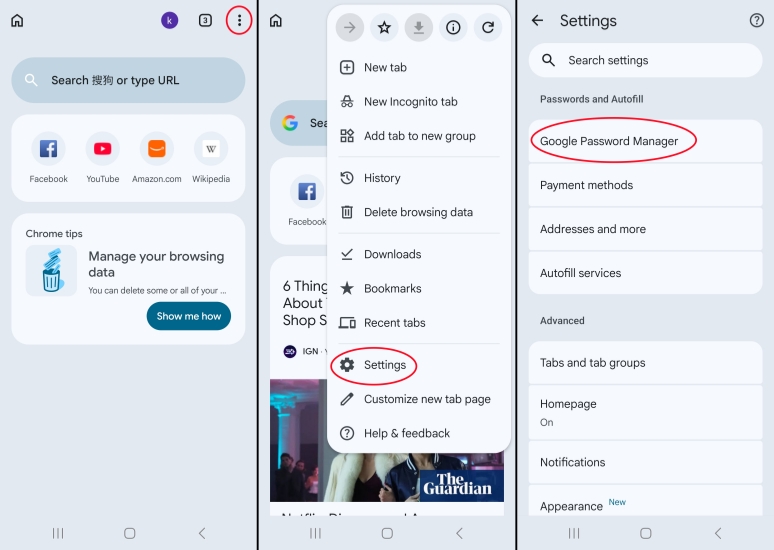
Step 1. Open Chrome on your Android phone.
Step 2. Tap the triple-dot icon and tap Settings > Google Password Manager.
Step 3. Now you can see your saved password list. Tap any one and tap the view icon to reveal the password.
View Saved Chrome Passwords On Desktop:
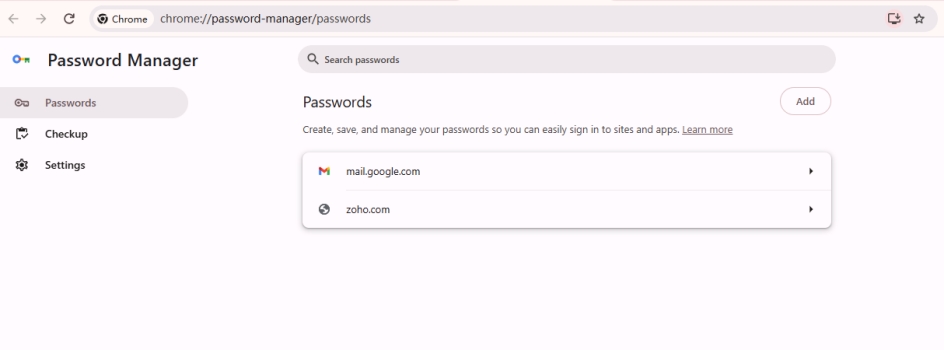
Step 1. Enter the Chrome Password Manager page on your desktop Chrome.
Step 2. Click the website password you want to view, and verify your identity.
Step 3. Click the view icon to reveal the password.
View Saved Chrome Passwords On Any Browser
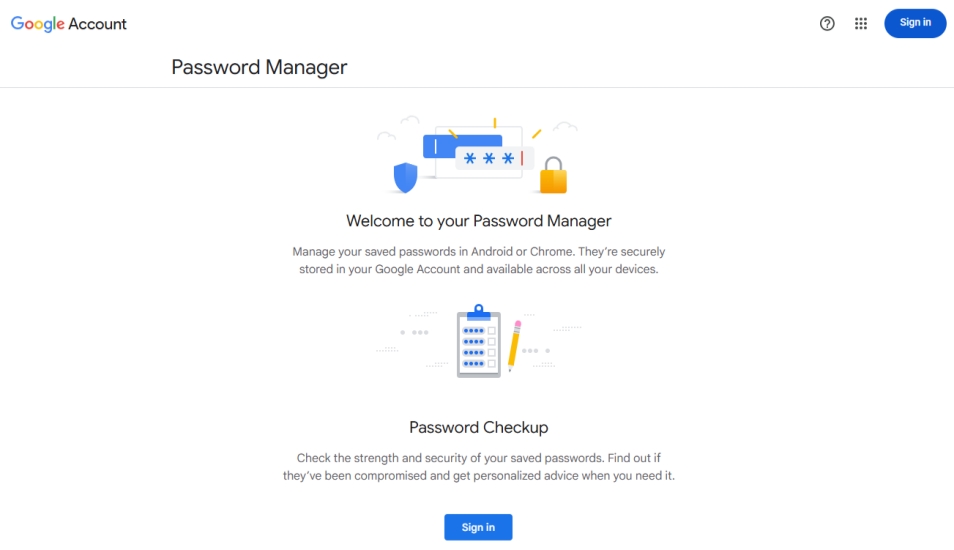
Step 1. Open the Google Password Manager tool in a browser and sign in with your Google account.
Step 2. Access the website where you want to view the password, then tap the view icon to reveal the password.
Note:
If you used to enter login credentials of a website and saved them in Chrome, you can always find and see saved passwords in Chrome. But if you choose not to save it for this website when Google asks you whether to save the password, you may not view the password in Google Password Manager. In this case, MagFone iPhone Unlocker can help scan and find passwords.

MagFone iPhone Unlocker
Scan and export Chrome saved passwords on iPhone and share to anywhere you want.
Part 3. How to Manage Saved Passwords on Chrome
While viewing the saved passwords, you can also choose Edit, Delete, or Share to manage the passwords in Chrome. Besides, you may also want to organize, back up, or access them more conveniently across your devices. Chrome allows you to export saved passwords and sync passwords through your Google account. You can follow the methods below to manage your Chrome password safely and efficiently.
3.1 How to Export Saved Passwords from Chrome
On each website password page, you can edit, share, or delete the saved password. You can also export all saved passwords from Chrome at once and share or import them anywhere you want. If you need to export Chrome passwords, you can follow the steps below.
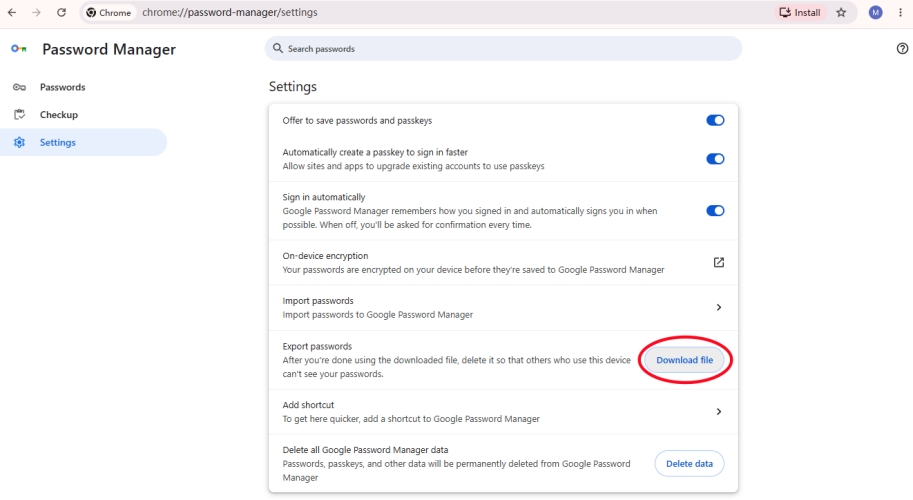
Step 1. Open the Password Manager page on your mobile app or web browser.
Step 2. Tap Settings and tap the Download File button next to Export passwords.
Step 3. Verify your identity, then choose a location and tap Save to download all passwords on your device.
3.2 How to Sync Chrome Passwords Across Devices
If you are using Chrome with the same account across mobile phones and computers, it's suggested that you save the passwords in your Google account so you can access all passwords across your devices.
On iPhone:
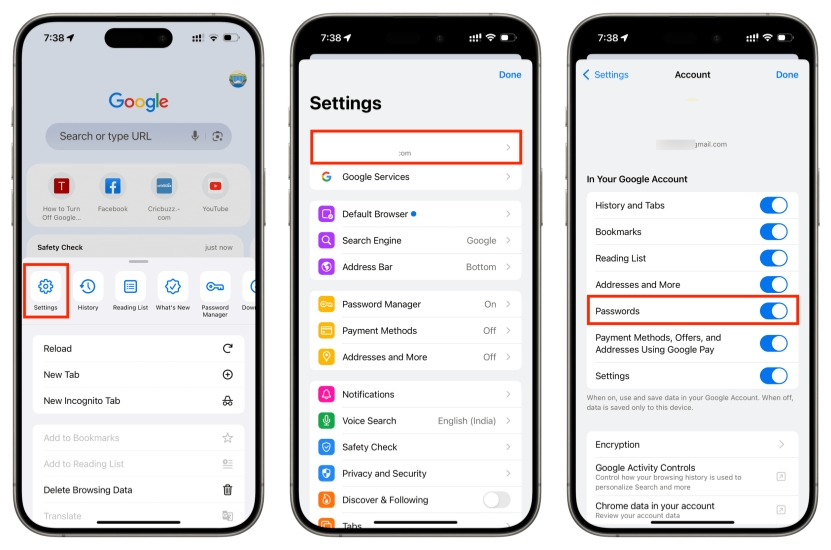
Step 1. Open Chrome and tap the triple-dot icon.
Step 2. Tap Settings, then enter the Google account page.
Step 3. Enable Passwords so your website passwords will be saved on your Google account.
On Android:
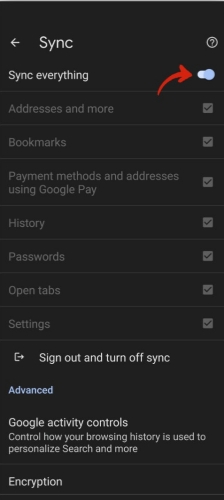
Step 1. Open Chrome and tap the triple-dot icon.
Step 2. Tap Settings. If you haven't enabled sync before, tap Turn on sync and follow the prompts to confirm sync.
Step 3. Turn on Sync everything, or only enable the data you want to sync.
On Desktop/Web:
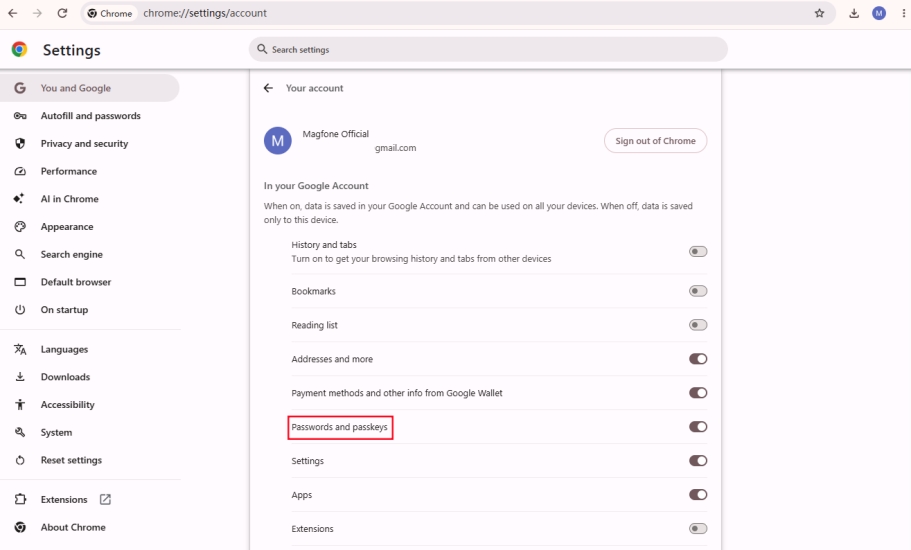
Step 1. Open Chrome and click the triple-dot icon.
Step 2. Click Settings and enter your account.
Step 3. Enable Password and Passkeys. Then the passwords will be saved in your Google account and sync across your devices.
Part 4. Conclusion
With the Google Password Manager tool, you can view, edit, copy, share, export, and delete any password you want. If you want to access your passwords on Chrome seamlessly across devices, enabling password sync is also recommended. For better security, you can inspect your saved passwords regularly and modify unsafe passwords in time.

Olivia Wood
Editor in chief




