








iCloud Keychain is a powerful feature that securely stores and syncs your passwords, credit card information, and other sensitive data across all your Apple devices. However, there are users who are encountering iCloud Keychain not syncing or updating as expected. This guide will help you understand why iCloud Keychain may not be syncing and walk you through practical steps to resolve the issue.
- Part 1. Why Are My iCloud Keychain Passwords Not Syncing?
- Part 2. How to Fix iCloud Keychain Not Syncing
- Part 3. Bonus Tip to Sync iCloud Keychain from iOS to Computer
- Part 4. FAQs About iCloud Keychain Syncing
- Part 5. Conclusion
Part 1. Why Are My iCloud Keychain Passwords Not Syncing?
iCloud Keychain is designed to sync your passwords and sensitive information seamlessly across all your Apple devices. However, there are several factors that can affect iCloud Keychain password syncing.

Temporary Server Outages:
Apple's authentication or iCloud syncing servers might be experiencing temporary downtime.
Account Misconfiguration:
Devices might be logged into different Apple IDs or missing required security configurations like Two-Factor Authentication.
System or Network Glitches:
Corrupted network caches, misaligned system dates/times, or outdated operating systems can block encrypted data transfer.
Disabled Sync Permissions:
The iCloud Keychain toggle, or Passwords app sync, might be turned off on one of your devices.
Browser & Mode Settings:
Using Private Browsing in Safari can prevent auto-fill and real-time syncing.
Quick Checklist for iCloud Sync:
Before you take further steps to fix the iCloud Keychain not syncing issue, make sure these common requirements and settings are met.
- Available Apple System Status: Sometimes, Apple's iCloud services may experience temporary outages. Go to the System Status page to see if iCloud Keychain is available. If it's not available, wait for Apple to address the issue. If the iCloud Keychain is green, go through the methods in Part 2 to troubleshoot the issue.
- Signed Into Same Apple ID: Make sure you're signed in with the same Apple ID on all devices you want to sync. Using different Apple IDs will prevent Keychain data from syncing.
- Enabled Two-Factor Authentication: iCloud Keychain requires two-factor authentication for your Apple ID. If it's not enabled, some syncing features may not work.
If all of these basics are set up correctly and you're still experiencing syncing problems, proceed to the next section for step-by-step troubleshooting methods.
Part 2. How to Fix iCloud Keychain Not Syncing
If you've completed the initial checklist and iCloud Keychain is still not syncing, don't worry. Follow the methods below to refresh iCloud Keychain password sync.
Method 1. Toggle iCloud Keychain
iCloud Keychain passwords will sync across devices that are signed with the same Apple ID. If your iCloud Keychain is not syncing, you need to make sure that you have enabled the iCloud for Passwords app and iCloud Keychain.
On iPhone:
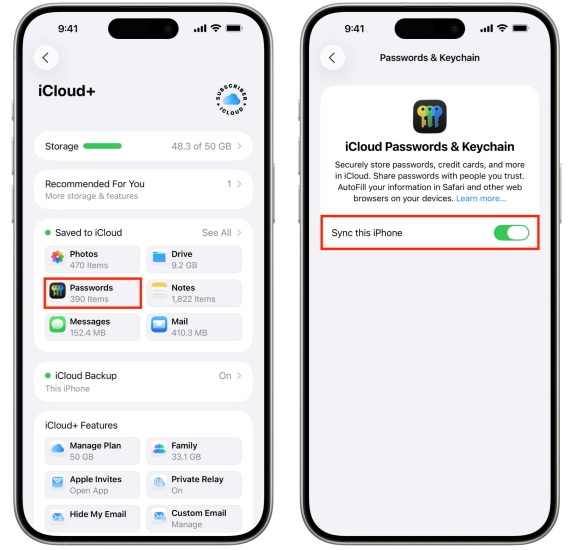
Step 1. Go to Settings > Apple ID > iCloud.
Step 2. Tap Saved to iCloud > Passwords and Passkeys.
Step 3. Disable Sync This iPhone, and re-enable it after a few seconds.
On Mac:
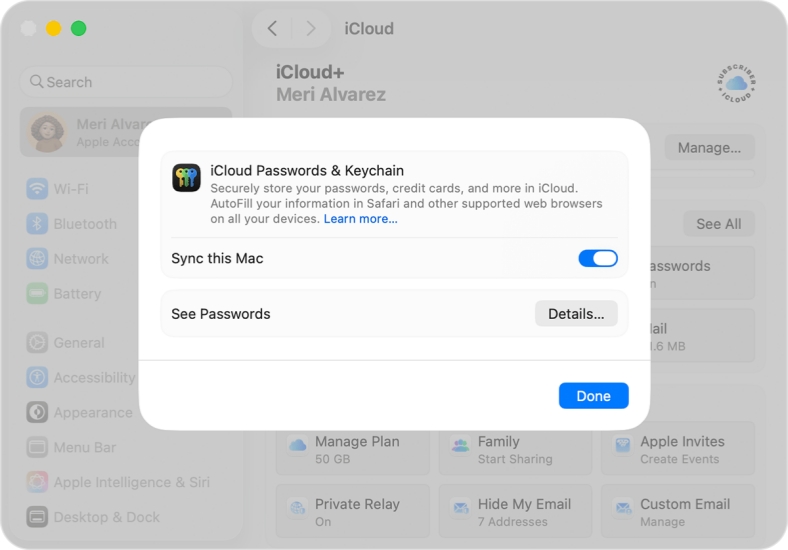
Step 1. Open System Preferences and click Apple ID.
Step 2. Click iCloud > Passwords, toggle Sync this Mac to refresh the status.
Method 2. Restart Devices
A basic system restart clears temporary cache files, closes stuck background processes, and forces network protocols to re-establish connections.
On iPhone:
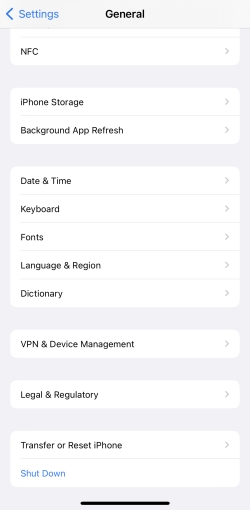
Step 1. Open Settings and tap General.
Step 2. Tap Shut down at the bottom and drag the slide to shut off your iPhone.
Step 3. Long-press the Power button to restart it.
On Mac:
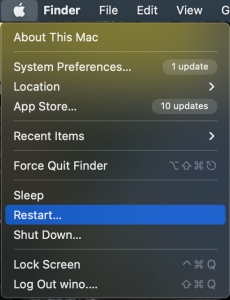
Step 1. Click the Apple icon at the upper left corner.
Step 2. Choose Restart to restart the Mac.
Method 3. Turn Off Private Browsing
Safari will not automatically save, sync, or offer AutoFill credentials while you are using it in Private Browsing mode. You need to exit Private Browsing mode to allow keychain and passwords to save and fill automatically.
Method 4. Check Safari AutoFill Settings
If the password autofill setting is disabled on your device, you may also consider that iCloud Keychain is not syncing. Check your autofill settings and make sure it's enabled.
On iPhone:
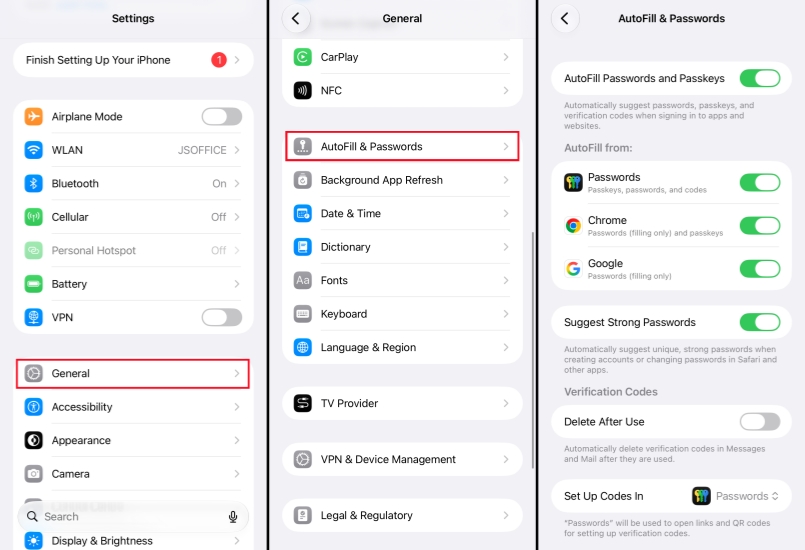
Step 1. Go to Settings > General > AutoFill & Passwords.
Step 2. Enable AutoFill Passwords and Passkeys and set where you want to autofill passwords.
On Mac:
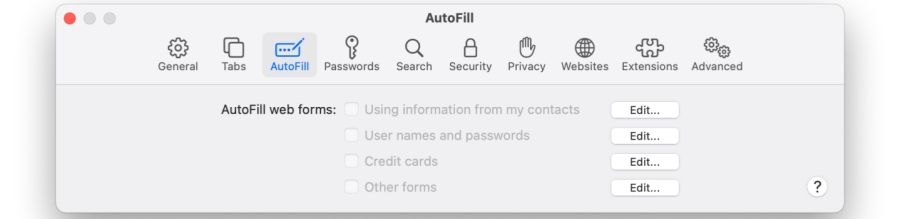
Step 1. Open Safari and click Safari from the Menu bar.
Step 2. Click Preferences > AutoFill.
Step 3. Check User names and passwords.
Method 5. Sign Out and Re-login to Apple ID
Sometimes, issues with iCloud Keychain syncing can be caused by authentication glitches or minor account errors. Signing out of your Apple ID on your device and then signing back in can refresh your account connection and resolve these issues.
On iPhone:
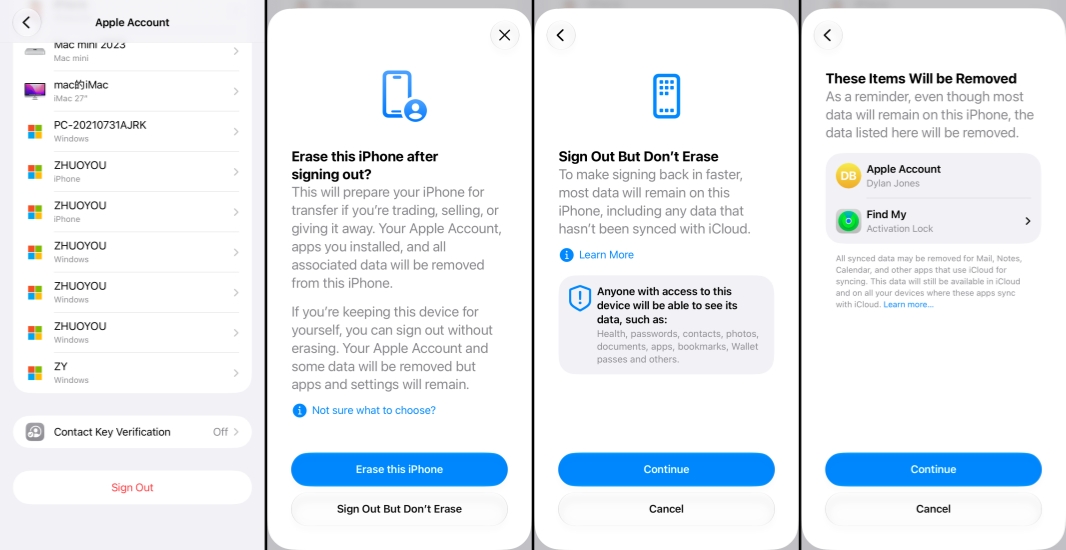
Step 1. Open iPhone Settings and tap Apple ID.
Step 2. Tap Sign Out at the bottom, then choose Sign Out But Don't Erase.
Step 3. Tap Continue twice and enter your Apple ID password to sign out.
Step 4. Afterwards, sign back into your Apple ID.
On Mac:
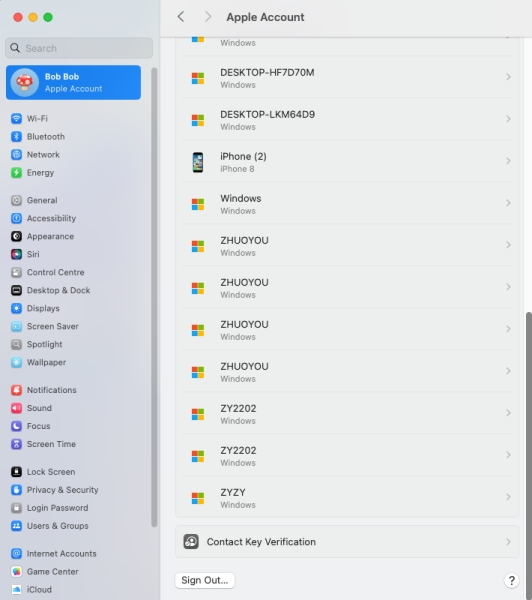
Step 1. Open System Preferences and click Apple ID.
Step 2. Click Overview > Sign Out.
Step 3. Choose Keep a Copy, then enter the Apple ID password to disable Find My and sign out.
Step 4. Click Apple ID and enter your credentials to sign back in.
Method 6. Reset Network Settings
Network configuration errors, DNS glitches, or background VPN setups can interrupt secure iCloud traffic. Resetting the network settings can eliminate all issues related to the network.
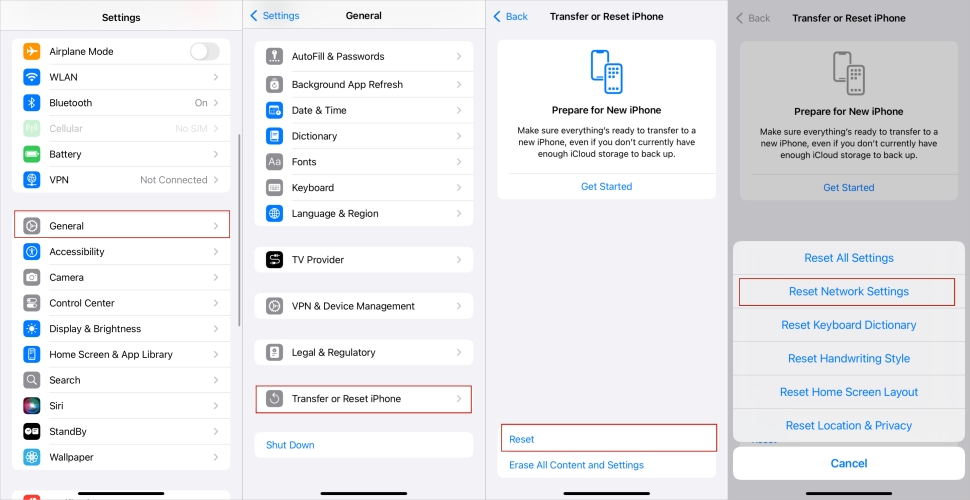
Step 1. Go to Settings and tap General.
Step 2. Tap Transfer or Reset iPhone > Reset > Reset Network Settings.
Step 3. Enter the iPhone passcode and tap Reset Network Settings again.
Method 7. Update iOS Version
If you are using an older software system, there may be sync issues due to incompatibility. Updating your device software may help fix the iCloud not syncing issue.
On iPhone:
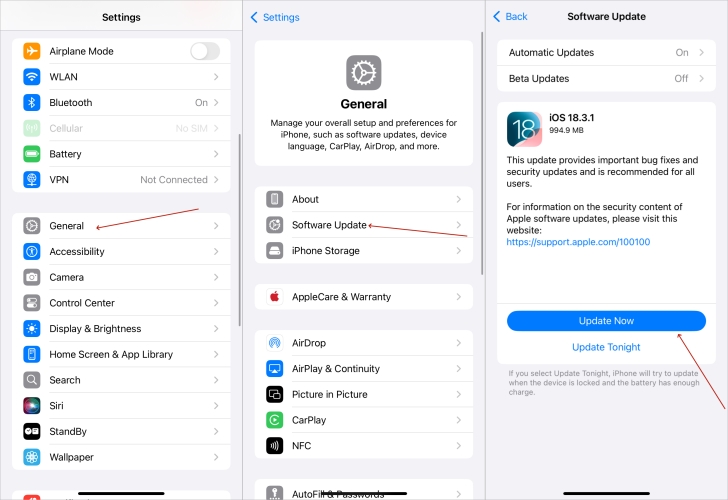
Step 1. Go to Settings and tap General.
Step 2. Tap Software Update and check if there is a new iOS version.
Step 3. If there is one, tap Download Now or Install Now to update your iPhone when convenient.
On Mac:
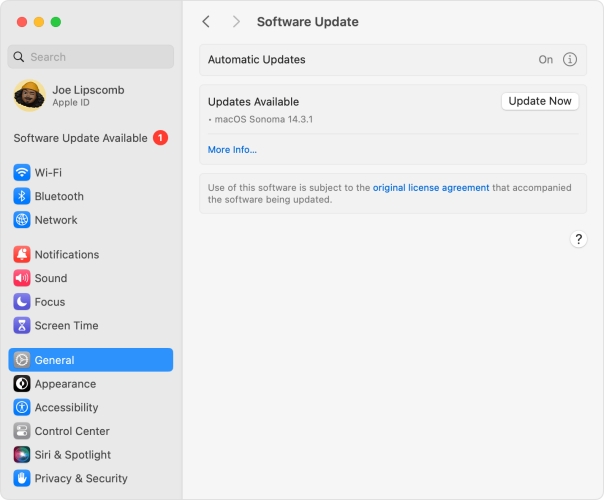
Step 1. Open System Preferences and click General > Software Update.
Step 2. Click Upgrade Now to update your Mac system.
Part 3. Bonus Tip to Sync iCloud Keychain from iOS to Computer
If you're having trouble syncing your iPhone passwords to your computer with iCloud Keychain, there's a practical workaround. MagFone iPhone Unlocker offers an easy way to export all saved passwords from your iPhone and transfer them directly to your computer, whether you use macOS or Windows. With this tool, you can selectively choose which passwords to export, making it simple to back up or migrate your credentials even if iCloud Keychain syncing is unreliable or unavailable. Just follow the steps below to export your iCloud passwords and use them anytime.

MagFone iPhone Unlocker
Selectively and securely export iPhone passwords to your computer.
Step 1 Open MagFone iPhone Unlocker
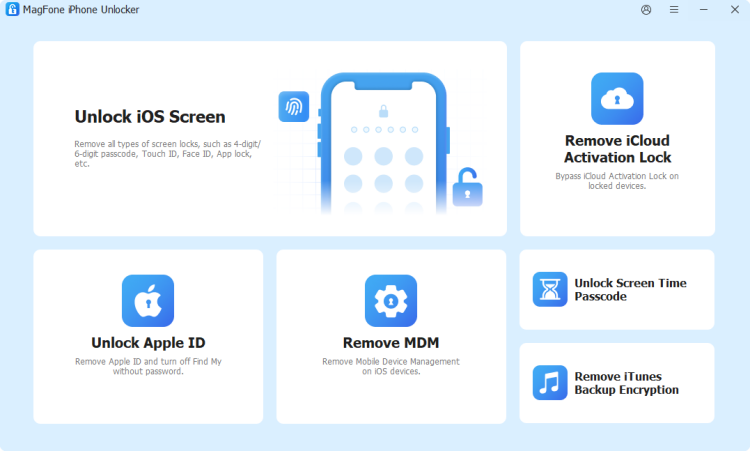
First, download and install MagFone iPhone Unlocker package on your computer, and install the program. Then open it.
Step 2 Scan iOS Passwords
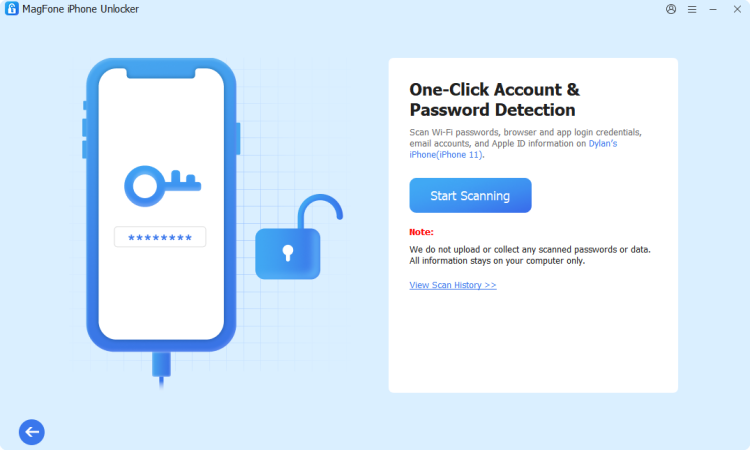
Click Password Manager and use a data cable to connect your iPhone to the computer. When your device is detected, click Start Scanning to scan for saved passwords on your iPhone.
Step 3 Sync Passwords from iOS to Computer
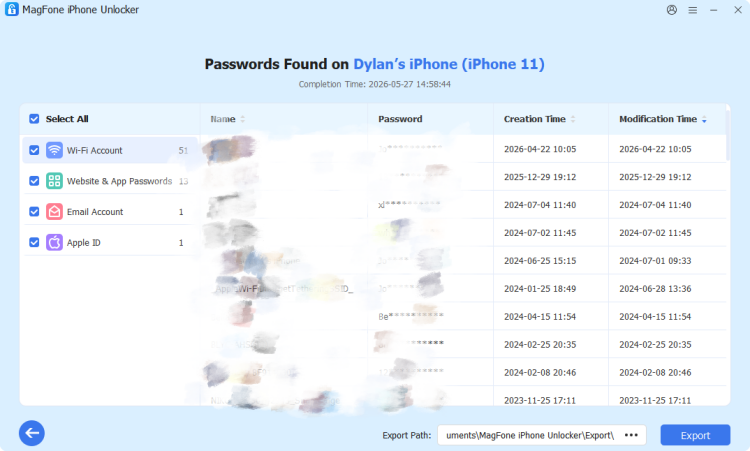
After scanning, you can view all saved iCloud passwords on the computer. You can select and click Export to export the passwords and save them on your computer. You can access the scanned history at any time you need to find a password.
Part 4. FAQs About iCloud Keychain Syncing
How to force iCloud Passwords to sync?
You can toggle Passwords in iCloud to force iCloud Passwords to sync. Also, make sure there is a strong network connection.
Step 1. Go to Settings > Apple ID > iCloud.
Step 2. Tap Saved to iCloud and tap Passwords & Keychain.
Step 3. Toggle Sync This iPhone to allow iCloud passwords to sync.
How to sync iCloud Keychain with Chrome?
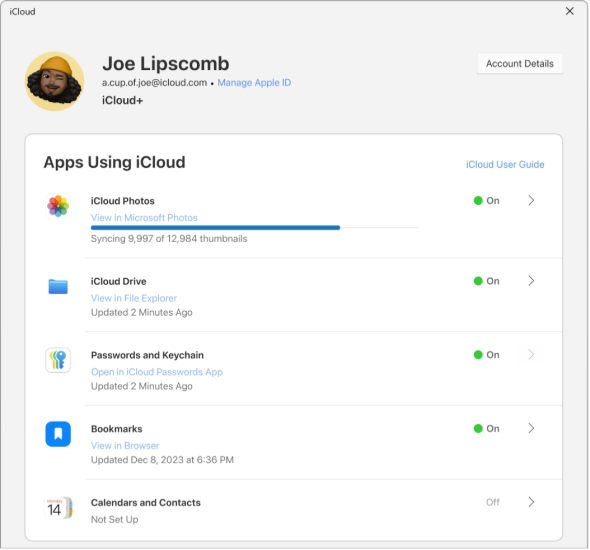
To sync iCloud Keychain with Chrome on a Windows computer, you can download and use the iCloud App for Windows.
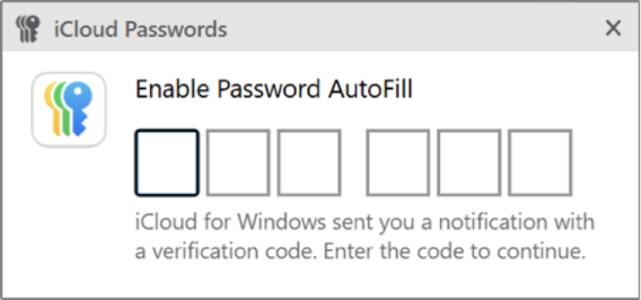
Step 1. Download the iCloud app on your Windows computer and log in with your Apple Account.
Step 2. After logging in, click Password and Keychain to enable and set it up.
Step 3. Click Install Extension next to Google Chrome to install the iCloud Passwords extension on Chrome.
Step 4. After adding the iCloud Passwords extension, click Open iCloud for Windows and follow the prompts to allow using iCloud Passwords with Chrome.
Can you use iCloud Keychain on Windows?
Yes, you can use iCloud Keychain on Windows. Just download the iCloud software on your computer and log in with the same Apple ID as your main device. Then you can set up iCloud Passwords and use it on your Windows computer.
Part 5. Conclusion
iCloud Keychain is a powerful feature for keeping your passwords and sensitive information in sync across all your Apple devices, but issues can occasionally disrupt this convenience. By following the troubleshooting steps and tips in this guide, you can usually resolve syncing problems quickly and restore seamless access to your passwords. If you continue to experience issues, consider using alternative solutions like MagFone iPhone Unlocker to manage your credentials safely.

Dylan Jones
Editor in chief





