








Want to freely download apps and browse contents, but your iPhone is restricted by Parental Control and keeps asking for a Parental Control password? Unfortunately, your parents forgot the Parental Control password and cannot disable it on your iPhone. What to do if your parents forgot Parental Control password on your iPhone? No fret, in this guide, we'll tell how to reset and remove a forgotten Parental Control password on your iPhone. Also, this guide covers how to change Parental Control password for iPhone.
- Part 1. What to Do If You Forgot Parental Control Password for iPhone?
- Part 2. How to Remove Forgotten Parental Control Password for iPhone
- Part 3. How to Change Parental Control Password on iPhone
- Part 4. Conclusion
Part 1. What to Do If You Forgot Parental Control Password for iPhone?
Now that you've confirmed you can't remember the old parental control password, don't panic or rush into erasing your iPhone. Apple actually provides a Screen Time passcode recovery service. The most straightforward solution is to reset your Screen Time passcode directly from your device using the Forgot Passcode? option. This method lets you create a new passcode with your Apple ID and password, so you can quickly regain control over your Screen Time settings.
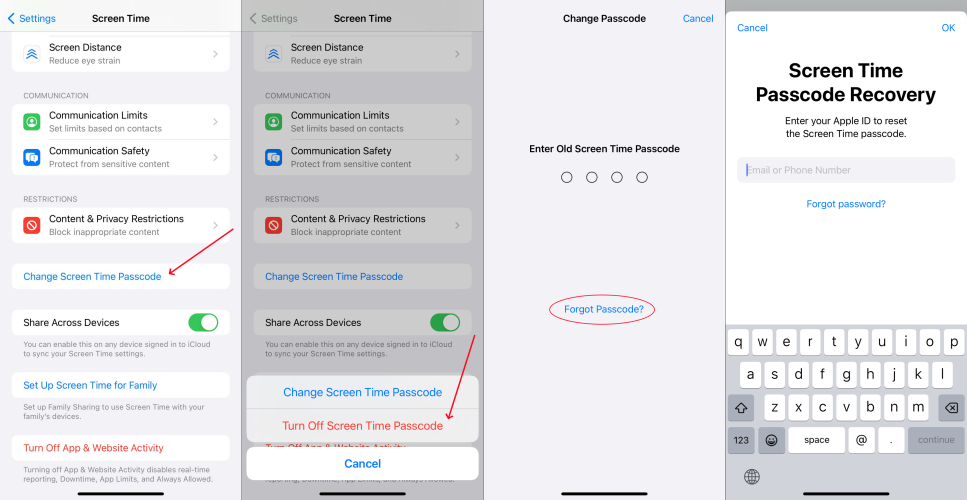
Step 1. Open Settings on your device and tap Screen Time.
Step 2. Find your child's device name and tap Change Screen Time Passcode.
Step 3. Select Turn Off Screen Time Passcode and you'll see the Forgot Passcode? Link.
Step 4. Tap Forgot Passcode? and enter your Apple ID password to reset the parental control password.
Part 2. How to Remove Forgotten Parental Control Password for iPhone
If the organizer's device is not accessible at this time, don't worry. Resetting the parental control password is not the only solution. You can still remove the forgotten parental control password by using a Screen Timer remover or official solutions like iTunes. You can choose the fittest one based on your situation.
| Methods | Data Loss | Apple ID Password | Find My iPhone | Recommendation |
|---|---|---|---|---|
| MagFone iPhone Unlocker | ❌ | ❌ | Disabled | ⭐⭐⭐⭐⭐ |
| iTunes | ✔️ | ❌ | Disabled | ⭐⭐⭐⭐ |
| iCloud.com | ✔️ | ✔️ | Enabled | ⭐⭐⭐ |
| Find My App | ✔️ | ✔️ | Enabled | ⭐⭐⭐ |
Method 1. Reset Parental Control Password Using Screen Time Remover
If you are unable to recall the parental control password on iPhone, MagFone iPhone Unlocker is extremely helpful. Requiring no Apple ID password and without any data erasure, MagFone iPhone Unlocker can help you delete parental controls without parents knowing. Additionally, it is also available when you forgot the iPhone lock screen passcode and iTunes backup password. Just follow the steps below to turn off Screen Time restrictions on iPhone:

MagFone iPhone Unlocker
Unlock various locks on iOS devices, including screen locks, MDM, Apple ID, and Activation Lock without needing a password.
Step 1 Connect iPhone to Computer
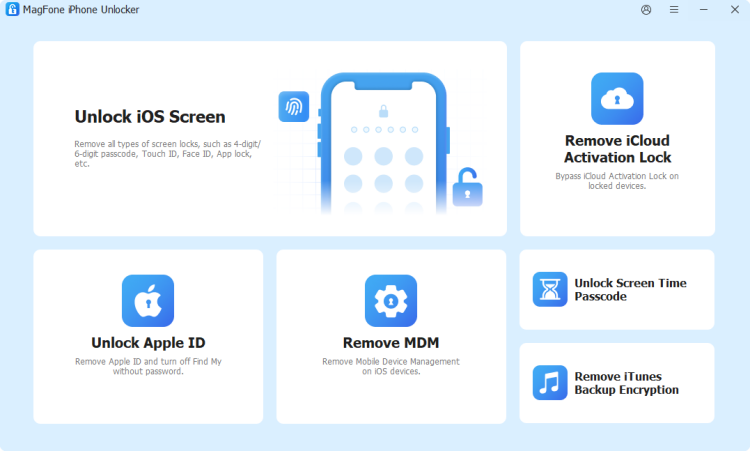
Start by downloading MagFone iPhone Unlocker on your computer. Then connect your iPhone to the computer via a compatible data cable. Launch the tool after downloading and installing it.
Step 2 Remove Parental Control Password
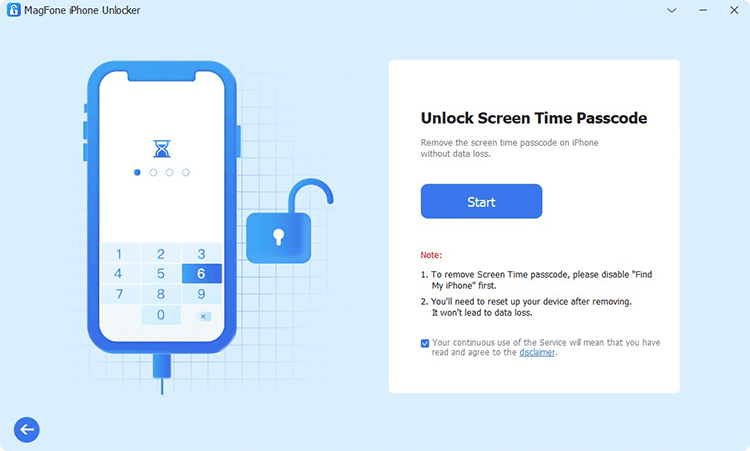
Click Unlock Screen Time Passcode on the main interface. Then click Start to remove parental controls on your iPhone.
Step 3 Reset Parental Control Password on iPhone
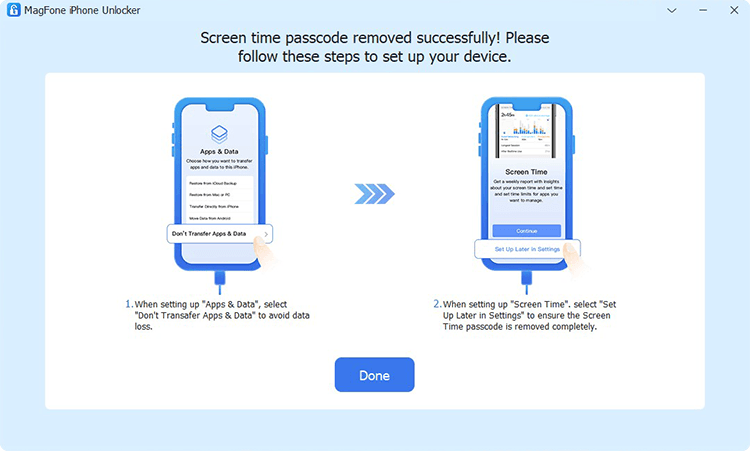
Once the Screen Time passcode is deleted from your iPhone, follow the on-screen instructions to set a new parental control password. Select Don't Transfer Apps & Data when you reach the Apps & Data screen. Then select Set Up Later in Settings when you reach the Screen Time screen.
Method 2. Remove Forgotten Child's Screen Time Passcode via iTunes/Finder
iTunes can be used to manage your iPhone data, from backing up to restoring iPhone. Restoring iPhone via iTunes can help you erase all iPhone data and settings, as well as the parental control password and settings. So, it's important to ensure a recent backup before you apply this method.
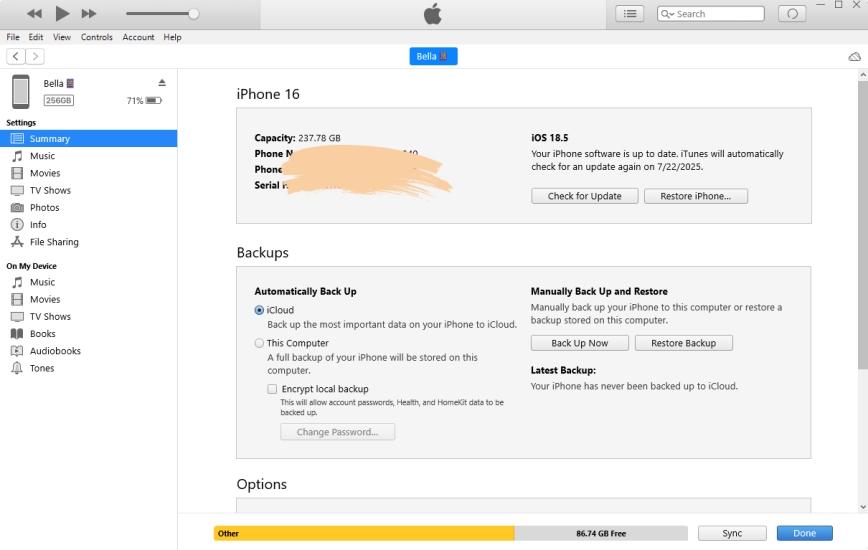
Step 1. Plug your iPhone into a computer that has iTunes and launch iTunes on the computer.
Step 2. Click the Device icon and then head for Summary in the left locations..
Step 3. Click Restore iPhone to erase all data on your iPhone, including the forgotten parental control password. Then you can reset your iPhone and decide whether to restore from backup.
Method 3. Reset Parental Control Password Using iCloud Website
For users who don't have access to a computer, you can also reset the forgotten parental control password on the iCloud website. By signing in to iCloud online, you can remotely erase your device, which wipes all settings and restrictions, including the Screen Time or parental control passcode. After that, you can set up the device again as new.
Step 1. Log in to your Apple account on the iCloud website.
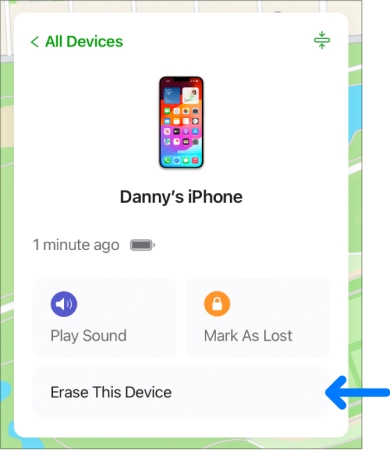
Step 2. Access Find My, and you can see all your Apple devices on this page.
Step 3. Choose the target device and choose Erase. Tap Next and input your Apple ID password to forward. After erasing, you can reset your iPhone as a new devic.
Method 4. Reset Parental Control Password Using Find My App
If you have more than one Apple device, the Find My app can be also used to help you reset parental control password. As long as Find My iPhone is enabled on the restricted device, you can locate and manage it directly from another Apple device signed in with the same Apple ID. From the Find My app, you can remotely erase the restricted device, which removes all settings and restrictions, including the parental control password. After the erase is complete, you'll be able to set up the iPhone again.
Step 1. Open the Find My app on another available Apple device and tap Devices at the bottom.
Step 2. Access the target iPhone device and scroll down to the bottom.
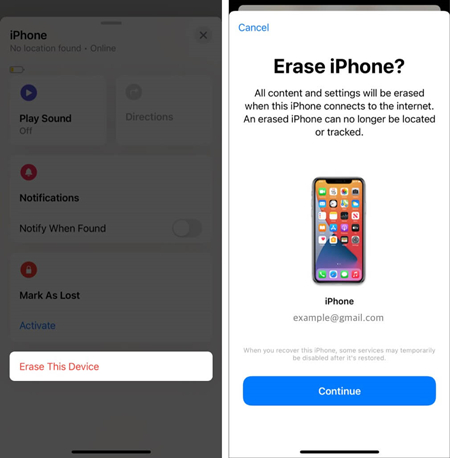
Step 3. Tap Erase > Continue, you'll be forwarded to enter your phone number or skip.
Step 4. Tap Erase and enter your Apple ID password. Tap Erase again to erase the iPhone to factory settings.
Part 3. How to Change Parental Control Password on iPhone
Now that you know how to remove a forgotten parental control password on your iPhone, you might also want to update it from time to time. For example, you may wish to change the passcode to something new so your child can't guess it or figure it out over time. In this part, we'll show you how to change the parental control password directly from your iPhone's settings.
01Change Parental Control Password in Screen Time Settings
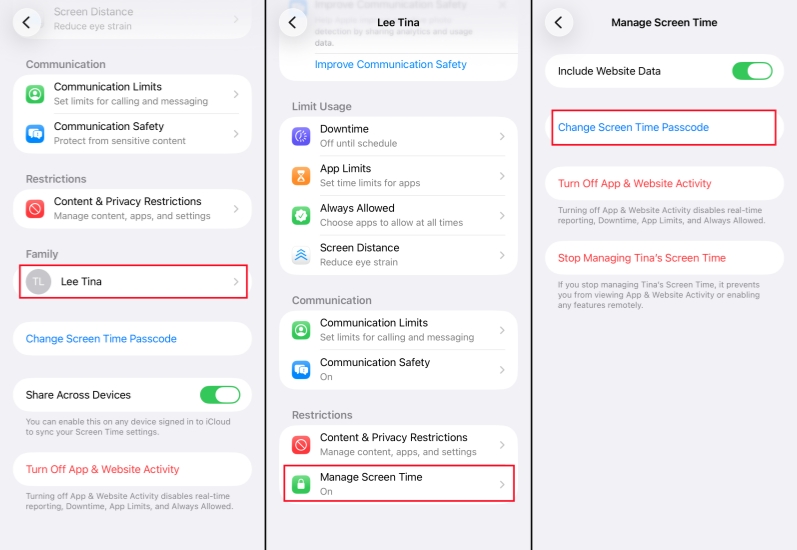
Step 1. Head for iPhone Settings > Screen Time.
Step 2. Access the family member account and scroll down to tap Manage Screen Time.
Step 3. Choose Change Screen Time Passcode twice and enter your device passcode to reset the parental control password.
02Change Parental Control Password in Family Settings
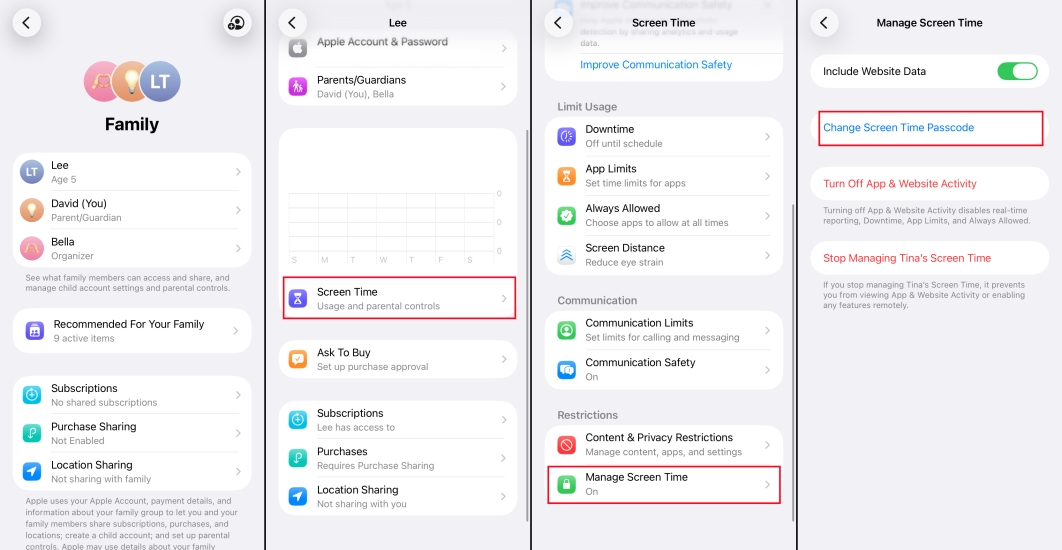
Step 1. Launch Settings on iPhone and access Family settings under Apple ID profile.
Step 2. Find and access the target device, then tap Screen Time > Manage Screen Time > Change Screen Time Passcode.
Step 3. Select Change Screen Time Passcode and enter your device passcode to change the parental control password for your family member.
Part 4. Conclusion
Being asked to enter the Screen Time passcode or parental control password repeatedly while you have forgotten the password can be very frustrating. Fortunately, there are several solutions you can use to turn off restrictions on your iPhone, from removing the passcode directly via the Forgot Passcode option to remotely erasing the device using iCloud or the Find My app. To remove the parental control password on your iPhone without erasing data, MagFone iPhone Unlocker could be the most trustworthy method.

Teresa Miller
Editor in chief





