








I cannot remember restrictions passcode on iPhone. I am trying to reset my iPhone but it fails to remove forgotten restrictions passcode. Can you help?"
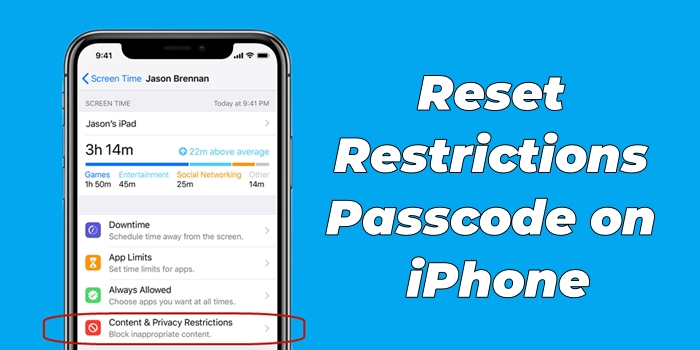
Restrictions (now part of Screen Time on iPhone, iPad, and iPod touch) lets you block or limit specific apps, features, and content — often on a child's device managed by a parent. On iOS 11 and earlier, Restrictions appears as a separate menu; starting in iOS 12, it's built into Screen Time. When you turn on Content & Privacy Restrictions, you must set a dedicated Restrictions passcode.
But with so many passwords and passcodes to remember, it's easy to forget this one. If you don't know the Restrictions passcode on your iPhone, or can't remember it on your child's iPhone, you may see that the device is disabled or find that you can't change key settings or reset the iPhone. Don't worry — this guide walks you through how to reset the Restrictions passcode on iPhone in every situation, whether you still remember it or have completely forgotten it, and whether you're on iOS 11 and earlier or on iOS 12 and later.
- Part 1. How to Reset Restrictions Passcode on iPhone If Remembering
- Part 2. How to Restore Forgotten Restrictions Passcode on iPhone [iOS 12 and Before]
- Part 3. How to Restore Restrictions Passcode on iPhone If Forgotten
- Part 4. Conclusion
Part 1. How to Reset Restrictions Passcode on iPhone If Remembering
Two official ways are available for you to reset a Restrictions passcode on the iPhone if you can remember the current Restrictions passcode. Here's how to change Restrictions passcode on your iPhone or your child's iPhone. Let's dive into the details.
Option 1. Reset Restrictions Passcode on iPhone
If you can remember the Restrictions passcode for iPhone, then you can directly change it on your device. Follow the steps below to reset a Restrictions passcode for iPhone.
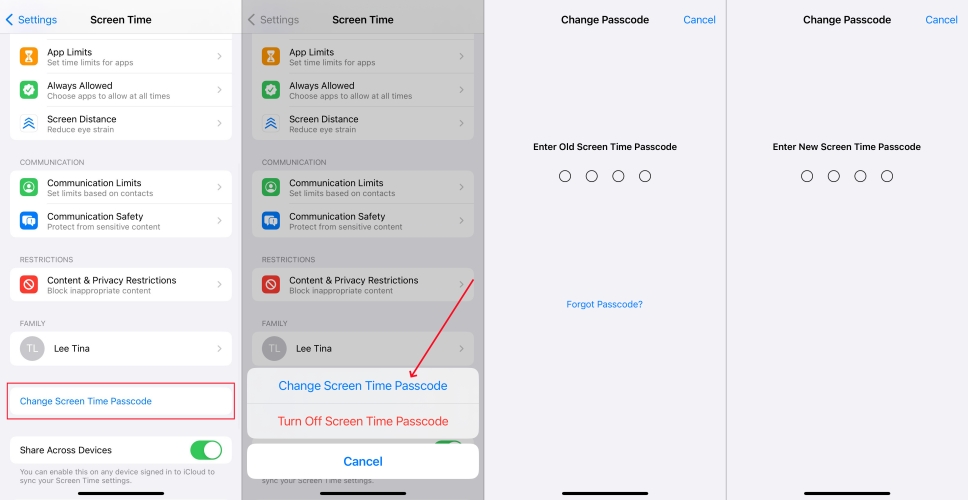
Step 1. Head to Settings > Screen Time and tap Change Screen Time Passcode.
Step 2. Tap Change Screen Time Passcode and enter the current Screen Time passcode.
Step 3. Enter a new passcode for Screen Time, then enter it again to confirm.
Option 2. Reset Restrictions Passcode on iPhone [Under Family Sharing]
If you use Family Sharing to set a Restrictions passcode on your child's iPhone, then you cannot directly reset it on the child's device. Perform the following steps to reset it on the child's iPhone.
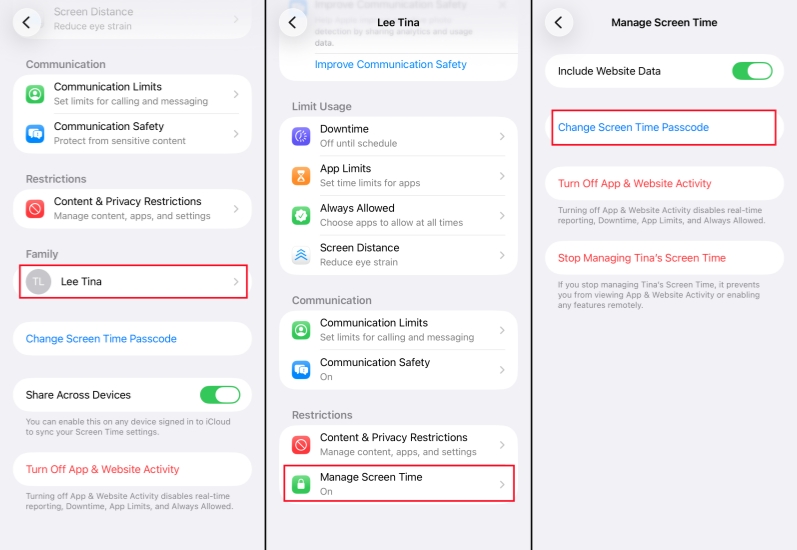
Step 1. Locate Settings on the family organizer's device and tap Screen Time.
Step 2. Under Family, scroll down to find the child's name and tap on it.
Step 3. Tap Manage Screen Time and tap Change Screen Time Passcode twice.
Step 4. Authenticate with Face ID, Touch ID, or your device passcode.
Step 5. Create a new Screen Time passcode and enter it again to confirm.
Part 2. How to Restore Forgotten Restrictions Passcode on iPhone [iOS 12 and Before]
If you have forgotten the restriction passcode on your iPhone, the following two tools may help you recover it. However, the two tools only work for iOS 12 and earlier iOS versions.
Method 1. Recover iPhone Restrictions Passcode via Pinfinder
Pinfinder is designed to help users to recover Screen Time passcode on the iPhone, iPad, and iPod touch for free. With an iTunes backup of an iPhone, you can find the Restrictions or Screen Time passcode that was set on the device. This tool is compatible with Windows, macOS, and Linux operating systems, but it only supports the iPhone running iOS 7 to iOS 12.4.
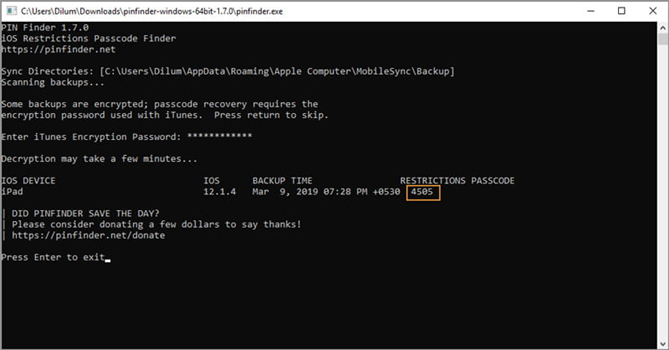
Step 1. Use a USB cable to connect your iPhone and computer, then open iTunes.
Step 2. Click your device icon in iTunes and go to click the Summary > Back Up Now button.
Step 3. Then all the data and settings will be backed up with iTunes and open Pinfinder.
Step 4. Enter your iTunes encryption password and press the Enter button on the keyboard.
Step 5. On the screen of Pinfinder, you'll find the passcode for Restrictions on your iPhone.
Method 2. Recover iPhone Restrictions Passcode via Reincubate
Reincubate iPhone Backup Extractor can not only recover lost messages, photos, calendars, contacts, notes, locations, and data but also find the Screen Time passcode from iPhone backup and iCloud. When forgetting the Restrictions passcode, you can use Reincubate iPhone Backup Extractor to recover it on your iPhone.
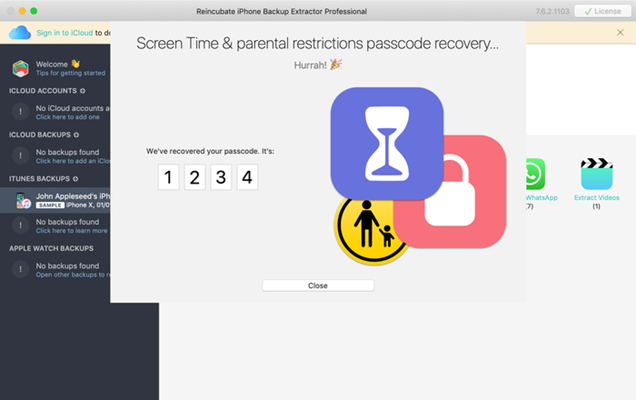
Step 1. After installation, run Reincubate iPhone Backup Extractor on your computer.
Step 2. Connect your iPhone to your computer with a USB cable and click on it in the left-hand menu.
Step 3. Choose the Utilities tab and click the Recover Screen Time / Restrictions Passcode button.
Step 4. Click the Start button and it will start recovering your Restrictions passcode.
Part 3. How to Change Restrictions Passcode on iPhone If Forgotten
In the cases above, resetting the Restrictions passcode is straightforward as long as you still remember it or find it using tools. But if you've completely forgotten the passcode, things become more complicated but addressable. In this part, we'll show you several practical methods to reset a forgotten Restrictions passcode on your iPhone, regardless of which iOS version you're using.
Method 1. Reset Forgotten Restrictions Passcode on iPhone Directly
With your Apple ID and password, you can directly change your forgotten passcode for Restrictions on your iPhone. Do the following steps to reset a Restrictions passcode.
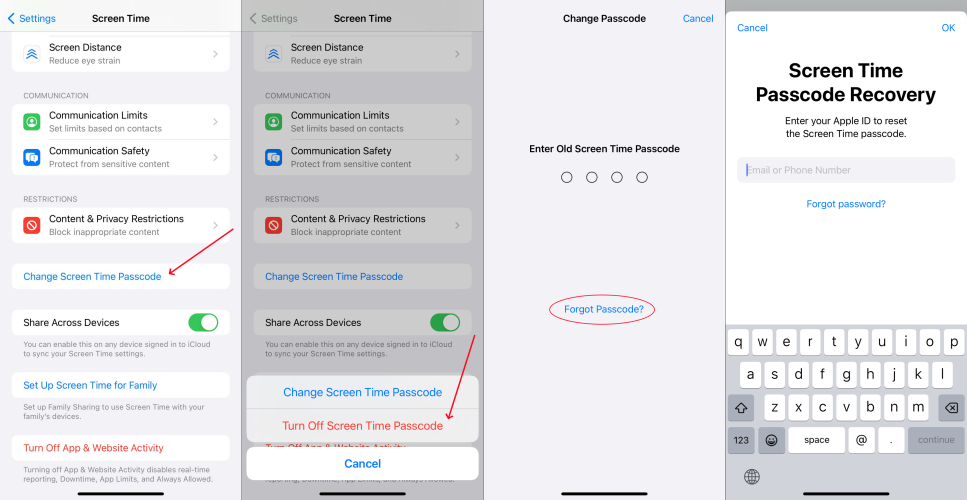
Step 1. Go to Settings > Screen Time and tap Change Screen Time Passcode.
Step 2. Tap Change Screen Time Passcode, then select Forgot Passcode?.
Step 3. Enter the Apple ID and password used to set up the Screen Time passcode.
Step 4. Enter a new Screen Time passcode, then enter it again to confirm.
Method 2. Reset Forgotten Restrictions Passcode on iPhone via Screen Time Remover
When you forget the Restrictions passcode on your iPhone, you can first try resetting it with your Apple ID and password. However, some users cannot change the Restrictions passcode on iPhone this way. In that case, you can use a professional Restrictions passcode remover to delete the existing passcode and then set a new one on your device.
MagFone iPhone Unlocker is one of the best options if you want to remove a forgotten Restrictions passcode on your iPhone without losing data. It specializes in getting rid of Screen Time restrictions even when you don't know the passcode. Whether you forget the passcode for parental controls or can't remember the Restrictions passcode on your iPhone, MagFone iPhone Unlocker can help you turn off the Restrictions passcode safely. Here's how to proceed.

MagFone iPhone Unlocker
Remove Restrictions passcode or Screen Time passcode on iPhone without passcode and without data loss.
Step 1 Run MagFone iPhone Unlocker and Connect iPhone
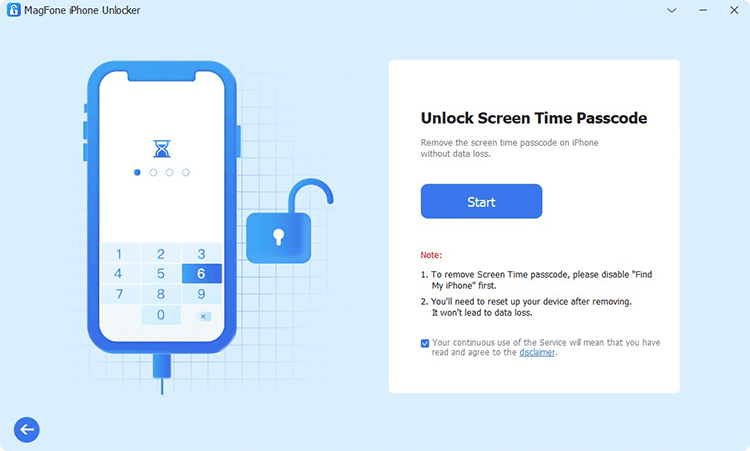
After installing MagFone iPhone Unlocker on your computer, run it, then connect your iPhone to the computer using a USB cable. There are four options, including Remove Lock Screen, Unlock Apple ID, Unlock Screen Time Passcode, and Remove MDM. Simply select Unlock Screen Time Passcode and click the Start button.
Step 2 Start to Remove Restrictions Passcode on iPhone
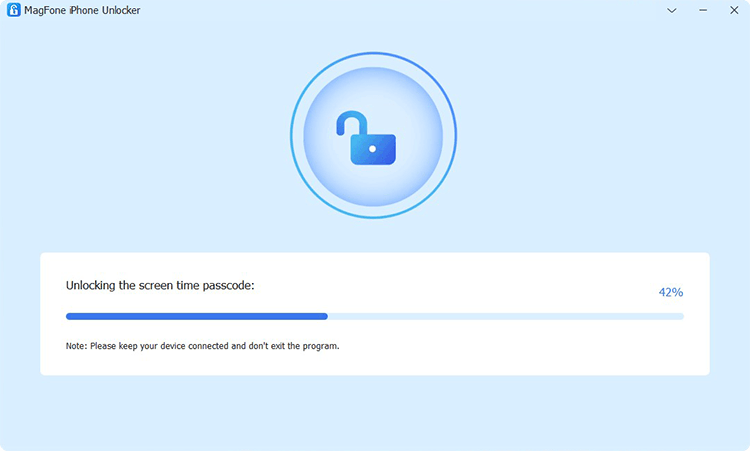
Proceed to turn the Find My feature off if you have enabled it on your iPhone. Tap on Settings > Your Apple ID > Find My > Find My iPhone and then turn Find My iPhone off. If you don't enable this feature on your iPhone, simply directly skip this step. Go back to your computer and click the Unlock button on the computer.
Step 3 Follow Onscreen Instructions to Set up iPhone
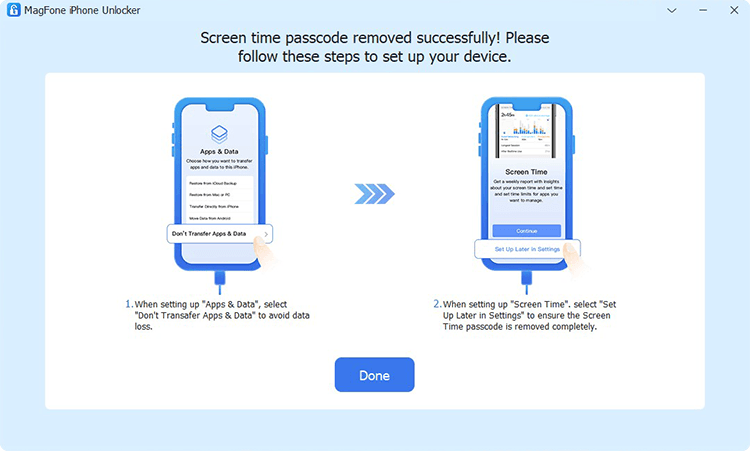
Wait for a while, and the Restrictions passcode will be removed from your iPhone. Then you have to follow the onscreen instructions to set up your iPhone. On the Apps & Data page, select Don't transfer Apps & Data. Then continue to tap Set Up Later in Settings on the screen of your device. Now you can set a new Restrictions passcode on your iPhone.
Method 3. Reset Forgotten Restrictions Passcode on iPhone via iTunes [Data Loss]
iTunes can help you recover an iPhone in two modes, including in trusted mode and in recovery mode. When your iPhone has been synced with your computer, you can directly connect it to iTunes and reset it to set a new Restrictions passcode.
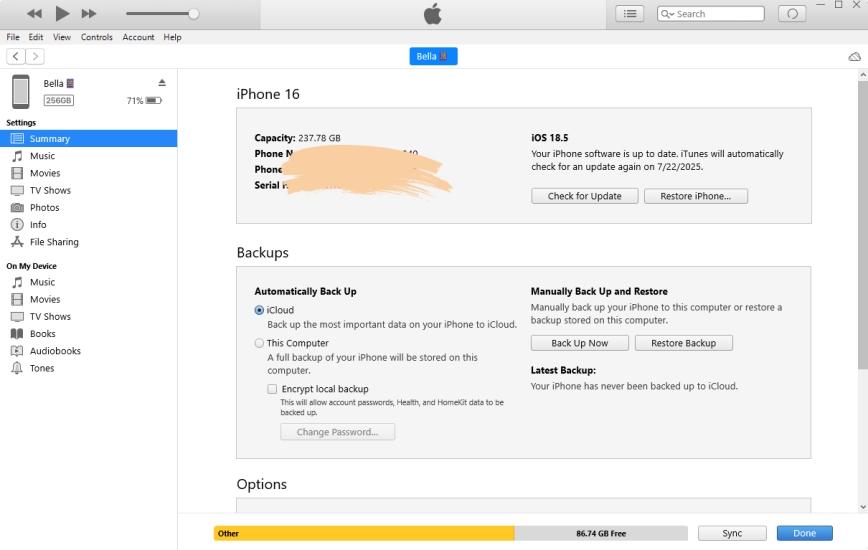
Step 1. Connect your iPhone to your computer via a USB cable and open iTunes.
Step 2. Locate your device in iTunes and click the Summary tab, then select Restore.
Step 3. Click the Restore button again. Your device will be reset to the original status.
Now your iPhone will be reset to factory settings. And you can restore data to your iPhone from the computer. Then you can set up your device and enable Restrictions with a new passcode.
Method 4. Reset Forgotten Restrictions Passcode on iPhone at iCloud.com [Data Loss]
iCloud gives you the ability to wipe out all the data and settings, including the Restrictions passcode on your iPhone remotely. If you have your Apple ID and password, you can log into iCloud to erase your iPhone to delete the Restrictions passcode.
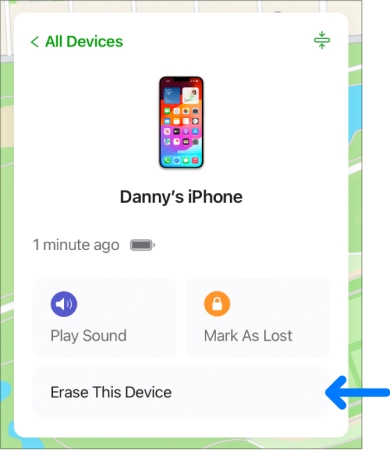
Step 1. Log into iCloud.com with your Apple ID and password.
Step 2. Select your iPhone from the device list and click the Erase This Device or Erase button.
Step 3. Click Next and enter your phone number and Apple ID password.
Step 4. Click the Erase iPhone button to confirm.
After erasing your iPhone on iCloud.com, you can go to set up your device and recover data from iCloud. Then you can turn on Screen Time and create a new passcode for Restrictions.
Part 4. Conclusion
In total, the methods covered in this guide can help you reset, find, or delete your Restrictions passcode on your iPhone, regardless of whether you forgot it or not. When you can remember your Restrictions passcode or Apple ID password, you can choose to directly reset the Restrictions passcode by accessing the Settings app on the iPhone. But without any Apple ID details, you can use MagFone iPhone Unlocker to quickly remove your forgotten Restrictions passcode on your iPhone without data loss. Then you can create a new one for your device.

Dylan Jones
Editor in chief




