








I have forgotten the Screen Time passcode on my iPad. I tried to reset it by tapping on 'Forgot passcode', but it doesn't work. The first time I tried it I got in and entered a new passcode, however, the new passcode did not work. When I try to change it again, the only thing it does is to simply add one more to the number of failed attempts."
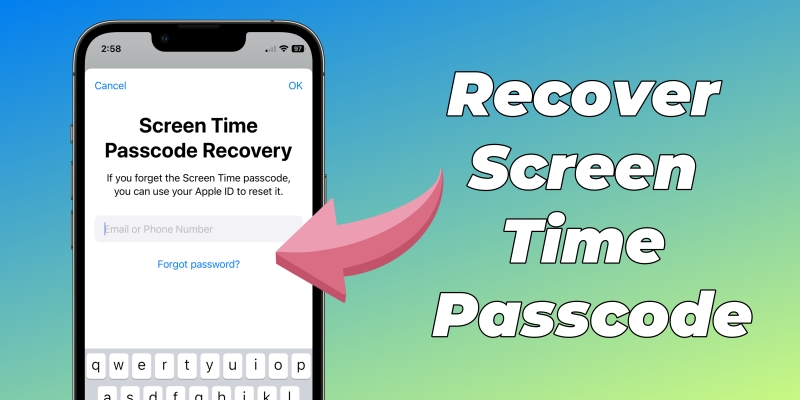
Screen Time has become a crucial feature for many iPhone and iPad users, helping them manage app usage, screen time, and overall device control. However, what happens if you've forgotten your Screen Time passcode? This can be a frustrating experience, especially when you're trying to regain access to important settings or simply wish to modify restrictions. Fortunately, there are a variety of solutions that can help you recover Screen Time passcode. In this guide, we will show you how to find, reset, or remove it step-by-step.
- Part 1. How to Find Screen Time Passcode on iPhone [Need Computer]
- Part 2. How to Recover Screen Time Passcode by Resetting
- Part 3. How to Recover Screen Time Passcode by Removing
- Part 4. FAQs about Screen Time Passcode
- Part 5. Conclusion
Part 1. How to Find Screen Time Passcode on iPhone [Need Computer]
Several tools can help recover a forgotten Screen Time passcode on an iPhone. However, these tools only work with older iOS versions. If your iPhone is running iOS 7 through iOS 12.4, the two computer-based options below may help you retrieve the passcode from an iPhone backup.
Method 1. Recover Screen Time Passcode via Pinfinder
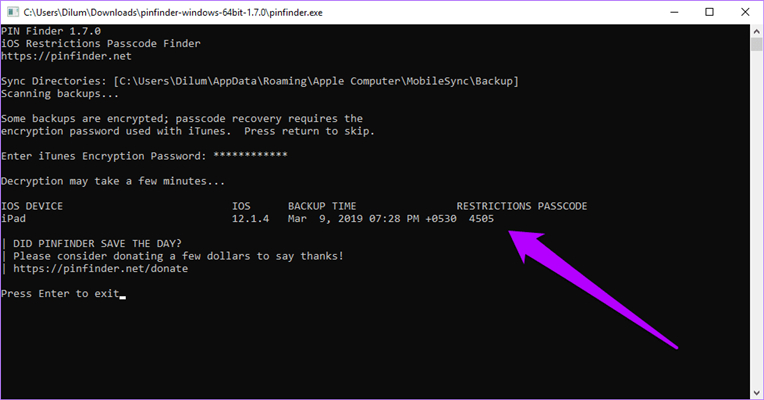
Pinfinder is a free computer tool designed to recover the iOS Restrictions passcode. It can retrieve the Screen Time passcode from either a standard or an encrypted iTunes backup, provided that you know the backup password. With just a few simple steps, you can use Pinfinder to recover the passcode quickly and easily.
📝Requirements:
A computer with Pinfinder
iPhone running between iOS 7 and iOS 12.4
Step 1. Connect your iPhone to your computer using iTunes.
Step 2. In iTunes, click the device icon and go to the Summary tab.
Step 3. Click the Backup iPhone button to back up your device. If you are running iOS 12, you need to check the Encrypt iPhone backup option.
Step 4. Launch Pinfinder and enter your backup encryption password if you've set one.
Step 5. Press Enter on the keyboard, then you'll find the Screen Time passcode.
Method 2. Recover Screen Time Passcode via Decipher Backup Browser
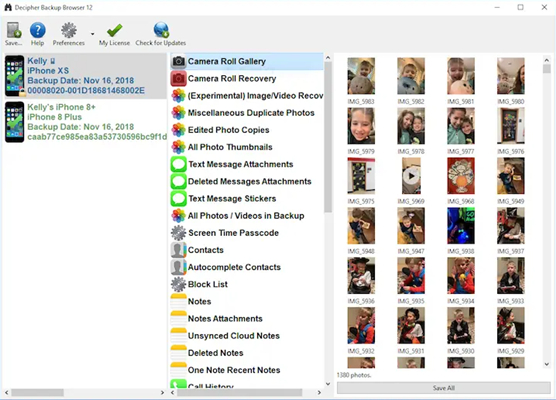
Decipher Backup Browser is another computer program that can help recover a forgotten Screen Time passcode on iPhone. It works by extracting the passcode from an iTunes backup. If you no longer remember your Screen Time passcode, you can follow the steps below to use this tool and regain access.
📝Requirements:
A computer with Decipher Backup Browser
iPhone running between iOS 7 and iOS 12.4
Step 1. Plug your iPhone into your computer using a USB cable.
Step 2. Launch Decipher Backup Browser and click the backup of your device on the left side.
Step 3. Scroll down and select Restrictions Passcode Cracker from the middle column.
Step 4. Wait for a few seconds, then the Screen Time passcode will show in the right screen.
Part 2. How to Recover Screen Time Passcode by Resetting
If your iPhone is running a version later than iOS 12.4, the Screen Time passcode recovery tools mentioned in Part 1 will not work. In this case, you can reset the Screen Time passcode using Apple's built-in recovery option. If you linked your Screen Time settings to an Apple ID when setting up the passcode, follow the steps below to recover access by resetting the passcode.
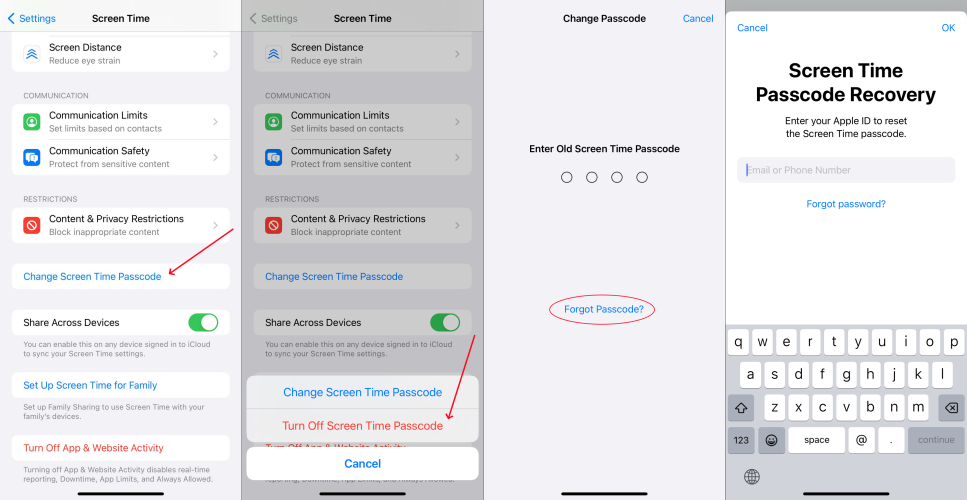
Step 1. Go to Settings > Screen Time and tap Change Screen Time Passcode.
Step 2. Tap Change Screen Time Passcode again and tap Forgot Passcode?.
Step 3. Enter your Apple ID password that you use when setting up the Screen Time passcode.
Step 4. Enter a new Screen Time passcode for your device, then enter it again to confirm.
Reset iPhone/iPad Forgotten Screen Time Passcode for Child
If you are using Family Sharing, resetting a forgotten Screen Time passcode for your child is also possible directly from the organizer's device. As long as you are the family organizer, you can manage your child's Screen Time settings and set a new passcode without needing to access their iPhone or iPad separately.
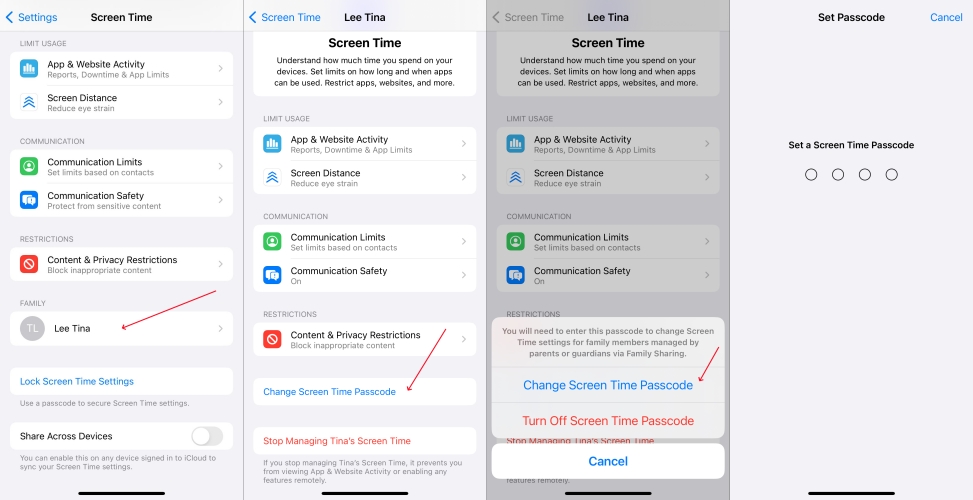
Step 1. In Settings on your iPhone, tap Screen Time.
Step 2. Under Family, find the name of your child's iPhone and tap it.
Step 3. Tap Change Screen Time Passcode, then tap it again.
Step 4. Authenticate with Face ID, Touch ID, or your device passcode.
Step 5. Create a new Screen Time passcode, then enter it again to confirm.
Part 3. How to Recover Screen Time Passcode by Removing
When neither the Screen Time passcode finder nor the Screen Time passcode reset works, removing the Screen Time passcode becomes the last practical solution. The methods in this section range from specialized no-data-loss tools to full erase options provided through Apple services, so the right choice depends on whether preserving data is your top priority. Below, we'll go over several ways to remove or bypass the Screen Time passcode.
Method 1. Bypass Screen Time Passcode via Screen Time Remover [No Data Loss]
There is an easy way to help you change Screen Time passcode if forgotten. That is to use a Screen Time passcode remover like MagFone iPhone Unlocker. It is an excellent unlocking tool with multiple functions. By using MagFone iPhone Unlocker, you can remove Screen Time passcode on an iPhone, iPad, or iPod touch without any data loss. In addition to getting rid of Screen Time passcode, it can unlock various screen locks like Face ID, delete Apple ID, and bypass MDM locks.

MagFone iPhone Unlocker
Easily bypass a forgotten Screen Time passcode on iPhone and iPad without Apple ID or data loss.
Step 1 Connect iPhone to Computer and Launch MagFone
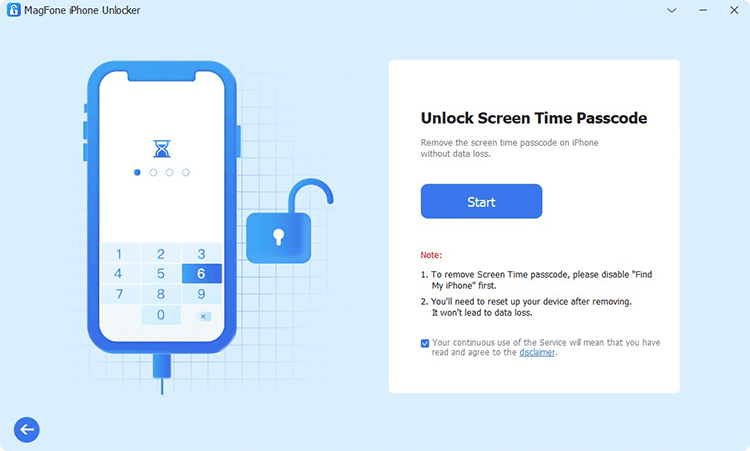
First up is to open MagFone iPhone Unlocker on your computer then connect your iPhone to the computer through a USB cable. On the main interface of MagFone software, select the Unlock Screen Time Passcode option and then click the Start button.
Step 2 Go to Remove Forgotten Screen Time Passcode
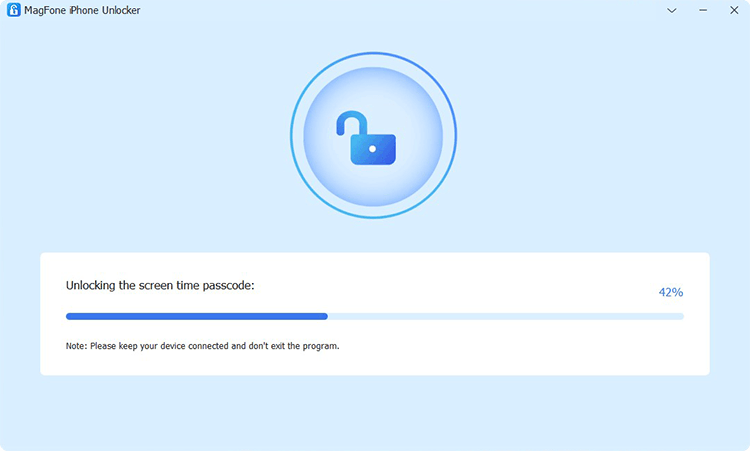
Make sure that you have disabled the Find My feature on your iPhone. If not, go to turn the Find My feature off on your iPhone. Then go back to your computer and click the Unlock button to delete the forgotten Screen Time passcode on your device.
Step 3 Follow the Instructions to Set up iPhone
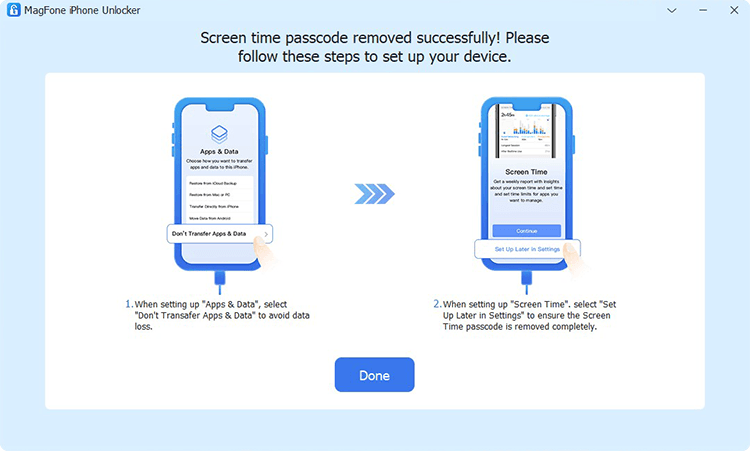
The process of deleting Screen Time passcode is not over yet. Follow the on-screen instructions to set up your iPhone. On the Apps & Data page, choose Don't transfer Apps & Data. Then go on to choose Set Up Later in Settings on the screen of your device.
Method 2. Remove Screen Time Passcode via iTunes [Data Loss]
Using iTunes on a Windows PC or Finder on a Mac can help you restore iPhone or iPad. When you want to remove your forgotten Screen Time passcode, you can use iTunes or the Finder. Follow the steps below to restart removing your forgotten Screen Time passcode.
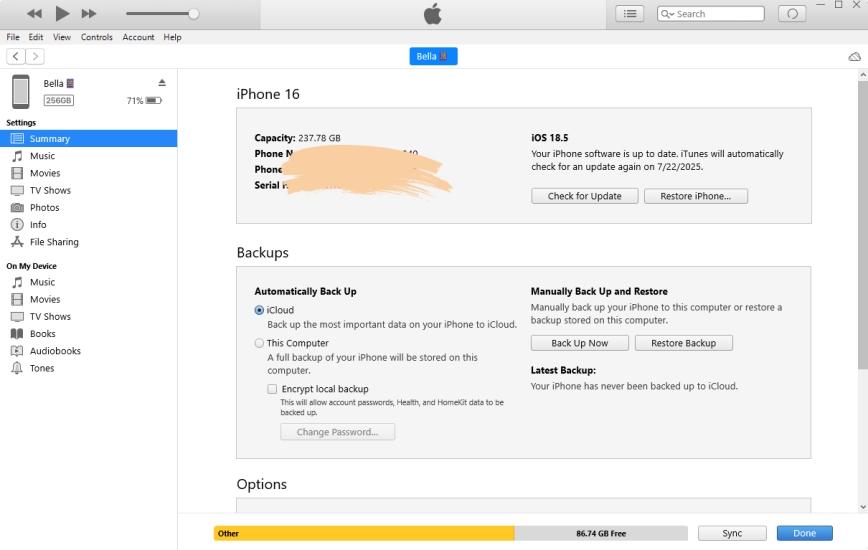
Step 1. Connect your iPhone and your computer by using a USB cable.
Step 2. Open iTunes and click the device icon, then go to the Summary tab.
Step 3. Click the Restore iPhone button and select the Back up option.
Step 4. After backup, click the Restore iPhone button.
Method 3. Wipe Screen Time Passcode at iCloud.com [Data Loss]
At iCloud.com, you can find accessible data you've synced from your iPhone. Also, you can remotely erase your device. Thus, you can delete your forgotten Screen Time passcode at iCloud.com. Here's how to remove a forgotten Screen Time passcode.
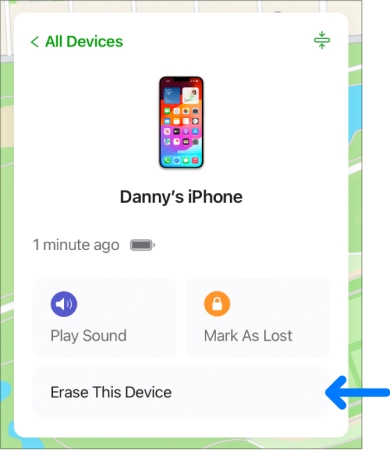
Step 1. Log in to iCloud.com/find with your Apple ID and password on your device.
Step 2. Select your iPhone from the linked device list.
Step 3. Click Erase or Erase This Device, choose Next, and enter the required information to erase the Screen Time passcode.
Method 4. Erase Screen Time Passcode via Find My App [Data Loss]
Find My is a function of iCloud and uses the iPhone's GPS and internet connection to locate it on a map, so you can control your device remotely. Through the Find My app, you can erase your iPhone on your other Apple device to delete the Screen Time passcode.
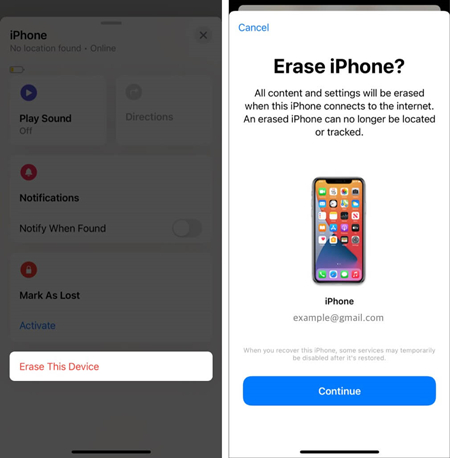
Step 1. Fire up the Find My app on another Apple device and tap Devices.
Step 2. Select your iPhone from the device list and tap the Erase or Erase This Device button.
Step 3. Tap Continue and enter your trusted phone number and linked Apple ID password.
Step 4. Tap Erase to confirm. Then your forgotten Screen Time passcode will be removed.
Part 4. FAQs about Screen Time Passcode
How to reset Screen Time passcode without Apple ID?
If you did not link an Apple ID when setting up the Screen Time passcode, you may be able to reset it using the Apple ID currently signed in on your device. However, if an Apple ID was linked during setup, you will need to enter that same Apple ID and password to verify your identity before the passcode can be reset.
What to do if you forgot your Screen Time passcode?
If you forgot your Screen Time passcode, you can try resetting it with the Apple ID linked to Screen Time. If that option is unavailable, you may also consider using MagFone iPhone Unlocker to remove the passcode without data loss.
How to turn off Screen Time on iPhone without passcode?
If you don't set a Screen Time passcode, you can turn off Screen Time on your iPhone without the passcode. Or you can use a Screen Time passcode remover like MagFone iPhone Unlocker to turn off Screen Time without passcode quickly.
How to change Screen Time passcode when you forgot?
If you forgot your Screen Time passcode, you can change it by using Apple's built-in Forgot Passcode? option on your iPhone. If you did not link an Apple ID, you can use a Screen Time removal tool such as MagFone iPhone Unlocker to delete the forgotten passcode, or erase your device through iTunes, iCloud.com, or the Find My app, and then set up Screen Time again.
Part 5. Conclusion
Whichever of the above methods is available to you, you can reset, recover, or remove your Screen Time passcode. If you want to delete your forgotten Screen Time passcode without data loss, you can try using MagFone iPhone Unlocker. It will instantly remove the Screen Time passcode on your iPhone or iPad. Feel free to leave your comment if you have any questions.

Dylan Jones
Editor in chief





