








Forgetting the restrictions passcode on iPhone can be very frustrating when it prevents you from changing settings, accessing apps, or managing Screen Time features as usual. Whether you are trying to remove the restrictions passcode on your own device or for your child's device, there are several ways to regain control. In this guide, we will walk you through how to change the restrictions passcode if you forgot it and 6 methods to remove the iPhone restrictions passcode.
- Part 1. What If You Forgot Restrictions Passcode on iPhone?
- Part 2. How to Change Restrictions Passcode on iPhone If You Forgot
- Part 3. How to Bypass Restrictions Passcode on iPhone If You Can't Change
- Method 1. Remove iPhone Restrictions Passcode via MagFone iPhone Unlocker [No Data Loss]
- Method 2. Remove iPhone Restrictions Passcode via iCloud Website [Data Loss]
- Method 3. Remove iPhone Restrictions Passcode via Find My App [Data Loss]
- Method 4. Remove iPhone Restrictions Passcode via iTunes [Data Loss]
- Part 4. Conclusion
Part 1. What If You Forgot Restrictions Passcode on iPhone?
When you forget the restrictions passcode on iPhone, you may be restricted by a series of content and privacy restrictions you set previously. The good news is that even though you forgot the restrictions passcode, you may reset it using the Apple ID for Screen Time recovery, use a Screen Time remover to remove the restrictions passcode on iPhone, or erase the iPhone to erase the restrictions.
Part 2. How to Change Restrictions Passcode on iPhone If You Forgot
If you forgot the Restrictions passcode on iPhone but set the Apple ID when setting the Restrictions, you can reset the Restrictions passcode with the Apple ID.
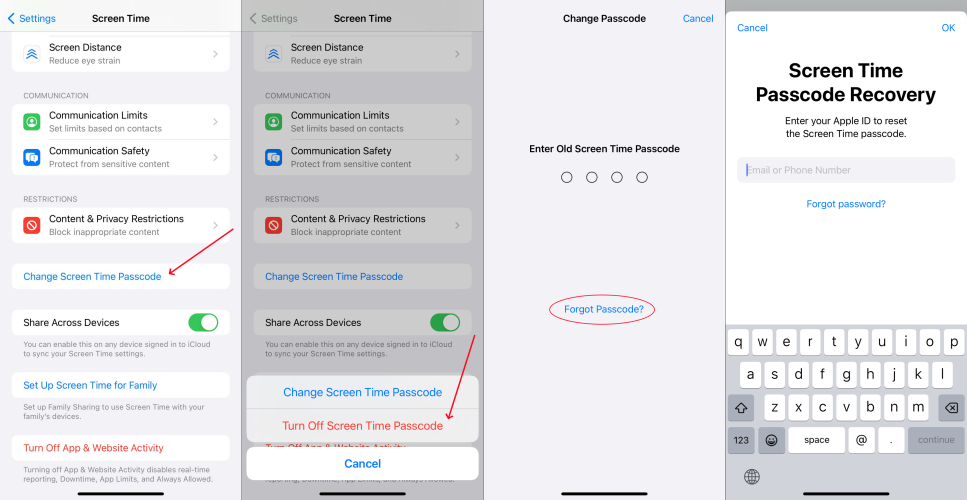
Step 1. Go to iPhone Settings > Screen Time.
Step 2. Choose Change Screen Time Passcode twice, then tap the Forgot Password? link.
Step 3. Enter the Apple Account credentials you have set for Screen Time Passcode Recovery.
Step 4. After verifying, you can enter the new passcode twice to set it.
If your device is under Family Sharing, the parent or guardian can also change the Restrictions passcode on their devices.
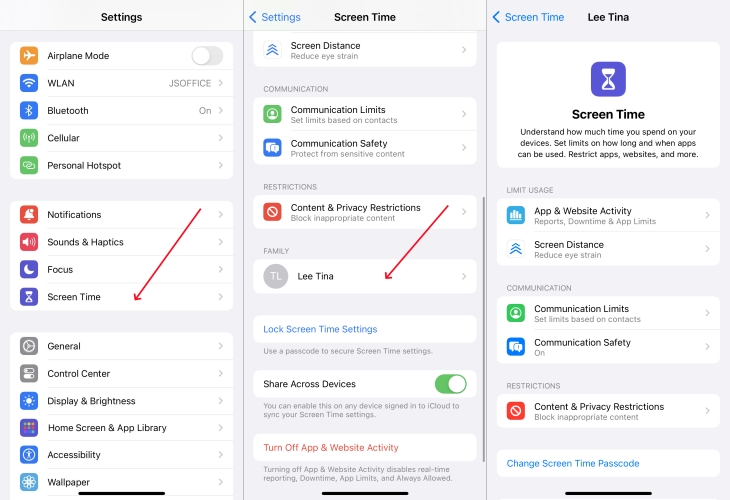
Step 1. Go to iPhone Settings > Screen Time.
Step 2. Tap the child's device name under Family.
Step 3. Tap Manage Screen Time > Change Screen Time Passcode > Change Screen Time Passcode.
Step 4. Enter the iPhone passcode and reset a new restrictions passcode for the child's device.
Notice:
We find that if you haven't set an Apple ID for recovery previously, you can use the current Apple ID on your iPhone to reset the restrictions passcode. But if you have set one and you forgot the details, you may go through the next part for an alternative solution.
Part 3. How to Bypass Restrictions Passcode on iPhone If You Can't Change
When you enter the wrong Apple ID to reset the Screen Time passcode, it accounts for a failed attempt. To bypass restrictions passcode quickly, you can consider the following methods, including a method not cause any data loss, while others cause data loss. If you care about your data, then check method 1.
Method 1. Remove iPhone Restrictions Passcode via MagFone iPhone Unlocker
One safe and effective method to remove the restrictions passcode on iPhone is to use a Screen Time remover. As a dedicated iOS unlocking tool, MagFone iPhone Unlocker can remove the restrictions passcode on iPhone without Apple ID password and data loss. In addition, it can remove more passcodes, including lock screen passcode, Apple ID password, MDM password, and iTunes backup password on iPhone. If iPhone data matters to you, you can't miss the steps below.

MagFone iPhone Unlocker
Unlock various locks on iOS devices, including screen locks, MDM, Apple ID, and Activation Lock without needing a password.
Step 1 Connect iPhone to Computer
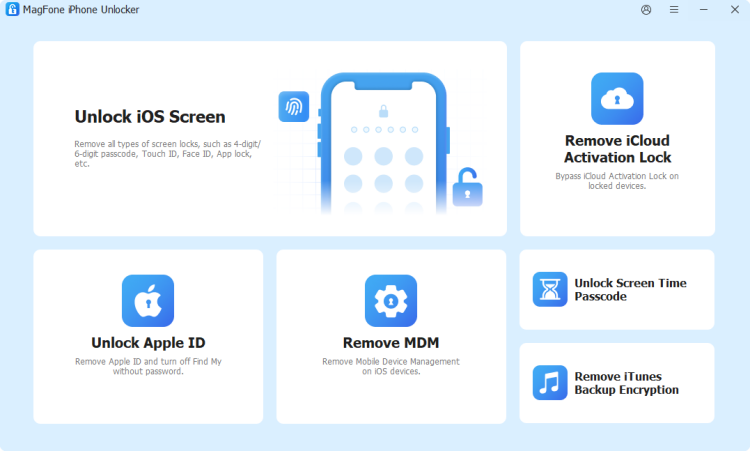
Download and install MagFone iPhone Unlocker on your iPhone. At the same time, link your iPhone to the computer using a data cable. Then launch the tool to start.
Step 2 Remove Restrictions Passcode on iPhone
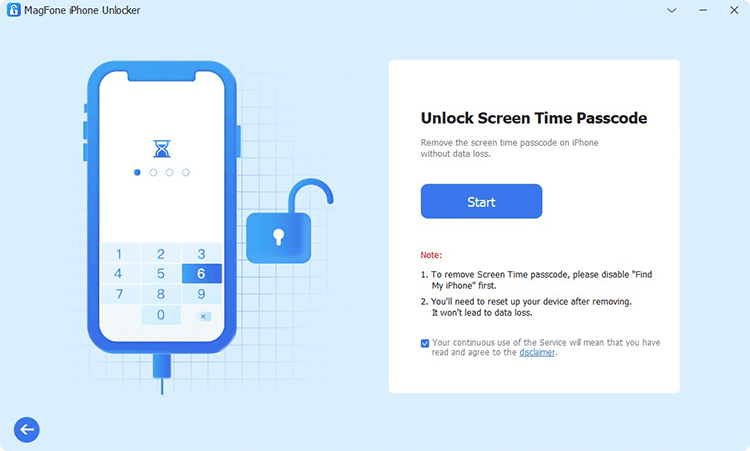
Choose Unlock Screen Time Passcode from the main interface, then click Start to remove the restrictions passcode on iPhone. Afterwards, you can open iPhone Settings to check the result.
Method 2. Remove iPhone Restrictions Passcode via iCloud Website [Data Loss]
When Find My is enabled on the iPhone and the iPhone is online, you can remove the iPhone restrictions passcode by erasing the iPhone on the iCloud website.
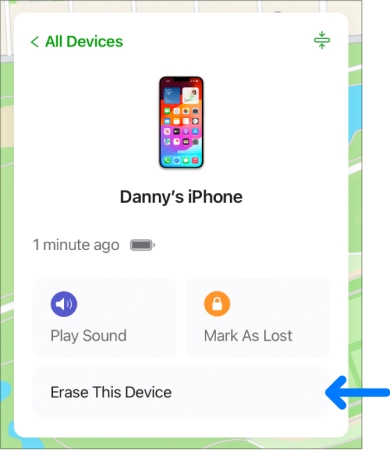
Step 1. Open the iCloud website in a browser and log in to your Apple Account.
Step 2. Choose the iPhone from the device list, then choose Erase or Erase This Device.
Step 3. Choose Next or Continue, then enter the required phone number and Apple ID password to proceed.
Method 3. Remove iPhone Restrictions Passcode via Find My App [Data Loss]
When the Find My iPhone is enabled, and you have another Apple device that is signed in with the same Apple ID, you can also remove the iPhone restrictions passcode in the Find My app.
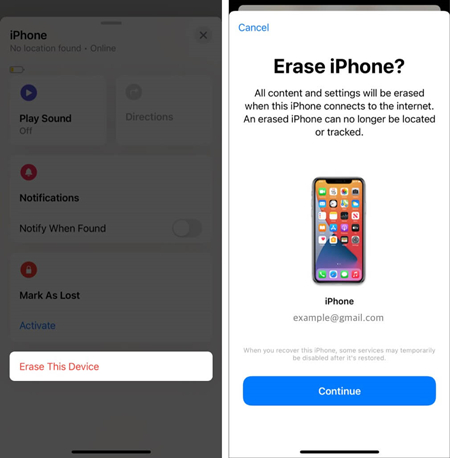
Step 1. Open the Find My app on another available Apple device and tap Devices at the bottom.
Step 2. Access the target iPhone device and scroll down to the bottom.
Step 3. Tap Erase > Continue, you'll be forwarded to enter your phone number or skip.
Step 4. Tap Erase and enter your Apple ID password. Tap Erase again to erase the iPhone to factory settings.
Method 4. Remove iPhone Restrictions Passcode via iTunes [Data Loss]
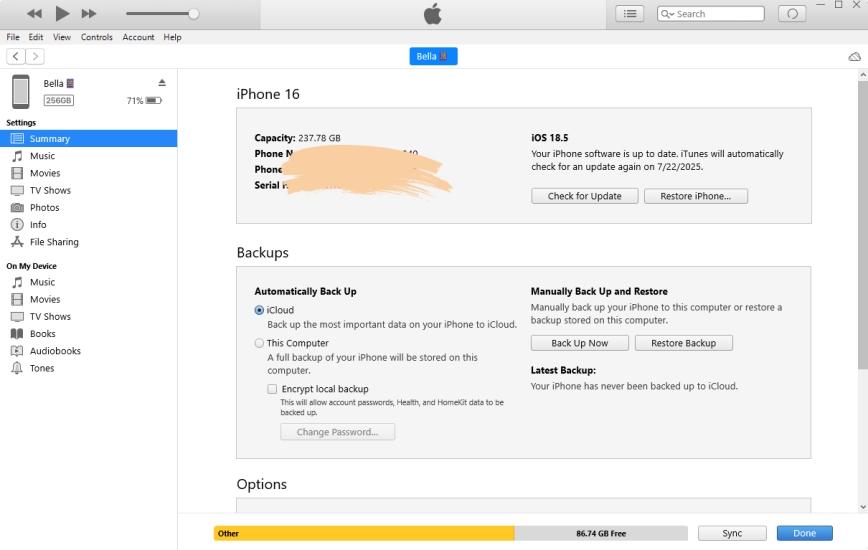
Restoring an iPhone via iTunes will update your iPhone to the latest version and restore your device to factory settings, as well as remove the restrictions passcode. Afterwards, you con configure and use it without restrictions.
Step 1. Open the Find My app on another Apple device.
Step 2. Tap Devices at the bottom and access your iPhone in the list.
Step 3. Tap Erase or Erase This Device.
Step 4. Tap Continue, then enter a phone number and the Apple ID password to proceed.
Part 4. Conclusion
If you forget your iPhone restrictions passcode, the best approach is to choose a method that restores access without putting your data at risk. In most cases, resetting the passcode with your Apple ID or through Family Sharing is the safest and most recommended solution. If those options aren't available, using a tool like MagFone iPhone Unlocker can also help remove the restrictions passcode efficiently. By comparison, methods such as factory reset, iCloud, Find My, or iTunes may work, but they usually result in data loss, so they should be considered only as a last resort.

Teresa Miller
Editor in chief





