








How do you change and update email password on iPhone? Managing your emails on an iOS device is seamless until you get locked out of your account. Whether you want to modify your email credentials online and need to sync the change on your device, knowing how to change email password on iPhone is essential for uninterrupted communication. In this comprehensive guide, we will show you how to change and update email password on iPhone.
- Part 1. How to Change Email Password on iPhone
- Part 2. How to Update Email Password on iPhone
- Part 3. Bonus Tip: Manage Email Passwords on iPhone
- Part 4. Conclusion
Part 1. How to Change Email Password on iPhone
If you want to actually modify your current email password and replace it with a new one, you have three convenient options. If your email provider supports automatic password change requests via iOS, you can initiate the change directly from your saved keychain entries, either in Settings or the Password app. Besides, email providers' official mobile app and web portal are also reliable options.
Option 1. Change Email Password in iPhone Settings App [Before iOS 18]
If your iPhone is running iOS 17 or earlier and you have saved the email credentials on your device, you can find the email password in Settings and request a password change.
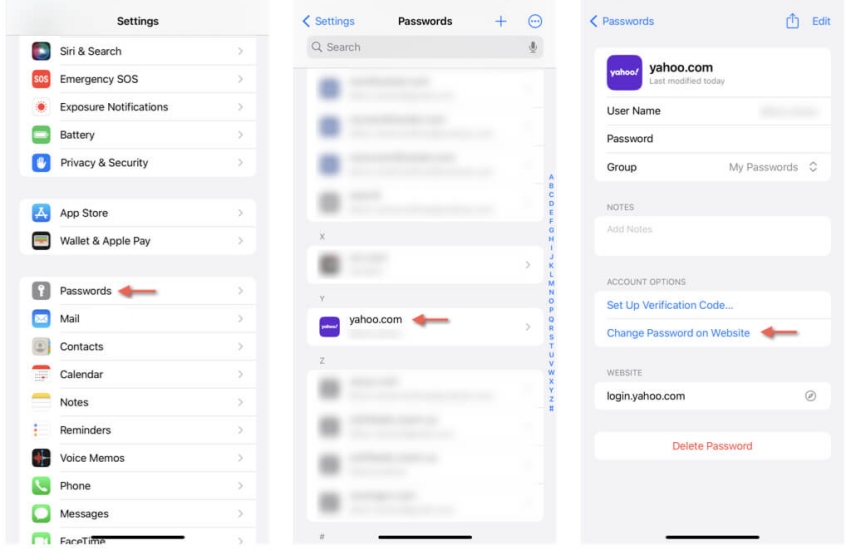
Step 1. Open Settings and tap Passwords or Password & Accounts.
Step 2. Verify your identity, then tap the email account you want to change the password for.
Step 3. Tap Change Password on Website and follow the prompts to change the email password.
Option 2. Change Email Password in iPhone Passwords App [Before iOS 18]
If you have saved the email passwords on your iPhone and your iPhone is running iOS 18 or later, you can find an entry to change your email password in the Passwords app.
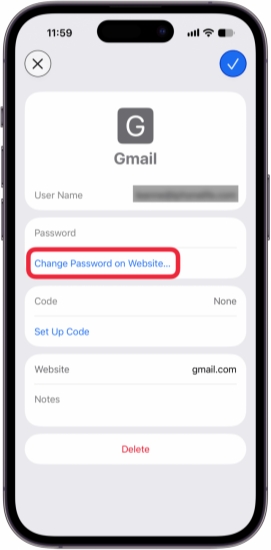
Step 1. Just open the Passwords app and unlock it with your identity.
Step 2. Tap All, and you can see all saved website passwords.
Step 3. Tap the email account, and tap Change Password or Change Password on Website under the Password field.
Step 4. You will be directed to the email website to change the email password.
Option 3. Change Email Password on iPhone via Email App/Website
For major email providers, the most reliable way to change email password on iPhone is using their dedicated mobile app or its mobile website portal.
Account Password Change Entries for Email Providers:
Below are account password change entries for common email providers. You can also navigate to the corresponding website, verify your identity, and follow the prompts to change your email password.
Change Gmail Password on iPhone:
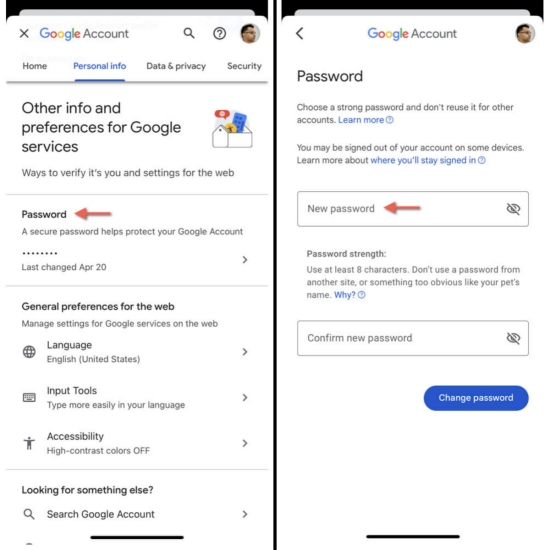
Step 1. Open the Gmail app and tap your profile icon.
Step 2. Tap Manage your Google Account > Personal info > Password.
Step 3. Enter your current Gmail password and tap Next.
Step 4. Enter a new password twice and tap Change password. If you see more prompts, follow them and confirm your operation.
Change Outlook Password on iPhone:
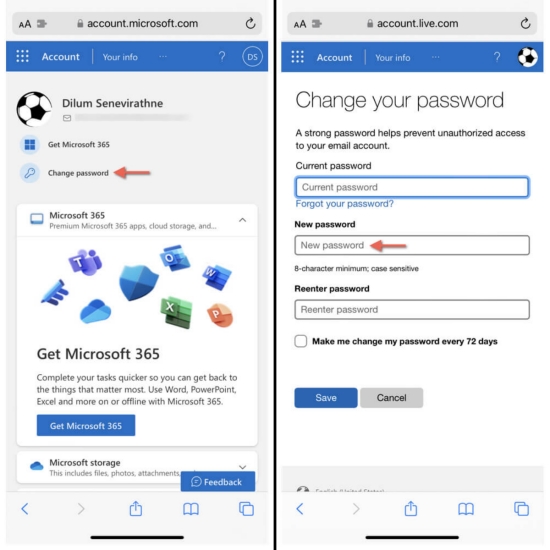
Step 1. Navigate to the Microsoft password change page and log in with your current credentials.
Step 2. Enter your current Outlook password and enter the new password twice.
Step 3. Tap Change Password to save the changes.
Change Yahoo Password on iPhone:
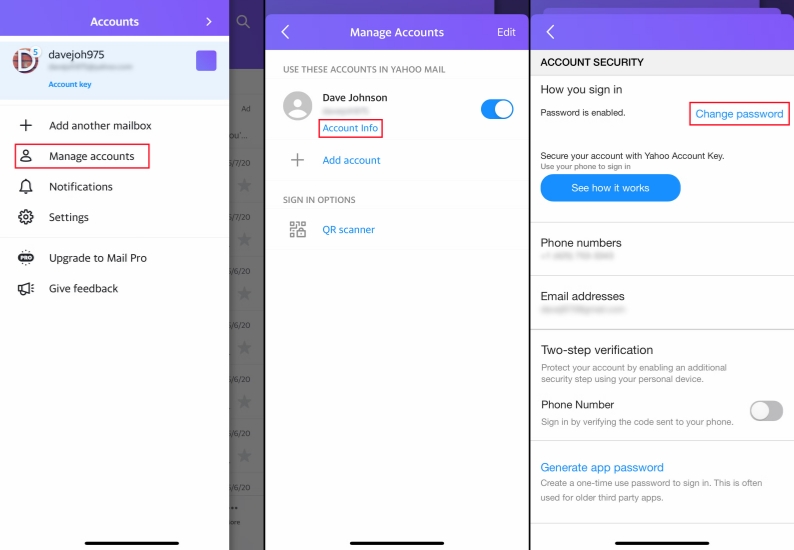
Step 1. Open the Yahoo app and tap your profile icon.
Step 2. Tap Manage Account > Account info > Account Security.
Step 3. Tap Change password and enter the new password twice.
Step 4. Tap Continue to save the password change.
Part 2. How to Update Email Password on iPhone
After changing your email password, you need to update the change on your iPhone so you can quickly log in next time. You can also update the email password in the Settings app or the Passwords app.
Option 1. Update Email Password in Settings [iOS 17 and earlier]
On devices running iOS 17 or older, all account credentials are handled directly within the Settings app. You can find and update the email password inside the Settings app.
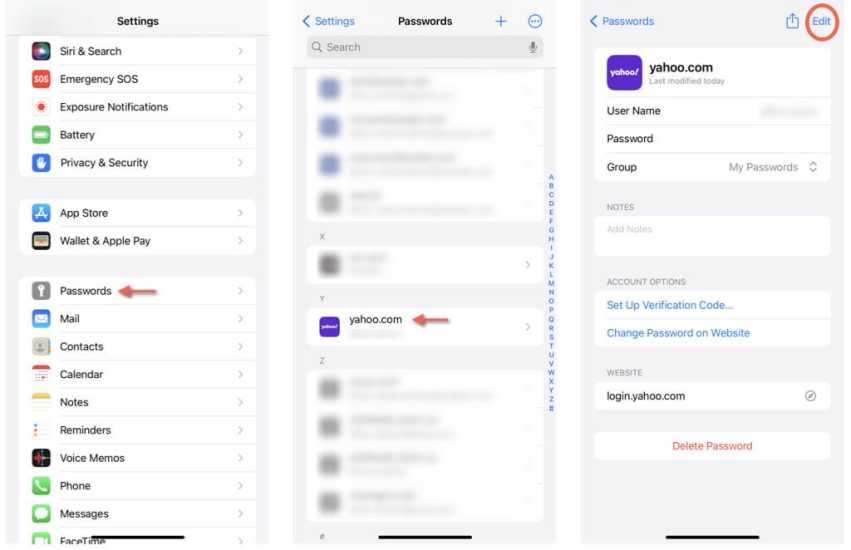
Step 1. Open Settings and tap Passwords or Accounts & Passwords.
Step 2. Verify your identity, and you can see the added email accounts on your iPhone.
Step 3. Tap the email website, then tap Edit to update the password.
Step 4. Tap Done to save the change.
Option 2. Update Email Password in Passwords App [iOS 18 and Later]
Starting with iOS 18, Apple streamlined account security by moving credential management from Settings into a dedicated Passwords app. You need to access and update your email password in the Passwords app.
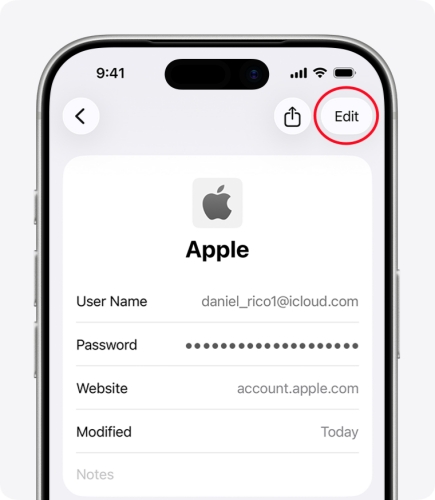
Step 1. Open the Passwords app and unlock with your Face ID, Touch ID, or iPhone passcode.
Step 2. Tap All and find the email account you want to update.
Step 3. Tap Edit to edit the password, then tap the Done icon to save the update.
Part 3. Bonus Tip: Manage Email Passwords on iPhone
Managing multiple email accounts can easily lead to forgotten credentials. If you are locked out of your email and can't change your email password because you don't remember your current password, a password manager makes the process simpler. MagFone iPhone Unlocker is a useful password manager that can help you find and restore the password. You can use it to scan saved passwords on your iPhone and check the scanned results before buying a license.
Besides password management, MagFone iPhone Unlocker is a versatile iOS utility that helps users unlock the lock screen passcode, remove the Screen Time passcode, bypass MDM restrictions, and remove Apple ID accounts whenever you need.

MagFone iPhone Unlocker
Locate saved email passwords and login credentials on iOS device quickly and securely.
Step 1 Download and Install MagFone iPhone Unlocker
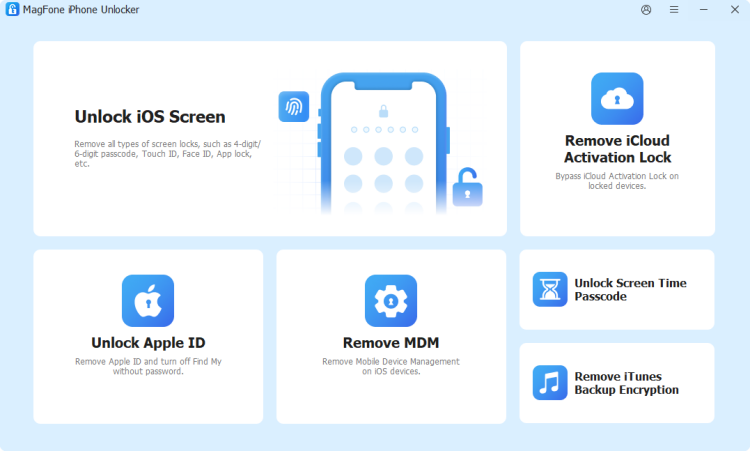
Download and install MagFone iPhone Unlocker on your computer, and connect your iPhone to the computer using a data cable. Then open the tool to start.
Step 2 Scan Saved Email Passwords on iPhone
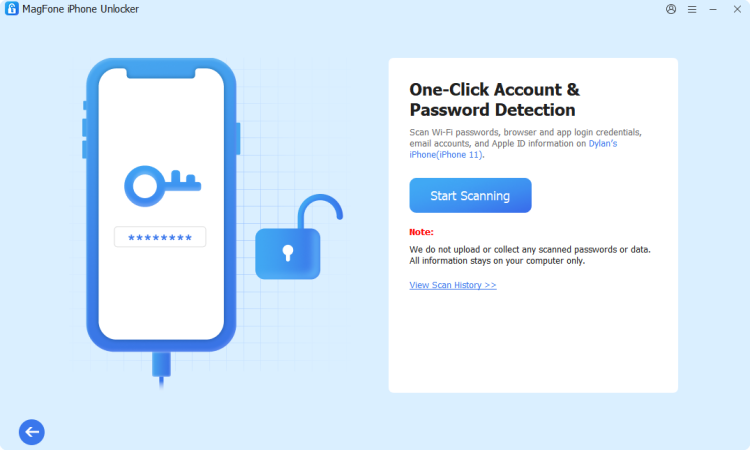
Click Password Manager from MagFone's interface, then click Start Scanning to allow MagFone to scan all saved passwords on your iPhone.
Step 3 Look Up Email Passwords on iPhone
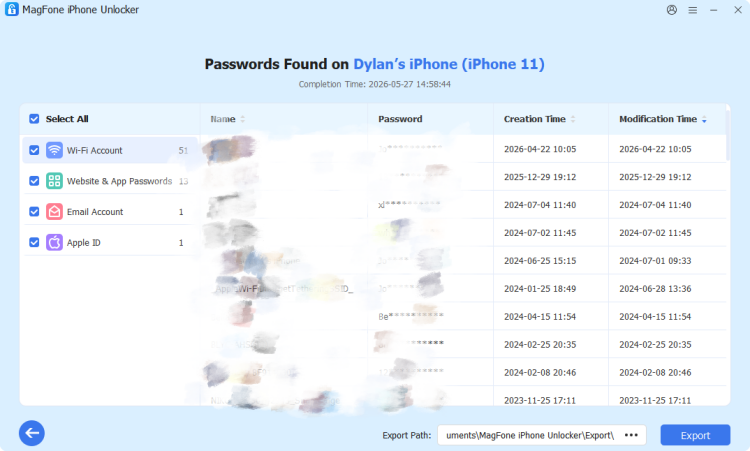
After MagFone scans your app and website passwords on your iPhone, you can view the scanned results on the screen. If you find your email account, you can click the View icon to reveal and copy it. Once you find the email credentials, you can add and save the password on your iPhone for further use.
Part 4. Conclusion
Knowing how to change and update your email password on iPhone ensures your personal communications remain secure and accessible. Changing and updating your email password can be quite easy if you have saved your email credentials on iPhone. If you have any forgotten password issues, use MagFone iPhone Unlocker! Also, make sure to periodically review your saved passwords and update your credentials across all connected devices whenever you make a security change!

Dylan Jones
Editor in chief





