








I have an iPhone 13 running iOS 26.2. In an attempt to reduce my screen time, I introduced screen time limits to some of the apps that take up most of my time. However, every day the apps get greyed out indicating I've met the limit before I actually have. For instance here, my Reddit time limit is 2 hours. I've only used Reddit for 12 minutes and it says I've met the limit and greys out the app. Turning my phone off and back on seems to fix the issue, but it just happens again, and having to restart my phone multiple times a day is already getting annoying. Does anyone know what the issue is and how I can fix it? Thanks in advance."
——From Reddit
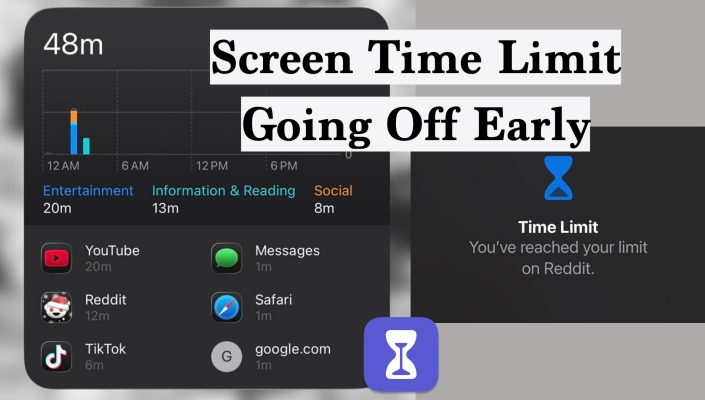
Since updating to iOS 26.2, a growing number of iPhone users have noticed that their Screen Time limits are activating earlier than expected. Instead of locking apps at the scheduled time, Screen Time is now cutting off app access prematurely, creating confusion and frustration for many. This glitch has quickly become one of the more widespread issues with iOS 26.2. In this guide, we'll explain why this problem happens and walk you through several effective methods to restore your Screen Time settings so they work as intended.
- Part 1. Why Is My Screen Time Limit Going Off Early?
- Part 2. How to Fix Screen Time Going Off Early
- Method 1. Restart iPhone
- Method 2. Disable Background App Refresh
- Method 3. Disable Share Across Devices
- Method 4. Turn Off and On Screen Time
- Method 5. Turn Off and On App Limits
- Method 6. Reset Screen Time App Limit
- Method 7. Disable Notifications for Apps
- Method 8. Update to the Newest Software System
- Part 3. Bonus Tip for Forgotten Screen Time Passcode
- Part 4. Conclusion
Part 1. Why Is My Screen Time Limit Going Off Early?
If you've encountered this iPhone Screen Time limit going off early issue after updating to iOS 26.2, that update is likely the main trigger behind it. Many users have reported that, after the update, their app limits activate before the actual time is up, disrupting daily routines and device usage habits.
However, the iOS update itself isn't always the only factor. Other potential causes include:
- Background App Refresh Settings: This may interfere with how Screen Time tracks app usage.
- Syncing Issues between Devices: If you're using Share Across Devices, there will be sync issues across your devices.
- Minor System Glitches: They may affect performance and app timers.
- Temporary Software Conflicts: These can also cause Screen Time to behave unpredictably.
In the next section, we'll address these possible causes and provide step-by-step solutions to help you fix the problem and regain control over your Screen Time limits.
Part 2. How to Fix Screen Time Going Off Early
Because there are several possible reasons for your Screen Time limits triggering early, it's important to work through a series of troubleshooting steps. The following methods address each of the most common causes and will help you resolve the issue, regardless of what's behind it. Follow each step in order to restore your Screen Time settings and get your daily limits working as they should.
Method 1. Restart iPhone
Restarting your iPhone is often one of the simplest and most effective ways to fix temporary software glitches, including Screen Time limits triggering early. Many users have reported that after a quick reboot, their Screen Time restrictions returned to normal.
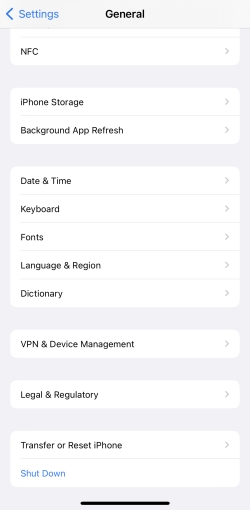
Step 1. Open Settings and tap General.
Step 2. Tap Shut Down at the bottom and drag the slider to shut off your iPhone.
Step 3. When your iPhone is completely shut down, long-press the power button to restart your iPhone. After restarting, check to see if the Screen Time limits are now functioning as expected.
Method 2. Disable Background App Refresh
Background App Refresh can sometimes interfere with how Screen Time tracks app usage. Turning off this feature may help ensure Screen Time accurately monitors your app activity.
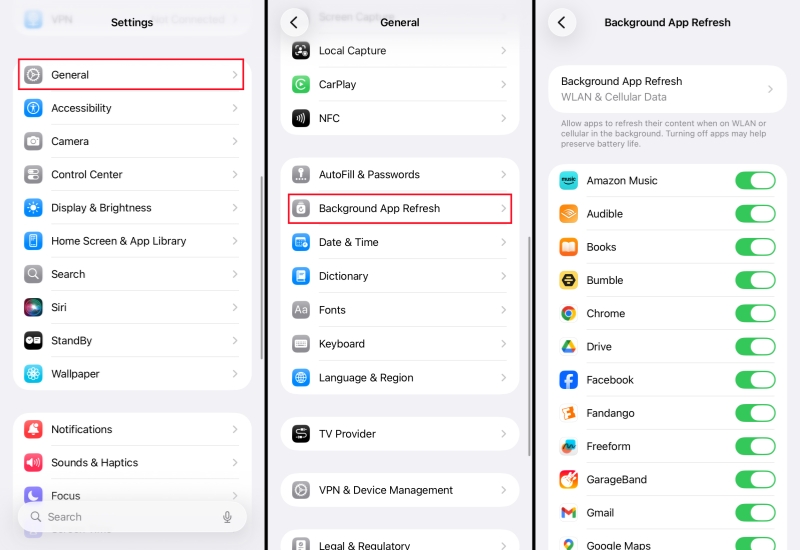
Step 1. Open Settings and tap General.
Step 2. Tap Background App Refresh.
Step 3. You can choose to disable Background App Refresh for all apps or for wanted apps. If you want to disable it for all apps, tap Background App Refresh and choose Off. If you want to disable it for specific apps, choose Wi-Fi & Cellular Data, then disable the apps on the last page.
Method 3. Disable Share Across Devices
If you use Screen Time across multiple Apple devices, syncing issues can cause limits to trigger early. Turning off Share Across Devices will make Screen Time settings apply only to your current device, helping to eliminate sync-related problems.
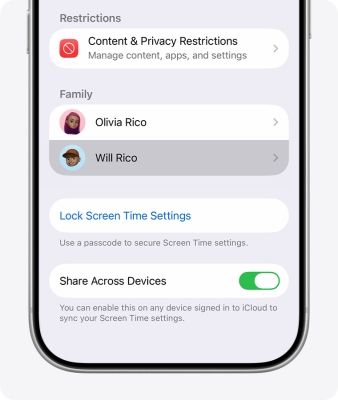
Step 1. Open Settings and tap Screen Time.
Step 2. Disable Share Across Devices.
Method 4. Turn Off and On Screen Time
Temporarily disabling Screen Time and then turning it back on can refresh its settings and clear out minor bugs.
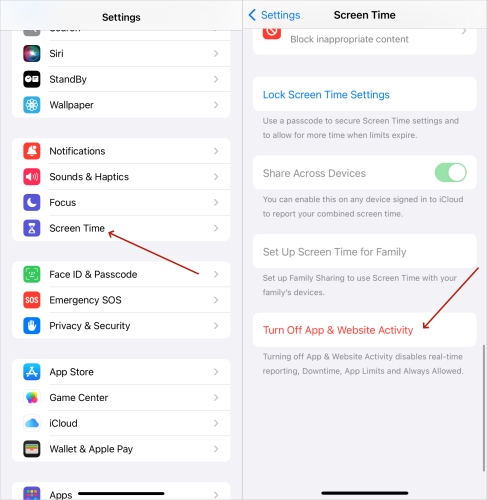
Step 1. Open Settings and tap Screen Time.
Step 2. Scroll to the bottom and tap Turn Off Apps & Website Activity.
Step 3. Tap Turn Off App & Website Activity to disable it.
Step 4. Tap Turn On Screen Time and reconfigure your Screen Time settings.
Method 5. Turn Off and On App Limits
Sometimes, simply switching your App Limits off and then back on can reset the timer and fix premature triggers.
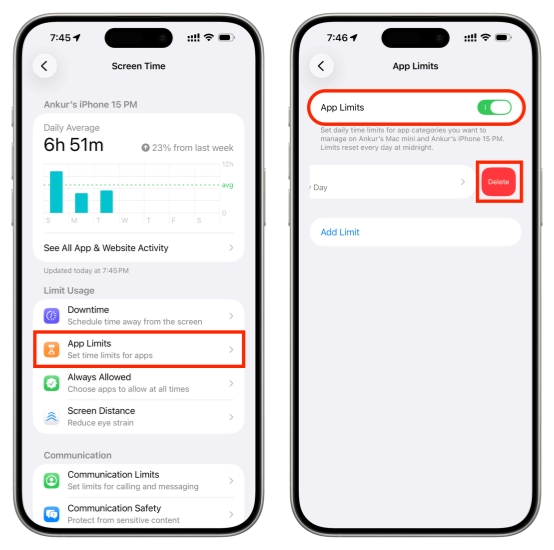
Step 1. Open Settings and tap Screen Time.
Step 2. Tap App Limits and disable it.
Step 3. Wait for a few seconds and re-enable it. Now you can test to see if App Limits work as intended.
Method 6. Reset Screen Time App Limit
If the Screen Time App Limits feature failed to refresh as normal after midnight, you may consider deleting the current app limits settings and creating new app limits. According to some users, this method worked on their devices.
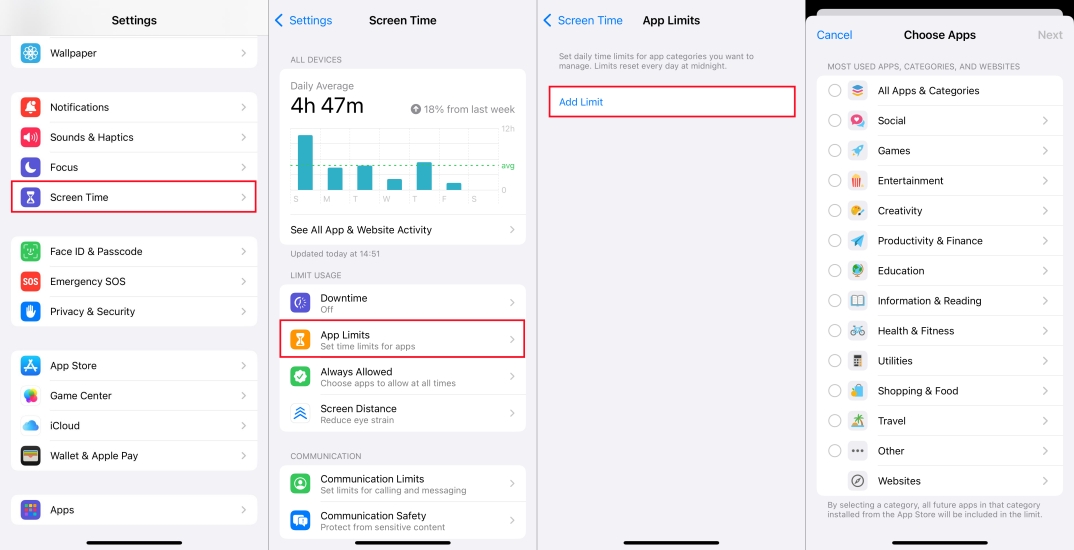
Step 1. Open Settings and tap Screen Time.
Step 2. Tap App Limits, and delete current app limits.
Step 3. Create new app limits.
Method 7. Disable Notifications for Apps
In some cases, notifications may interfere with screen time usage. Disabling notifications for restricted apps may help fix the Screen Time limit going off early issue.
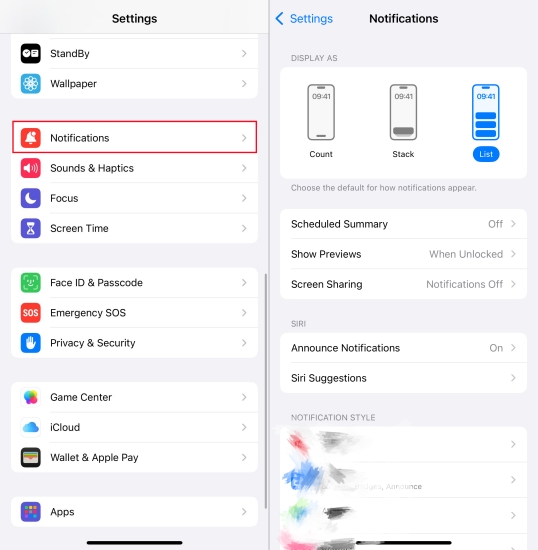
Step 1. Open Settings and tap Notifications.
Step 2. Disable notifications for apps you set app limits for.
Method 8. Update to the Newest Software System
Since this is a known iOS 26 Screen Time glitch, updating your iPhone to a newer software system may include a fix.
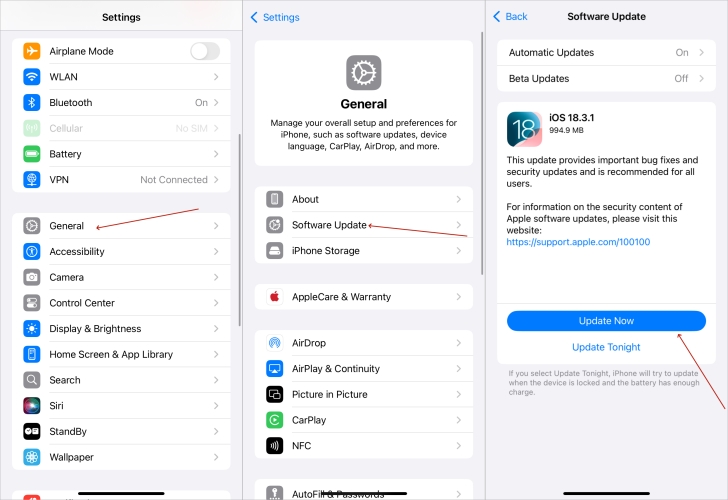
Step 1. Open Settings and tap General.
Step 2. Tap System Software. If there is a newer iOS 26.5 or iOS 27 beta, you can consider downloading and installing it.
Part 3. Bonus Tip for Forgotten Screen Time Passcode
If you've forgotten your Screen Time passcode and are unable to adjust or disable Screen Time settings, don't worry—there's still a solution. Instead of struggling to recover or reset the passcode through Apple's standard methods, you can use a reliable third-party tool to bypass Screen Time restrictions entirely. One such tool is MagFone iPhone Unlocker, which allows you to remove the Screen Time passcode from your device quickly and securely, even if you don't remember it. This makes it easy to regain full access to your iPhone's settings and features. Besides, it can also help manage your iPhone passwords, allowing you to recover forgotten passwords more easily. Below is how to use MagFone to disable Screen Time without passcode.

MagFone iPhone Unlocker
Unlock various locks on iOS devices, including screen locks, MDM, Apple ID, and Activation Lock without needing a password.
Step 1 Download MagFone iPhone Unlocker
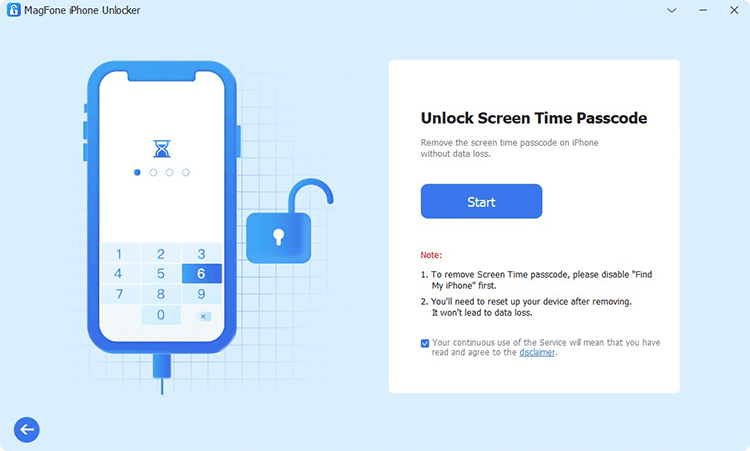
First, download and install MagFone iPhone Unlocker on your computer. Afterwards, launch this program and click Unlock Screen Time Passcode on the main interface.
Step 2 Disable Screen Time without Passcode
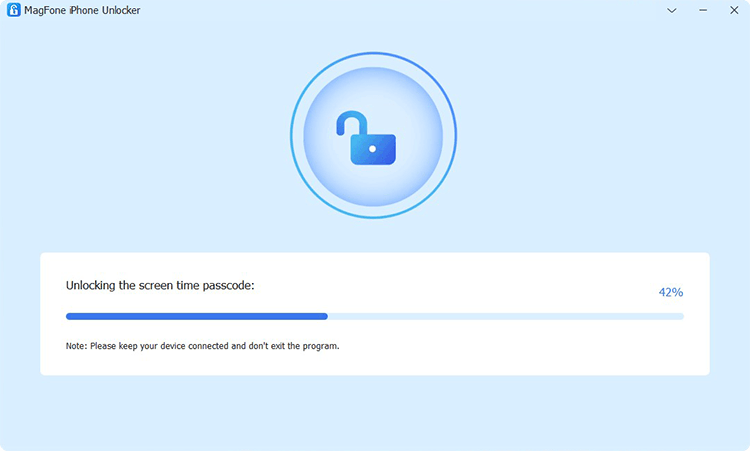
After connecting your iPhone to the computer via a data cable, click Start to disable Screen Time on your iPhone without a passcode.
Part 4. Conclusion
Apple has not yet released an official support document addressing the issue of Screen Time limits going off early in iOS 26.2. Until an official fix is provided, you can rely on the practical solutions outlined in this guide to troubleshoot and resolve the problem on your own. By following these step-by-step methods, you can restore normal Screen Time functionality and regain control over your app usage. If you encounter additional issues, such as forgetting your Screen Time passcode, dedicated tools like MagFone iPhone Unlocker can offer an effective workaround. Stay tuned for future iOS updates, as Apple may address this glitch in upcoming releases.

Dylan Jones
Editor in chief




