








Are you looking to erase your Screen Time history on your iPhone for privacy reasons or to start fresh with your usage data? Whether you want to clear specific app activity, remove all Screen Time records, or wipe your data without a passcode, you're not alone. Many iPhone users want greater control over their Screen Time usage and want a complete way to delete Screen Time history on their phone. In this guide, you'll discover step-by-step methods, ranging from simple settings tweaks to full resets, so you can delete your Screen Time history safely and efficiently, with or without losing your important information.
- Part 1. Can You Delete Screen Time History?
- Part 2. How to Delete Screen Time History on iPhone [No Data Loss]
- Part 3. How to Clear Screen Time Usage on iPhone [Data Loss]
- Part 4. How to Delete Screen Time History without PasscodeHOT
- Part 5. FAQs about Deleting Screen Time History
- Part 6. Conclusion
Part 1. Can You Delete Screen Time History?
You can delete Screen Time history on your iPhone or iPad. By turning off App & Website Activity, you'll stop new data from being recorded and can remove some existing usage information. If this simple toggle is not working for your device, a reset or factory reset of your device may be necessary.
Part 2. How to Clear Screen Time Usage on iPhone [No Data Loss]
If you want to delete your Screen Time history without risking data loss, there are a couple of practical methods you can try. These techniques don't require a factory reset and are suitable for most users who want to clear their usage data quickly and easily.
Method 1. Turn Off App & Website Activity
In many cases, disabling App & Website Activity and then turning it back on can reset your Screen Time usage data. However, some users have noted that their usage data may reappear after re-enabling the feature. You can try to see whether this works on your device.
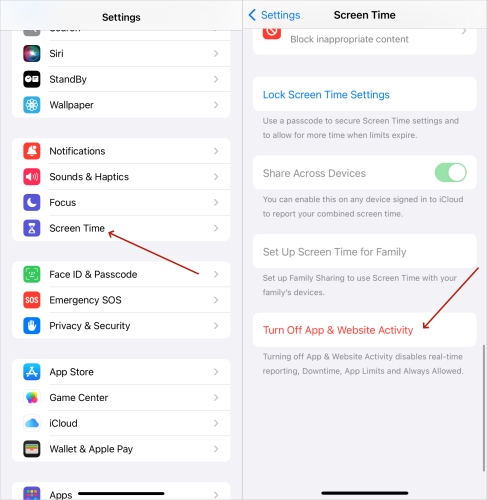
Step 1. Go to Settings > Screen Time.
Step 2. Scroll to the bottom and tap Turn Off App & Website Activity.
Step 3. Enter the Screen Time passcode ff you have set it. And tap Turn Off App & Website Activity again.
Method 2. Adjust Date & Time Manually
There are also users who have shared their way to clear Screen Time history on iPhone, which is to adjust the iPhone date to a future date, then allow iCloud to sync the data. This method can sometimes clear your Screen Time history, but results may vary depending on your device and iOS version.
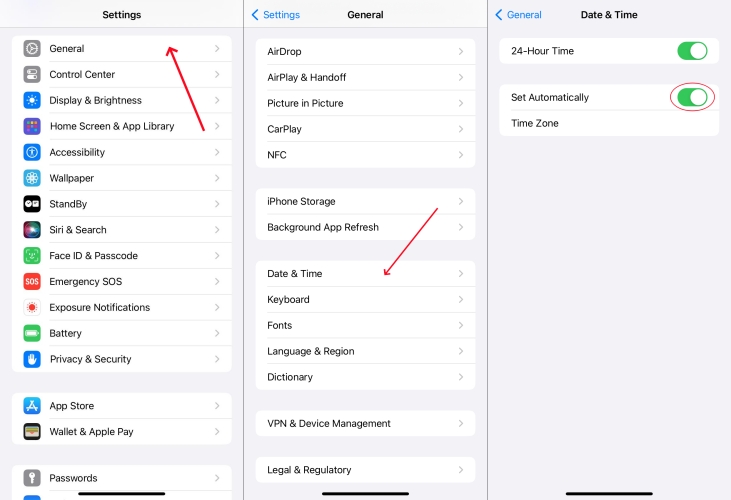
Step 1. Go to Settings > General > Date & Time.
Step 2. Disable Set Time Automatically and set the date to a future time.
Step 3. Wait for at least 5 minutes to allow the Screen Time usage to sync.
Step 4. Then enable Set Time Automatically, and the Screen Time usage before today will be cleared.
Part 3. How to Clear Screen Time History [Data Loss]
If the above methods don't work for your devices or if you want to clear Screen Time usage on iPhone completely, there are more thorough ways to do that, which are to reset all settings on iPhone or reset the iPhone to factory settings.
Method 1. Reset All Settings
Resetting all settings on iPhone will reset the Screen Time usage as well. After resetting, you need to reconfigure WiFi settings and privacy settings.
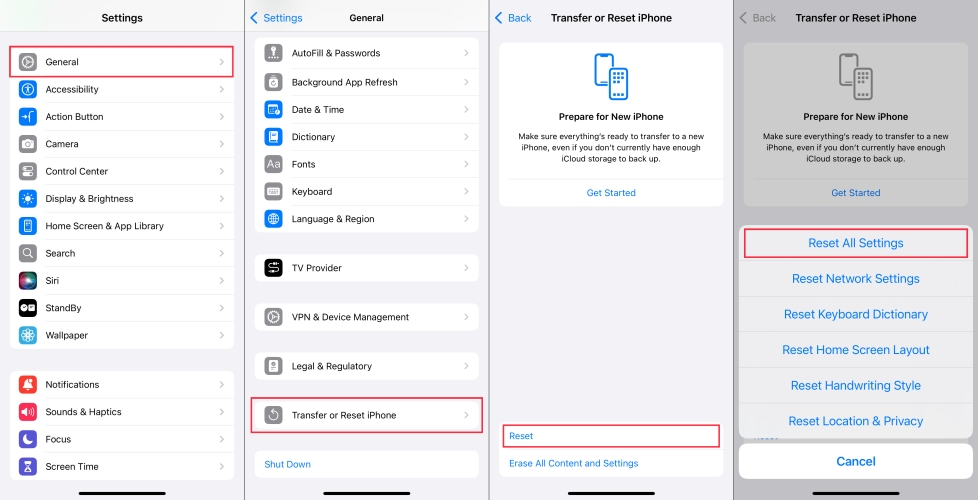
Step 1. Go to iPhone Settings > General > Transfer or Reset iPhone.
Step 2. Tap Reset > Reset All Settings.
Step 3. Enter your iPhone passcode and tap Reset All Settings.
Method 2. Erase All Settings and Contents on iPhone
A factory reset iPhone will remove all data as well as Screen Time data on iPhone. This method is effective if you want a completely fresh start, but remember that it will delete all your apps, so be sure to back up anything important before proceeding.
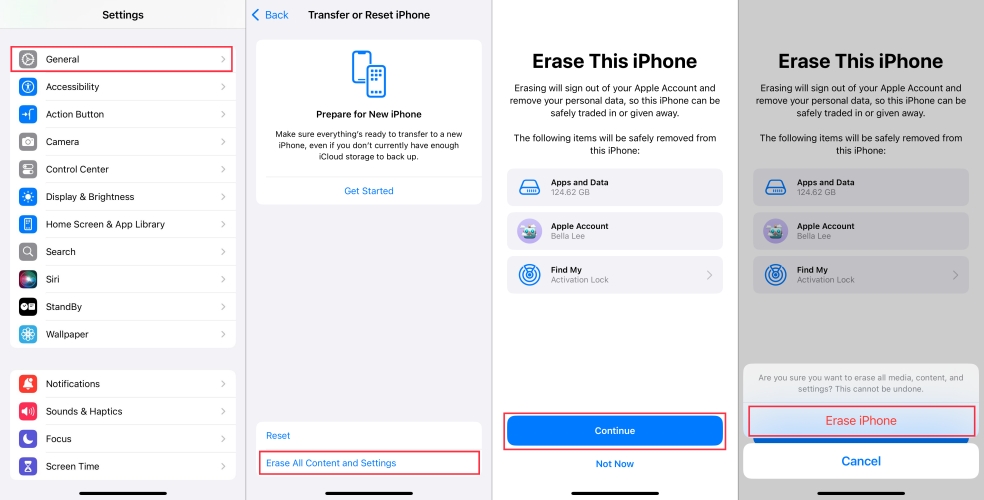
Step 1. Go to Settings > General > Transfer or Reset iPhone.
Step 2. Tap Erase All Content and Settings > Continue > Erase iPhone.
Step 3. Enter the iPhone passcode, Screen Time passcode, and Apple ID password to proceed in sequence. Then tap Erase Now to factory reset the iPhone completely.
Part 4. Best Way to Delete Screen Time History without Passcode
When you are about to turn off App & Website activity, reset all settings, or erase all content and settings on iPhone, the Screen Time passcode is needed if you have set it before. To avoid inconvenience, we'd recommend using a Screen Time remover to delete Screen Time history without a passcode. As a versatile iOS passcode helper, MagFone iPhone Unlocker can help remove Screen Time on iPhone and iPad without passcode and without data loss. In just a few clicks, the Screen Time history can be removed. Follow the two steps below to clear Screen Time usage on your iPhone.

MagFone iPhone Unlocker
Delete Screen Time history on iPhone without needing a passcode and without data loss.
Step 1 Download and Install MagFone iPhone Unlocker
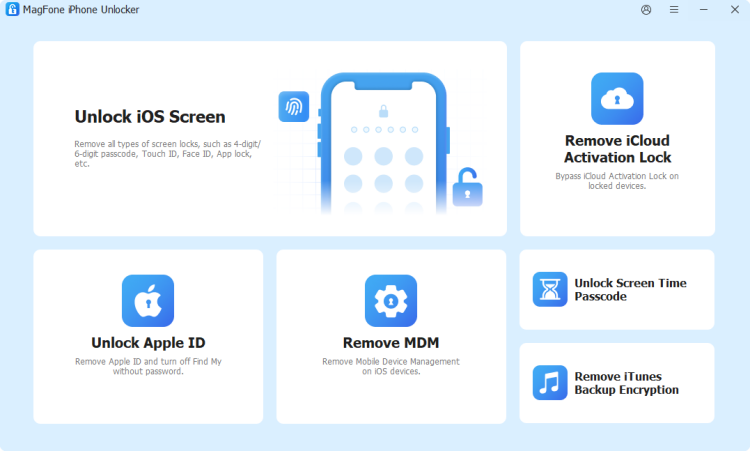
The first step is to download and install MagFone iPhone Unlocker on your computer. Then use a data cable to connect your iPhone to the computer. Afterwards, launch the program to start.
Step 2 Remove Screen Time Passcode on iPhone
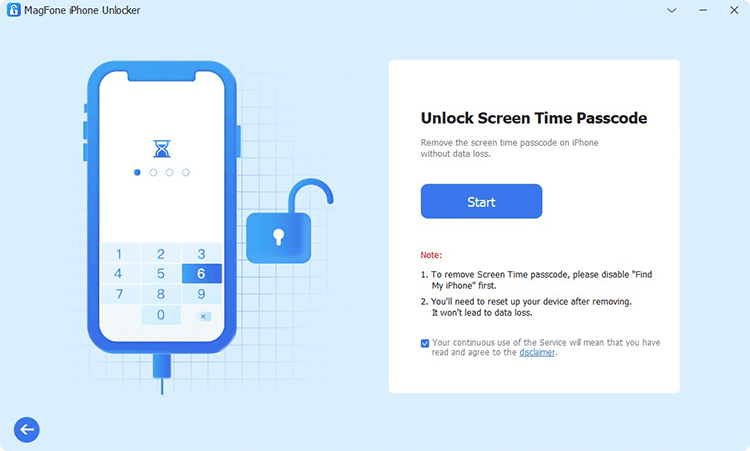
Before going on, make sure Find My is disabled on your device. Go to Settings > Apple ID > Find My to check and disable it. Then click Unlock Screen Time Passcode > Start on the MagFone screen to remove the Screen Time history on your iPhone without passcode and data loss.
Part 5. FAQs about Clearing Screen Time History
How to delete Safari history on iPhone with Screen Time?
When web content restrictions are enabled on iPhone, you are unable to clear Safari history. To delete Safari history on iPhone with Screen Time, you can first disable Web Content restrictions.
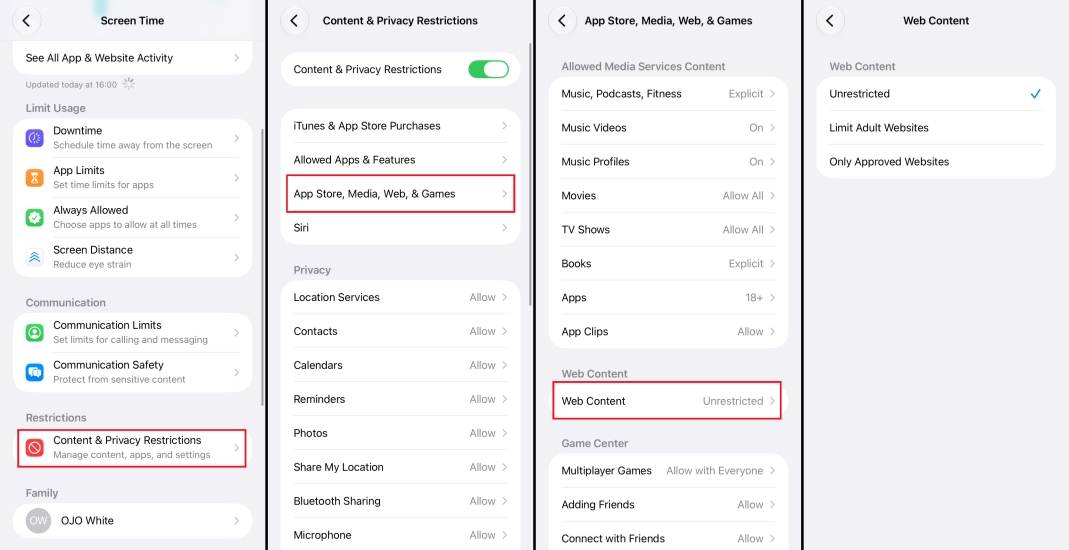
Step 1. Go to Settings > Screen Time.
Step 2. Tap Content & Privacy Restrictions > App Store, Media, Web, & Games > Web Content.
Step 3. Choose Unrestricted Access or Unrestricted and enter the Screen Time passcode. Afterwards, you can delete Safari history on iPhone without restrictions.
How to delete Screen Time history for one app?
To be honest, all methods in this guide will delete Screen Time history in all, not for a single app. If you need to delete Screen Time history for one app, you may delete the app from your iPhone, then reinstall it from the App Store.
How to delete Screen Time history for one day?
You can't delete Screen Time history for a single day. But you can delete previous Screen Time history by turning off App & Website Activity or resetting all settings.
Part 6. Conclusion
Managing your Screen Time history on iPhone gives you more privacy and control over your usage data. Whether you choose a simple settings change or a complete reset, the methods above allow you to delete Screen Time history based on your needs. Always consider the impact on your other data and back up important information before making major changes. With the right approach, you can keep your digital habits private and your device running smoothly.

Dylan Jones
Editor in chief





