









I wanted to set Lock Screen Time passcode on my own iPhone, but I've run into an infuriating bug where the passcode can be bypassed instantly. As you can see in the video, I can set the 4-digit passcode, but when I immediately tap "Turn Off Screen Time Passcode," it lets me remove it instantly. No PIN required, no Face ID prompt - it just turns off. This completely defeats the purpose of having a lock."
——From Reddit
You set a Screen Time passcode to lock settings, but iPhone doesn't ask for Screen Time passcode to turn it off? Or perhaps Screen Time doesn't request a passcode when you reach the app limit or downtime? Some iPhone users have reported this iOS Screen Time bug on Reddit. In this guide, we will explain why the Screen Time passcode is not working and how to fix the issue to let your Screen Time work as expected.
- Part 1. Why Is iPhone Screen Time Not Asking for Passcode?
- Part 2. How to Fix iPhone Screen Time Not Asking for Passcode to Turn Off
- Part 3. How to Fix iPhone Screen Time Not Asking for Passcode to Extend Usage
- Part 4. Conclusion
Part 1. Why Is iPhone Screen Time Not Asking for Passcode?
If the Screen Time passcode is set alone while other Screen Time settings are default, your iPhone may not ask for a Screen Time passcode when you turn Screen Time off. The passcode prompt may appear after you have configured or changed Screen Time settings, such as enabling App & Website Activity, adding app limits, or scheduling downtime. If you haven't changed these settings, Screen Time may not work as you expect.
If you have enabled these settings while your iPhone still doesn't require a passcode, then the issue is related to settings like Block at Downtime and Block at End of Limits.
If you can't figure out why your iPhone doesn't ask for Screen Time passcode, just go through this guide and follow the steps to fix the issue.
Part 2. How to Fix iPhone Screen Time Not Asking for Passcode to Turn Off
Generally, if you have set a Screen Time passcode, you'll be required to enter the passcode to make any changes in Screen Time. If your iPhone doesn't require a passcode to turn off Screen Time, simply setting a Screen Time passcode may not be enough. You can follow the steps below to configure Screen Time, and your Screen Time passcode will work normally.
💡Note:
Before correctly configuring Screen Time, you can restart your iPhone to check whether it now asks for your passcode. If the issue continues, go through the steps below.
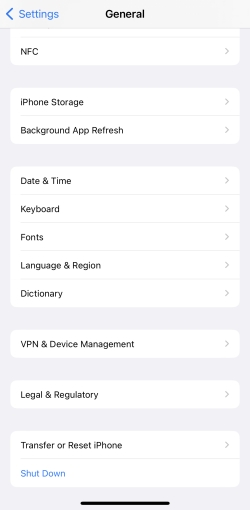
Step 1. Go to Settings > General.
Step 2. Tap Shut Down at the bottom, and drag the slider to switch off the iPhone.
Step 3. Long-press the Power button to restart the iPhone.
01Turn On App & Website Activities
First, make sure App & Website Activities is enabled on iPhone. Then you can set app limits, schedule downtime, and control your Screen Time usage on iPhone. This step is essential to fix when Screen Time doesn't ask for a passcode to turn off.
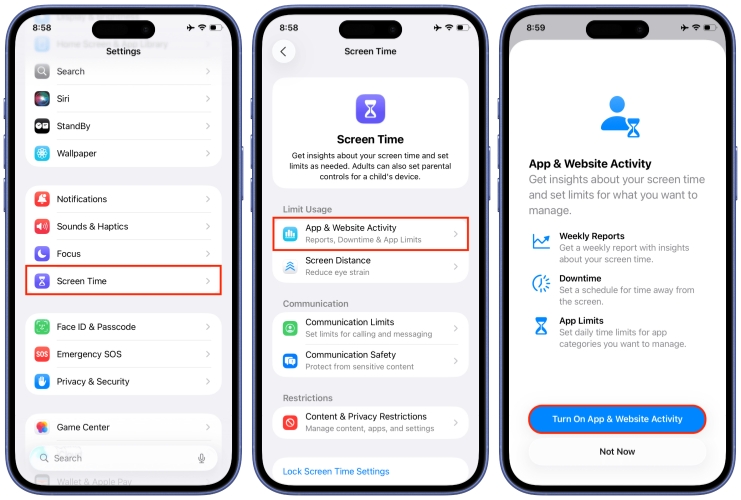
Step 1. Go to iPhone Settings > Screen Time.
Step 2. Tap App & Website Activities.
Step 3. Tap Turn on App & Website Activities.
02Disable Share Across Devices
When you turn on App & Website Activities, the Share Across Devices option will be enabled automatically. If you want to separate your Screen Time settings from other devices, you can disable this option.
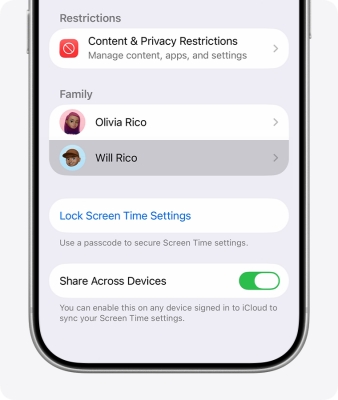
Step 1. Go to Settings > Screen Time.
Step 2. Find Share Across Devices and disable it.
03Add App Limits and Schedule Downtime
Now you can configure app limits and downtime for your iPhone. Since Share Across Devices is disabled, this setting will only work on your current device.
App Limits:
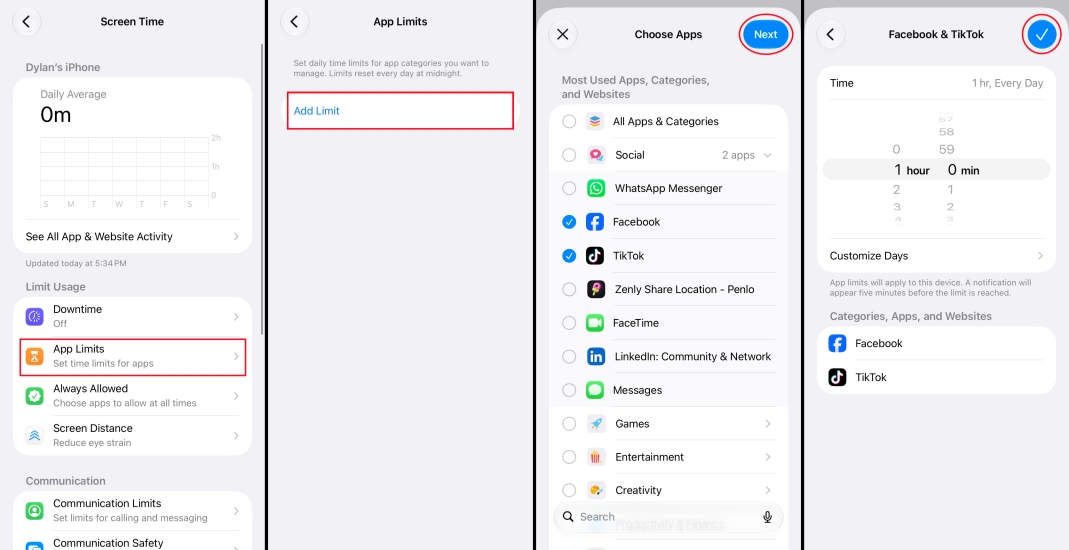
Step 1. Tap App Limits in Screen Time.
Step 2. Tap Add Limits and select the app category or apps you want to set limits for.
Step 3. Tap Next and set the timer you allow for these apps.
Step 4. Tap Add to save the setting.
Downtime:
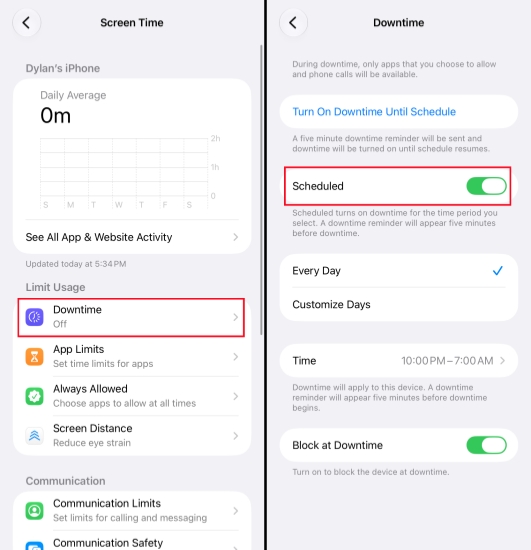
Step 1. Tap Downtime in Screen Time.
Step 2. Turn on Scheduled and customize days and time for Downtime.
04Lock Screen Time Settings
When you have already configured your Screen Time settings, you can now lock the settings. Then your iPhone will require the passcode whenever you want to make changes to Screen Time.
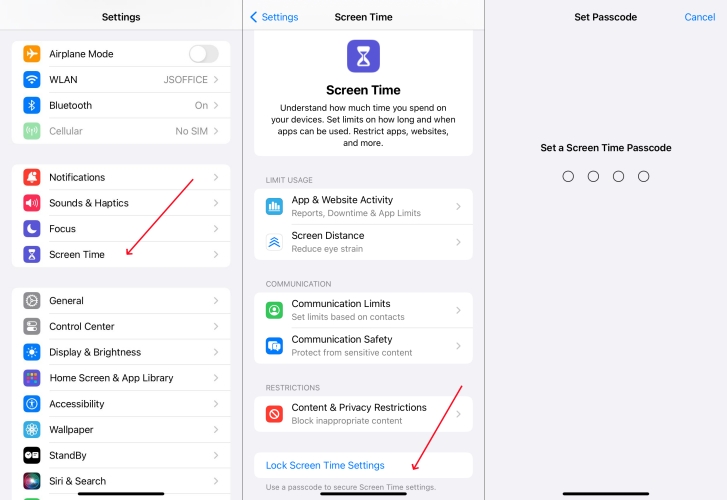
Step 1. Tap Lock Screen Time Settings.
Step 2. Enter a 4-digit passcode twice.
Step 3. Provide Apple ID credentials for Screen Time passcode recovery in case you forgot the Screen Time passcode.
Part 3. How to Fix iPhone Screen Time Not Asking for Passcode to Extend Usage
If Screen Time doesn't ask for a passcode when you reach scheduled Downtime or App Limits, you need to adjust the App Limit or Downtime settings.
Method 1. Enable Block at End of Limits
Only when Block at End of Limits is enabled, your iPhone will ask for the Screen Time passcode to extend usage when you have reached the limit.
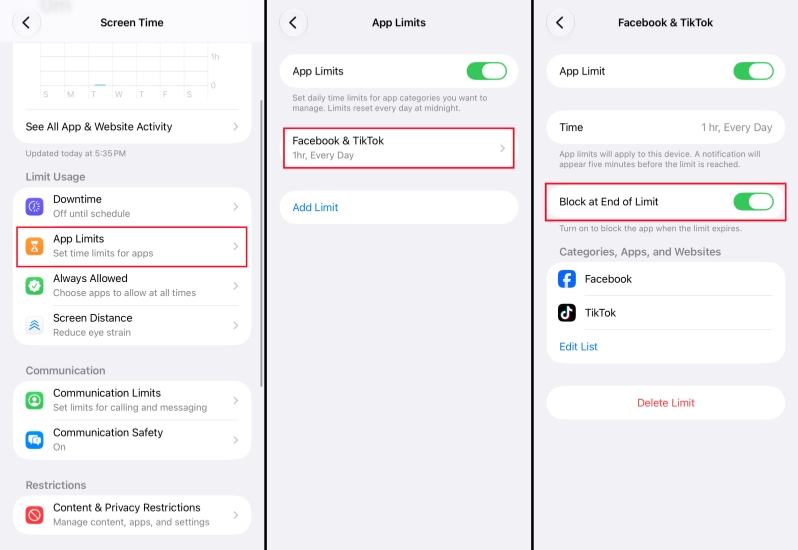
Step 1. Go to Settings > Screen Time > App Limits.
Step 2. Tap the app limit you have set and enable Block at End of Limit.
Method 2. Enable Block at Downtime
Only when Block at Downtime is enabled, your iPhone will ask for the Screen Time passcode when you are in downtime. This helps enforce the schedule instead of allowing usage to continue.
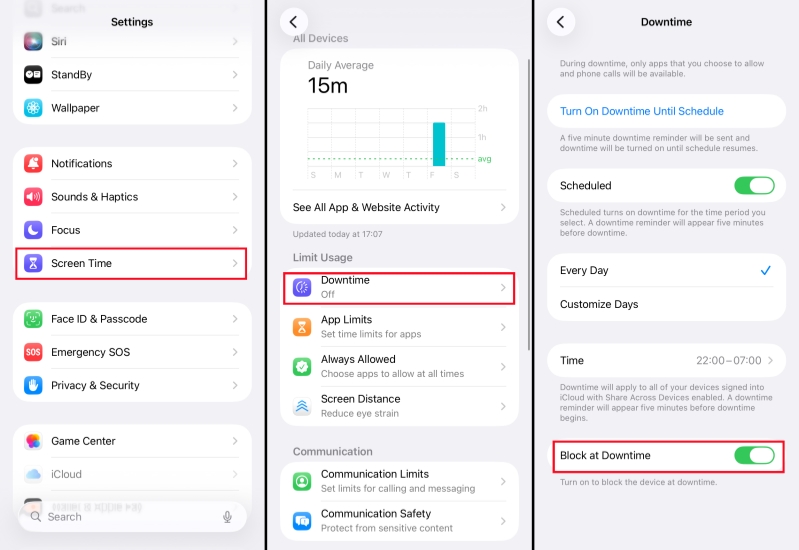
Step 1. Go to Settings > Screen Time > Downtime.
Step 2. Enable Block at Downtime.
Part 4. Conclusion
If your iPhone isn't asking for a Screen Time passcode, don't worry. Generally, checking your Screen Time settings and trying the fixes in this guide can make Screen Time passcode work as expected. By the way, if you have any issues with the Screen Time passcode or if new Screen Time features are missing on iOS 27, MagFone iPhone Unlocker helps get rid of these issues.

Dylan Jones
Editor in chief




