








My son has a new iPhone and I set up a Screen Time passcode. But I can't remember the passcode now. But there is no 'Forgot Passcode' as it's child's phone. It doesn't show up in my phone. We cannot reset back to factory settings as it needs the Screen Time passcode to do this. Any advice would be greatly appreciated."
Forgot Screen Time passcode for child? What to do when you forgot the Screen Time passcode for your child? You can change or reset the Screen Time passcode for child, or turn off Screen Time on child's phone, or reset child's device to factory settings to reconfigure Screen Time. In this article, we are going to tell you all the solutions when you forgot child's Screen Time passcode. Let's take a closer look at how to reset child's Screen Time passcode if you forget it.
Before going further, here is a comprehensive table to get know what you can do if you forgot the Screen Time passcode for child. And you can quickly switch to the method by tapping.
| What to Do? | Option | Apple ID Password | Data Loss | Operation |
|---|---|---|---|---|
| Change/Reset Screen Time Passcode for Child | Directly on Child's Device | ✔️ | ❌ | Moderate |
| Via Family Sharing | ❌ | ❌ | Easy | |
| Turn Off Screen Time Passcode for Child | Via Family Sharing | No, but requires device lock screen passcode | ❌ | Easy |
| Directly on Child's Device | ✔️ | ❌ | Moderate | |
| MagFone Screen Time Remover | ❌ | ❌ | Easy | |
| Reset iPhone to Factory Settings | iTunes | ✔️ | ✔️ | Moderate |
| iCloud | ✔️ | ✔️ | Moderate | |
| Find My | ✔️ | ✔️ | Moderate |
- Part 1. How to Change Screen Time Passcode on Child's Phone
- Part 2. How to Turn Off Screen Time Passcode on Child's Phone
- Part 3. Alternative Solutions If You Forgot Screen Time Passcode for Child [Data Loss]
- Part 4. FAQs about Screen Time for Child
- Part 5. Conclusion
Part 1. How to Change Screen Time Passcode on Child's Phone
It's not difficult to change Screen Time passcode on child's device when you forget it. Here's how to change Screen Time passcode on child's phone no matter whether you set an independent control or parental control of Screen Time on child's device.
Case 1: Reset Independent Control of Screen Time on Child's Device
If you directly enable Screen Time on your child's iPhone or iPad, then you can change the Screen Time passcode in Settings on your child's device. Now follow the steps below to reset the Screen Time passcode for your child.
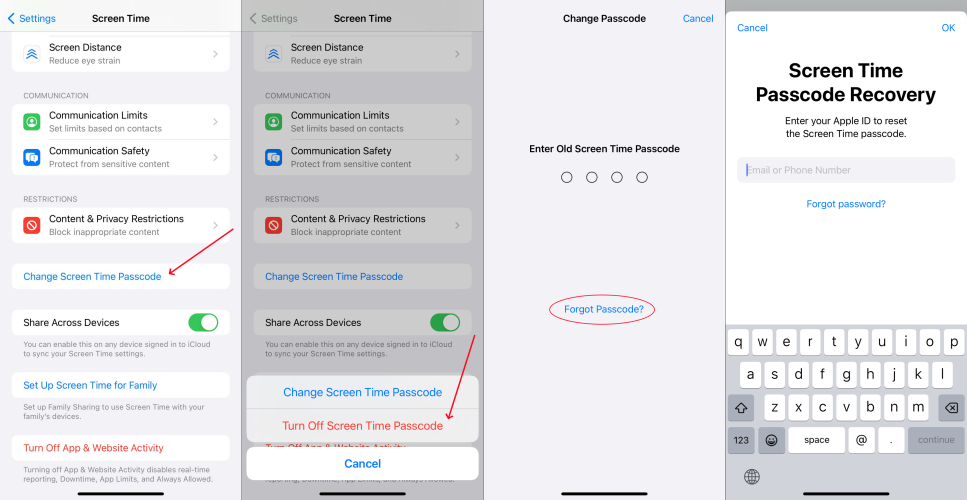
Step 1. Go to Settings > Screen Time on the child's device.
Step 2. Tap Change Screen Time Passcode, then tap Change Screen Time Passcode again.
Step 3. Tap Forgot Passcode?, and you need to enter the Apple ID and password that you used to set up the Screen Time passcode.
Step 4. After removing the forgotten Screen Time passcode, you can enter a new Screen Time passcode.
Case 2: Reset Parental Control of Screen Time on Child's Device
If you're using Family Sharing to manage your child's account, you cannot find the passcode reset option on the child's device. Now perform the following steps on your device to reset the forgotten Screen Time passcode for your child.
On an iPhone or iPad
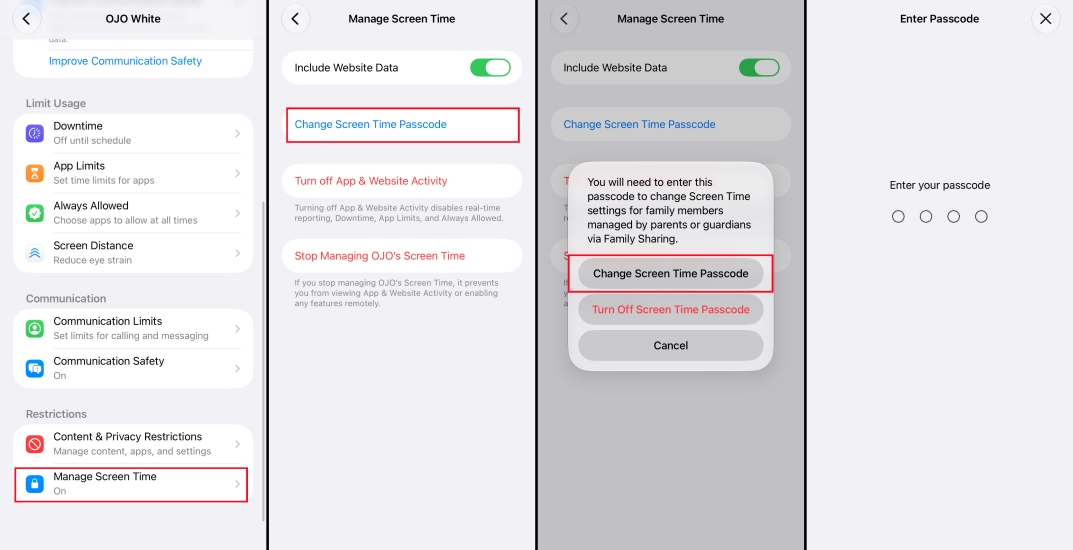
Step 1. Tap Settings > Screen Time on your device that can control your child's device.
Step 2. Find the name of your child's device and tap it, then tap Manage Screen Time > Change Screen Time Passcode.
Step 3. Tap Change Screen Time Passcode again. You might be asked to authenticate with Face ID, Touch ID, or your device passcode.
Step 4. Create a new Screen Time passcode, then enter it again to confirm.
On a Mac
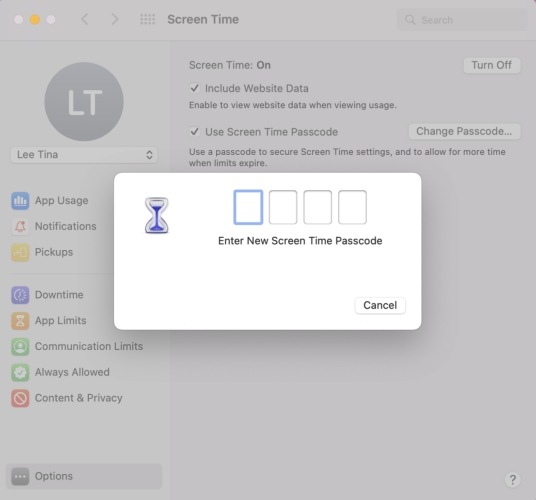
Step 1. Click Apple menu > System Settings, then click Screen Time.
Step 2. From the pop-up menu, select your child's device.
Step 3. Click Change Passcode, then click Forgot Passcode.
Step 4. Enter the Apple ID and password that are used to set up the Screen Time passcode.
Step 5. Create a new Screen Time passcode, then enter it again to confirm.
Note:
Make sure that your Mac is running macOS Catalina 10.15.4 or later.
Part 2. How to Turn Off Screen Time Passcode on Child's Phone
If you forgot the Screen Time passcode for your child, you can also try disabling the Screen Time on the child's device, then re-enable it to get rid of the issue. Now follow the steps below to turn off Screen Time or remove the child's Screen Time passcode.
Method 1. Turn off Screen Time Passcode for Child on Parent's Device
If you forgot your child's Screen Time passcode and cannot change it, you can go to turn it off. Here's how to delete the Screen Time passcode on your personal device.
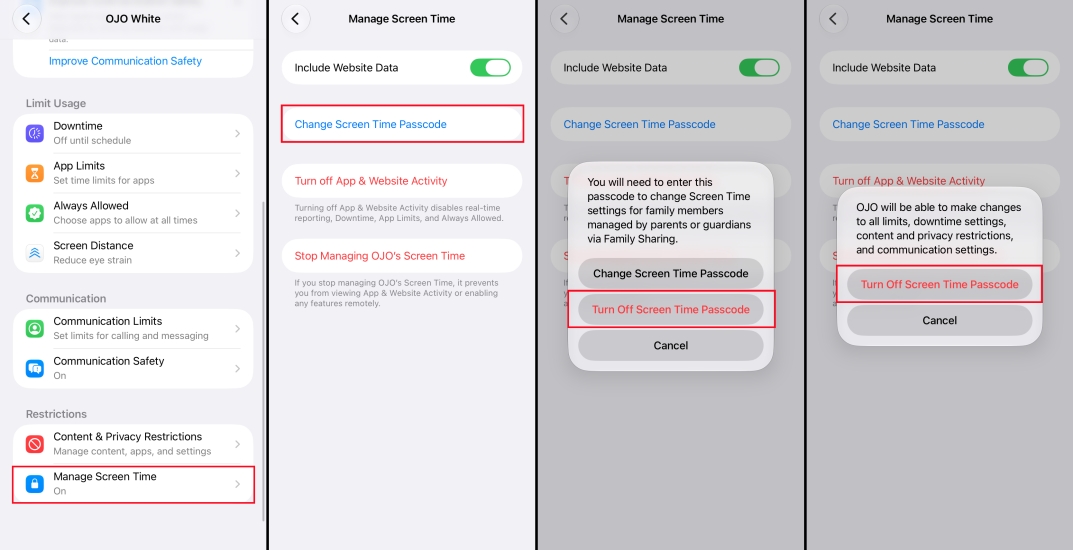
Step 1. Head to Settings > Screen Time on your personal device.
Step 2. Find your child's name under Family and tap Manage Screen Time.
Step 3. Tap Change Screen Time > Turn Off Screen Time Passcode, and enter your Face ID or iPhone passcode.
Method 2. Disable Screen Time Passcode for Child on Child's Device
If your child's device is not managed via Family Sharing, you need to disable Screen Time on the child's device. Follow the steps below to turn off Screen Time passcode on your child's device.
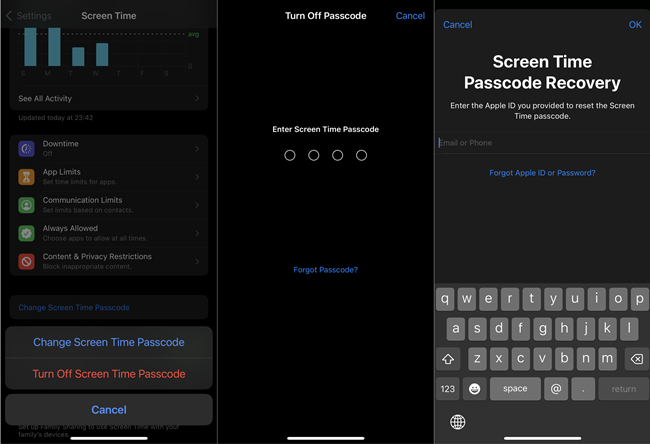
Step 1. Tap on Settings > Screen Time on your child's device.
Step 2. Tap Change Screen Time Passcode > Turn Off Screen Time Passcode.
Step 3. Tap Forgot Passcode?, then enter your Apple ID password to turn off Screen Time passcode on the device.
Method 3. Delete Screen Time Passcode via Screen Time Remover
When you forgot the Screen Time passcode for your child, there is another way to delete Screen Time passcode, which is to use a Screen Time remover. MagFone iPhone Unlocker is an easy-to-use yet powerful unlocking tool for the iPhone, iPad, and iPod touch. It is featured in removing Screen Time passcode and turning off Screen Time on all Apple mobile devices without losing data. Beyond that, MagFone software can be applied to unlock screen lock passcode, Apple ID, and MDM locks. No matter whether the Screen Time on your child's device is managed by Family Sharing or not, follow the steps below to remove the forgotten child's Screen Time passcode.

MagFone iPhone Unlocker
Unlock various locks on iOS devices, including screen locks, MDM, Apple ID, and Activation Lock without needing a password.
Step 1 Connect Child's Device to Computer and Open MagFone
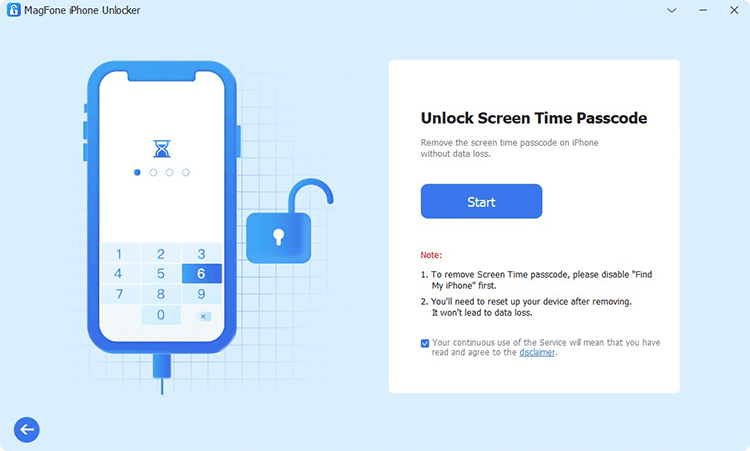
First of all, connect your iPhone to your computer by using a USB cable. After your device is detected by the computer, open MagFone iPhone Unlocker on the computer and select the Unlock Screen Time Passcode option then click on the Start button.
Step 2 Go to Remove Forgotten Child's Screen Time Passcode
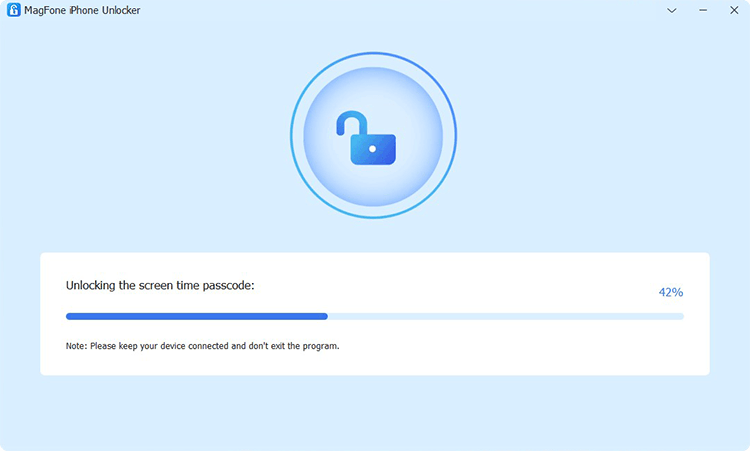
The second step is to remove the forgotten Screen Time passcode on the child's device by clicking on the Unlock button. Before starting, make sure that you have disabled the Find My feature on the device. After that, you can go back to Screen Time and reconfigure your Screen Time settings for your child.
Part 3. Alternative Solutions If You Forgot Screen Time Passcode for Child [Data Loss]
With the above methods, you can change the Screen Time passcode or turn off the Screen Time passcode for your child when you forgot your child's Screen Time passcode. Besides, there are some other feasible methods for you to delete the child's Screen Time passcode when you forgot it. These solutions are deleting the Screen Time passcode by resetting your child's device to factory settings. You can check the details below.
Method 1. Remove Forgotten Child's Screen Time Passcode via iTunes/Finder
On iTunes, you can manage your entire media collection with ease. Apart from that, iTunes can help you restore the iPhone, iPad, and iPod touch. Here's how to erase the forgotten Screen Time passcode on your child's device.
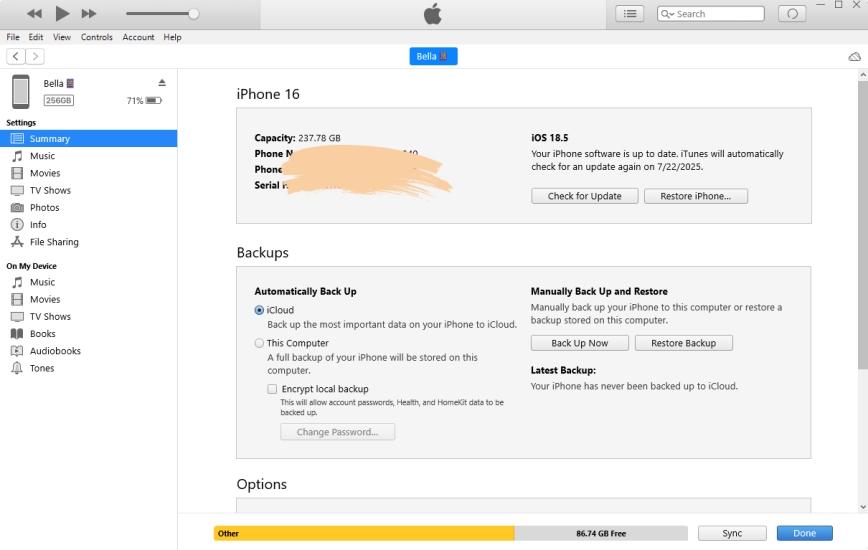
Step 1. Connect your child's device to your computer via a USB cable and open iTunes.
Step 2. On iTunes, click on your device icon and navigate to the Summary tab.
Step 3. Before restoring the device, you can click the Back Up Now button to back up your child's device.
Step 4. After making a backup, click on the Restore button to remove your forgotten child's Screen Time passcode.
Method 2. Erase Forgotten Child's Screen Time Passcode at iCloud.com
Once you have enabled iCloud and Find My on your child's device, you can use this feature to remotely erase the device. By using iCloud to erase your child's device, you can also delete the forgotten Screen Time passcode from the device.
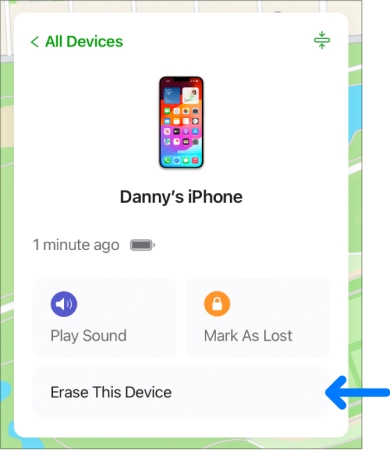
Step 1. Navigate to iCloud.com in a web browser and sign into iCloud by entering your Apple ID credentials.
Step 2. After logging into your Apple ID, select the Find My option.
Step 3. From the device list, select your child's device and click it.
Step 4. In the pop-up window, click Erase iPhone or Erase.
Step 5. Click Next, and ignore the phone number request, then enter the Apple ID password to proceed.
Method 3. Wipe Forgotten Child's Screen Time Passcode via Find My App
Erasing your child's device through the Find My app can enable you to wipe all the data and settings, including the Screen Time passcode on the device. Go to use the Find My app and delete the Screen Time passcode on your child's device.
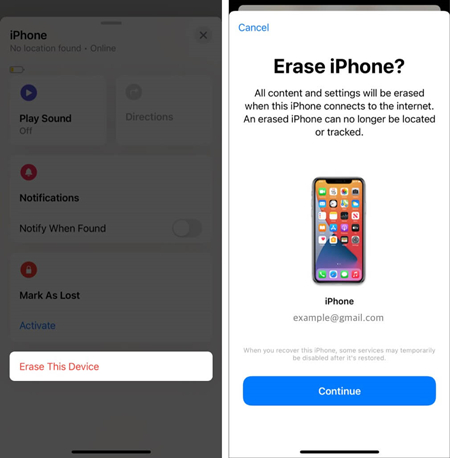
Step 1. Sign in with your child's Apple ID on another Apple device and open the Find My app.
Step 2. Tap Devices at the bottom of the screen and select your child's device.
Step 3. On the device information page, select Erase This Device or Erase and tap Continue.
Step 4. Enter your Apple ID password and tap Erase to confirm.
Part 4. FAQs about Screen Time for Child
How to set up Screen Time on iPhone for child?
Screen Time is a feature on the iPhone and iPad, and it's easy to set up Screen Time on iPhone for a child. You can choose to manage a child account using Family Sharing or using their device.
Option 1. Manage a child account using Family Sharing
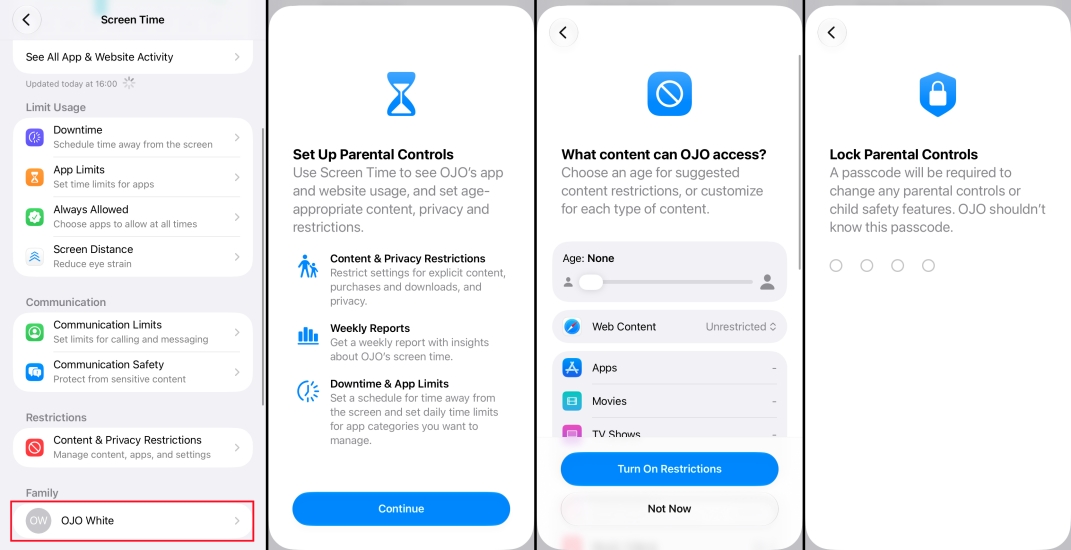
Step 1. Go to Settings > Screen Time on your iPhone.
Step 2. Scroll down and choose the child's name under Family.
Step 3. Tap Continue, and follow the on-screen instructions to set up Screen Time for your child, including restrictions, communication safety, downtime, and app limits.
Step 4. Enter the parental control passcode to lock the Screen Time settings for your child.
Option 2. Manage a child account using their device
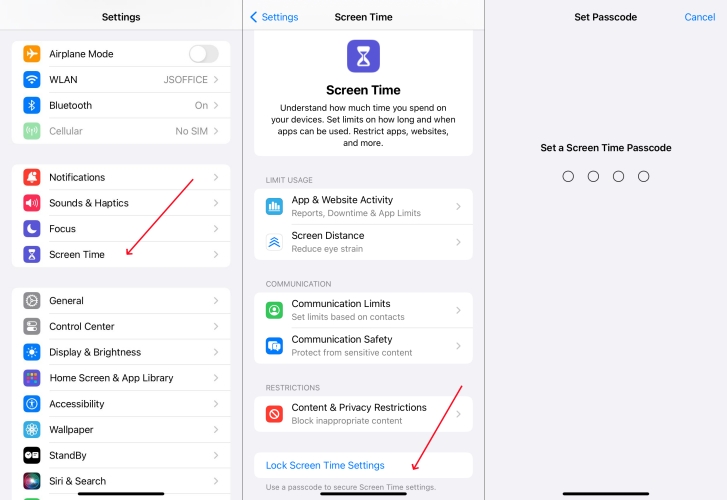
Step 1. Head to Settings > Screen Time on your child's device.
Step 2. Set up the Screen Time settings that you want for the child.
Step 3. Enter a Screen Time passcode, then enter it again to confirm.
How to limit Screen Time on iPhone for child?
To limit Screen Time on your child's iPhone, you have to enable Screen Time first. After enabling Screen Time, you can set limits and restrictions. You can schedule downtime and set daily limits for app categories with App Limits.
Can my child turn off Screen Time?
Yes, your children can turn off Screen Time if they know the Screen Time passcode. Or they cannot turn off Screen Time on their device.
Why is Screen Time not working on my child's phone?
Some parents encounter the Screen Time not working on their child's phone issue. It can be caused by poor internet, software glitches, improper account settings, and others. Here are some solutions you can try if Screen Time isn't working on your child's iPhone.
- Solution 1. Turn Screen Time off and on.
- Solution 2. Enable Screen Time restrictions.
- Solution 3. Free up more storage space.
- Solution 4. Reset all settings.
- Solution 5. Set Time & Data automatically.
Part 5. Conclusion
And voila! The above are all the methods that can help you fix the problem that you forgot Screen Time passcode for child. You can choose to reset or delete the Screen Time passcode on your child's device. Among all the ways, MagFone iPhone Unlocker could be an ideal solution for deleting the child's Screen Time passcode when you cannot delete or reset it.

Teresa Miller
Editor in chief





