








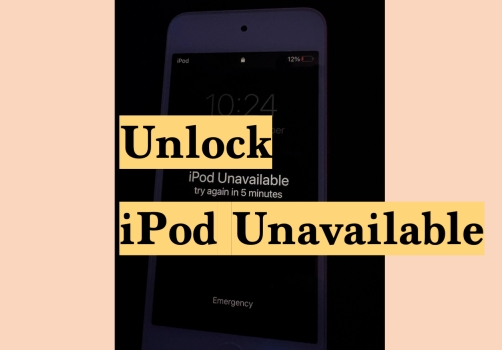
Finding an old iPod in the house, but it says iPod Unavailable? Don't worry! In this guide, we will show you 6 methods for unlocking the iPod Unavailable screen and let you regain access to your iPod. Whether you can remember the passcode or not, whether Find My iPod is enabled or not, whether the network is connected or not, you can find a solution to iPod Unavailable.
- Part 1. What Does iPod Unavailable Mean?
- Part 2. How to Fix iPod Unavailable
- Method 1. Wait and Try Again Later
- Method 2. Unlock iPod Unavailable on Screen Directly
- Method 3. Unlock iPod Unavailable from iCloud Website
- Method 4. Unlock iPod Unavailable on Find My App
- Method 5. Unlock iPod Unavailable in Recovery Mode
- Method 6. Unlock iPod Unavailable Using MagFone iPod Unlocker
- Part 3. How to Unlock a Disabled iPod without iTunes
- Part 4. How to Restore Data After Unlocking iPod Unavailable
- Part 5. Conclusion
Part 1. What Does iPod Unavailable Mean?
If your iPod touch screen displays "iPod Unavailable", it means the device has been temporarily or permanently locked due to too many incorrect passcode attempts. This is a built-in security feature designed to protect your personal data from unauthorized access. Here is how the lockout typically escalates:
| Attempts | Locked Timer |
|---|---|
| 6 incorrect attempts | Locked for 1 minutes |
| 7 incorrect attempts | Locked for 5 minutes |
| 8 incorrect attempts | Locked for 15 minutes |
| 9 incorrect attempts | Locked for 60 minutes |
| 10 incorrect attempts | iPod is fully locked and says iPod Unavailable |
Part 2. How to Fix iPod Unavailable
There are several ways to fix the iPod Unavailable issue, depending on whether you have access to a computer and whether your device is linked to an Apple ID. Work through the methods below in order, starting with the simplest.
Method 1. Wait and Try Again Later
If you see a timer on the iPod Unavailable screen, just wait and try again after the timer. If you can't remember the passcode, then move to the next method to fix iPod Unavailable.
Method 2. Unlock iPod Unavailable on the Screen Directly
If your iPod is running iOS 15.2 or later, you are in luck. Apple introduced an on-screen Erase iPod button that allows you to reset your device directly from the lock screen. Generally, if your iPod says iPod Unavailable, there will also be two options at the bottom of the screen. One is Emergency, and the other is the Erase iPod option. If there is an Erase iPod option, then you can:
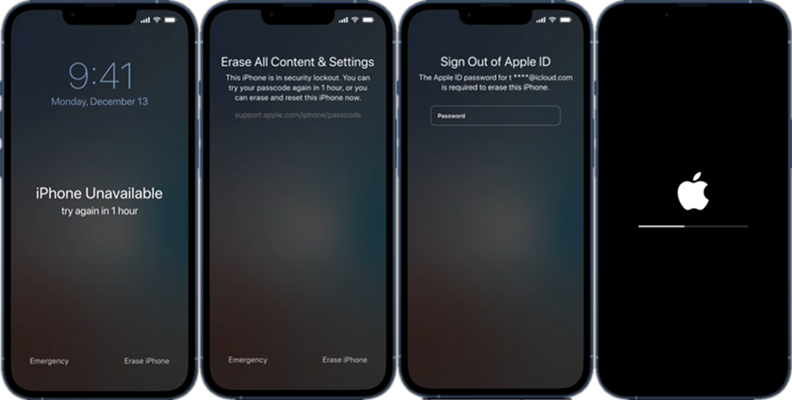
Step 1. Tap the Erase iPod option on the iPod Unavailable screen.
Step 2. Enter the linked Apple ID password to sign out from iPod.
Step 3. Tap Erase iPod again to wipe all data and settings on the iPod.
Method 3. Unlock iPod Unavailable on iCloud Website
If your iPod is connected to Wi-Fi and linked to an Apple ID, you can use iCloud.com to remotely erase the device from any browser. If one requirement isn't met, jump to Method 5 or Method 6.
- iPod must be signed in to iCloud
- iPod must be connected to Wi-Fi or cellular data
- You must know the Apple ID and password linked to the device
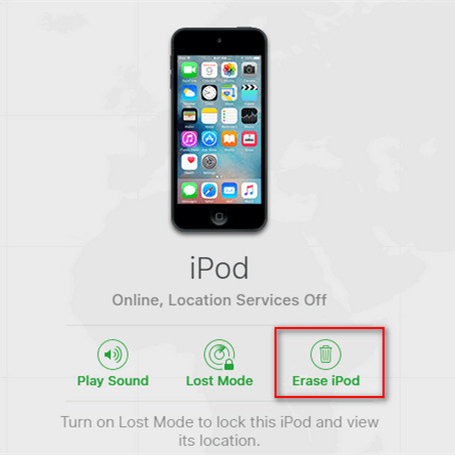
Step 1. Head for icloud.com/find and log in to the Apple ID that is linked to the unavailable iPod.
Step 2. Click the iPod device from the Devices list and click Erase this Device.
Step 3. Click Next and enter the required phone number or password to erase the unavailable iPod.
Method 4. Unlock iPod Unavailable in Find My App
If you have access to another Apple device, such as an iPhone or iPad, you can use the Find My app to erase your locked iPod remotely. This method achieves the same result as the iCloud website approach, but is more convenient if you are on the go. Before trying, make sure you meet the requirements below. If not, jump to the next method.
- Another Apple device with the Find My app
- Both devices are signed in to the same Apple ID
- The Find My iPod was previously enabled
- The locked iPod must be connected to a network
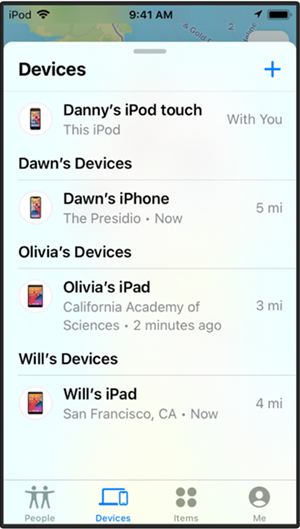
Step 1. Open the Find My app on an Apple device.
Step 2. Tap Devices at the bottom and tap the iPod device.
Step 3. Tap Erase This Device > Continue.
Step 4. Enter essential information, like your phone number and Apple ID password. Then tap Erase to erase the iPod.
Method 5. Unlock iPod Unavailable in Recovery Mode
If the above methods are not available to you. For example, if your iPod is not connected to Wi-Fi or is not linked to an Apple ID, then Recovery Mode is a reliable solution. This method requires a Mac or PC. And this helps restore the iPod to the factory settings, including removing the passcode. So you can regain access and use the iPod afterwards.
Step 1. Long-press the power button until the power slider appears.
Step 2. Drag the power slider to the end to power off your iPod.
Step 3. Put your iPod into recovery mode based on the version: Keep holding the volume-down button or the home button, at the same time, connect the iPod to the computer using a data cable
Step 4. Release the button until you see a computer on the iPod screen.
Get an iPad, iPhone, or iPod touch into recovery mode with one click for free.
Step 5. Launch the corresponding tool on the computer, Finder, iTunes, or Apple Devices.
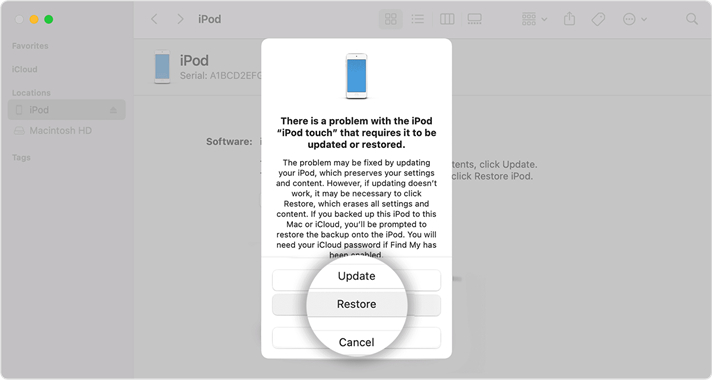
Step 6. If you enter the recovery mode successfully, there will be a pop-up window. Click Restore to restore your iPod. After restoring, the passcode will be removed, and you can reset the iPod.
Method 6. Unlock iPod Unavailable Using MagFone iPod Unlocker
If either the Find My iPod status or the network connection doesn't meet the requirements, you won't be able to erase your iPod from the Security Lockout screen, the iCloud website, or the Find My app. You might also encounter errors when trying to restore your iPod in recovery mode using iTunes, Finder, or Apple Devices. In this case, a more comprehensive tool is available for both Windows and Mac and is compatible with most iPod models. With MagFone iPod Unlocker, you don't need to worry about the network connection on your iPod or whether you know the Apple ID password. Just follow the steps below to unlock iPod Unavailable using MagFone:

MagFone iPhone Unlocker
Unlock various locks on iOS devices, including screen locks, MDM, Apple ID, and Activation Lock without needing a password.
Step 1 Download and Install MagFone iPhone Unlocker

First, download and install MagFone iPhone Unlocker on your computer. Then launch the tool when the installation completes.
Step 2 Put the iPod into Recovery Mode
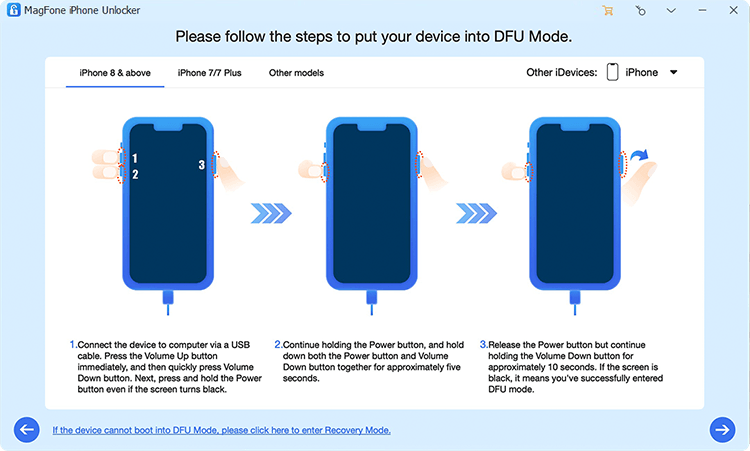
Click Unlock iOS Screen > Start. Then follow the on-screen instructions to put your iPod into recovery mode. When your iPod enters recovery mode completely, click the next icon on the computer.
Step 3 Download the Firmware Package

Check and adjust your device information, choose a compatible firmware version, and click Download to download the firmware version on the iPod.
Step 4 Unlock iPod Unavailable

When the firmware package is downloaded, click the Unlock icon to install the firmware on your iPod and unlock the iPod Unavailable screen.
Part 3. How to Restore Data After Unlocking iPod Unavailable
Once your iPod has been successfully erased and unlocked, you will be greeted with the standard setup screen. You can choose to restore iPod data from an iCloud backup or an iTunes backup based on your situation. Here is how to get your data back.
Option 1. Restore from iCloud Backup
Step 1. After the iPod restarts after data erasing, tap Set Up Manually on the screen.
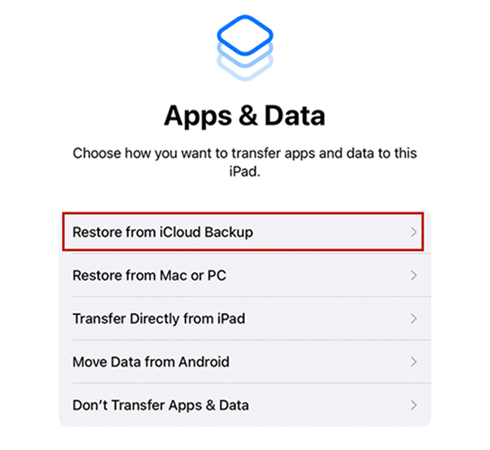
Step 2. Follow the on-screen instructions to set up. When you see the App& Data screen, choose Restore from iCloud Backup.
Step 3. Sign in with your Apple ID and select a backup to restore from.
Option 2. Restore from iTunes or Finder Backup
Step 1. Connect your iPod to the computer you previously used to back it up.
Step 2. Open Finder or iTunes on the computer.
Step 3. Click the iPod icon when it appears.
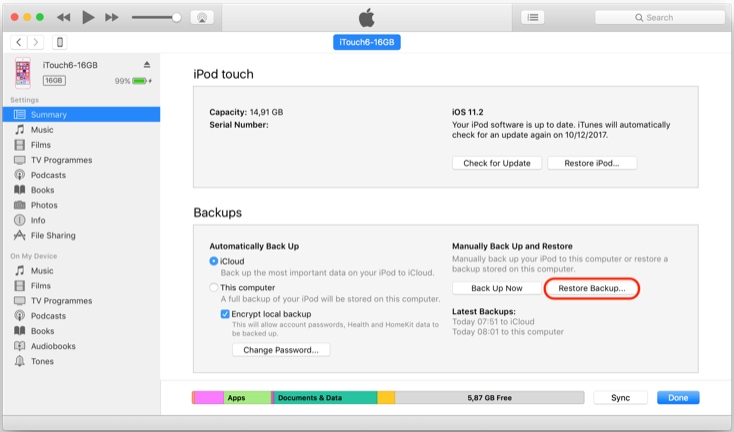
Step 4. Click Restore Backup and choose the most relevant backup, then click Restore and wait for the process to finish.
Part 4. Conclusion
No matter whether Find My iPod is turned on or off, the network is connected or not, or you've forgotten your Apple ID password, there is always a way to fix the iPod Unavailable issue. You can choose the method that best fits your situation. For the most comprehensive solution, MagFone iPhone Unlocker is recommended, as it's suitable for most users.

Teresa Miller
Editor in chief





