








I have my old iPod touch and I forgot my iPod password. How can I get into it all it says that iPod is disabled connected to iTunes. I have it plugged into my computer, but I can't find anywhere for help."
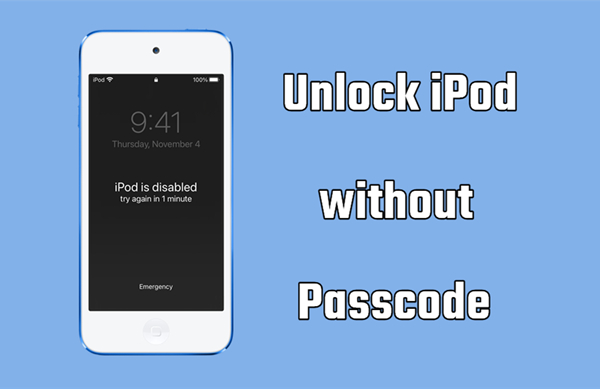
Can't remember your iPod touch passcode? Is your iPod locked after too many wrong attempts? Don't be upset. Forgetting an iPod touch passcode is a common problem, and many users report the same issue in Apple Support Communities. While it isn't always straightforward to get back into a locked iPod, there are several effective ways to unlock an iPod without passcode. In this article, we'll walk you through multiple methods, using the Security Lockout screen, iCloud, the Find My app, iTunes, Finder, and an unlocking tool, to help you regain access to your iPod. Let's get started.
- Part 1. How Do You Unlock An iPod without the Password?
- Part 2. How to Unlock iPod without Passcode
- Part 3. Quick Way to Unlock iPod without Password & Passcode HOT
- Part 4. Conclusion
Part 1. How Do You Unlock An iPod without the Password?
There are mainly 6 methods to remove a forgotten passcode on iPod touch. We will cover each method in the following section. For quick operation, here's a comparison table of each method, and you can jump to the corresponding part by tapping on the method.
| Methods | Apple ID Password | Find My iPod | Network on iPod | Simplicity | Time Spent |
|---|---|---|---|---|---|
| Security Lockout | ✔️ | Enabled | Require | Easy | A bit of time |
| iCloud | ✔️ | Enabled | Require | Moderate | A bit of time |
| Find My App | ✔️ | Enabled | Require | Moderate | A bit of time |
| iTunes | ❌ | Disabled | ❌ | Easy | A bit of time |
| Recovery Mode | ❌ | Disabled | ❌ | Complex | A bit of time |
| MagFone iPod Unlocker | No | / | ❌ | Easy | Not a few minutes |
Part 2. How to Unlock iPod without Passcode
From the table, you may have knowledge of the requirements of each method. Based on your actual situation, you can choose and follow the details below to unlock an iPod touch without passcode. If you want a more comprehensive solution to unlock an iPod without a password or passcode, you can jump to Part 3.
Method 1. Unlock iPod Passcode on Security Lockout Screen
If your iPod touch is running a software version between iOS 15.2 and iOS 17, then you can directly wipe all the data and settings, including the screen lock passcode, on the Security Lockout screen.
Step 1. Enter your passcode for iPod touch until the Security Lockout screen appears.
Step 2. Tap the Erase iPod button in the bottom corner of the screen and tap it again to confirm.
Step 3. Enter your Apple ID password to sign out of your Apple ID on your iPod touch.
Step 4. Tap the Erase iPod button to delete all the data and settings, including the screen passcode.
Method 2. Unlock iPod Passcode at iCloud.com
At iCloud.com, you can find some app data and content synced from your Apple device. Also, you can manage and erase your Apple device to the factory settings at iCloud.com, which can delete the screen lock passcode. Here's how to unlock an iPod touch without passcode at iCloud.com.
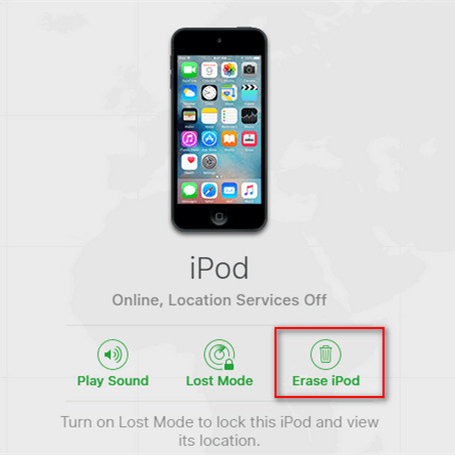
Step 1. Visit www.icloud.com and log in to iCloud with your Apple ID and password.
Step 2. Click your iPod touch, then click the Erase option.
Step 3. Click Next and enter the required phone number and Apple ID password to remove the passcode on the iPod.
Method 3. Unlock iPod Passcode via the Find My App
Apple enables you to manage and control all of your Apple devices where you use the same Apple ID. That is to use the Find My app. If you have Find My iPod enabled, you can reset your locked iPod touch by using the Find My app.
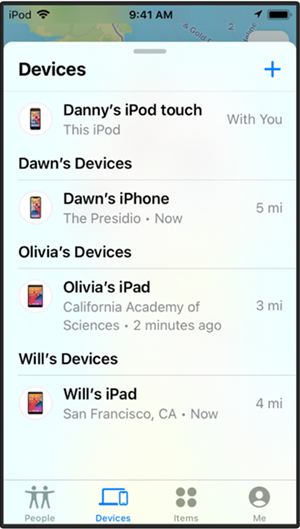
Step 1. Open the Find My app on another Apple device that uses the same Apple ID.
Step 2. Tap the Devices button and select your locked iPod touch from the device list.
Step 3. Select your locked iPod touch and tap the Erase This Device button.
Step 4. Tap the Continue button and enter your trusted phone number for your device.
Step 5. Tap the Erase button and enter your Apple ID password, then tap the Erase button to begin wiping your device.
Method 4. Unlock iPod Passcode with iTunes/Finder
iTunes on a Windows PC or the Finder on a Mac can help in removing the iPod touch passcode. If your iPod touch has been synced with iTunes on your computer before, you may be able to restore the iPod with passcode. If the Find My iPod was disabled on the device, then you can reset it with iTunes or the Finder directly. Here's how to.
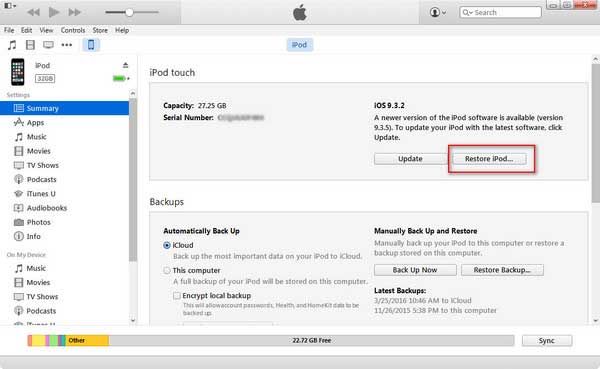
Step 1. Use a USB cable to connect your iPod touch to a trusted or synced computer.
Step 2. Open iTunes on a Windows PC or the Finder on a Mac and click your device icon.
Step 3. Select the Summary tab on the left menu and click the Restore iPod button.
Step 4. Click the Restore iPod button again. Then your device will be reset to the factory settings.
Method 5. Unlock iPod Passcode in Recovery Mode
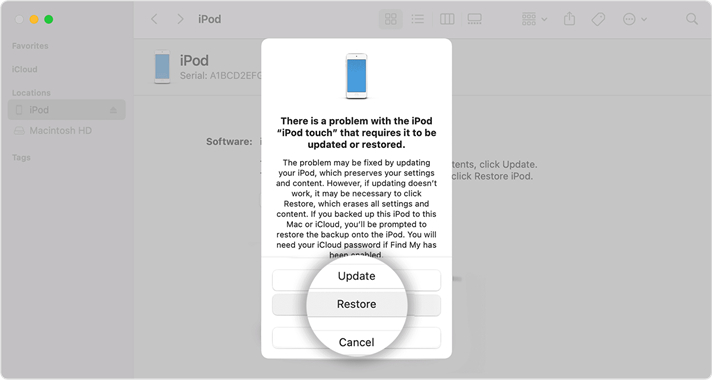
Recovery Mode can fix various issues on Apple devices, including a locked issue on an iPod. If the iPod can't be directly restored in iTunes, you can get the iPod into recovery mode to allow iTunes to restore your device to the original factory settings. This can remove the screen lock passcode.
Step 1. Long-press the power button to turn off your iPod.
Step 2. Get the iPod into recovery mode. Press and hold the correct button while plugging the iPod into the computer using a data cable. Keep holding the button until you see a computer icon.
- iPod touch (7th generation): Volume down button
- iPod touch (6th generation and earlier): Home button
Step 3. Open iTunes or Finder, then click the iPod icon. In the pop-up window, click the Restore button to reset your device for deleting passcode.
Part 3. Quick Way to Unlock iPod without Password & Passcode
As you can see, the above methods to unlock an iPod come with certain limits. Most methods require you to remember the Apple ID and password, and have Find My enabled. If you don't have those details, or if you want a quicker and more comprehensive method to get into a locked iPod, that's where a dedicated third-party unlock tool comes in. Here we recommend MagFone iPod Unlocker to you.
MagFone iPod Unlocker is a comprehensive unlocking tool for iPod touch, iPhone, and iPad. It can be used to unlock various locks, including the screen lock passcode and Screen Time passcode. Except for that, it can remove Apple ID and MDM restrictions from Apple portable devices without password and without data loss. When forgetting the passcode on iPod touch, you can unlock your device with a simple three-step process.

MagFone iPhone Unlocker
Unlock various locks on iOS devices, including screen locks, MDM, Apple ID, and Activation Lock without needing a password.
Step 1 Get iPod Touch Connected to Computer

First up is to connect your locked iPod touch to your computer through a USB cable, then pull up MagFone iPhone Unlocker. On the interface of MagFone software, select the Unlock iOS Screen option and click the Start button.
Step 2 Put iPod Touch into Recovery Mode
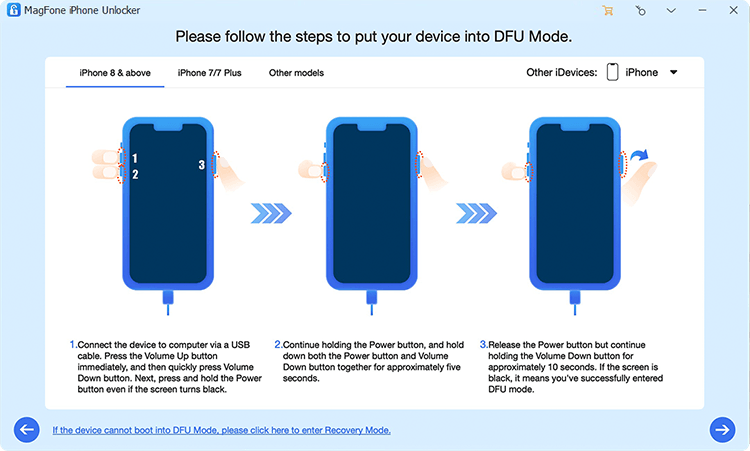
Then you need to boot your locked iPod touch into recovery mode. Follow the steps shown in the software to get it done. If you cannot put your device into recovery mode, you can click the link to boot your device into DFU mode.
Step 3 Download the Firmware Package for iPod

The device information of your locked iPod touch will appear on the screen of MagFone software. Check it carefully, and correct it if there is something wrong. Then you can click the Download button to download the matching firmware for iPod.
Step 4 Start to Remove Forgotten iPod Password

Now you can click the Unlock button at the bottom right corner of the software. MagFone iPhone Unlocker will remove the passcode from the iPod touch as soon as possible. Keep your device connected to the computer until the whole process ends.
Part 4. Conclusion
You should now be able to use your iPod touch as normal after trying the above methods. You can try using iTunes or your Apple ID to help you delete your forgotten password for your iPod touch. However, if you want to quickly remove the passcode on iPod touch, you are suggested to use MagFone iPhone Unlocker. Have a try, and you'll find it out.

Teresa Miller
Editor in chief





