








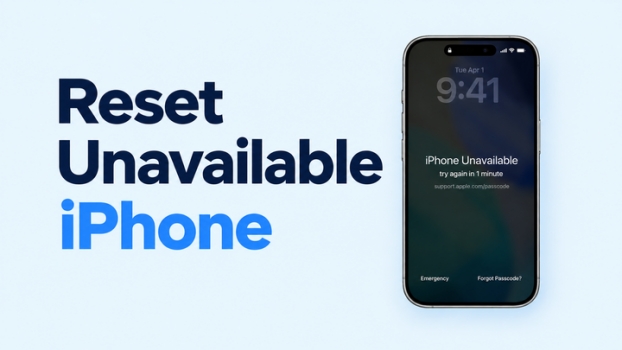
If your iPhone shows iPhone Unavailable, don't worry. There are still a few ways to reset it and regain access. Depending on whether you have a computer or not, you can try different methods such as resetting directly from the device, using iCloud Find, or restoring it with iTunes. In this guide, we'll walk through the available options so you can choose the one that fits your situation best.
- Part 1. How to Reset an Unavailable iPhone [Summary & Video]
- Part 2. iPhone Unavailable: How to Reset without Computer
- Part 3. iPhone Unavailable: How to Reset with Computer
- Part 4. Conclusion
Part 1. How to Reset an Unavailable iPhone [Summary & Video]
Factory resetting an unavailable iPhone is indeed an efficient way to get rid of a lockout or reduce the unavailable timer. This will erase all data and content on the iPhone so you can regain access after resetting. Before jumping into the step-by-step solutions, check this summary table below to choose the best method for your current situation and watch a video tutorial for intuitive operation.
| Method | Computer Needed? | Apple ID Needed? | Find My iPhone | Network on iPhone |
|---|---|---|---|---|
| iPhone Unavailable Screen | ❌ | ✔️ | Enabled | ✔️ |
| iCloud Find Web | ❌ | ✔️ | Enabled | ✔️ |
| Find My App | ❌ | ✔️ | Enabled | ✔️ |
| iTunes/Finder | ✔️ | Varies | / | ❌ |
| MagFone iPhone Unlocker | ✔️ | ❌ | / | ❌ |
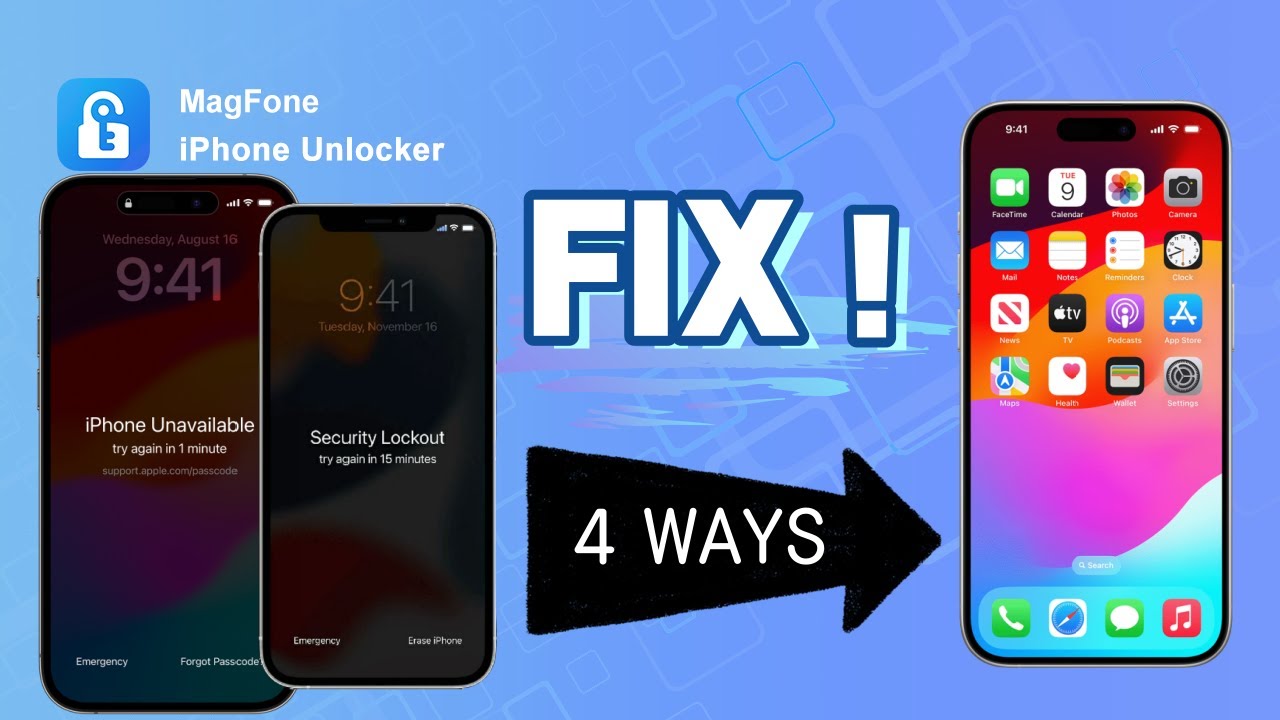
Part 2. iPhone Unavailable: How to Reset without Computer
To reset an unavailable iPhone without a computer, you need to ensure that Find My iPhone is enabled on the unavailable iPhone and there is a network connection on the unavailable iPhone. Otherwise, the following methods will not work.
Option 1. Reset on iPhone Unavailable Screen
When Find My iPhone is enabled and there is a network connection, Apple provides an erase option to reset the unavailable iPhone to factory settings since iOS 15.2.
iOS 15.2 ~ iOS 16:
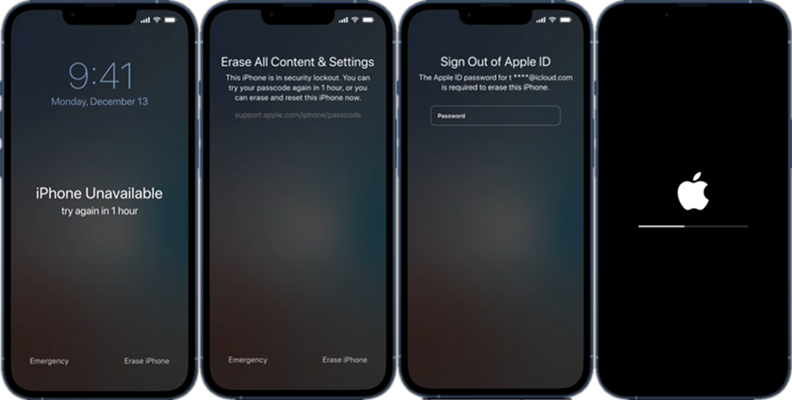
Step 1. Tap Erase iPhone on the iPhone Unavailable screen.
Step 2. Enter the Apple ID password to turn off Find My, then tap Erase iPhone to erase the iPhone.
iOS 17 ~ iOS 27:
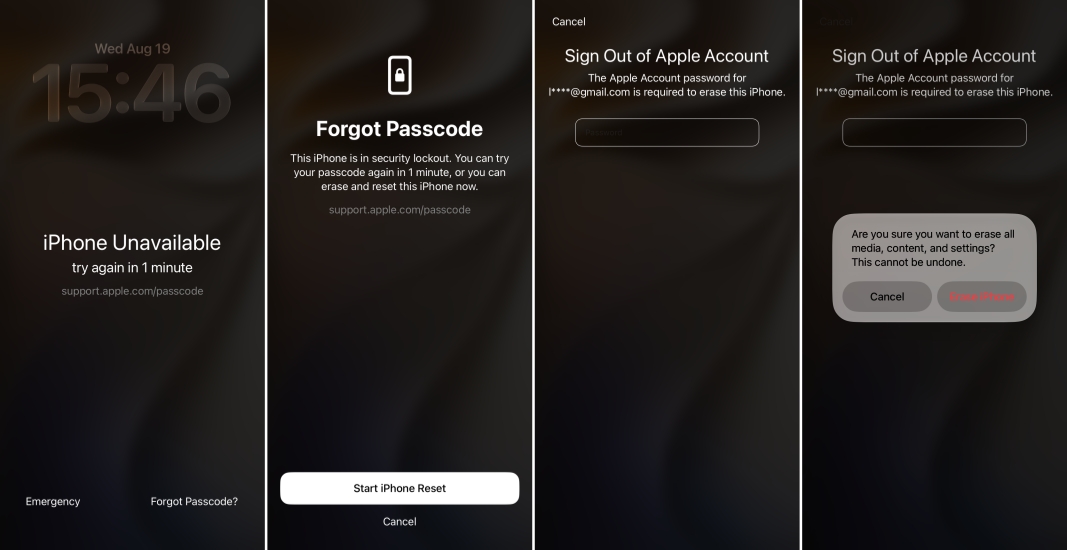
Step 1. Tap Forgot Passcode? on the iPhone Unavailable screen.
Step 2. Tap Start iPhone Reset and enter the required Apple ID password.
Step 3. Tap Erase iPhone to confirm the reset.
Option 2. Reset Unavailable iPhone on iCloud Find Website
When Find My is enabled on the unavailable iPhone, the user can erase the iPhone remotely on the iCloud Find website.
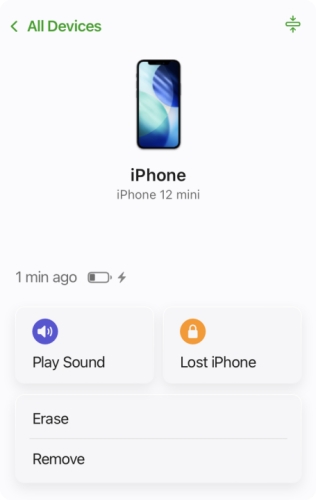
Step 1. Go to the iCloud Find website on any device with an internet connection.
Step 2. Log in to the Apple ID you are signed in to on the unavailable iPhone.
Step 3. Tap the unavailable iPhone and choose Erase.
Step 4. Tap Next and enter the Apple ID password to erase all content and data on the unavailable iPhone.
Option 3. Reset Unavailable iPhone in Find My App
With Find My enabled on the unavailable iPhone, the user can also erase it on another Apple device that is signed in with the same Apple ID using the Find My app.
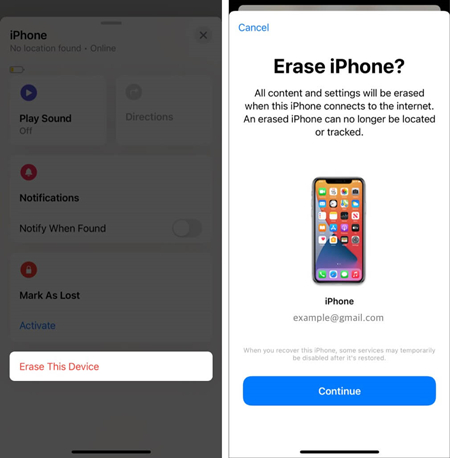
Step 1. Open the Find My app on another Apple device linked with the same Apple ID.
Step 2. Tap the triple-dot icon next to the unavailable iPhone.
Step 3. Tap Erase > Continue, and enter the Apple ID password to confirm the erasure.
Part 3. iPhone Unavailable: How to Reset with Computer
If there is no network connection on the unavailable iPhone and there is no erase option on the iPhone Unavailable screen, using a computer to reset an unavailable iPhone is more reliable.
Option 1. Reset Unavailable iPhone with iTunes
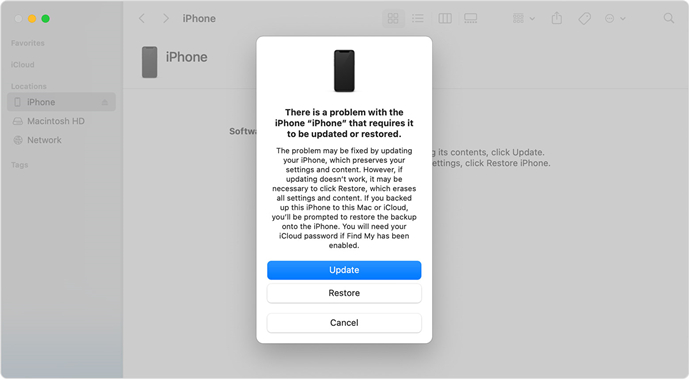
iTunes or Finder is a desktop utility to help deal with various iPhone issues. If your iPhone says unavailable, you can use iTunes or Finder to restore it to factory settings in recovery mode. Be aware that if Find My is enabled, you need to enter the Apple ID account to disable the activation lock when you set up the iPhone later.
Step 1. Put the unavailable iPhone into recovery mode.
- iPhone 8 and later: Press the Volume Up button, press the Volume Down button, then keep pressing the Power button until the iPhone displays a computer screen.
- iPhone 7 series: Keep pressing the Volume Up button and the Power button until the iPhone displays a computer screen.
- iPhone 6 and earlier: Keep pressing the Power button and the Home button until the iPhone displays a computer screen.
Step 2. Use a data cable to connect the iPhone to a computer and open iTunes.
Step 3. iTunes will detect the unavailable iPhone in recovery mode. Just click Restore in the pop-up window. Then the unavailable iPhone will be factory reset.
Option 2. Reset Unavailable iPhone with MagFone
If iTunes fails to detect your device, or if you cannot remember your Apple ID credentials to complete the reset, a dedicated third-party tool like MagFone iPhone Unlocker provides a streamlined solution. It can reset any iPhone, iPad, and iPod to factory settings without the lock screen passcode and Apple ID password. It can also remove Screen Time restrictions, MDM profiles, and Apple ID from iOS devices without passcode or password. If you have any screen lock issues, install MagFone to fix them.

MagFone iPhone Unlocker
Reset unavailable iPhone and disabled iPhone to factory settings, without passcode and Apple ID password.
Now let's see how to reset iPhone unavailable using MagFone iPhone Unlocker.
Step 1 Download and Install MagFone iPhone Unlocker
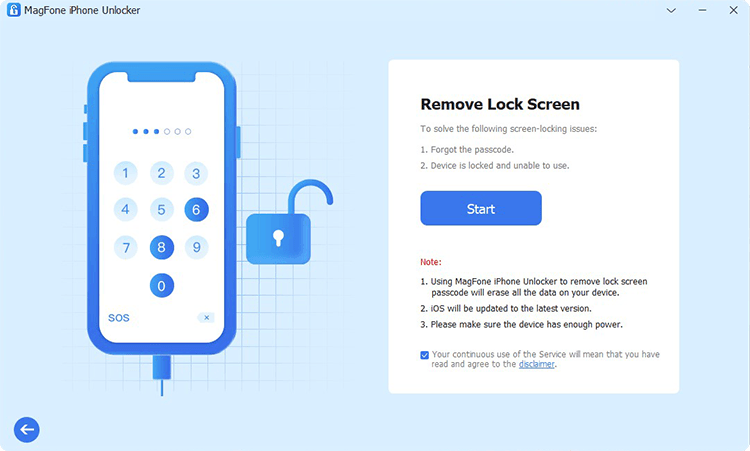
Click the button to download MagFone iPhone Unlocker package on your computer, then install the software and run it after installation.
Step 2 Put the Unavailable iPhone in Recovery Mode
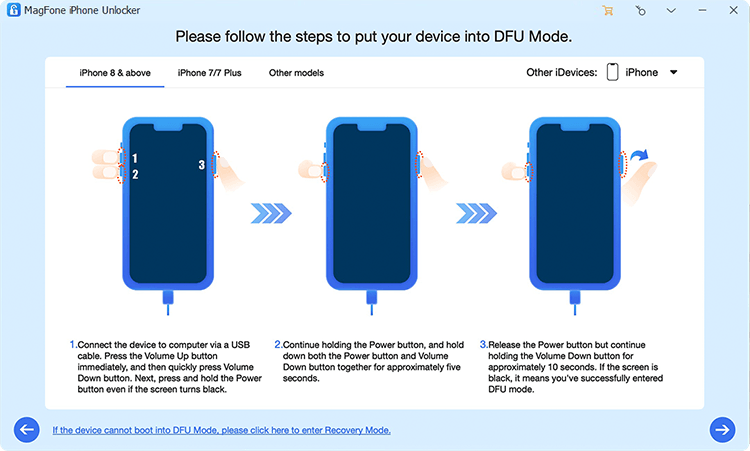
Use a data cable to connect the unavailable iPhone to the computer. Click Unlock iOS Screen and click Start. Then follow the on-screen instructions to put the unavailable iPhone in recovery mode.
Step 3 Download Firmware Package for Unavailable iPhone

Click the Next button when the unavailable iPhone enters recovery mode, and check the device information on MagFone. Then choose the compatible firmware package and click Download to download it.
Step 4 Reset iPhone Unavailable without Passcode
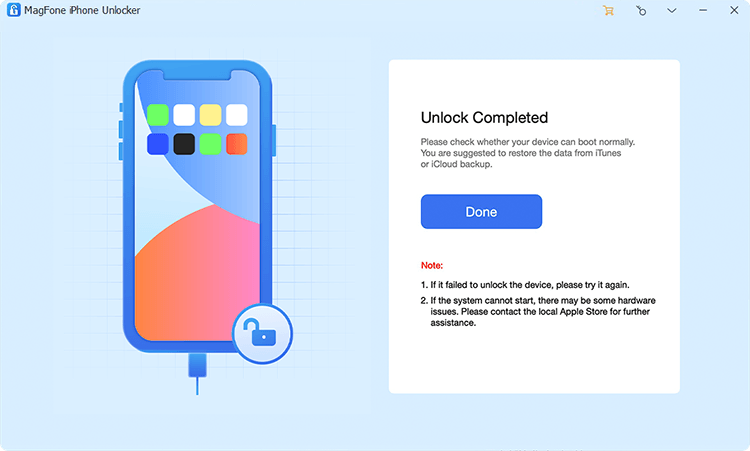
After downloading and verifying the firmware package on iPhone, click Unlock to factory reset the iPhone without passcode.
Part 4. Conclusion
When your iPhone says iPhone Unavailable, resetting it to factory settings can help you bypass the lock screen and regain access. You can choose the best way to reset your unavailable iPhone based on your situation. If you want an effective way to factory reset your iPhone without any errors, MagFone iPhone Unlocker deserves a try.

Teresa Miller
Editor in chief




