








If you've forgotten your iPod Touch passcode and entered the wrong code too many times, you'll see the message: "iPod is disabled, connect to iTunes." But many users are unable to use iTunes and don't even doesn't have an iTunes account. Fortunately, there are several ways to unlock your iPod Touch without iTunes, and this guide covers solutions for every iPod Touch model.
Before reading the detailed instructions, take a look at the table below for a quick overview of each unlocking method. This will help you identify the option that best matches your situation and get your device working again as soon as possible.
| Method | Compatible iPod Touch | Find My iPod | Apple ID Credentials | Network on iPod |
|---|---|---|---|---|
| Lockout Screen | iPod Touch 7th Generation with iPodOS 15.2 | Enabled | ✔️ | ✔️ |
| iCloud Website | All iPod Touch | Enabled | ✔️ | ✔️ |
| Find My App | All iPod Touch | Enabled | ✔️ | ✔️ |
| MagFone iPod Unlocker | All iPod Touch | / | ❌ | ❌ |
| iTunes | All iPod Touch | Disabled | ✔️ | ❌ |
- Part 1. How to Unlock iPod Touch without iTunes
- Part 2. How to Unlock iPod Touch without Passcode or iTunesHOT
- Part 3. How to Unlock iPod Touch with iTunes
- Part 4. Conclusion
Note:
Before going ahead, please be aware that if you've forgotten your iPod Touch passcode, you'll only be able to keep your data if you have a backup. Without a backup, all unlocking methods will erase the data on your iPod Touch.
Part 1. How to Unlock iPod Touch without iTunes
Though without iTunes, you can still utilize the Find My feature to unlock a disabled iPod Touch. When Find My is enabled on the iPod and the iPod is connected to a network, you are able to erase all content and settings on the iPod.
Option 1. Unlock iPod Touch with Erase iPod Feature
Since iOS 15.2, Apple added a security feature that allows users to erase the device from the lockout screen. Since only the iPod Touch 7th generation can be updated to iPodOS 15.2 or higher, this method is only for the iPod 7th generation.
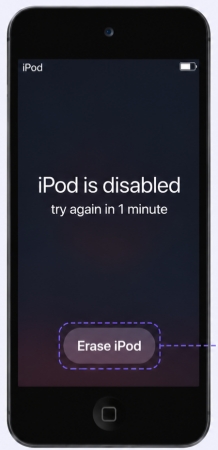
Step 1. Tap Erase iPod on the lockout screen.
Step 2. Enter the linked Apple ID password and tap Erase iPod to erase all content and settings.
Step 3. When the iPhone restarts, you can set it up from the Hello screen.
Option 2. Unlock iPod Touch on iCloud Find Web
When Find My is enabled on the disabled iPod, you can manage and erase it on the iCloud Find website. This requires the linked Apple ID credentials. If you have, follow the steps below to unlock the iPod.
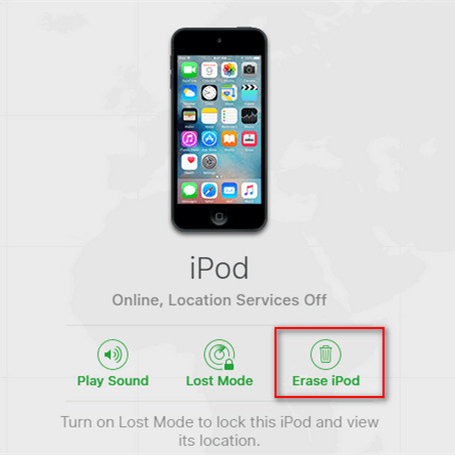
Step 1. Go to the iCloud Find website and log in to your Apple Account.
Step 2. Click your iPod in the device list and click Erase.
Step 3. Click Next > Erase, and enter the Apple ID password to proceed.
Option 3. Unlock iPod Touch Using Find My App
When Find My is enabled on the iPod Touch, you can manage it using the Find My app. If you have another Apple device that is linked with the same Apple ID, you can follow the steps below to erase and unlock the iPod.
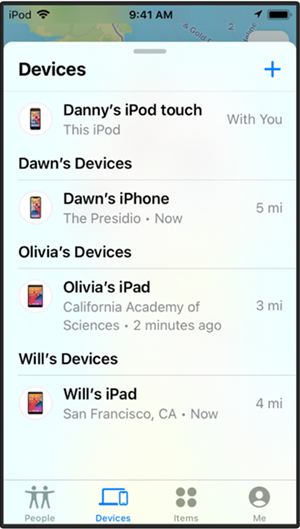
Step 1. Open the Find My app and tap Devices at the bottom.
Step 2. Tap the iPod Touch and tap the triple-dot icon.
Step 3. Tap Erase > Continue > Erase, and enter the Apple ID password to erase the iPod. Afterwards, you can set up the iPod and create a new passcode.
Part 2. How to Unlock iPod Touch without Password or iTunes
With Apple discontinuing the iPod Touch lineup in 2022, many users now have older devices and may have lost access to their Apple ID or iTunes accounts. In these situations, a specialized unlocking tool can be very helpful for regaining access without a password or iTunes. Among the tools, MagFone iPod Unlocker is one that can be trusted. It is compatible with all iPod Touch models and offers a user-friendly experience. If you're having trouble unlocking your iPod Touch, follow the steps below to quickly restore access to your device.

MagFone iPhone Unlocker
Unlock iPod Touch without iTunes and passcode, available for all iPod Touch models and iPadOS versions.
Step 1 Install MagFone iPod Unlocker on Computer
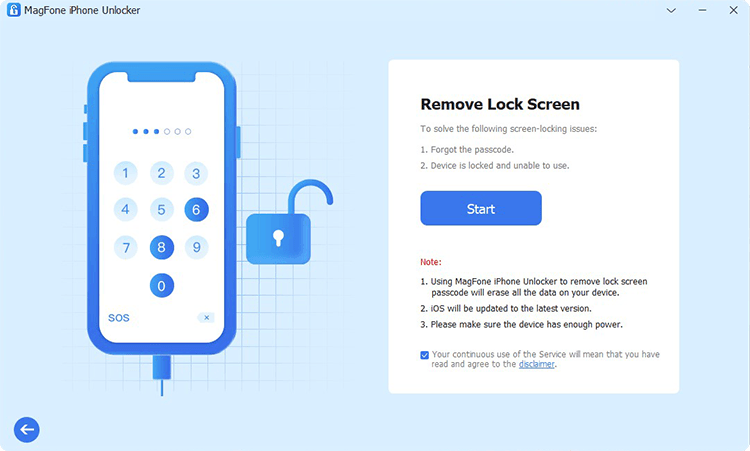
First, download the MagFone iPod Unlocker package on your computer. Then install it, run it after installation, and click Unlock iOS Screen.
Step 2 Put iPod Touch into Recovery Mode
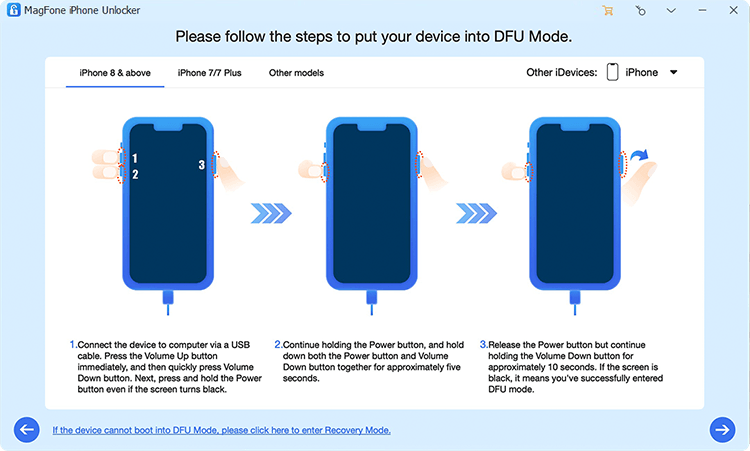
Use a data cable to connect your disabled iPod Touch to the computer. When your iPod is detected, click Start on the computer. Then follow the on-screen instructions to get the iPod into recovery mode.
Step 3 Download the Firmware Package for iPod

When the disabled iPod enters recovery mode, click the Next button. Then check your iPod information and click Download to download the firmware package.
Step 4 Restore iPod Touch without iTunes and Passcode
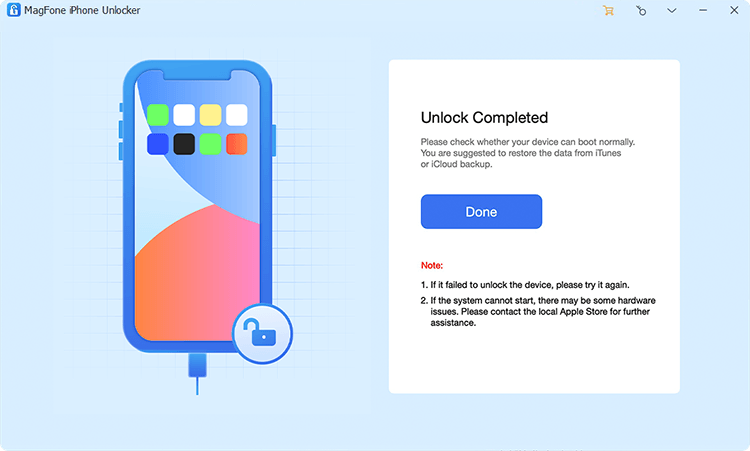
After the firmware package is verified, click the Unlock button to restore your iPod Touch without iTunes and a passcode.
Part 3. How to Unlock iPod Touch with iTunes
When your iPod Touch displays the message "iPod is disabled, connect to iTunes," and you have an iTunes account, you can follow Apple's official process to restore it using iTunes. In this section, we'll provide clear, step-by-step instructions to help you unlock your iPod Touch with iTunes.
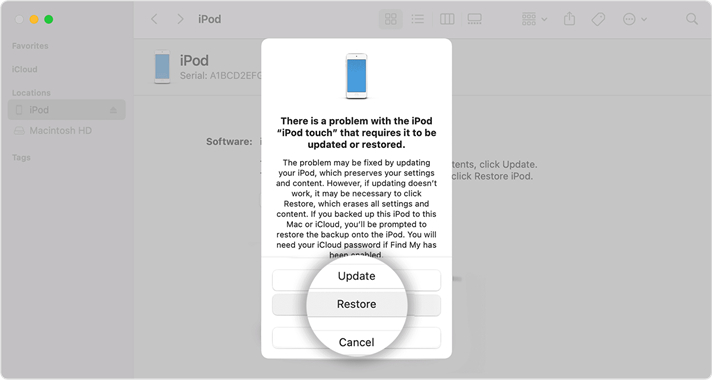
Step 1. Use a data cable to link the disabled iPod to a computer and open iTunes.
Step 2. Get the iPod into recovery mode.
- iPod touch (7th generation): Hold the Power button and the Volume Down button at the same time until you see the "Connect to computer" screen.
- iPod touch (6th generation) and earlier: Hold the Power and the Home buttons at the same time until you see the "Connect to computer" screen.
Step 3. When iTunes pops up a window, click Restore to restore the iPod Touch to its factory settings.
Part 4. Conclusion
Unlocking an iPod Touch without a passcode or iTunes can seem challenging, but there are multiple reliable methods available for every situation. Whether you choose to use an unlocking tool like MagFone, iCloud, the Find My app, or iTunes itself, each approach offers a way to regain access to your device. With the right method, you can quickly restore your iPod Touch and get back to using it without hassle.

Teresa Miller
Editor in chief





