








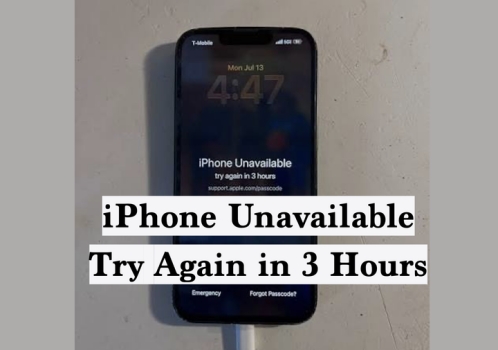
If you've ever picked up your iPhone only to see the dreaded "iPhone Unavailable, try again in 3 hours" message on the lock screen, you know just how inconvenient and stressful it can feel. Whether you forgot your passcode or entered it unconsciously and incorrectly too many times, this lockout can disrupt your day and leave you hunting for solutions. Don't worry. This guide walks you through the most effective methods to fix the "iPhone Unavailable" error, helps you get back into your device, and shares tips to prevent it from happening again. Let's dive in and get your iPhone working smoothly in no time.
- Part 1. iPhone Unavailable Try Again in 3 Hours Fix [Methods Summarized]
- Part 2. How to Fix iPhone Unavailable Try Again in 3 Hours
- Part 3. Best Fix to iPhone Unavailable Try Again in 3 Hours Stuck
- Part 4. How to Prevent iPhone Unavailable Try Again in 3 Hours
- Part 5. Conclusion
Part 1. iPhone Unavailable Try Again in 3 Hours Fix [Methods Summarized]
Before checking the step-by-step solutions, let's quickly summarize the most reliable ways to fix the "iPhone Unavailable — try again in 3 hours" issue. These methods work for different situations, whether you have access to your Apple ID password, another device, or a computer.
Note:
If your iPhone is disabled accidentally, you can wait for 3 hours and enter the correct passcode to unlock it. Pay attention not to restart your iPhone; otherwise, the countdown timer will restart.
| Method | Data Loss | Apple ID Password | Network | Find My iPhone |
|---|---|---|---|---|
| Wait for Timer Countdown | ❌ | ❌ | ❌ | ❌ |
| Lock Screen | ✔️ | ✔️ | ✔️ | ✔️ |
| Find My App | ✔️ | ✔️ | ✔️ | ✔️ |
| iCloud Website | ✔️ | ✔️ | ✔️ | ✔️ |
| iTunes | ✔️ | Varies | ✔️ | / |
| MagFone iPhone Unlocker | ✔️ | ❌ | ✔️ | / |
Part 2. How to Fix iPhone Unavailable Try Again in 3 Hours
Now, let's walk through each proven method in detail so you can quickly bypass the 3 hours of iPhone Unavailable timer. The first three methods require Find My iPhone enabled on the unavailable iPhone. If you miss the relevant options or are unable to locate your device during the operation, you can switch to method 4 or part 3 for an alternative solution.
Method 1. Fix iPhone Unavailable on Lock Screen
If your iPhone is running iOS 15.2 or later, you may see an Erase iPhone or Forgot Passcode? option on the iPhone Unavailable — try again in 3 hours screen. These options appear when Find My iPhone is enabled and the network is connected on the iPhone. If you see it, you can tap the option and erase your device to remove the passcode.
On iOS 17 and later:
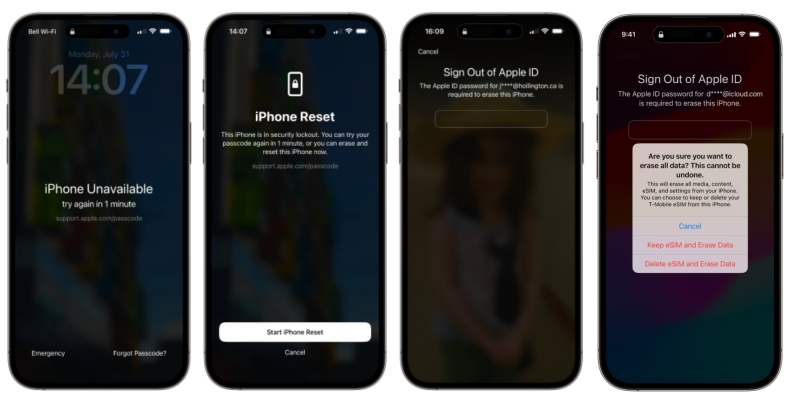
Step 1. Tap the Forgot Passcode? option at the bottom.
Step 2. Tap Start iPhone Reset, and you will be required to enter the Apple ID password to sign out of it.
On iOS 15.2 to iOS 16:
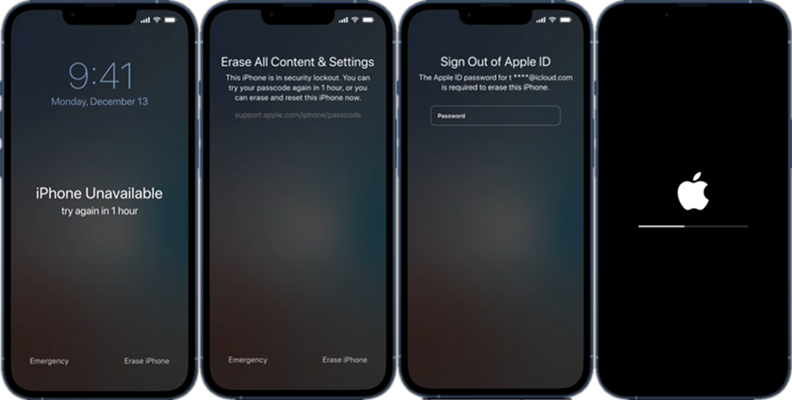
Step 1. Tap Erase iPhone at the bottom.
Step 2. Tap Erase iPhone again.
Step 3. Enter the Apple ID password to sign out of your Apple ID on the iPhone, then all data will be erased from the device.
Method 2. Fix iPhone Unavailable via Find My App
If you have another Apple device signed in with the same Apple ID, use the Find My app to remotely erase your locked iPhone. Only when Find My is enabled on the iPhone can you find and locate the unavailable iPhone in the device list. Follow the steps below to check the feasibility.
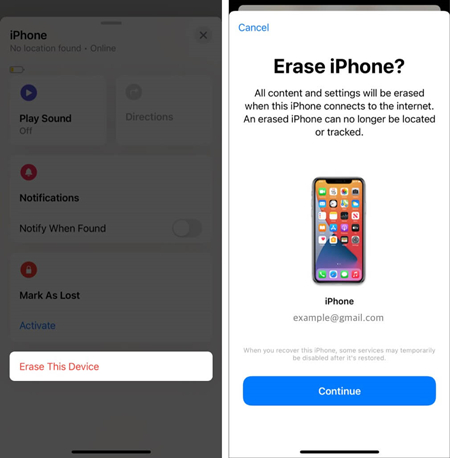
Step 1. Open the Find My App and tap Devices at the bottom.
Step 2. Tap the unavailable iPhone, then tap Erase.
Step 3. Tap Continue and do not enter the phone number.
Step 4. Enter the Apple ID password to erase the unavailable iPhone.
Method 3. Fix iPhone Unavailable on iCloud Web
You can also unlock your iPhone using iCloud on any web browser. This also requires that Find My is enabled on the iPhone. So you can find the unavailable iPhone in the device list and erase it remotely.
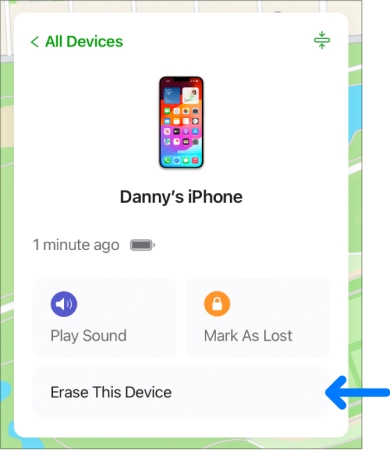
Step 1. Log in to your iCloud account on the iCloud Find Devices website.
Step 2. Click your unavailable iPhone from the device list.
Step 3. Click Erase > Next, and pass the phone number process.
Step 4. Enter the Apple ID password, and the unavailable iPhone will be erased if it's online.
Method 4. Fix iPhone Unavailable with iTunes
If Find My is disabled on the unavailable iPhone, you can put it in recovery mode and use iTunes to restore the iPhone. iTunes will update and restore your iPhone to factory settings so you can set it up afterward.
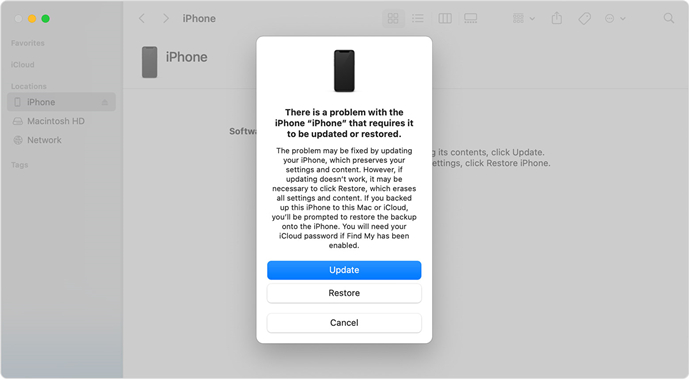
Step 1. Get your iPhone into recovery mode:
- iPhone 8 and later: Press the volume-up button, press the volume-down button, and hold the Power button until the computer appears.
- iPhone 7 series: Hold the Power button and the volume-down button until the computer appears.
- iPhone 6 and earlier: Hold the Power button and the Home button until the computer appears.
Step 2. Connect it to a computer via a data cable and open iTunes.
Step 3. If iTunes detects your iPhone in recovery mode, click Restore to restore your iPhone to its original status.
Part 3. Best Fix to iPhone Unavailable Try Again in 3 Hours Stuck
In general, the iPhone Unavailable timer will count down, and you can unlock it with your passcode afterwards. But some users have reported that their iPhone is stuck on iPhone Unavailable try again in 3 hours, and the timer is not going down. The most efficient fix to this stuck state is to use MagFone iPhone Unlocker.
MagFone iPhone Unlocker is a dedicated tool designed to bypass the "iPhone Unavailable" screen, even when other methods fail. In addition, MagFone can deal with more passcode and password issues with iDevices, ranging from Screen Time passcode to Apple ID password. Simply install the software on your computer and follow the steps below to remove the lock screen and restore access to your device.

MagFone iPhone Unlocker
Unlock various locks on iOS devices, including screen locks, MDM, Apple ID, and Activation Lock without needing a password.
Step 1 Run MagFone iPhone Unlocker
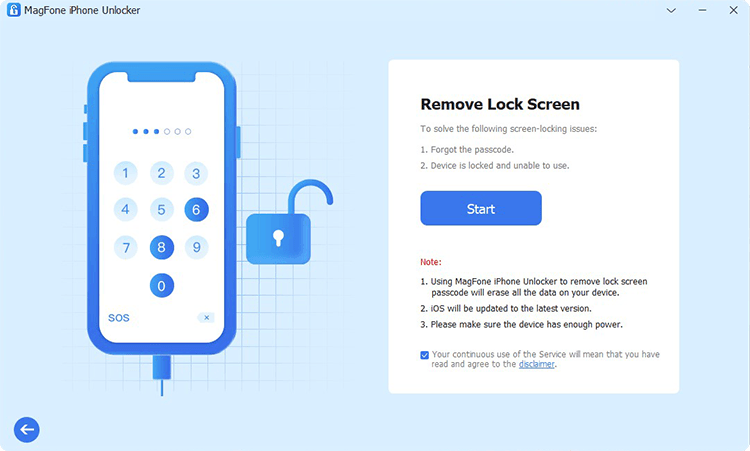
Download the MagFone software from the website. Then install it on your computer. Run it after successful installation.
Step 2 Choose Unlock iOS Screen
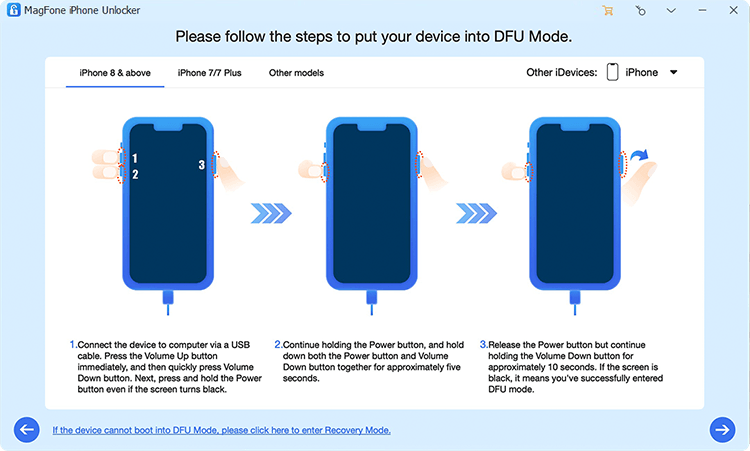
Choose Unlock iOS Screen from the main interface. Then click Start and follow the onscreen prompts to get the unavailable iPhone into recovery mode.
Step 3 Download Firmware Package

Click the Next button and check your device information. Then click Download to download the firmware package.
Step 4 Bypass iPhone Unavailable Try Again in 3 Hours
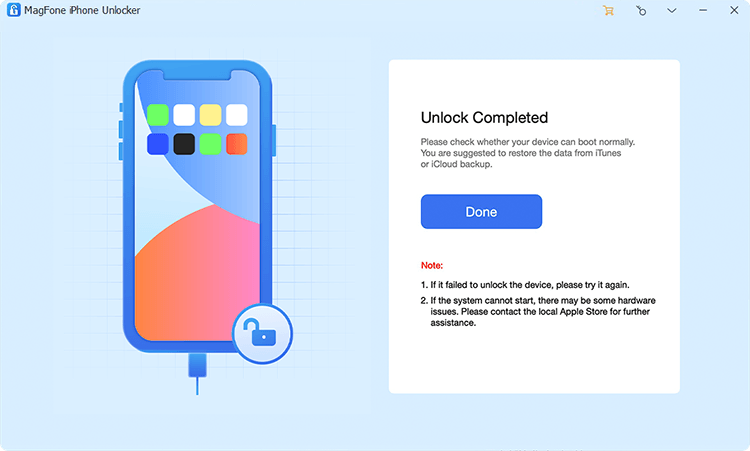
After verifying the downloaded firmware package, click Unlock to allow it to remove the screen lock on your iPhone. After that, you can set up the iPhone from the HELLO screen.
Part 4. How to Prevent iPhone Unavailable Try Again in 3 Hours
Once you've regained access to your iPhone, it's important to take steps to avoid facing the same problem in the future. Many users get their iPhone locked for 3 hours when they put it in their pocket. Accidental touches or presses while your iPhone is in your pocket can trigger the passcode screen and lead to multiple incorrect entries, sometimes without you even realizing it. To prevent this, you can disable relevant settings and change the iPhone placement in your pocket.
Disable Tap to Wake
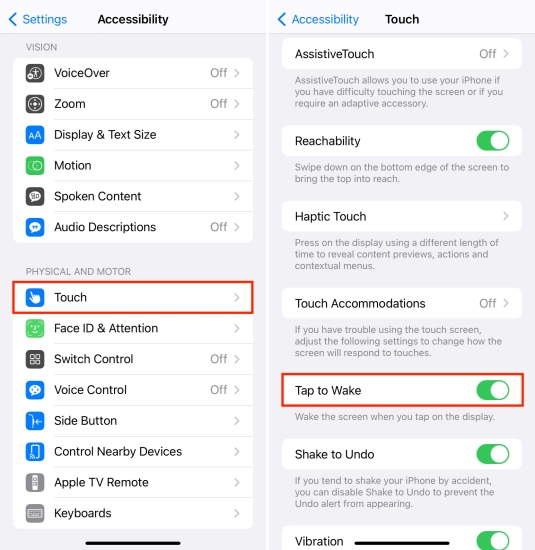
Go to Settings > Accessibility > Touch, and disable Tap to Wake.
Disable Raise to Wake
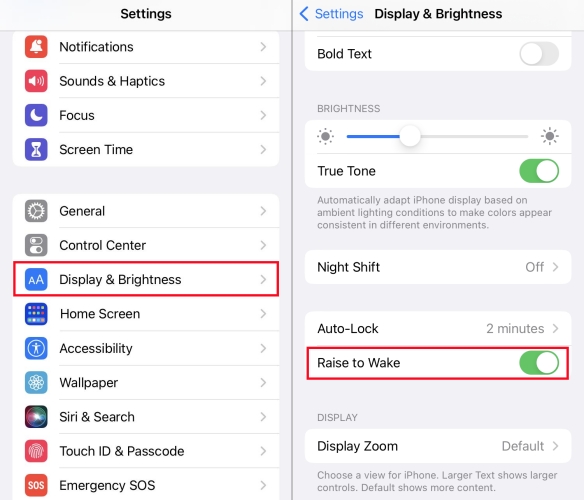
Go to Settings > Display & Brightness, and disable Raise to Wake.
Change iPhone Placement in Pocket
Try placing your iPhone in your pocket with the screen facing outward. You can also consider using a phone case with a screen cover to reduce the chance of accidental inputs.
Part 5. Conclusion
Waiting for the "iPhone Unavailable, Try Again in 3 Hours" countdown can be both frustrating and time-consuming. Fortunately, with the right solution, you can quickly bypass the lockout and regain access to your device. If Find My is enabled, options like the lock screen, iCloud web, and Find My app are feasible. If Find My is disabled, using iTunes is still possible. However, for the fastest results, especially if you're stuck or want to speed up the waiting time, a professional tool like MagFone iPhone Unlocker is highly recommended.

Teresa Miller
Editor in chief




