








Whether you are preparing to sell your device or you have bought a second-hand device, a full reset is often the best solution. Locking yourself out of Apple ID while you are about to factory reset an iPhone can feel like a complete roadblock.
Can you reset an iPhone without the iCloud password? The short answer is yes. However, the exact steps you need to take depend on one key security factor: whether Apple's Find My iPhone feature is currently enabled or disabled on your device. This guide will walk you through four reliable methods to factory reset an iPhone without iCloud password. So, you can restore your device safely and efficiently.
- Part 1. How Can I Reset iPhone without iCloud Password?
- Part 2. How to Factory Reset iPhone without ICloud Password [Disabled Find My]
- Part 3. How to Reset iPhone without ICloud Password [Enabled Find My]HOT
- Part 4. FAQs about Resetting iPhone to Factory Settings
- Part 5. Conclusion
Part 1. How Can I Reset iPhone without iCloud Password?
Before factory resetting your iPhone, let's see how Apple's built-in security features handle factory resets.
When you perform a factory reset, all personal data and customized settings are permanently erased from the device. Under normal circumstances, iOS requires your iCloud or Apple ID password to confirm that you are the rightful owner and to turn off Find My iPhone.
- If Find My is turned off: The reset process is straightforward. Because Activation Lock is not engaged, you can wipe the device using standard iOS settings, iTunes/Finder, or Recovery Mode without entering iCloud credentials.
- If Find My is turned on: Apple activates Activation Lock. Wiping the device via Recovery Mode or iTunes will still erase your data, but upon reboot, the iPhone will demand the original iCloud and password to complete setup. To bypass this screen without official credentials, specialized software solutions are required.
Check Find My Status on iPhone:
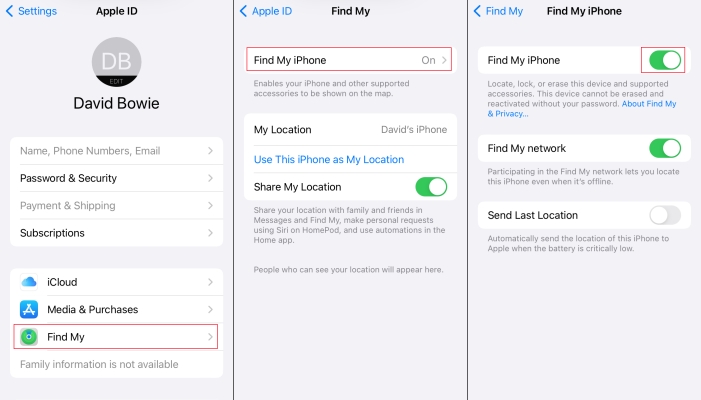
Step 1. Open Settings and tap your Apple ID.
Step 2. Tap Find My, and you can see if Find My iPhone is On or Off.
Part 2. How to Factory Reset iPhone without iCloud Password [Disable Find My]
If Find My iPhone is turned off, you have total flexibility. You can wipe your iPhone directly from the device settings or use iTunes or Finder to restore the iPhone.
Note:
Always ensure you back up essential iPhone data prior to initiating a reset whenever possible, as a factory restore permanently removes all data from the device.
Option 1. Factory Reset iPhone in iPhone Settings
When Find My is disabled on iPhone, you will not be required to enter the iCloud password on iPhone before factory resetting it. You only need to enter the iPhone passcode or Screen Time passcode if you have set it.
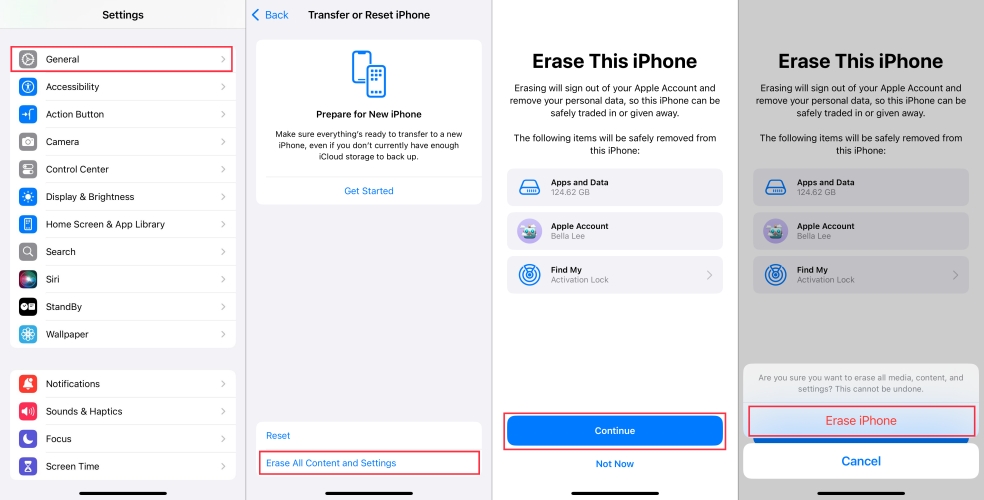
Step 1. Open iPhone Settings and tap General.
Step 2. Scroll down and tap Transfer or Reset iPhone.
Step 3. Tap Erase All Content and Settings > Continue > Erase iPhone.
Step 4. Choose whether to back up your data to iCloud, then enter the iPhone passcode and Screen Time passcode if you have set them.
Option 2. Factory Reset iPhone via Synced iTunes/Finder
When Find My iPhone is disabled on iPhone, and you have synced your iPhone on a trusted computer, you can restore the iPhone to factory settings without the iCloud password using iTunes or Finder.
Note:
You need an iTunes account, and you may need to enter the iTunes account password to proceed with this restore operation.
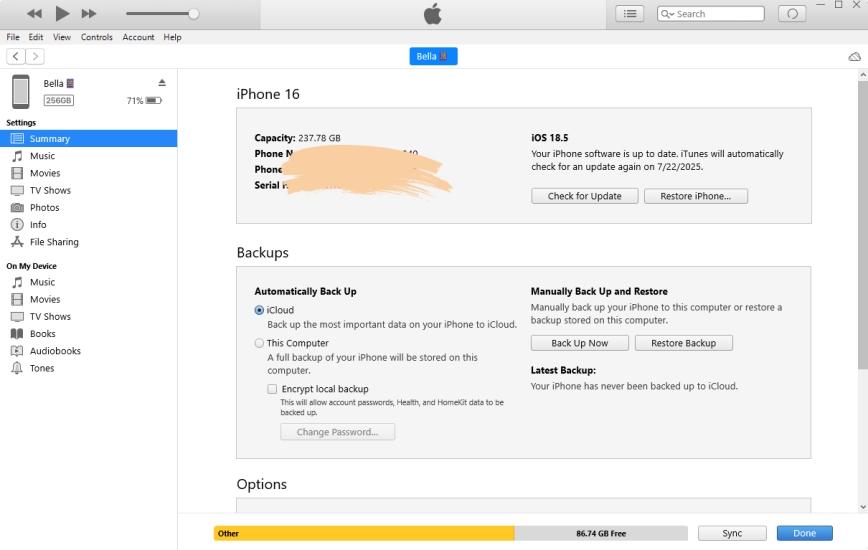
Step 1. Use a data cable to connect your iPhone to a computer you used to sync or back up with.
Step 2. Open iTunes or Finder and click the device icon.
Step 3. Click Summary or General, then click Restore iPhone > Restore to reset the iPhone to factory settings.
Option 3. Factory Reset iPhone in Recovery Mode
When Find My iPhone is disabled on iPhone, but the iPhone has never been trusted with iTunes or Finder on a computer, you can put it in recovery mode and reset the iPhone to factory settings on a computer.
Note:
You need an iTunes account, and you may need to enter the iTunes account password to proceed with the factory reset.
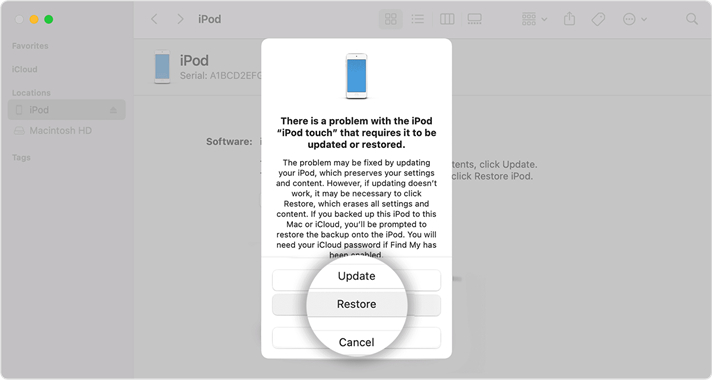
Step 1. Put your iPhone into recovery mode.
- iPhone 8 or later (including iPhone SE 2nd and later): Press and quickly release Volume Up. Press and quickly release Volume Down. Press and hold the Side button until you see the Recovery Mode screen.
- iPhone 7 series: Press and hold the Volume Down and Power buttons simultaneously until the Recovery Mode screen appears.
- iPhone 6s or earlier: Press and hold both the Home and Power buttons simultaneously until the Recovery Mode screen shows up.
Step 2. Use a data cable to connect your iPhone to the computer and open iTunes or Finder.
Step 3. When your iPhone is in recovery mode, iTunes or Finder will detect it automatically. Choose Restore in the pop-up window to restore the iPhone to factory settings.
Part 3. How to Reset iPhone without iCloud Password [Enabled Find My]
When Find My iPhone is enabled and you don't know the iCloud password, restoring the iPhone in recovery mode will leave you stuck on the Activation Lock screen. In this scenario, using a specialized software utility like MagFone iPhone Unlocker offers a streamlined workaround.
MagFone iPhone Unlocker is designed to remove various screen locks on iPhone, disable Screen Time without passcode, and remove Apple ID without password. MagFone offers an option to factory reset your iPhone without the iCloud password, and another option to factory reset your iPhone without both the iPhone passcode and Apple ID password. Follow the steps below to reset your iPhone without iCloud password.

MagFone iPhone Unlocker
Factory reset iPhone without Apple ID password or iCloud Password.
Step 1 Install and Run MagFone iPhone Unlocker
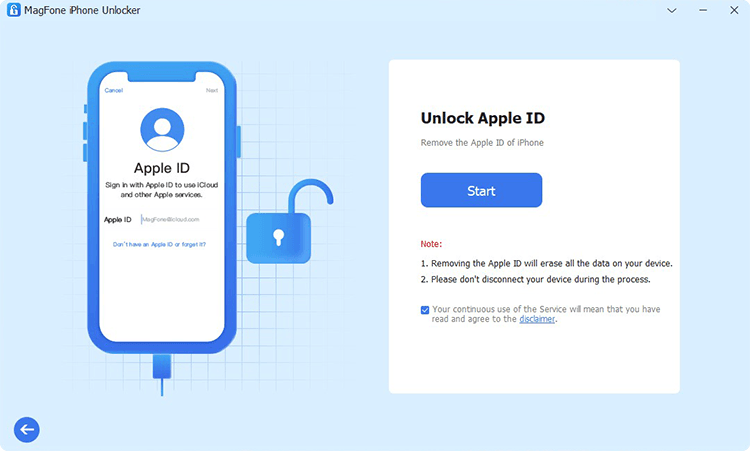
First, download and install MagFone iPhone Unlocker on your computer, and connect the iPhone to the computer via a data cable.
Step 2 Check iPhone Passcode and 2FA Settings
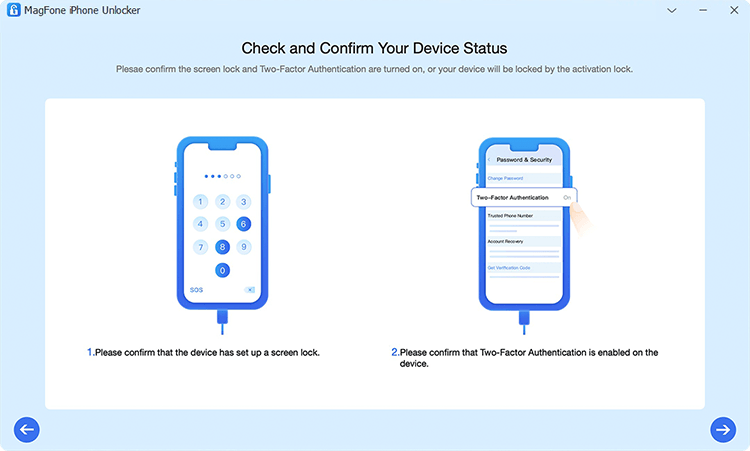
Choose Unlock Apple ID and click Start. Then make sure that the unlock passcode is set and the 2FA is enabled on the iPhone. When everything is checked, click the Next icon.
Step 3 Download the Firmware Package for iPhone
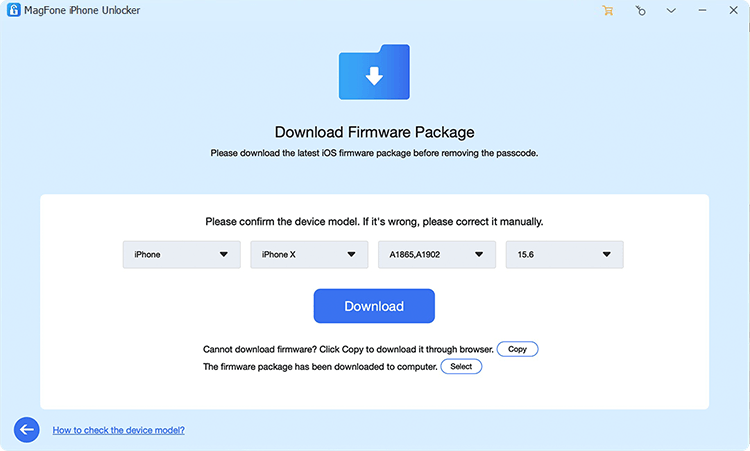
Check the iPhone information on screen, then click Download to download the firmware package.
Step 4 Factory Reset iPhone without iCloud Password
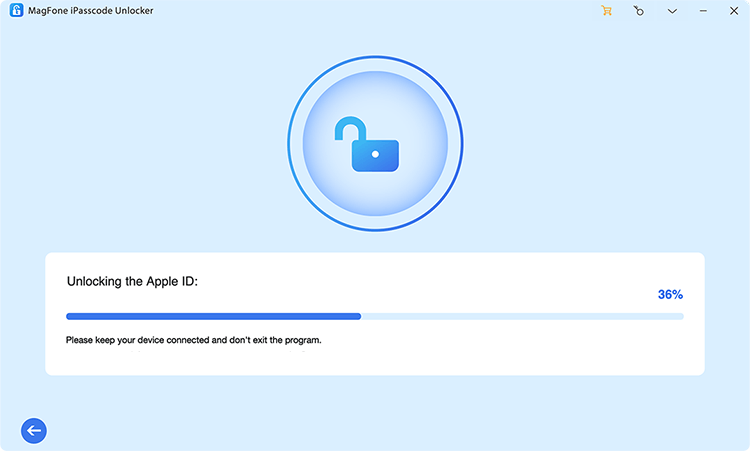
After downloading and verifying the firmware package, click Unlock to remove the Apple ID from your iPhone. After that, your iPhone will also be erased to factory settings.
Part 4. FAQs about Resetting iPhone to Factory Settings
How to factory reset an iPhone with a locked Apple ID?
If an Apple ID is locked, you can't sign out of the iCloud or disable Find My on iPhone. In this case, you can use unlocking tools like MagFone iPhone Unlocker to remove the locked iCloud and erase all data on your iPhone.
How to erase all data on iPhone if you forgot your iCloud password?
If you want to erase all data on your iPhone if you forgot your iCloud password, you can first try resetting your iCloud password. If you can't reset your iCloud password, you can consider using iTunes or MagFone iPhone Unlocker to erase your iPhone in recovery mode.
Part 5. Conclusion
Resetting an iPhone without an iCloud password is entirely achievable once you identify your device's security status. If Find My is turned off, built-in options like iOS Settings, synced iTunes, or hardware Recovery Mode offer quick, free ways to wipe your device. If Find My is active, using a dedicated tool like MagFone iPhone Unlocker provides a straightforward solution to remove the locked iCloud and restore your iPhone to its original factory state.

Teresa Miller
Editor in chief




