








A broken iPhone screen can make it difficult to access settings or confirm on-screen prompts when you need to erase your personal data before selling, repairing, or giving it away. Fortunately, you don't always need a working touchscreen to factory reset an iPhone. In this guide, we'll walk you through four practical methods, including the iCloud Find website, the Find My app, iTunes, and MagFone iPhone Unlocker, so you can choose the right solution based on your situation and reset your iPhone with minimal hassle.
- Part 1. How Can I Factory Reset iPhone with Broken Screen?
- Part 2. How to Factory Reset iPhone with Broken Screen
- Part 3. Conclusion
Part 1. How Can I Factory Reset iPhone with Broken Screen?
A broken screen can make it impossible to unlock your iPhone, open Settings, or tap the buttons needed to erase your data. However, there are still ways to erase all data on the device remotely or with a computer, depending on whether Find My is enabled on the iPhone and whether you can remember your Apple ID details.
Note:
If you have connected a Bluetooth mouse to the iPhone, you may also use the Bluetooth mouse to control the iPhone and perform a factory reset.
Part 2. How to Factory Reset iPhone with Broken Screen
When Find My iPhone is enabled on the device, you can use the Find My service to erase the screen-broken iPhone remotely. If not, you can use tools like iTunes, Finder, or MagFone iPhone Unlocker to restore it to factory settings.
Method 1. Wipe iPhone Using iCloud Find My Website
If your iPhone is connected to the internet and Find My iPhone was enabled before the screen broke, you can erase it remotely through the iCloud Find My website.
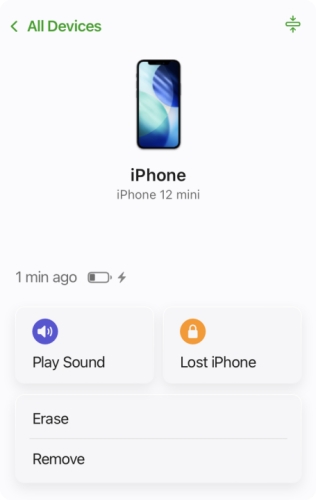
Step 1. Open the iCloud Find My website in any browser and log in with your Apple ID.
Step 2. Click the device you want to reset.
Step 3. Click Erase > Next, and enter the Apple ID password to confirm.
Method 2. Wipe iPhone Using Find My App
If Find My was enabled on the broken iPhone, the Find My app provides another convenient way to erase an iPhone remotely from an iPad, Mac, or another Apple device. As long as the broken-screen iPhone appears in your device list and has an internet connection, you can select it and start the erase process through the app.
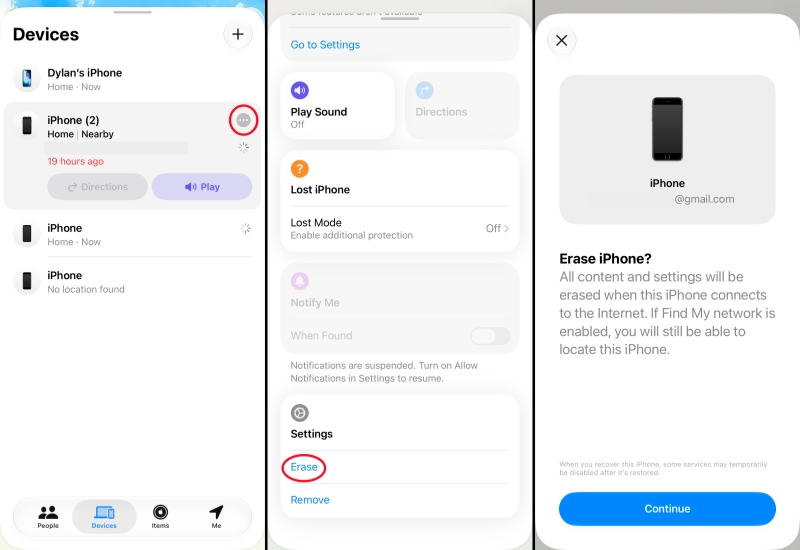
Step 1. Open the Find My app on any other Apple device.
Step 2. Tap Devices, and you will see all linked devices with your Apple ID.
Step 3. Tap the triple-dot icon next to the device you want to factory reset.
Step 4. Tap Erase > Continue, and enter the Apple ID password to confirm.
Method 3. Wipe iPhone Using iTunes
If your iPhone can be detected by a Windows PC or a Mac, you can restore it to factory settings through the computer. Using iTunes to restore your iPhone in recovery mode doesn't require you to trust the computer. So you can start an erase process without touching the iPhone screen. Note that if you restore the iPhone with Find My enabled, the Activation Lock may be triggered.
Step 1. Use a data cable to connect the screen-broken iPhone to a computer. Then get the iPhone into recovery mode.
- iPhone 8 and later (including iPhone SE 2nd and later): Quickly press the Volume Up button, then quickly press the Volume Down button. Then hold the Power button until the iPhone enters recovery mode.
- iPhone 7 series: Hold the Power button and the Volume Down button until the iPhone enters recovery mode.
- iPhone 6 series and earlier: Hold the Power button and the Home button at the same time until the iPhone enters recovery mode.
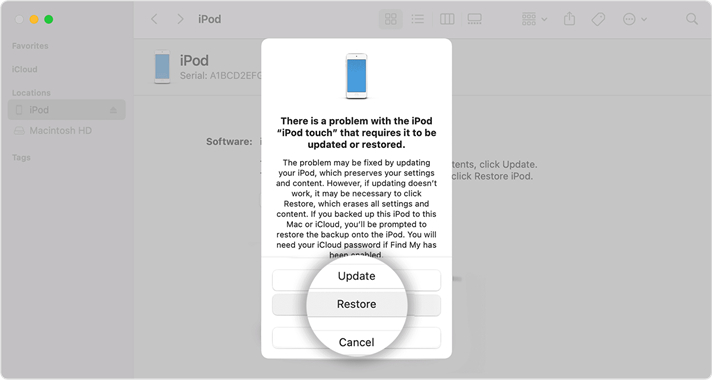
Step 2. Open iTunes and wait for the iPhone to be detected in recovery mode.
Step 3. iTunes will prompt a window asking for iPhone restore or update. Choose Restore, then the iPhone will be factory reset.
Method 4. Wipe iPhone Using MagFone iPhone Unlocker
If your iPhone cannot be detected by iTunes or erased via Find My service, using MagFone iPhone Unlocker is the best solution. It supports factory resetting an iPhone, iPad, or iPod touch without the screen passcode and the Apple ID password. In addition, it supports removing locks on your device, including the Screen Time passcode, MDM password, and Apple ID password. No matter when and why you need to factory reset an iPhone, MagFone iPhone Unlocker always offers you the easiest and most efficient solution. Follow the steps below to wipe an iPhone with a broken screen.

MagFone iPhone Unlocker
Factory reset iPhone without Apple ID password or iCloud Password.
Step 1 Install MagFone iPhone Unlocker
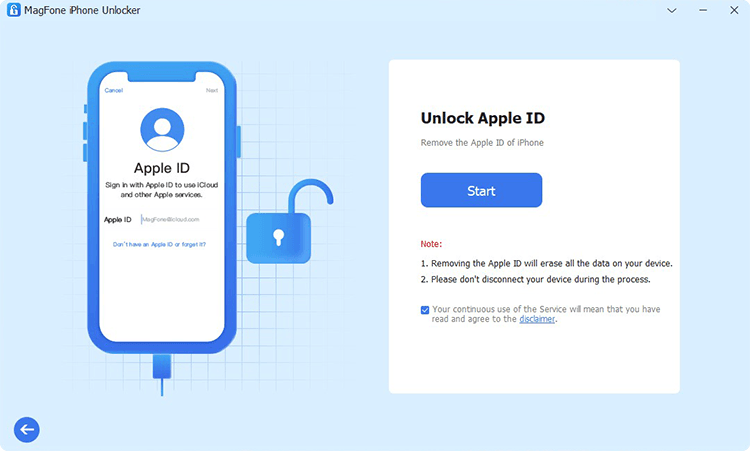
First, download and install MagFone iPhone Unlocker on your computer. Then use a data cable to link your iPhone to the computer.
Step 2 Put iPhone into Recovery Mode
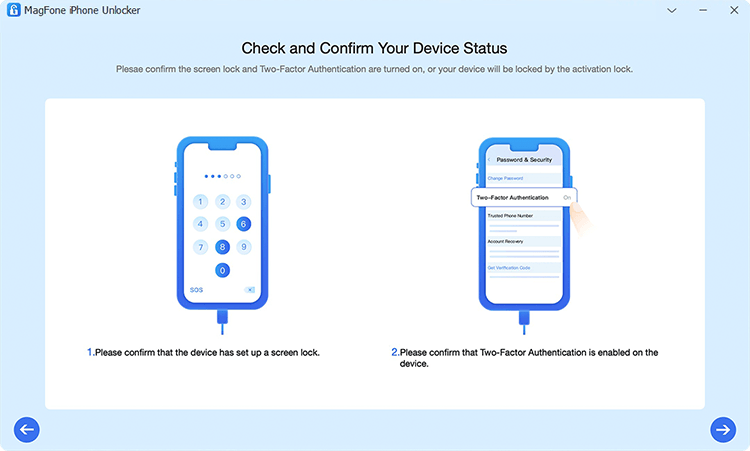
Click Unlock iOS Screen on MagFone, and click Start, then follow the instructions to put the iPhone into recovery mode.
Step 3 Download the Firmware Package for iPhone
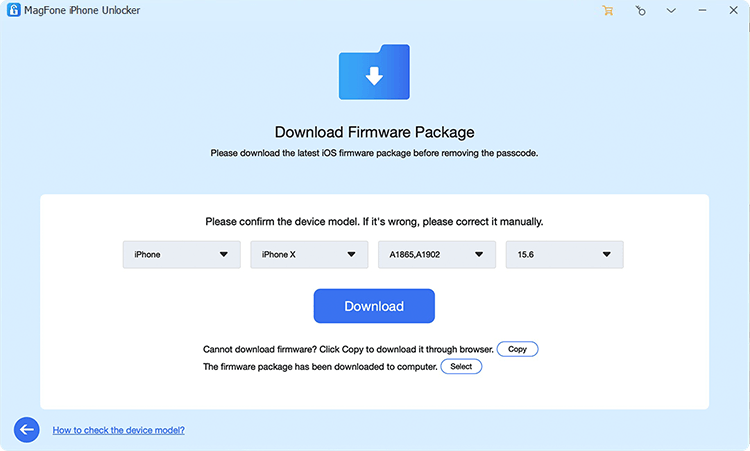
When the iPhone enters recovery mode, click the Next button. Check the device information on the screen and click Download to download the firmware package.
Step 4 Factory Reset iPhone with Broken Screen
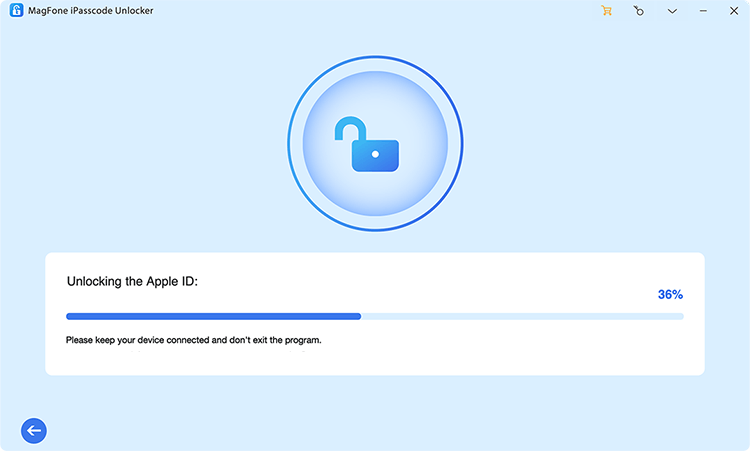
After the firmware package is verified, click Unlock to reset the screen-broken iPhone to factory settings.
Part 3. Conclusion
In reality, resetting an iPhone with a broken screen doesn't require touching the screen. Remote erasure through iCloud or the Find My app is usually the simplest choice when you can access your Apple Account, while iTunes is helpful when the device can connect to a computer. If the iPhone is locked, disabled, or affected by additional software issues, MagFone iPhone Unlocker may offer another practical solution. Choose the method that works for your situation.

Teresa Miller
Editor in chief





