








In today's digital age, smartphones store valuable personal information and data. With the rise in smartphone thefts and security breaches, manufacturers have implemented various security features to safeguard users' devices. One such feature is Find My iPhone, designed by Apple to help users locate their lost or stolen iPhones and protect their personal information. However, there are situations where users may need to disable this feature temporarily or permanently. In this article, we'll tell you how to turn off Find My iPhone without a password for all iOS versions, while ensuring your privacy and security.
- Part 1. How to Turn Off Find My iPhone without Password [Limited]
- Part 2. Best Way to Disable Find My iPhone without Password
- Part 3. How to Disable Find My iPhone with Password
- Part 4. FAQs about Disabling Find My iPhone
- Part 5. Conclusion
Part 1. How to Turn Off Find My iPhone without Password [Limited]
The steps to turn off Find My iPhone vary by iOS version. In this section, we'll explore the possible methods for removing Find My on iPhone. Some methods work 100%, while some methods do not permanently turn off Find My on iPhone.
| Methods | iOS Supported | Difficulty | Efficiency |
|---|---|---|---|
| Delete iCloud Account | iOS 7 | ⭐⭐ | 100% and Permanent |
| Enter a Random Password | iOS 11/12 | ⭐⭐ | 20% and Temporary |
| DNS iCloud Bypass | iOS 8 /9 /10 | ⭐⭐⭐⭐ | 50% and Temporary |
| Apple Support | All iOS | ⭐⭐ | 100% and Permanent |
Method 1. Disable Find My iPhone by Deleting iCloud Account [iOS 7]
In iOS 7, the simplest way to turn off Find My iPhone without a password is by deleting the iCloud account from the device. This method effectively removes your Apple ID and all associated data, including Find My iPhone. While it may sound drastic, it's a useful option if you have access to the device settings but can't remember the password.
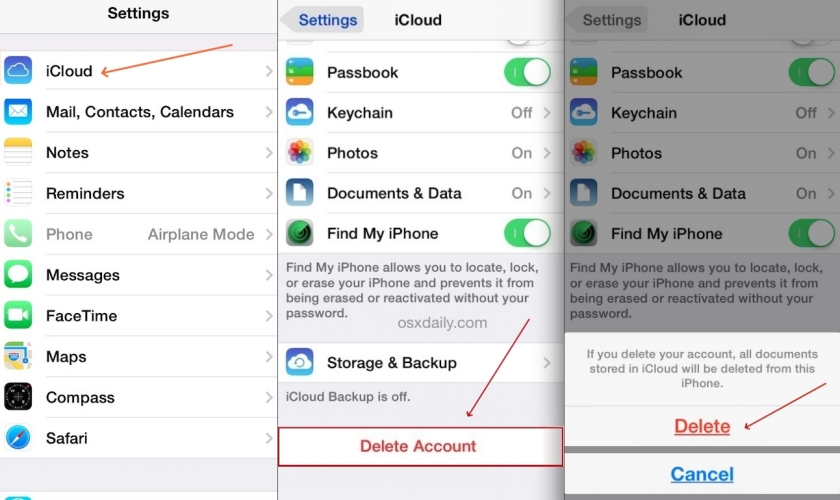
Step 1. Fire up Settings and select iCloud to access your account settings.
Step 2. Tap Delete Account at the bottom of the iCloud settings page. If prompted, confirm the action and proceed. (You may need to repeat this step multiple times if the action doesn't process immediately.)
Step 3. If the device freezes or becomes unresponsive during the process, press and hold the Power button until the iPhone turns off.
Step 4. Wait a few seconds, then turn your iPhone back on by holding the Power button again.
Step 5. Once the device restarts, go back to Settings and navigate to iCloud. Tap Delete Account once more and press Delete to confirm.
Step 6. The Find My iPhone feature should now be disabled and the Apple ID from the device.
Method 2. Disable Find My iPhone by Entering a Random Password [iOS 11/12]
This method may help you disable Find My iPhone by entering an incorrect iCloud password and clearing the account details afterward, but it is not guaranteed to work on every device or iOS version.
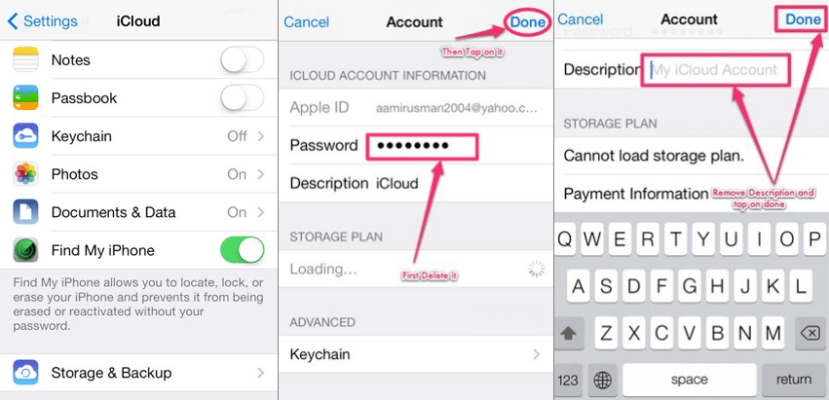
Step 1. Open the Settings app and scroll down to tap on the iCloud option to access the account settings. An interface requesting your iCloud password will appear.
Step 2. Enter a random (incorrect) password in the field and tap Done in the top right corner of the screen.
Step 3. When the system detects the wrong password, it will show an error message. Tap OK, then select Cancel at the top left corner to exit.
Step 4. You'll return to the iCloud settings. Tap on the Account section, then navigate to the Description field and erase its content.
Step 5. Once the Description field is cleared, the iCloud main page will reload, and the Find My iPhone feature should now be disabled.
Method 3. Remove Find My iPhone by Changing DNS
One way to temporarily bypass the Find My iPhone service on an iPhone is to change the network DNS while setting up an iPhone. This only allows you to use the iPhone in a way, but unable to remove Find My iPhone thoroughly.
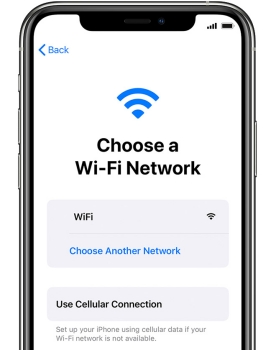
Step 1. When you see the iPhone Locked to Owner screen, tap Back to the Choose a Wi-Fi Network screen.
Step 2. Tap the i icon next to the Wi-Fi network you are connected to.
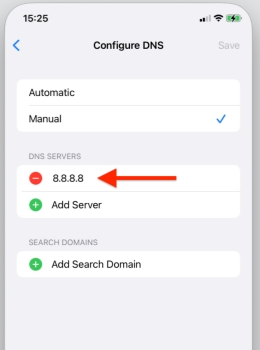
Step 3. Scroll down to the Configure DNS option and select Manual to enable custom DNS settings.
Step 4. Enter one of the following DNS addresses based on your location.
- Asia: 104.155.28.90
- USA: 104.154.51.7
- Europe: 104.155.28.90
- South America: 35.199.88.219
- Australia and Oceania: 35.189.47.23
- Other Countries: 78.100.17.60
Step 5. Once you've entered the DNS server, tap Save to apply the changes.
Step 6. Return to the WiFi settings and restart the iPhone.
Step 7. Set up the iPhone again. When you reach the Choose a Wi-Fi Network screen, connect to the same network you have just changed DNS settings on. Then you may be able to use the iPhone temporarily.
Method 4. Turn Off Find My iPhone with Apple Support
If your device is locked by Find My, you can start an Activation Lock support request to disable Find My on iPhone. Make sure you own the device and that the iPhone is not in Lost Mode. Follow the steps below to request Activation Lock support.
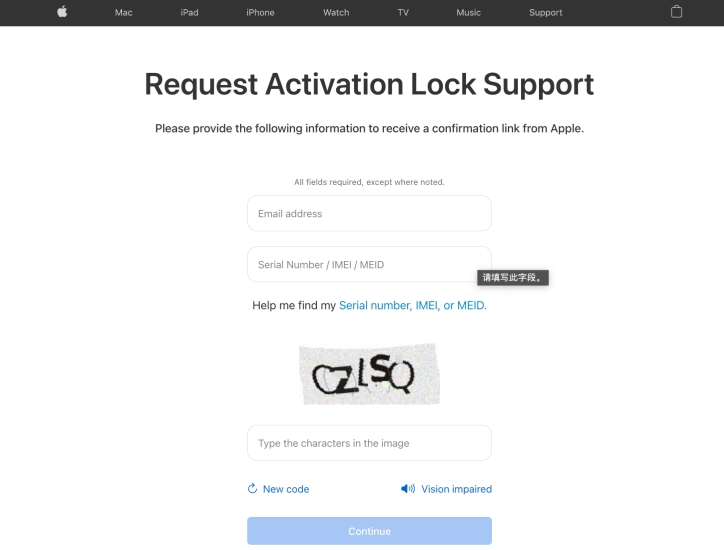
Step 1. Go to the Activation Lock Support page and click the For a personally owned device link on this page.
Step 2. Agree to the terms and click Continue.
Step 3. Enter the required information, including your email address and Serial Number / IMEI / MEID. Then click Continue to receive a confirmation link from Apple.
Step 4. Check the confirmation link in your email inbox and follow the instructions to request that Apple turn off Find My on your iPhone without the password.
Part 2. Best Way to Disable Find My iPhone without Password
Starting with iOS 12, Apple has strengthened its security measures, making it more difficult to disable Find My iPhone without the correct Apple ID password. In addition, some methods discussed in Part 1 may only work temporarily or may not work on every device.
For newer iOS versions, MagFone iPhone Unlocker provides a convenient option for users who have forgotten their Apple ID credentials. It can help remove an Apple ID and disable Find My on compatible iPhones, iPads, and iPod touch devices. If you decide to use MagFone iPhone Unlocker, follow the steps below to get started.

MagFone iPhone Unlocker
Bypass iCloud Activation Lock on iPhone, iPad, and iPod touch without the original Apple ID or password.
Step 1Fire up MagFone iPhone Unlocker
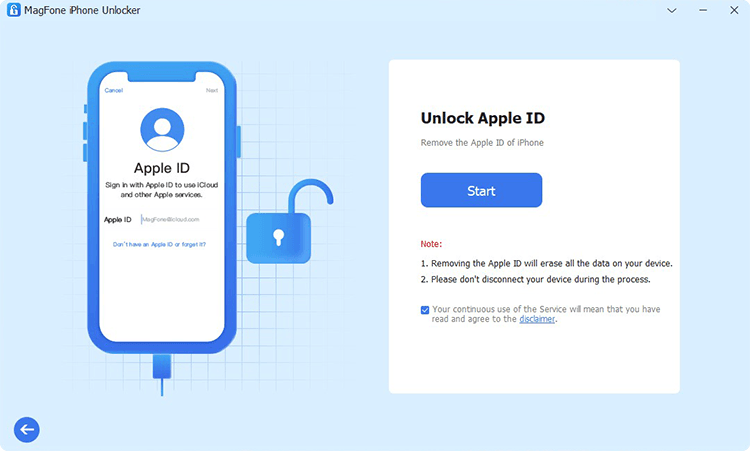
First of all, install and open MagFone iPhone Unlocker on your computer, then select Unlock Apple ID on the home screen. You have to carefully read the disclaimer and agree to it. Proceed to click the Start button and connect your iPhone to your computer via a USB cable.
Step 2Confirm Device Status
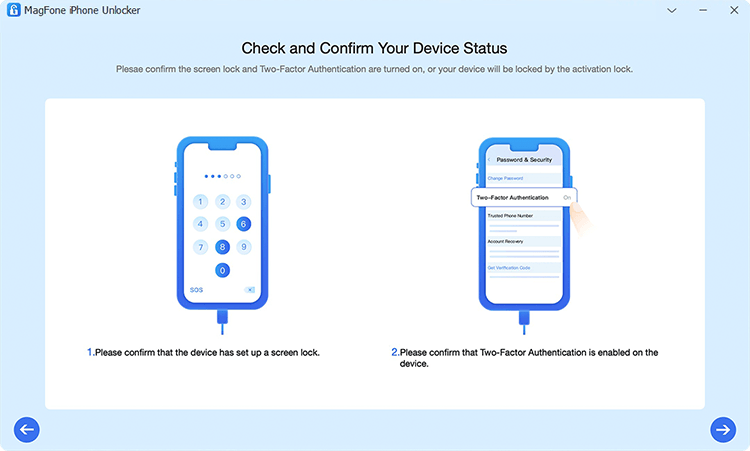
Check and confirm your device status. Make sure you have set a lock screen passcode and 2FA for this device. Click Yes twice, then click Confirm to reconfirm.
Step 3Download Firmware Package

Check the device model on MagFone, then click Download to download the firmware package.
Step 4Turn Off Find My iPhone without Password
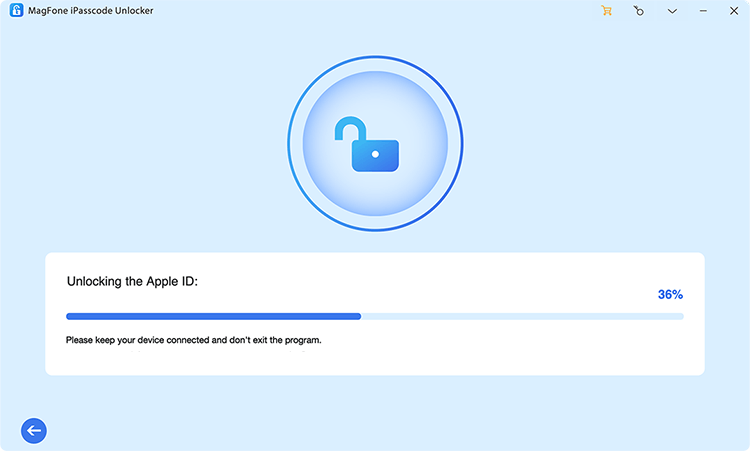
After verifying the firmware package, click Unlock to disable Find My on your iPhone without a password.
Note:
In some cases, you may see the iPhone Locked to Owner screen after the operation. You can utilize the Unlock iCloud Activation Lock feature to fix the issue and get full control of the devics.
Part 3. How to Disable Find My iPhone with Password
Find My iPhone is a security feature developed by Apple that enables users to locate their lost or stolen devices using GPS technology. All users can easily enable and disable this feature on their devices with their Apple ID passwords. Disabling Find My iPhone is a straightforward process. Here are four ways to do that.
Method 1. Remove Find My iPhone in Settings
The quickest and most direct way to remove Find My on your iPhone is to do it in Settings. With your Apple ID password, you can Disable Find My iPhone easily. Here's how.
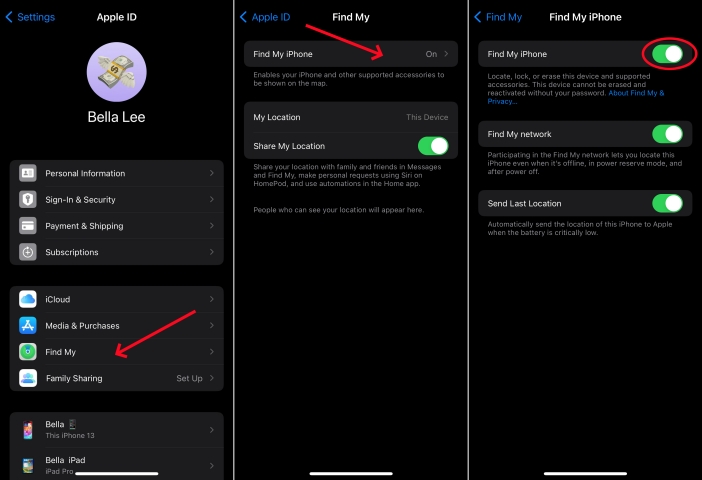
Step 1. On your iPhone, open Settings and tap your Apple ID name.
Step 2. Tap Find My > Find My iPhone, then tap to turn it off.
Step 3. Enter your Apple ID password and tap Turn Off to confirm.
Method 2. Disable Find My iPhone via Find My App
On all Apple mobile devices where you use the same Apple ID, you can use the Find My app to deactivate Find My on your iPhone. Just do the following steps.
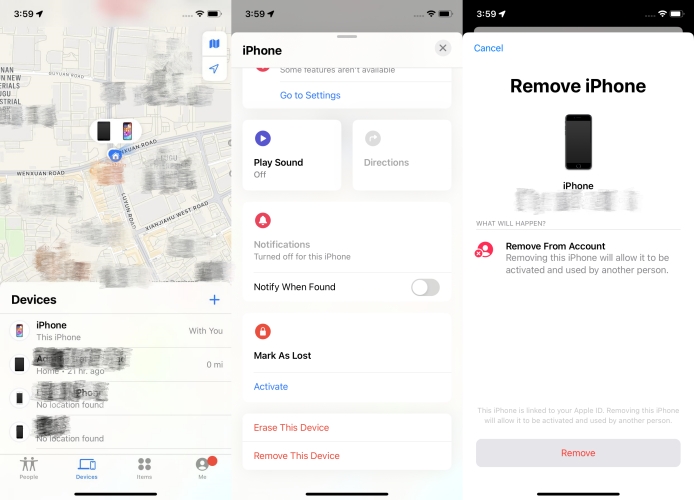
Step 1. Fire up the Find My app on your other Apple device.
Step 2. Tap Devices at the bottom of the screen and view the device list.
Step 3. Select your iPhone and tap the i icon.
Step 4. Tap Remove to disable Find My on the iPhone.
Method 3. Shut Off Find My iPhone at iCloud.com
If you don't have any other Apple devices, you can also shut off Find My iPhone on iCloud.com when your device is not with you. Follow the steps below.
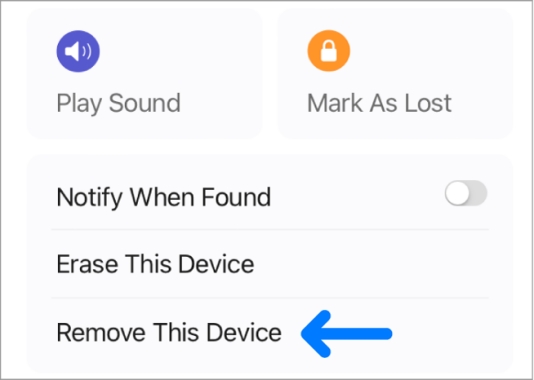
Step 1. Go to iCloud.com and sign in with your Apple ID credentials.
Step 2. In the Devices list, find and select your iPhone.
Step 3. Click Remove twice, and enter the linked Apple ID password to confirm.
Method 4. Deactivate Find My iPhone on Mac
The last option to deactivate Find My iPhone on your device is to do it on other Apple devices like an iPad and a Mac. You can follow the steps below to turn off Find My iPhone on your Mac.
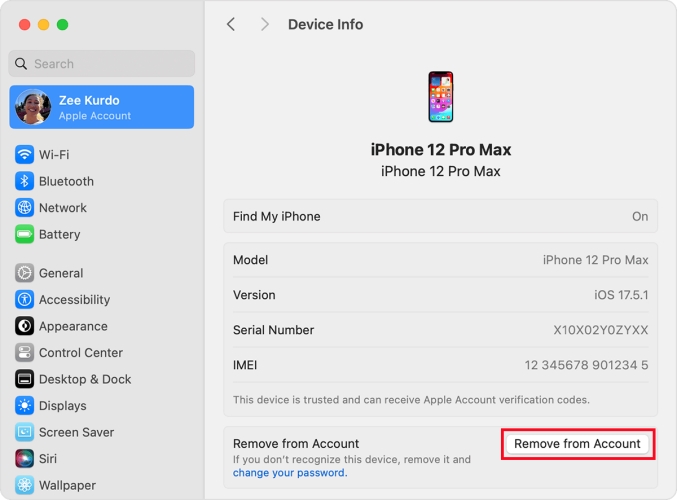
Step 1. On your Mac, launch System Preferences and click Apple ID.
Step 2. In the sidebar, find your iPhone and click Remove from Account.
Part 4. FAQs about Disabling Find My iPhone
-
How to disable Find My iPhone from computer?
You can disable Find My iPhone from a computer by logging into your iCloud account at iCloud.com/find. Once logged in, select your device to remove it from the device list. What's more, you can also disable Find My iPhone in System Preferences if you have a Mac beside you.
-
How to disable Find My iPhone on iCloud?
If you want to disable Find My iPhone through iCloud, you can log in to iCloud.com/find, select your device, and choose Remove This Device or Remove to turn off the feature. You will need to provide your Apple ID password during this process.
-
How do I disable Find My iPhone greyed out?
If the option to turn off Find My iPhone is greyed out, it typically means that your device is locked. Try contacting Apple Support for assistance or using MagFone iPhone Unlocker to deactivate Find My iPhone on your iPhone with ease. If necessary, you can head to Settings > Face ID & Password, then switch off ssss.
Part 5. Conclusion
Find My iPhone is a valuable security feature that helps users locate and protect their devices in case of loss and theft. However, there are instances where turning off this feature becomes necessary, such as device transfer or software updates. By trying the solutions introduced in this guide, you can easily disable Find My iPhone on iOS 7 to 18 even though you don't have the Apple ID password.

Teresa Miller
Editor in chief





