








You want to factory reset your iPhone, but it won't let you reset? Whether you're preparing to sell your iPhone or simply trying to erase your personal data, a failed reset can be frustrating. Fortunately, there are several ways to fix the problem, from checking your settings and updating iOS to restoring the device with recovery tools. In this guide, we'll explain why your iPhone won't factory reset and show you how to reset it successfully.
- Part 1. Why Can't I Reset My iPhone?
- Part 2. How to Fix iPhone Won't Factory Reset
- Part 3. How to Reset iPhone When iPhone Won't Reset
- Part 4. Conclusion
Part 1. Why Can't I Reset My iPhone?
Several issues can prevent an iPhone from completing a factory reset. Screen Time restrictions may block changes to important settings, while network-related errors or temporary iOS glitches can interrupt the reset process. In some cases, Find My iPhone must be disabled before the device can be erased.
Part 2. How to Fix iPhone Won't Factory Reset
To factory reset an iPhone in Settings, you need to make sure that there is a stable network and Find My iPhone is disabled. The following solutions address common causes, including network errors, temporary system glitches, and Find My settings.
Option 1. Disable Screen Time Restrictions
Screen Time restrictions can prevent you from accessing or changing certain settings on your iPhone. If your iPhone won't let you factory reset without the Screen Time passcode, you need to disable Screen Time restrictions first.
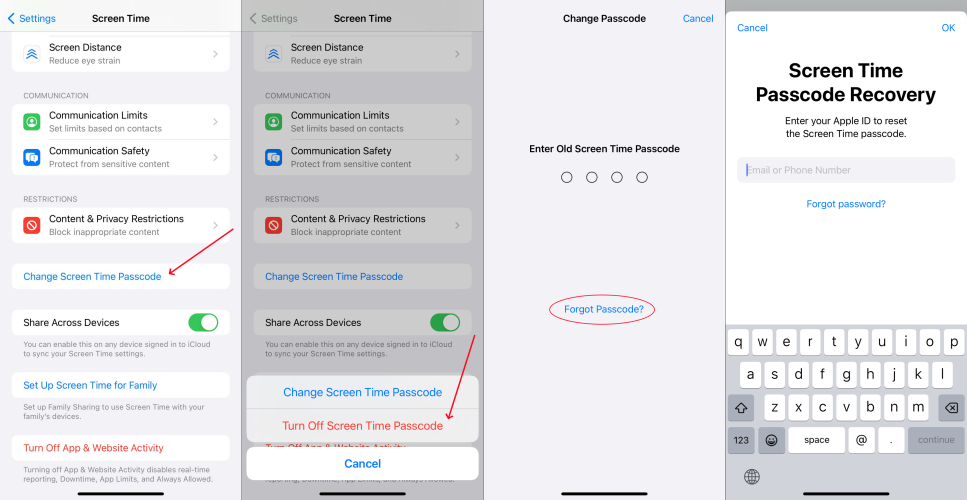
Step 1. Go to iPhone Settings > Screen Time.
Step 2. Tap Change Screen Time Passcode > Turn Off Screen Time Passcode.
Step 3. Enter the Screen Time passcode to disable Screen Time restrictions. If you forgot the passcode, tap Forgot Passcode? link to perform Screen Time Passcode recovery.
Option 2. Refresh Network Settings
Network problems can sometimes interfere with Apple ID verification and the reset process. Make sure your iPhone is connected to a stable WiFi network or cellular network. If there is a network error, you may consider refreshing your network settings.
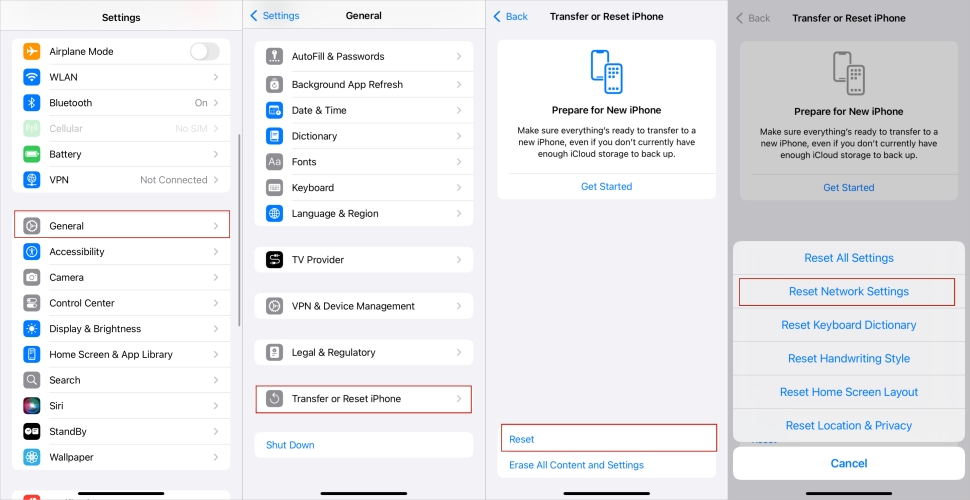
Step 1. Go to iPhone Settings > General > Transfer or Reset iPhone.
Step 2. Tap Reset > Reset Network Settings.
Step 3. Enter the iPhone passcode and tap Reset to confirm. Afterwards, you will need to reconnect to Wi-Fi.
Option 3. Restart iPhone
A temporary software glitch may make the reset option unresponsive or stop the process midway. Restarting your iPhone can refresh its system and clear minor errors without deleting your personal data.
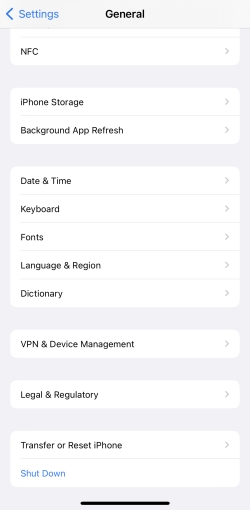
Step 1. Go to iPhone Settings > General.
Step 2. Tap Shut Down at the bottom, then drag the slider to shut it down.
Step 3. Long-press the Power button to restart the iPhone. After the device turns back on, check whether the factory reset works normally.
Option 4. Disable Find My in Advance
Find My iPhone and Activation Lock are security features that may prevent the device from being erased or activated by someone else. You can first disable Find My iPhone, then reset the iPhone in Settings.
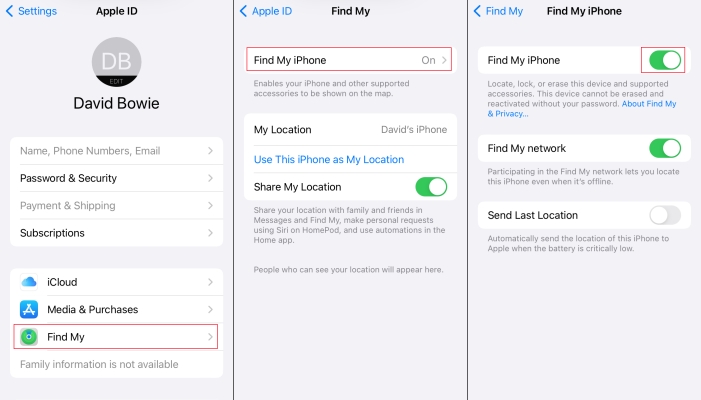
Step 1. Go to iPhone Settings > Apple ID > Find My.
Step 2. Tap Find My iPhone and turn it off, and enter the Apple ID password to complete the operation.
Option 5. Update iOS Version
An outdated or unstable iOS version may cause errors during the factory reset process. Updating iOS can fix system bugs and improve device stability, which may allow the factory reset to work normally afterward.
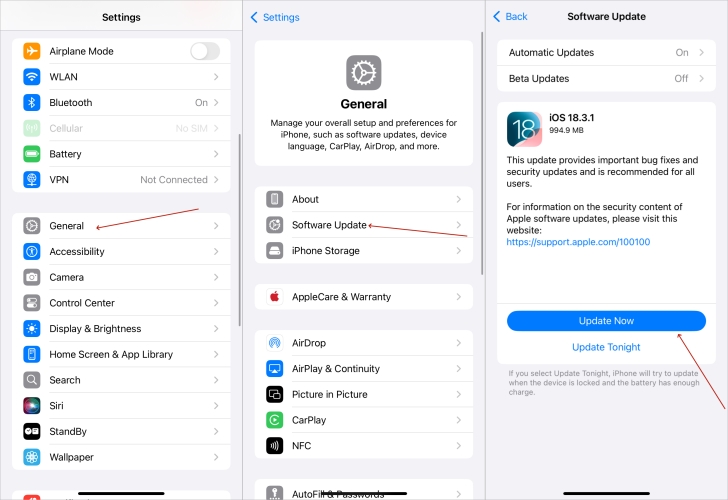
Step 1. Go to iPhone Settings > General.
Step 2. Tap Software Update and wait for an update check.
Step 3. If there is a new iOS version, tap Download Now or Install Now to update the iPhone system.
Part 3. How to Reset iPhone When iPhone Won't Reset
When the usual troubleshooting steps fail, you may need an alternative way to reset your iPhone. These methods can help when the device is stuck, unresponsive, or unable to complete the factory reset from the Settings app. Before proceeding, make sure you understand that restoring your iPhone will erase its data, so back up your iPhone data whenever possible.
Option 1. Restore iPhone Using MagFone
When your iPhone won't let you factory reset, or there is an error when erasing all content and settings, MagFone iPad Unlocker offers you a complete way to reset the iPhone to factory settings. It is designed to remove various device passcodes, including the lock screen passcode, Screen Time passcode, MDM password, and Apple ID password. If you have any trouble resetting your iPhone in Settings or restoring your iPhone with iTunes, follow the steps below to erase all data on your iPhone.

MagFone iPhone Unlocker
Factory reset iPhone without Apple ID password and network.
Step 1 Install MagFone iPhone Unlocker
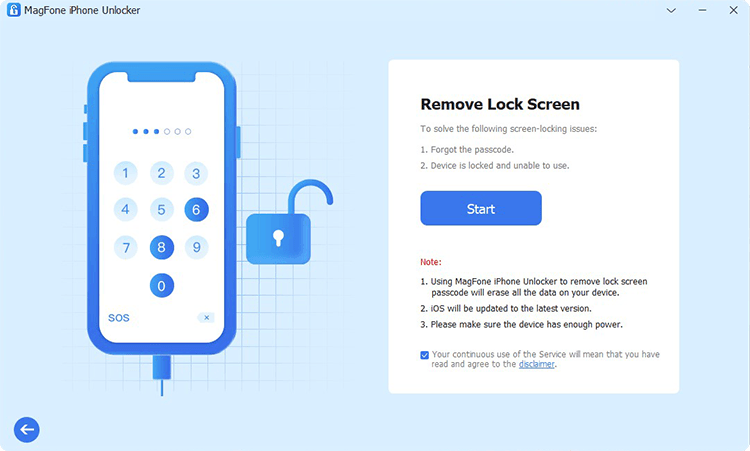
First, download the MagFone iPhone Unlocker on your computer. Then use a data cable to connect your iPhone to the computer. Then launch MagFone to start.
Step 2 Put the iPhone into Recovery Mode
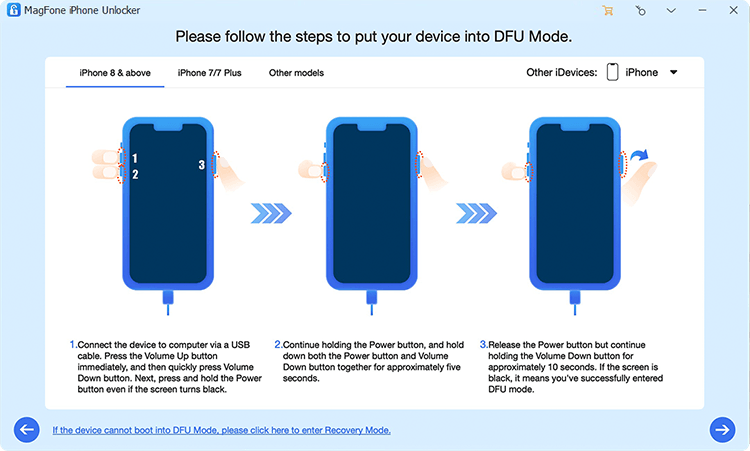
Click Unlock iOS Screen on MagFone's interface, and click Start. Then follow the on-screen instructions to put the iPhone into recovery mode.
Step 3 Download Firmware Package

When the iPhone enters recovery mode, click the Next button on the screen. Check the device information, and click Download to download the correct firmware package.
Step 4 Restore iPhone without Password
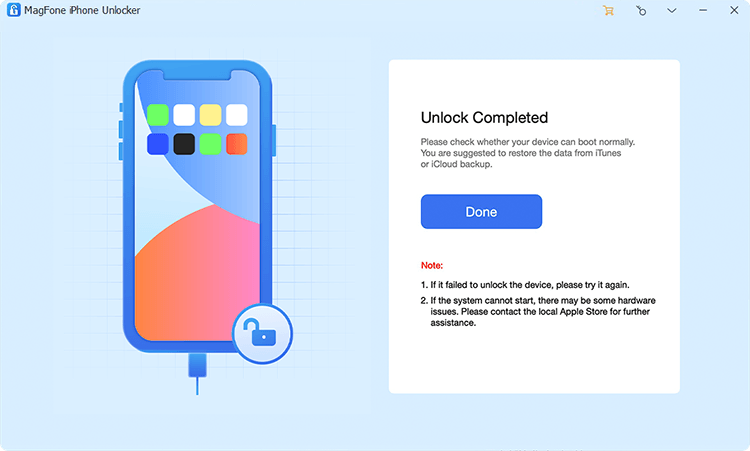
After the firmware package is verified, click Unlock to restore the iPhone to factory settings. Afterwards, you can set it up and use it.
Option 2. Restore iPhone with iTunes
If your iPhone won't reset through the Settings app, you can use iTunes to erase the device and reinstall the latest compatible version of iOS.
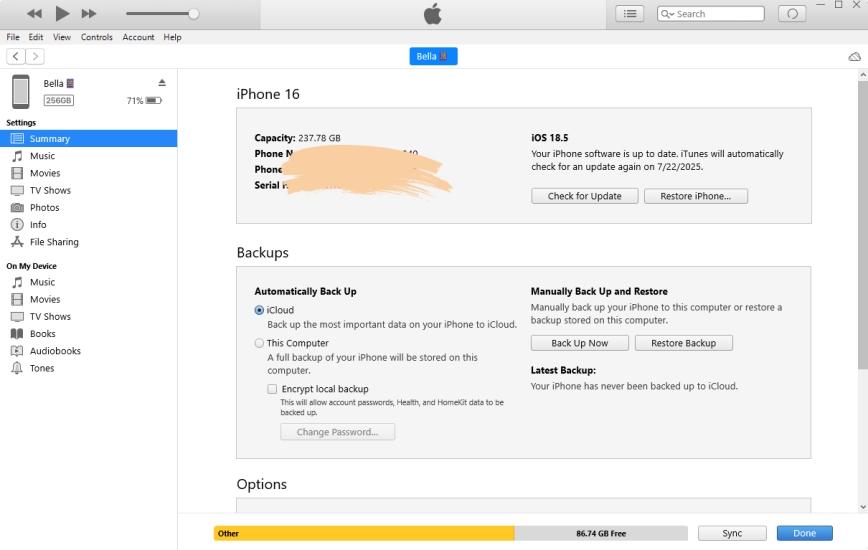
Step 1. Connect your iPhone to a computer with a USB cable.
Step 2. Open iTunes and select the device icon.
Step 3. Choose Summary > Restore iPhone, then follow the on-screen instructions to complete the process.
Option 3. Restore iPhone via Recovery Mode
Recovery Mode allows you to restore an iPhone when it is frozen, disabled, or unable to reset normally. When you can't reset your iPhone in Settings, you can also put your iPhone into recovery mode and restore it with iTunes.
Step 1. Link the iPhone to a computer and launch iTunes on the computer.
Step 2. Put the iPhone into recovery mode.
- iPhone 8 and later: Quickly press the Volume Up button, then the Volume Down button. Keep pressing the Power button until the iPhone enters recovery mode.
- iPhone 7 series: Keep pressing the Volume Down button and the Power button until the iPhone enters recovery mode.
- iPhone 6 series and earlier: Keep pressing the Home button and the Power button until the iPhone enters recovery mode.
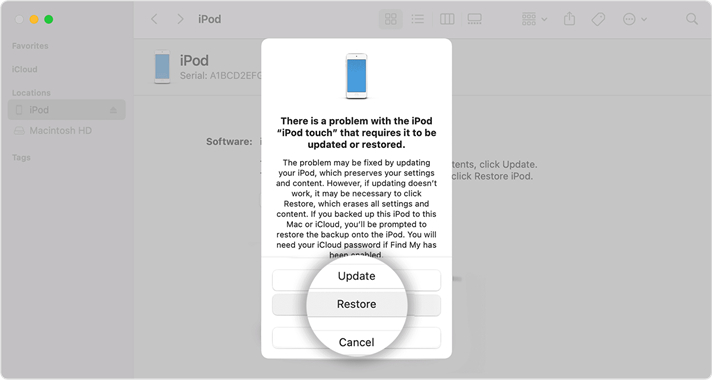
Step 3. After the iPhone is detected by iTunes, choose Restore from iTunes's window to restore the iPhone to factory settings.
Part 4. Conclusion
When your iPhone won't factory reset, there's usually a simple reason behind the issue, such as active Screen Time restrictions, network problems, system glitches, or Find My iPhone being enabled. Try the basic fixes first, including restarting the device and checking its settings. If the problem continues, MagFone or Recovery Mode can help restore the iPhone and reinstall iOS.

Dylan Jones
Editor in chief





