








I cannot sign out of my Apple ID or erase content because of a Screen Time passcode which I don't remember ever making. I keep getting the failed password attempt notice and am now on my last 9th attempt. I cannot turn off or change Screen Time passcode, it simply isn't accepting it. I want to know what happens after 10 failed attempts on my iPhone X other than an erasure of all the data and content? Which is fine by me? Thank you!"
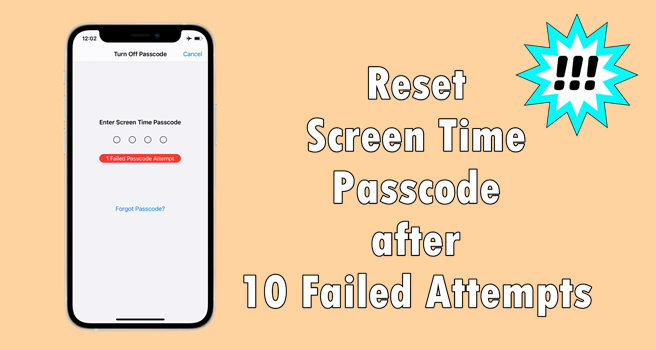
It is not surprising that Apple users cannot turn off Screen Time or remember the Screen Time passcode. There have been a number of complaints - forgot Screen Time passcode but cannot reset it - from Apple users found in the Apple Community. Once entering the incorrect passcode, you'll receive the notice: 1 Failed Passcode Attempt. And your iPhone will be disabled if you enter the wrong Screen Time passcode too many times. But do not panic. Here we'll tell you what happens after 10 failed Screen Time passcode attempts. Also, we'll walk you through how to reset Screen Time passcode after failed attempts.
- Part 1. What Happens After 10 Failed Screen Time Passcode Attempts?
- Part 2. How to Get Unlimited Screen Time Passcode Attempts
- Part 3. How to Reset Screen Time Passcode After Failed Attempts
- Part 4. What to Do If You Forgot Screen Time Passcode Failed Attempts?
- Part 5. FAQs about iPhone/iPad Screen Time Passcode Failed Attempts
- Part 6. Conclusion
Part 1. What Happens After 10 Failed Screen Time Passcode Attempts?
With Screen Time, you can fully understand how much time you spend on your iPhone. You, meanwhile, can manage and control the usage time of your device or your child's device by using this feature. The Screen Time passcode is a separate 4-digit or 6-digit code used to:
- Restrict app usage or downtime,
- Prevent changes to content & privacy restrictions,
- Enforce parental controls on a child's iPhone.
You may have set a different Screen Time passcode from your device passcode. If you forget the passcode and you cannot enter the correct Screen Time passcode you've set, your access will be limited. So, how many failed attempts for Screen Time passcode?
How many failed attempts for Screen Time passcode?
You can keep trying the Screen Time passcode even after failed attempts, but the waiting time increases as you enter more incorrect passcodes. After 6 failed attempts, your iPhone will start to lock you out for short periods. Once you reach 10 failed attempts, you'll only be allowed to try one passcode every 60 minutes. If you enter the wrong passcode again after the hour is up, you'll need to wait another 60 minutes for the next attempt.
You will see a message like "Try again in 60 minutes. 10 Failed Passcode Attempts." during this lockout period. To get past this screen, you can try resetting your Screen Time passcode using your Apple ID. There are also other methods you can try if you're still locked out.
Refer to the table below to see the lockout times for each stage of failed attempts.
| Attempts | Message |
|---|---|
| 6 Failed Passcode Attempts | Try again in 1 minute |
| 7 Failed Passcode Attempts | Try again in 5 minutes |
| 8 Failed Passcode Attempts | Try again in 15 minutes |
| 9 Failed Passcode Attempts | Try again in 60 minutes |
| 10 Failed Passcode Attempts | Try again in 60 minutes |
| > 10 Failed Passcode Attempts | Try again in 60 minutes |
Part 2. How to Get Unlimited Screen Time Passcode Attempts
When you try entering the Screen Time passcode under the Screen Time section in Settings, failed attempts will trigger Screen Time rules and eventually lock you out temporarily. However, there is a way to get unlimited Screen Time passcode attempts using the Erase All Content and Settings feature on your iPhone. In this way, you're allowed unlimited attempts to enter the Screen Time passcode and figure out the correct one.
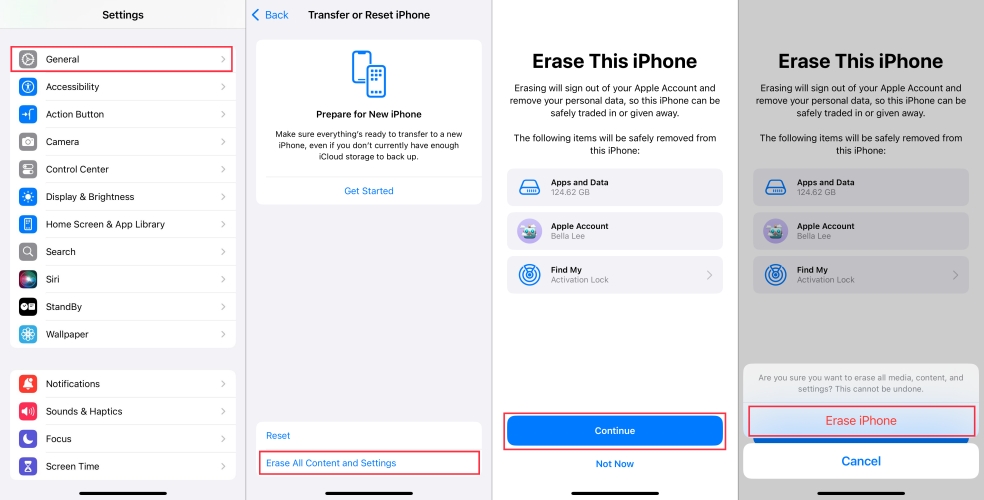
Step 1. Go to Settings > General > Transfer or Reset iPhone.
Step 2. Tap Erase All Content and Settings > Continue > Erase iPhone.
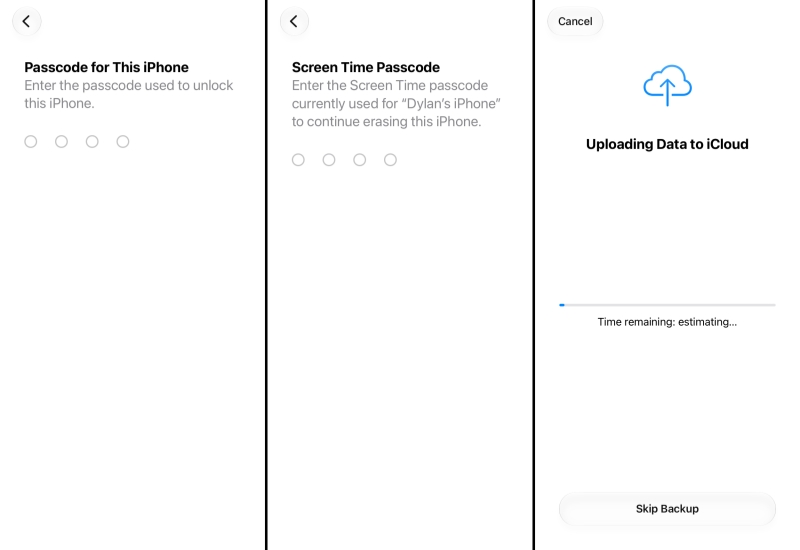
Step 3. Enter your iPhone passcode. Afterwards, you'll be asked to enter the Screen Time passcode. At this point, you can try unlimited Screen Time passcode attempts until you enter the correct one.
⚠️Notice:
Once you have figured out the correct Screen Time passcode, tap Cancel to stop the erase operation as soon as possible.
If you want to figure out the old Screen Time passcode, you can try to figure it out on this screen. But if it's hard for you to figure out the Screen Time passcode, we'd suggest you go through the methods in the following sections to change the Screen Time passcode, or remove Screen Time on iPhone. Here is a video tutorial you can refer to.
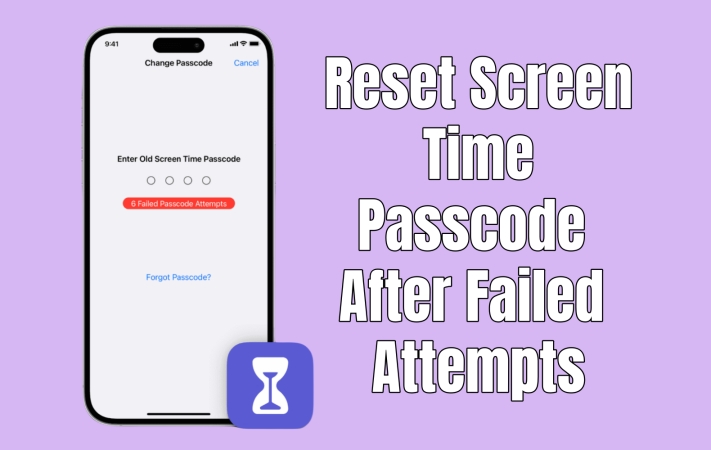
Part 3. How to Reset Screen Time Passcode After Failed Attempts
If you have triggered the failed attempts try again in minutes message, you can reset your Screen Time passcode to fix the issue. Make sure that you can remember your Apple ID password. Then follow the steps below to change the Screen Time passcode on your device or your child's device if you forgot the Screen Time passcode.
Option 1. Reset the Screen Time Passcode for Your Personal Device
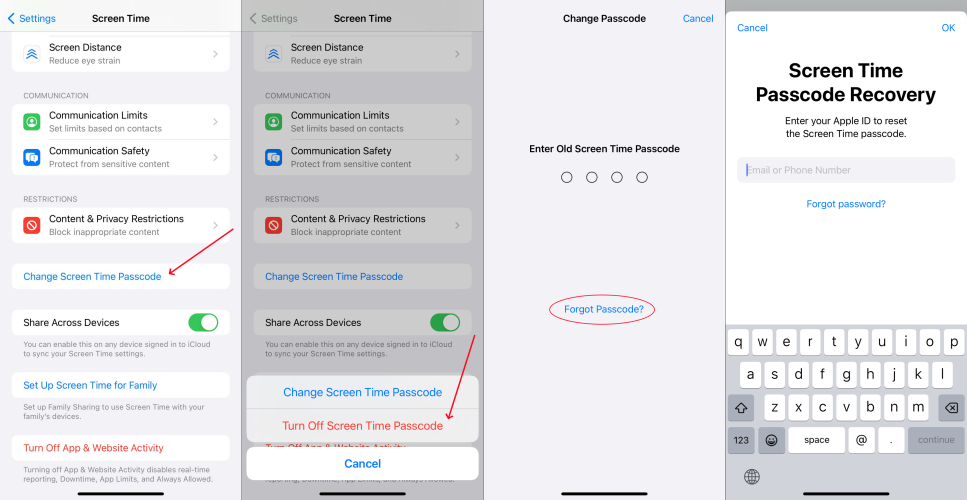
Step 1. Power on your iPhone and go to Settings > Screen Time.
Step 2. Tap Change Screen Time Passcode, then tap it again.
Step 3. Tap Forgot Passcode? and enter the Apple ID password.
Step 4. Enter a new Screen Time passcode, then enter it again to confirm.
Option 2. Reset the Screen Time Passcode for Your Child's Device
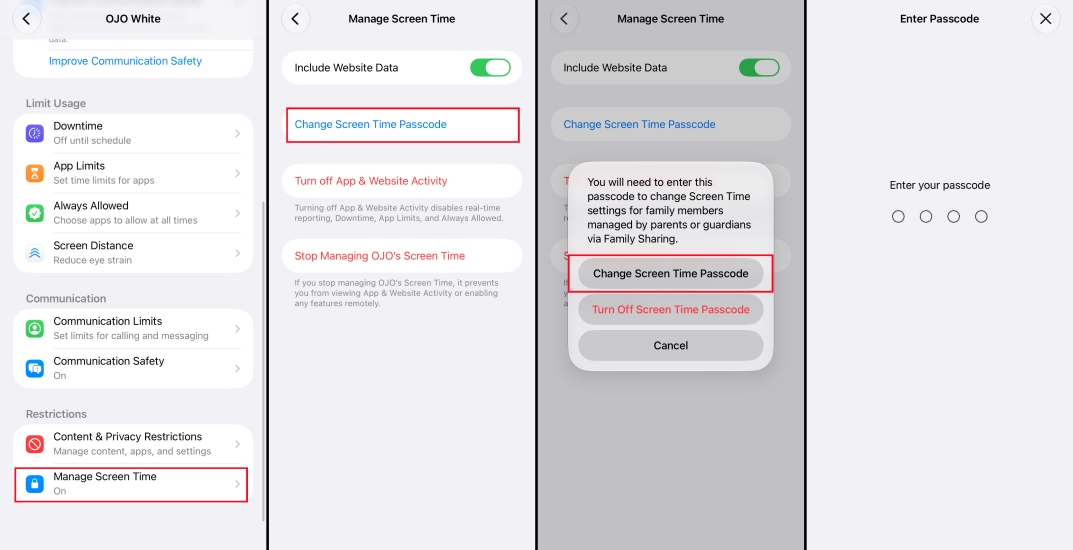
Step 1. On the family organizer's device, tap Settings > Screen Time.
Step 2. Scroll down and choose your child's device under Family.
Step 3. Tap Manage Screen Time > Change Screen Time Passcode, and tap Change Screen Time Passcode again.
Step 4. Enter your iPhone passcode to reset a new Screen Time passcode for your child's iPhone.
Part 4. What to Do If You Forgot Screen Time Passcode Failed Attempts?
With a few steps, you can reset the Screen Time passcode for your iPhone or child's device. But if you are not able to use the Forgot Passcode? option to reset the Screen Time passcode, you can try the following methods to solve this problem. To better solve your problem, we have made a comparison table of the following methods. Now take a quick look at it, and you will know that.
| Methods | Requirements | Data Loss | Consuming Time | Difficulty |
|---|---|---|---|---|
| MagFone iPhone Unlocker | A computer and Find My is in disabled | ❎ | 10~15 minutes | Pretty Easy |
| Factory Reset | Screen Time passcode | ✅ | 20~30 minutes | Easy |
| iTunes | A computer and Find My is in disabled | ✅ | 20~30 minutes | Moderate |
| iCloud | Apple ID and password | ✅ | 20~30 minutes | Moderate |
| Find My App | An Apple device and Apple ID password | ✅ | 20~30 minutes | Moderate |
Method 1. Remove Screen Time Passcode via a Screen Time Remover [No Data Loss]
The quick method to get rid of Screen Time passcode is to use a Screen Time passcode remover. MagFone iPhone Unlocker is a useful tool for unlocking iPhone, iPad, and iPod touch. By using this tool, you can get rid of Screen Time without passcode and data loss. Also, it can help you remove Apple ID from iPhone without password, bypass MDM restrictions, and delete the screen passcode. Here's how to remove Screen Time passcode by using MagFone iPhone Unlocker.

MagFone iPhone Unlocker
Remove Screen Time passcode on iPhone without data loss, no matter how many failed attempts.
Step 1 Connect iPhone to Computer and Open MagFone
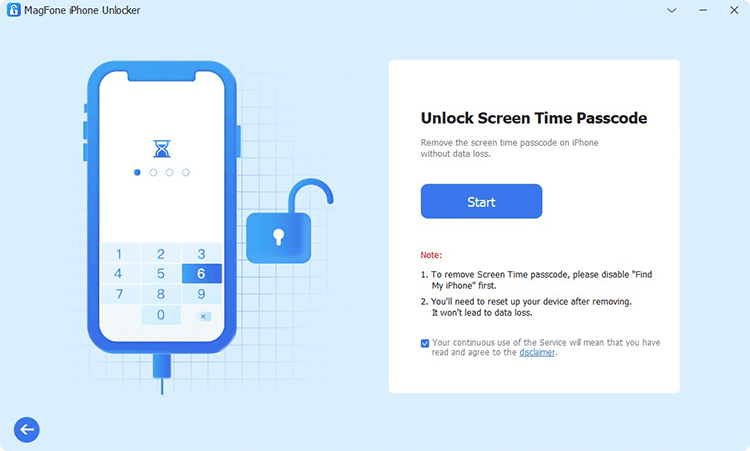
To begin with, connect your iPhone to your computer with a USB cable then launch MagFone iPhone Unlocker on the computer. In the main interface of MagFone software, select the Unlock Screen Time Passcode option and click the Start button at the next page.
Step 2 Go to Remove Screen Time Passcode on iPhone
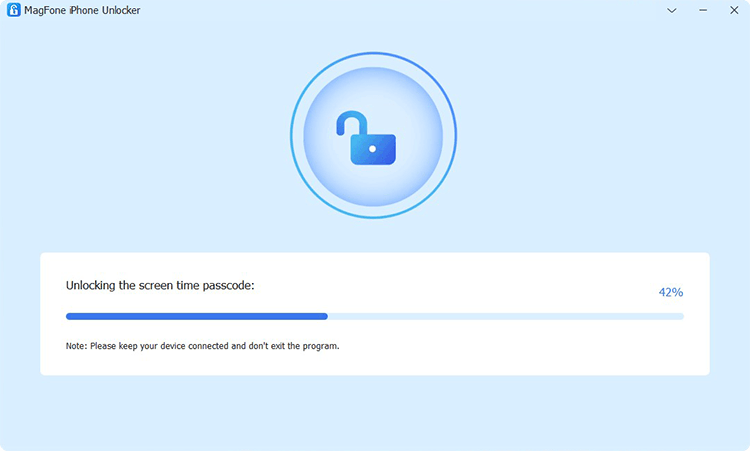
Before starting to remove Screen Time passcode, make sure that you have disabled the Find My feature on your iPhone. Then you can click on the Unlock button to delete your Screen Time passcode on your device. Keep your device connected to the computer during the process.
Step 3 Follow the On-screen Instructions to Set up iPhone
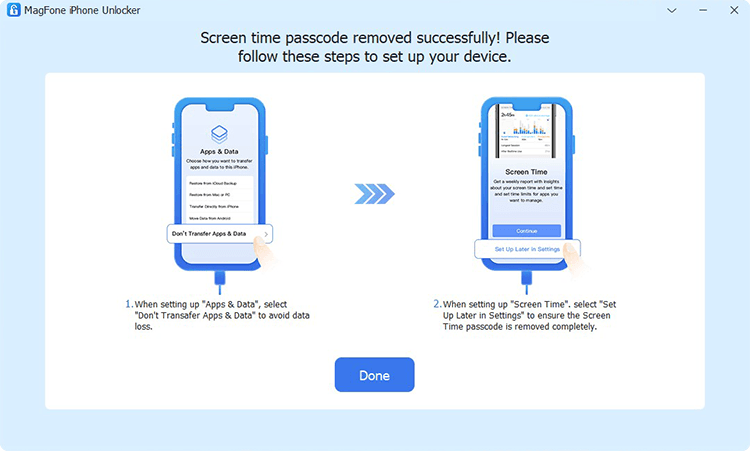
It's not over yet. You need to set up your iPhone after deleting the Screen Time passcode. On the Apps & Data page, choose Don't transfer Apps & Data. Then go on to choose Set Up Later in Settings on the screen of your device. Now you can create a new Screen Time passcode.
Method 2. Erase Forgotten Screen Time Passcode via iTunes [Data Loss]
When your iPhone is disabled, you are suggested to connect your device to iTunes for restoring it. iTunes is a powerful tool that can help you solve various issues with iPhone, iPad, and iPod touch. Here you can use iTunes to regain control of your iPhone after 10 failed passcode attempts.
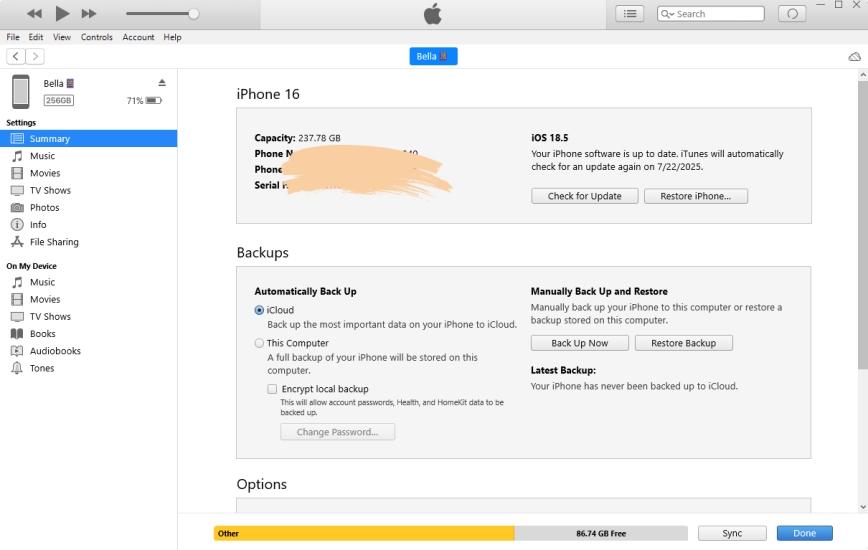
Step 1. Use a USB cable to connect your iPhone to a computer.
Step 2. Tap Trust on your device to complete the connection.
Step 3. In iTunes, click the device icon, then go to the Summary tab.
Step 4. Click the Restore iPhone button, then select Backup and click Restore.
Method 3. Take Off Screen Time Passcode at iCloud.com [Data Loss]
With iCloud, you can sync your iPhone for backing up data and settings. Instead of making a backup of your iPhone, iCloud can also erase your device. This could be a method for you to delete the Screen Time passcode.
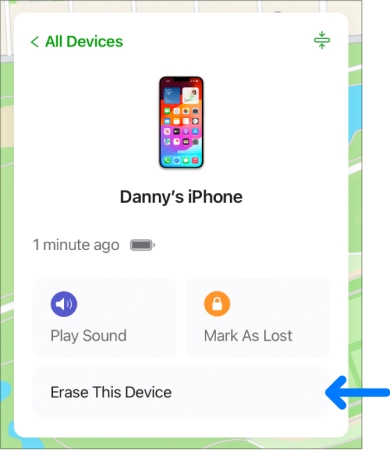
Step 1. Navigate to www.icloud.com and log into your Apple ID account.
Step 2. Click the Find My button, then select your iPhone in the All Devices list.
Step 3. Select Erase This Device or Erase, then click Next.
Step 4. Ignore the phone number request, enter your Apple ID password, and click Erase Device to confirm.
Method 4. Get Rid of Screen Time Passcode via Find My App [Data Loss]
The Find My app is developed by Apple, aiming to help Apple users manage their Apple devices. If you use the same Apple ID on your Apple devices, then you can find your device within this app. And you can use this app to remotely erase your device to delete the Screen Time passcode.
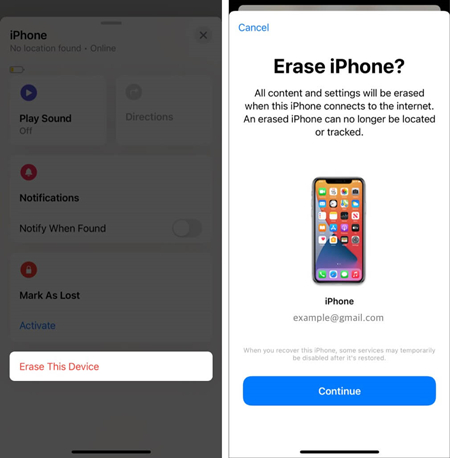
Step 1. Open the Find My app on your other Apple device.
Step 2. Tap Devices at the bottom of the screen.
Step 3. Select your iPhone and tap Erase or Erase This Device on the next page.
Step 4. Tap Continue and enter your Apple ID password to erase all data on the iPhone.
Part 5. FAQs about iPhone/iPad Screen Time Passcode Failed Attempts
Will my iPhone erase after 10 failed Screen Time passcode attempts?
No, your iPhone will not erase after 10 failed Screen Time passcode attempts. You will just face a temporary lockout for 60 minutes. Then you can use your device with the correct passcode.
Can I reset Screen Time without Apple ID?
Yes, you can use a Screen Time remover like MagFone iPhone Unlocker to reset Screen Time without Apple ID.
How to reset iPhone without Screen Time passcode?
When you set a Screen Time passcode on your iPhone, you need to enter the Screen Time passcode for a factory reset. But you can use iTunes or MagFone iOS System Recovery to reset iPhone without Screen Time passcode.
What to do if you forgot your Screen Time passcode?
If you forgot your Screen Time passcode, you can reset the forgotten Screen Time passcode with your Apple ID password. Or you can use a Screen Time passcode remover to delete the forgotten Screen Time passcode.
Part 6. Conclusion
After 10 failed Screen Time passcode attempts, you can only change the Screen Time passcode with your Apple ID and password. Or you can choose to turn off Screen Time passcode via iTunes or factory reset. But it will erase all the data and settings on the device. Here you can try MagFone iPhone Unlocker, which can quickly and conveniently remove the Screen Time passcode without data loss. Why are you still hesitant? Have a try of MagFone iPhone Unlocker, and you'll find out.

Dylan Jones
Editor in chief





