








The authentication method used on iPhone, iPad, Mac, and other Apple devices is Apple ID. It contains user information and settings. When you sign in to all Apple services with a single Apple ID and password, your devices will work together seamlessly. With an Apple ID, you can access iTunes Store to download previous purchases, sign in to Apple Music, find your lost device, and enjoy other features. Thus, it's important to keep your Apple ID and password.
If you want to sell, give away, or trade in your iPhone, then you should first transfer information to your new device. Besides, the most important thing you need to do is to remove Apple ID from iPhone. So, your personal information on your iPhone will not get compromised. Keep reading this article to see how to remove Apple ID from iPhone in several ways, even if you forgot your Apple ID password. Let's check out now!

- Part 1. How Can I Remove Apple ID from iPhone?
- Part 2. How to Take Apple ID Off iPhone with Password
- Part 3. How to Remove Apple ID from iPhone without Password [Find My Off]
- Part 4. How to Delete Apple ID on iPhone without Password [Find My On/Off]HOT
- Part 5. How to Remove An iPhone from Apple ID Device List
- Part 6. Conclusion
Part 1. How Can I Remove Apple ID from iPhone?
Removing an Apple ID from an iPhone is often necessary when preparing to sell your device, troubleshooting account issues, or setting up a second-hand iPhone. There are several ways of helping you remove Apple ID from iPhone, either from your iPhone directly or on your computer. The following is a summary table of removing Apple ID from iPhone.
| Methods | Need an Apple ID Password | Data Loss | Ease to Operate |
|---|---|---|---|
| Log out in Settings | ✅ | ❎ | Easy |
| Remove at iCloud.com | ✅ | ❎ | Medium |
| Reset at iforgot.com | ❎ | ❎ | Medium |
| Factory Reset in Settings | ❎ | ✅ | Medium |
| Restore with iTunes | ❎ | ✅ | Medium |
| Apple ID Removal | ❎ | Varies | Easy |
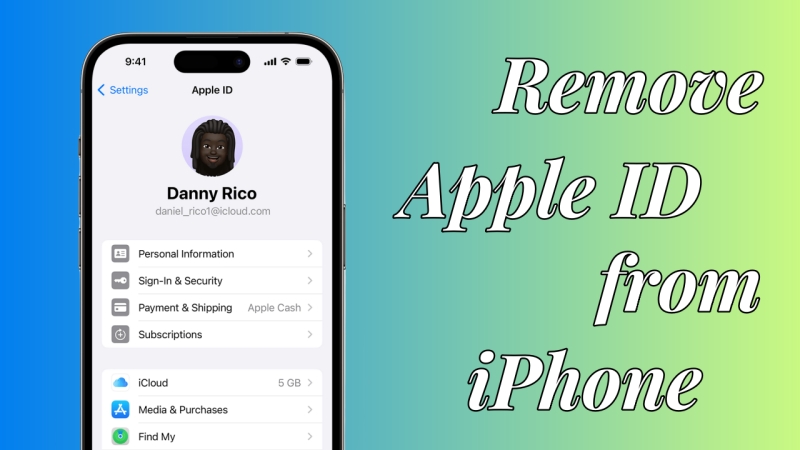
Before learning how to, you can watch the following video about removing Apple ID from iPhone first. In the video, we'll show you how to delete Apple ID from iPhone step by step. Then, go on reading the post to learn the detailed steps.
Part 2. How to Take Apple ID Off iPhone with Password
If you can remember your Apple ID password, you can remove or delete Apple ID on your iPhone at any time before selling it or giving it away. By following the methods below, you can easily get rid of Apple ID on your iPhone directly or remotely.
Option 1. Sign Out of Apple ID from iPhone in Settings
Provided you remember your Apple ID password, you can go to log out of Apple ID on iPhone directly. Now you can perform the following steps to quickly sign out of your Apple ID on your iPhone.
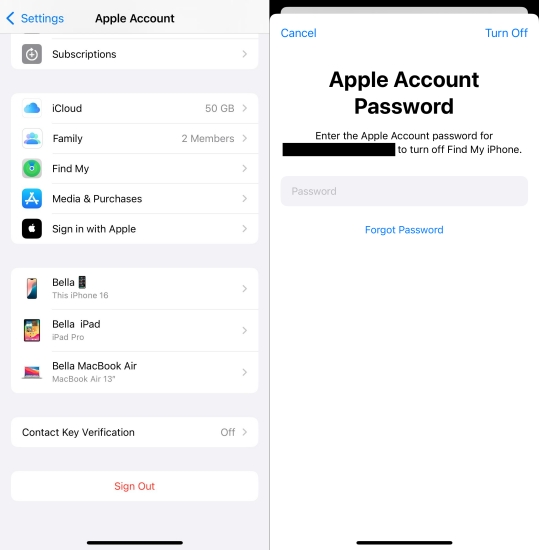
Step 1. Power on your iPhone and go to Settings then tap your profile.
Step 2. Scroll down and tap Sign Out, then choose Erase this iPhone.
Step 3. Follow the prompts to enter your Apple ID password. After the iPhone is erased, the Apple ID will also be removed from the iPhone.
Option 2. Delete Apple ID on iPhone via iCloud Find Website
By signing into iCloud with your Apple ID credentials, you can remotely erase your iPhone and remove your device from Apple ID. Here's how to unlock iPhone from Apple ID at iCloud.com.
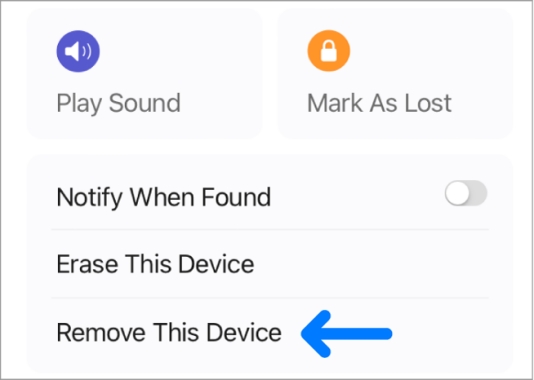
Step 1. Go to iCloud.com in a browser and log in to iCloud with your Apple ID and password.
Step 2. Access the iPhone from the Devices list, then click Erase.
Step 3. Click Next, and enter the Apple ID password to erase the iPhone remotely.
Option 3. Delete Apple ID on iPhone via iforgot.com Password Reset
If you can no longer remember the linked Apple ID password, you can first reset the Apple ID password online, then sign out of Apple ID on the iPhone with the new password.
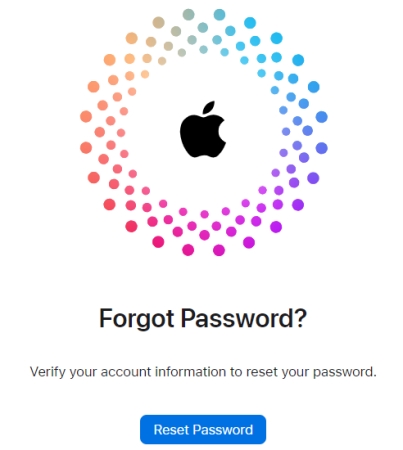
Step 1. Go to Apple's iForgot website in a browser on your device.
Step 2. Click Reset Password, then enter your Apple ID email address.
Step 3. Follow the prompts on screen to reset your Apple ID password.
Step 4. After resetting, go to iPhone Settings to sign out of Apple ID with the new password.
Part 3. How to Remove Apple ID from iPhone without Password [Find My Off]
In most cases, users can no longer access the Apple ID email or other linked information, so they can't remove the Apple ID from the iPhone. There are chances that you can remove Apple ID from iPhone without a password when Find My is off on the iPhone. In this situation, you can factory reset your iPhone to delete Apple ID, but this will erase all content and data on your device. Just follow the steps below to remove Apple ID from your iPhone without password.
Method 1. Erase Apple ID from iPhone via Factory Reset (Data Loss)
Resetting an iPhone is a common fix for many iPhone problems, but it can also help you remove Apple ID from your iPhone. This will reset your iPhone to factory settings. If you confirm to erase your Apple ID on your device, then do the following.
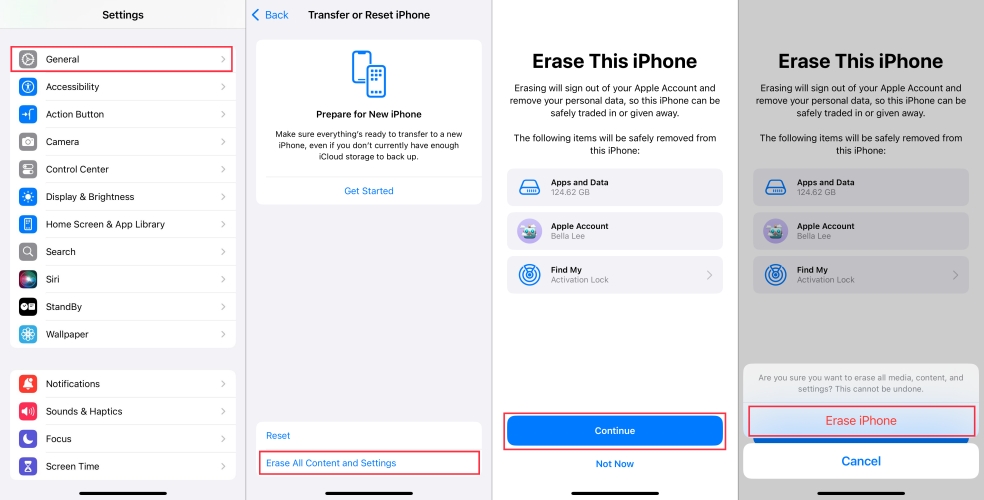
Step 1. Turn on your iPhone and tap Settings > General.
Step 2. Under General, find Transfer or Reset iPhone and tap it.
Step 3. Select Erase All Content and Settings and tap Continue.
Step 4. Enter the screen passcode and tap Erase iPhone to confirm. Then your Apple ID will be signed out.
Method 2. Erase Apple ID from iPhone via iTunes Restore (Data Loss)
With iTunes, you can not only sync your Apple device but also restore it to erase all the data, including Apple ID. Make sure that you have disabled Find My iPhone on your iPhone. Then you can use iTunes to restore your iPhone for removing Apple ID.
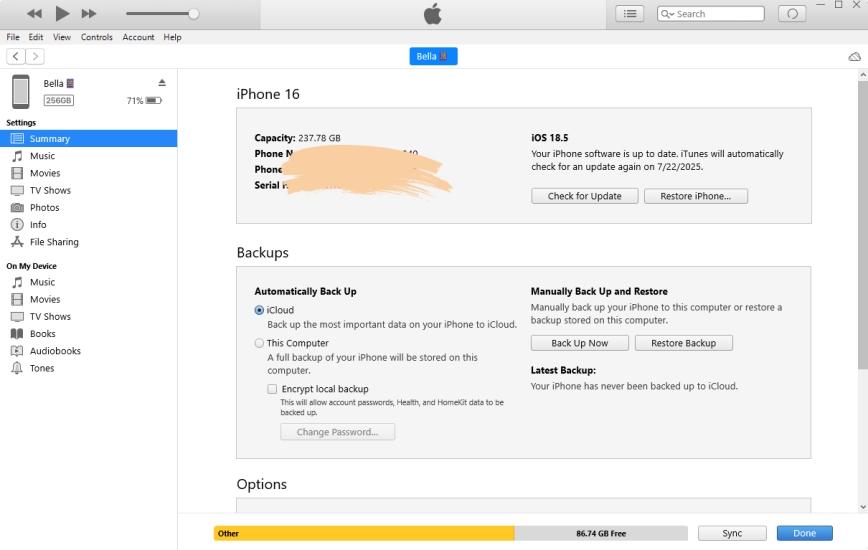
Step 1. Connect your iPhone to your computer via a USB cable and launch iTunes.
Step 2. Click on the device icon in iTunes and then click the Summary tab.
Step 3. Find the Restore iPhone option and click it; then it will pop up a notification.
Step 4. Enter the iTunes account credentials and click Restore to confirm. All the data and content on your iPhone will be removed, including Apple ID.
Part 4. How to Delete Apple ID on iPhone without Password [Find My On/Off]
When Find My is off on iPhone, you can easily remove an Apple ID from iPhone without the Apple ID password. But most users are stuck with Find My iPhone enabled. In this case, MagFone iPhone Unlocker stands out to help users who have problems unlocking Apple devices, such as iPhone, iPad, and iPod touch. It supports unlocking various types of screen locks, including 4-digit and 6-digit passcodes, Face ID, and Touch ID. Moreover, it can turn off Find My service on Apple devices and remove Apple ID on iPhone, iPad, and iPod, as well as get rid of MDM restrictions and Screen Time lock. Follow the steps below to use MagFone iPhone Unlocker to remove Apple ID from your iPhone without the password and even without data loss in some cases.

MagFone iPhone Unlocker
Remove Apple ID from iPhone, iPad, or iPod Touch without password, even without data loss.
Step 1 Connect iPhone to Computer and Select Unlock Apple ID
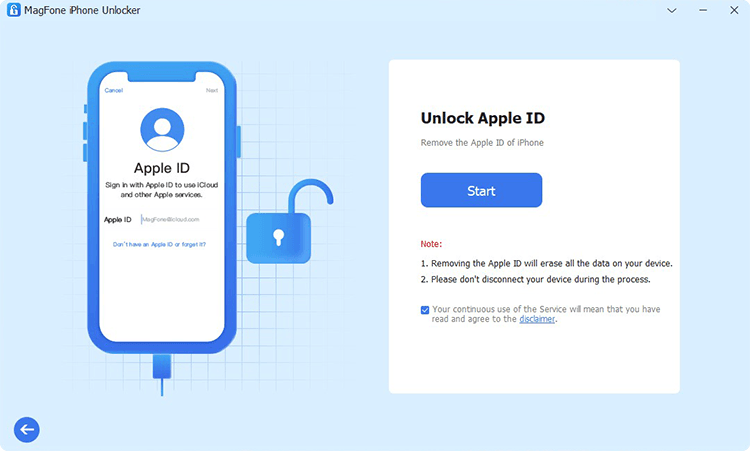
Connect your iPhone to your computer through a USB cable and then launch MagFone iPhone Unlocker. Your device will be detected by MagFone program. Select the Unlock Apple ID option on the interface of MagFone program then click Start.
Step 2 Confirm Apple Device Status
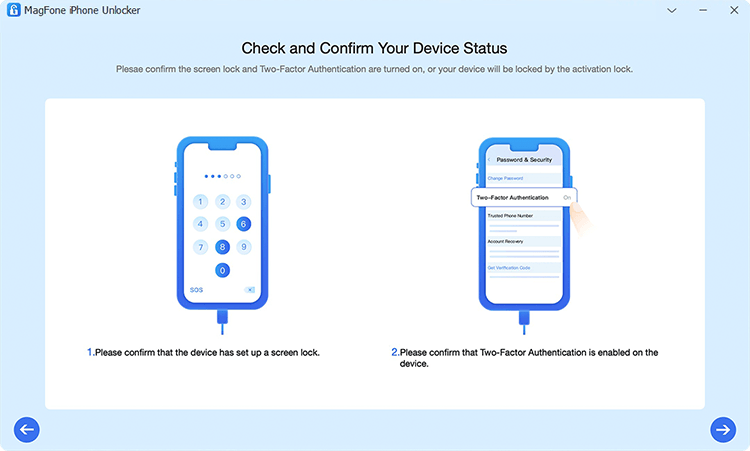
Confirm that the lock screen passcode and 2FA is enabled or set on this iPhone. Then click Yes twice.
Step 3 Download and Verify the Firmware Package for iPhone

Check whether the firmware details match those of your iPhone and click the Download button to download the firmware package. If the information of your device is wrong, manually correct it and select the matching firmware to download.
Step 4 Remove Apple ID from iPhone Without Passwordr
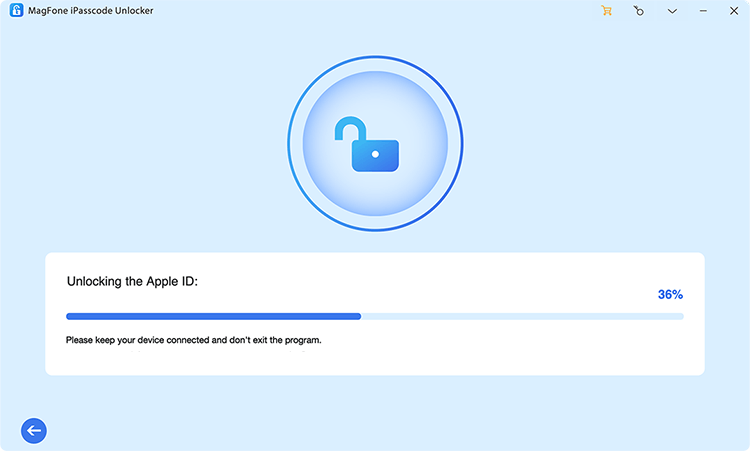
Once the download is complete, click the Unlock button to remove Apple ID from your iPhone. Ensure the iPhone stays connected during the entire process. It only takes a few minutes to remove Apple ID from your device.
Note:
In some cases, the iPhone Locked to Owner screen may appear after the operation. Use Unlock iCloud Activation Lock feature to resolve the issue and regain full access to the device.
Part 5. How to Remove an iPhone from Apple ID Device List
For those who need to sell or give away iPhones, you can't miss removing the device from your Apple Account. Once an iPhone is removed and unlinked from your Apple ID, the iPhone can be fully used by the next owner. You can remove an iPhone from an Apple ID on an iPhone, iPad, or a Mac.
Remove iPhone from Apple ID Device List on iPad
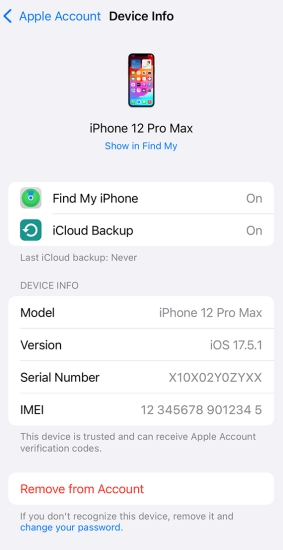
Step 1. Use an iPad or iPod touch and go to Settings > Your Name.
Step 2. Find your iPhone and tap the device to see its details.
Step 3. Tap Remove from Account and then tap it again to confirm that you want to remove the device from Apple ID.
Remove iPhone from Apple ID Device List on Mac
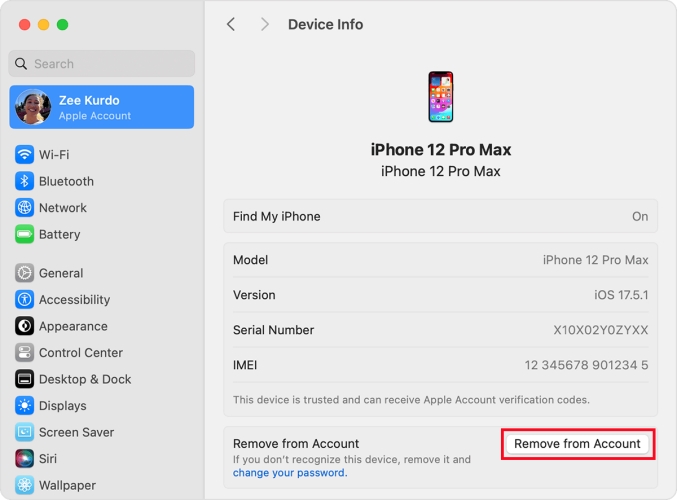
Step 1. On a Mac, click System Preferences > Apple ID.
Step 2. In the pop-up window, find your iPhone.
Step 3. Click the device to show its details and click Remove from Account.
Step 4. Confirm to remove your device from Apple ID by clicking Remove from Account again. Then your device will be removed from your Apple ID.
Part 6. Conclusion
And voila! Here's how to remove Apple ID from iPhone. It would be pretty easy to log out of your Apple ID on your iPhone with password. But when forgetting your Apple ID password, don't feel depressed and you can use MagFone iPhone Unlocker to get rid of Apple ID from your iPhone. Give it a try, and you'll find out. Leave a comment below and share your knowledge with the rest of us!

Dylan Jones
Editor in chief





