








Maintaining the right screen timeout settings on your iPhone ensures optimal battery life and a seamless user experience. Whether you want your screen to stay on longer while reading or save battery by reducing the timeout duration, adjusting this setting is simple. In this guide, we will walk you through how to change screen timeout on iPhone with step-by-step instructions. Also, we will share some tips about screen timeout on iPhone. Let's dive into the details.
- Part 1. What Is Screen Timeout on iPhone?
- Part 2. How to Change Screen Timeout on iPhone
- Part 3. Troubleshooting: Can't Change Screen Timeout?
- Part 4. FAQs about Screen Timeout on iPhone
- Part 5. Conclusion
Part 1. What Is Screen Timeout on iPhone?
Screen timeout, also referred as to Auto Lock, is a feature that is responsible for turning off the display of your iPhone due to inactivity after a period of time. By default, the iPhone comes with a pre-set Auto-Lock duration, but you can easily adjust it to fit your preferences. When using your iPhone, you can reset the screen timeout to save battery life and prevent accidental touches.
Part 2. How to Change Screen Timeout on iPhone
After a period of inactivity, your iPhone dims and automatically locks, and you need to unlock your iPhone by entering the passcode or using Face ID, which brings some inconveniences. To avoid this inconvenience, you can adjust the screen timeout on your iPhone as you expect. To control screen timeout on the iPhone, follow the steps below.
Option 1. Adjust Screen Timeout on iOS 7 or Later
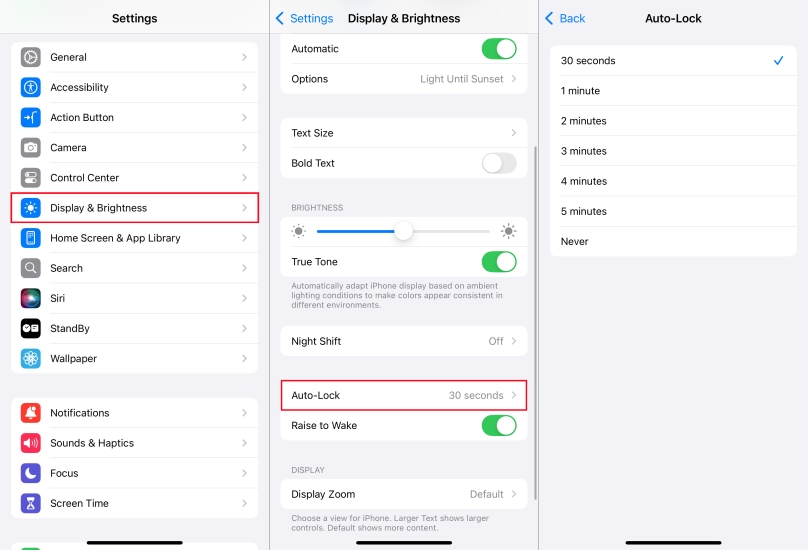
Step 1. Open the Settings app from the Home screen and tap Display & Brightness.
Step 2. Tap Auto-Lock, then choose the timer you want your iPhone to keep on.
Option 2. Adjust Screen Timeout on iOS 6 or Below
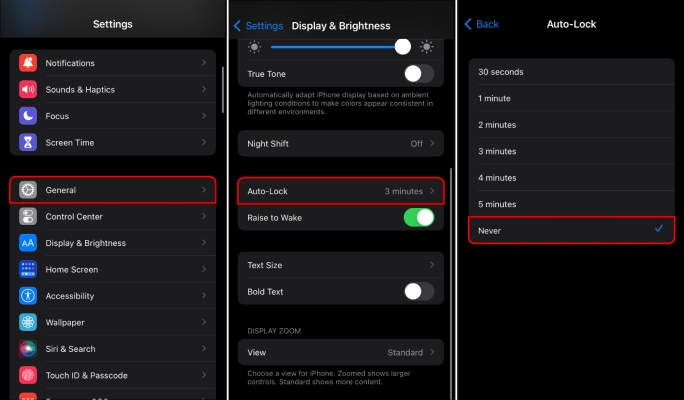
Step 1. Navigate to Settings on the iPhone and tap General > Auto-Lock.
Step 2. Under Auto-Lock, choose a timer to adjust the screen timeout on your iPhone.
Part 3. Troubleshooting: Can't Change Screen Timeout?
I have a new iPhone 14. I set the lock screen to time out at two minutes. However, it continues to time out after just a few seconds and I have to re-input the password again. I'd like to avoid that. What am I doing wrong?"
—— From the Apple Community
Many users encounter issues where their iPhone screen timeout is not working properly, either the screen stays on indefinitely, or turns off too soon, or they can't change the screen timeout on iPhone. Following the solutions below, you can fix these issues and ensure your device functions properly.
Solution 1. Disable Low Power Mode
Low Power Mode changes various settings to extend battery life, including auto-lock settings. If your iPhone screen turns off in a short interval, it might be due to this mode being active.
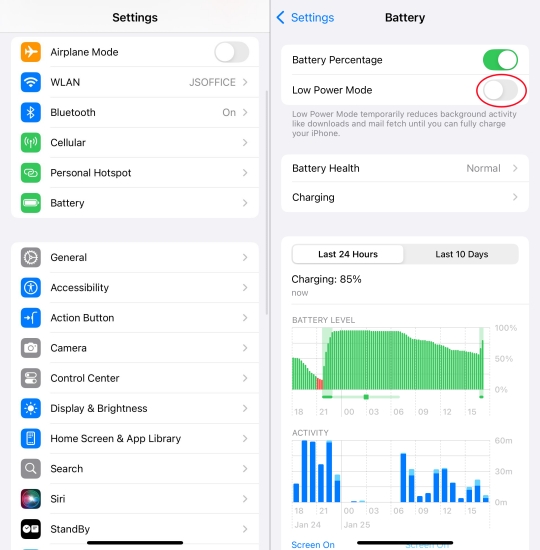
Step 1. Open Settings and navigate to Battery.
Step 2. Toggle off Low Power Mode.
Solution 2. Remove Management Profiles
When you are about to change the screen timeout on iPhone, only to find that the option is greyed out and you can't change the screen timeout, the most possible reason is that your iPhone is under management. If there is a management profile installed on your iPhone, you may be restricted from changing settings like screen timeout. To adjust the screen timeout successfully on an iPhone, you can remove the management profiles first. Here, MagFone iPhone Unlocker comes to the rescue.
With MagFone iPhone Unlocker, you can remove MDM profiles on your iPhone without a password and without data loss. Beyond that, you can experience more features like removing the lock screen passcode, unlinking Apple ID, and deleting the Screen Time passcode. Now let's see how to remove MDM using MagFone iPhone Unlocker:

MagFone iPhone Unlocker
Unlock various locks on iOS devices, including screen locks, MDM, Apple ID, and Activation Lock without needing a password.
Step 1 Connect between iPhone and Computer
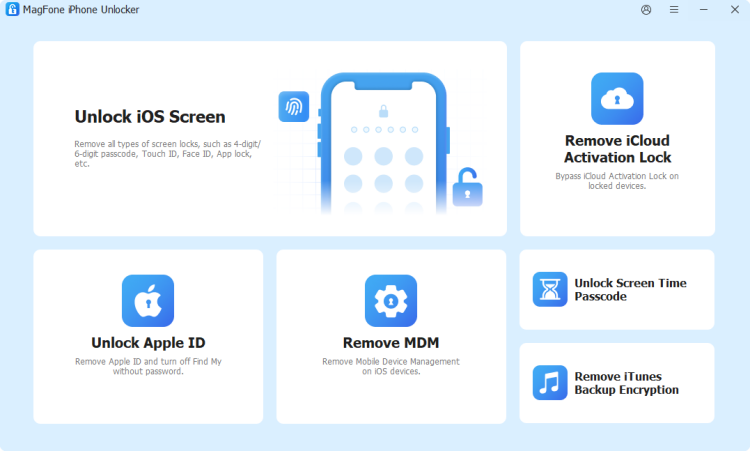
Launch MagFone iPhone Unlocker on your computer, then select the Remove MDM option. Now you have to connect your iPhone to the computer through a USB cable.
Step 2 Remove MDM from iPhone without Data Loss
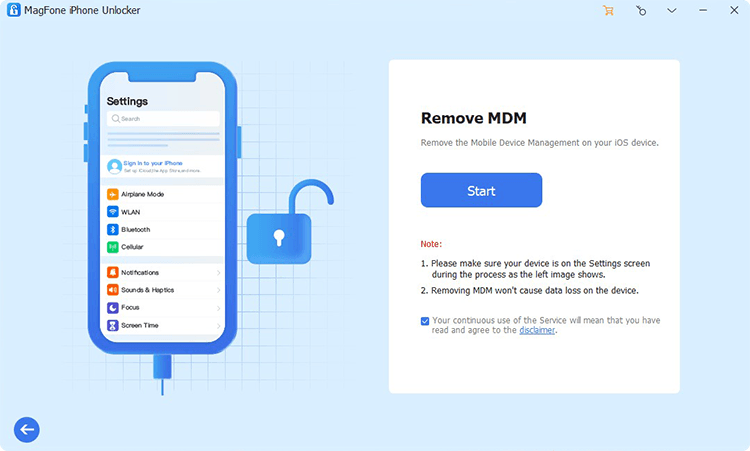
Trust the computer on your iPhone and open Settings on your iPhone. Then click the Start button to allow the tool to remove the MDM profiles on your iPhone.
Solution 3. Restart the iPhone
A simple restart can often resolve minor software glitches. If the screen timeout is not working on your iPhone, you can try restarting your iPhone to resolve the issue.
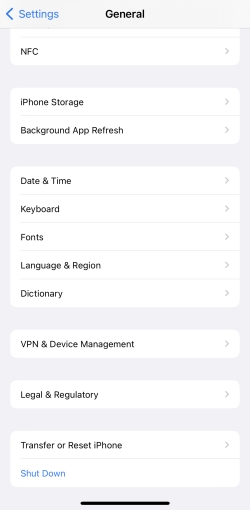
Step 1. Open Settings and tap General.
Step 2. Scroll to the bottom and tap Shut Down.
Step 3. Drag the power slider to turn off the device.
Step 4. Wait for 30 seconds and long-press the power button to restart it.
Solution 4. Check for iOS Updates
Software bugs can cause issues with screen timeout. Updating to the latest iOS version might fix the problem. Follow the steps below to get the iPhone updated to the latest iOS version.

Step 1. Navigate to Settings > General > Software Update.
Step 2. If an update is available, tap Download and Install.
Step 3. Tap Install Now and enter the screen lock passcode to confirm.
Solution 5. Reset All Settings
If you feel that the screen timeout works incorrectly and you can't figure out the culprit, resetting all settings can help reset them to the default state and let the screen timeout display normally. This won't delete any data and content on the device, but you need to configure iPhone settings after the reset.

Step 1. Access the Settings app and tap General > Transfer or Reset iPhone.
Step 2. Tap Reset > Reset All Settings.
Step 3. Enter the screen lock passcode and tap Reset to confirm.
Part 4. FAQs about Screen Timeout on iPhone
-
How to turn off screen timeout on iPhone?
If you want to disable the screen timeout on your iPhone, you can tap Settings > Display & Brightness > Auto-Lock and select the Never option. Then your iPhone won't automatically lock even if you don't use it for a long time.
-
How to keep lock screen on longer iPhone?
According to iPhone users, the lock screen timeout is much shorter after updating the system, so they don't have much time to operate on the lock screen. To keep the iPhone lock screen on longer, you can enable the Always-On Display feature. This lets the screen stay on in a dimmed state so you have more time to check information.
-
How to disable screen timeout for certain apps on iPhone?
Screen timeout for certain apps is related to your Screen Time setting. To disable app limits on your iPhone, go to Settings > Screen Time > App Limits and disable the timeout for certain apps.
Part 5. Conclusion
Adjusting your iPhone's screen timeout is a simple yet effective way to enhance battery life, improve usability, and customize your device to your needs. By following the steps outlined above, you can easily adjust the screen timeout on your iPhone. If you encounter the iPhone screen timeout not working issue or you can't change the screen timeout, simply try the solutions introduced in this guide to resolve it.

Dylan Jones
Editor in chief





