








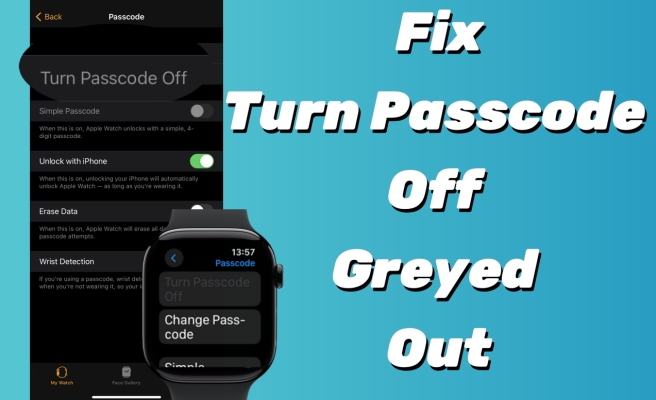
Whether setting up Touch ID or Face ID, you are required to use a passcode to unlock your device after restarting it. You can choose to use a digit numeric code, a custom numeric code, or a custom alphanumeric code. Also, you can turn the passcode off in your device's settings. However, some users reported both the Turn Passcode Off and Simple Passcode options are greyed out but don't know how to solve it. Are you going through the same issue now? Next, we'll provide several ways to help you fix Turn Passcode Off greyed out on iPhone and solutions when iPhone won't let you turn off passcode.
- Part 1. Why Is Turn Passcode Off Greyed Out on iPhone?
- Part 2. How to Fix iPhone Turn Passcode Off Greyed Out
- Part 3. Solutions to the iPhone Won't Let Me Turn Off Passcode
- Part 4. Conclusion
Part 1. Why Is Turn Passcode Off Greyed Out on iPhone?
If you've tried to turn off the passcode on your iPhone and found that the Turn Passcode Off option is greyed out, it's likely due to certain settings or security measures:
- Face ID is set up.
- Stolen Device Protection is turned on.
- Mobile Device Management (MDM) profile has been installed on your iPhone.
- Parental controls or exchange policies are applied on your iPhone.
- There are cards requiring passcode in Apple Wallet.
Part 2. How to Fix iPhone Turn Passcode Off Greyed Out
If you're dealing with a greyed-out Turn Passcode Off option, the good news is that you can often restore control over your passcode by checking and adjusting a few key settings. Below are several proven methods you can try.
Method 1. Turn Off Face ID
If you are using Face ID on your iPhone, you will see Passcode is required when Face ID is set up. Face ID can sometimes be tied to your passcode settings, if you want to turn off iPhone passcode, you need to first turn off Face ID.
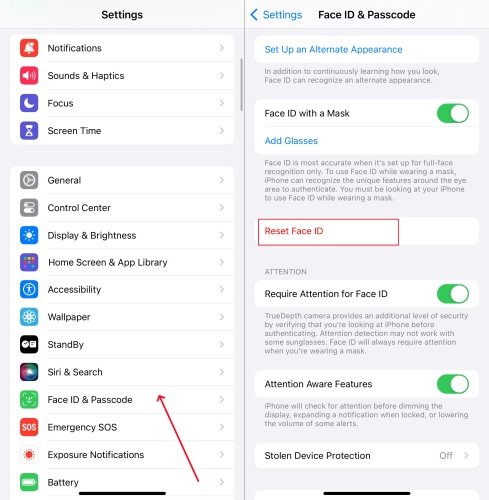
Step 1. Go to iPhone Settings > Face ID & Passcode.
Step 2. Tap Reset Face ID.
Method 2. Disable Stolen Device Protection
When the security setting Stolen Device Protection is enabled on your iPhone, you are restricted to change passcode and turn off passcode. And you will see Passcode is required when Stolen Device Protection is turned on. You need to turn off Stolen Device Protection first, then try turning passcode off on iPhone.
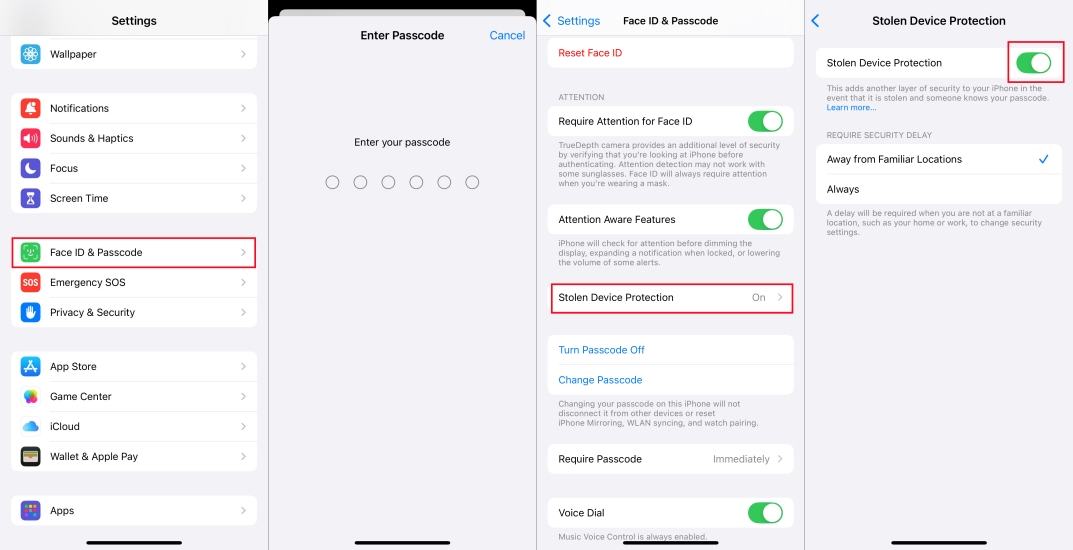
Step 1. Go to iPhone Settings > Face ID & Passcode.
Step 2. Tap Stolen Device Protection and turn it off. You will be required to start a security delay before you can turn off iPhone passcode.
Method 3. Delete Managed Email Accounts
The security mechanism of your work or school email account would prevent you from changing the security settings on your device. If you have added an email account on your iPhone or iPad, you can remove it to solve this problem. Here's how to remove an email account.
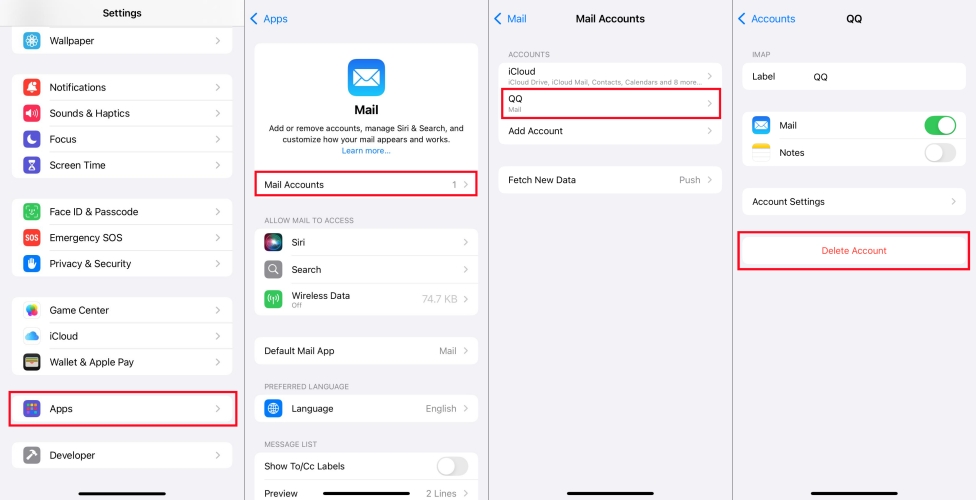
Step 1. Open Settings on your device and tap on Mail > Accounts.
Step 2. Select your work email account and tap on Delete Account.
Step 3. Tap on Delete from My iPhone to confirm that you want to remove.
Method 4. Remove MDM Profiles
If your iPhone is under the restriction of Mobile Device Management, then you don't have the right to change the settings on this device. With the configuration profile installed, the option to turn the passcode off would be greyed out. You can delete the configuration profile on your iPhone or iPad, then you can disable the passcode.
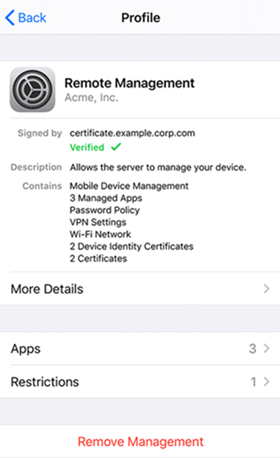
Step 1. Locate Settings on your device and tap on General.
Step 2. Select VPN & Device Management, then tap on Configuration Profile.
Step 3. Tap on Remove Management or Remove Profile and enter your device passcode to confirm.

MagFone iPhone Unlocker
If you don't know the MDM removal password, MagFone iPhone Unlocker helps you remove any MDM lock without a password and data loss.
Method 5. Reset All Settings
If the problem persists, your iPhone's system settings may be corrupted or conflicting. Using Reset All Settings restores system settings to their defaults without erasing your personal data, which can fix many unusual glitches.

Step 1. Head to Settings > General and select Transfer or Reset iPhone.
Step 2. Tap Reset > Reset All Settings.
Step 3. Enter your screen passcode to confirm.
Method 6. Remove Cards in the Wallet App
If you have car keys or transit cards set up in Apple Wallet, iOS requires a passcode as a security measure. If you the Turn Passcode Off is disabled on your iPhone, you can try removing all cards in Apple Wallet. This is a method proven by many Apple users in Reddit.
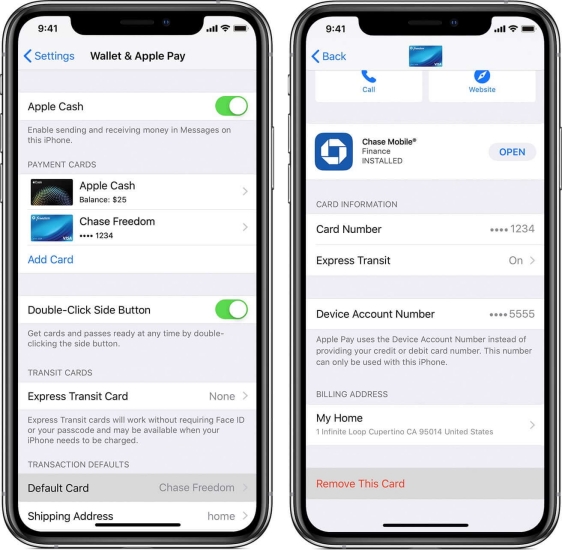
Step 1. Open iPhone Settings and tap Wallet & Apple Pay.
Step 2. Tap the credit card or debit card, scroll to the bottom, and tap Remove This Card.
Step 3. Tap Remove to confirm.
Part 3. Solutions to the iPhone Won't Let Me Turn Off Passcode
If you've tried adjusting your iPhone's settings but still can't turn the passcode off, you may need to remove it using some additional methods. While these methods involve data loss, they are effective at resolving deep-seated problems related to the passcode and system settings. If you're okay with erasing data, the following solutions can help.
Method 1. Remove Screen Passcode via Passcode Unlocker
If you're still unable to turn off the passcode due to the option being greyed out, using a passcode unlocker like MagFone iPhone Unlocker can be a quick and easy solution. MagFone iPhone Unlocker is a powerful tool designed to remove screen locks, including Face ID, Touch ID, and numeric passcodes, on iPhones, iPads, and iPod touch. It can help you delete the screen passcode so as to fix the greyed-out passcode issue. In addition to unlocking screen passcodes, it can also remove Apple ID, Screen Time passcodes, and MDM restrictions. If you're pursuing efficiency and success rate, MagFone iPhone Unlocker is a great choice.
MagFone iPhone Unlocker
Unlock various locks on iOS devices, including screen locks, MDM, Apple ID, and Activation Lock without needing a password.
Step 1 Connect Device to Computer

The first step is to connect your iPhone or iPad to your computer with a USB cable. Then you can open MagFone iPhone Unlocker on the computer and select the Unlock iOS Screen option, then click on the Start button.
Step 2 Put Device into Recovery Mode
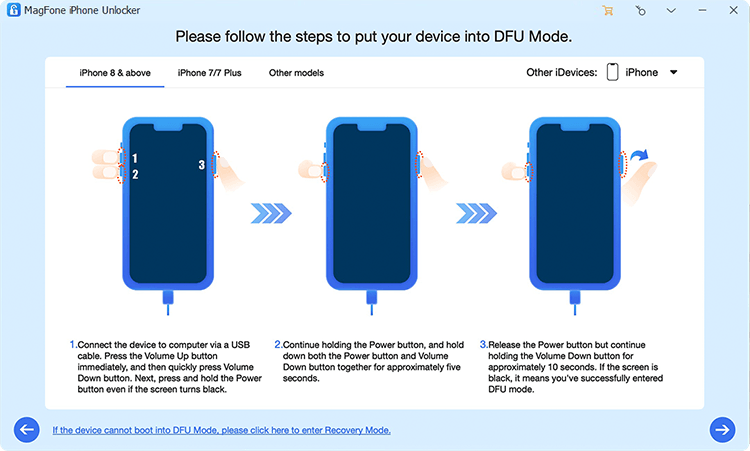
The next step is to put your device into recovery mode by following the onscreen instructions. You can do it according to your device model. If you cannot do it, you can click the link on the software to boot your device into DFU mode.
Step 3 Download the Firmware Package

The third step is to download the firmware for your device. Before that, you need to check the device information shown on the software. If the information is wrong, simply correct it. Then click on the Download button to get the firmware package.
Step 4 Remove Passcode from Device

The last step is to click on the Unlock button, then it will let MagFone iPhone Unlocker remove the screen passcode from your iPhone or iPad. Keep your device connected to the computer until the process finishes. Then the screen passcode will be removed by MagFone.
Method 2. Delete Screen Passcode via iTunes
iTunes can help you update or restore your device by downloading the software for the device. To remove the screen passcode, you can use iTunes to restore your iPhone or iPad. Then you can get your device back to factory settings. Here's how to.
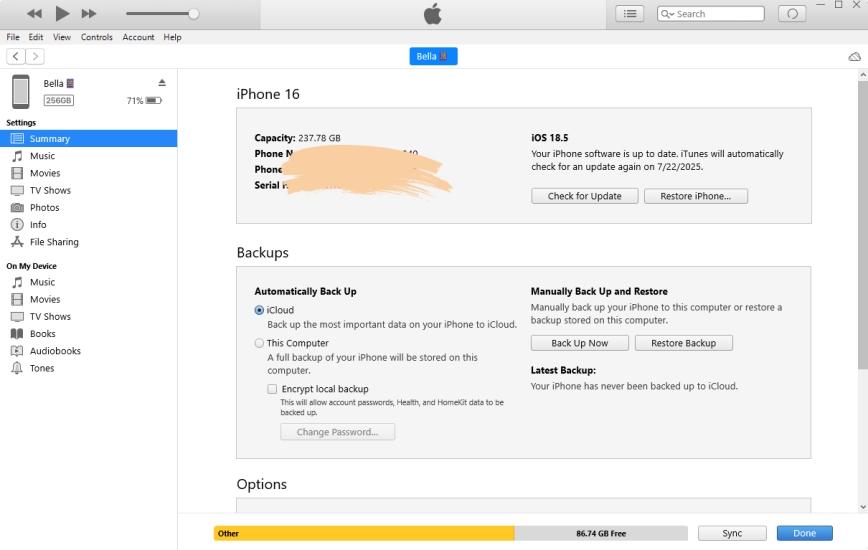
Step 1. Connect between your iPhone and computer by using a USB cable.
Step 2. Launch iTunes and click on your device, then go to the Summary tab.
Step 3. Click on the Restore iPhone button. Then your iPhone will be reset to the default factory settings.
Method 3. Wipe Out Screen Passcode in iCloud
If you can remember your Apple ID and password, you can log into iCloud to remotely erase all the content and settings on your iPhone or iPad. After wiping out all the data, you can activate your device again and use it without the screen passcode. Here's how to proceed.
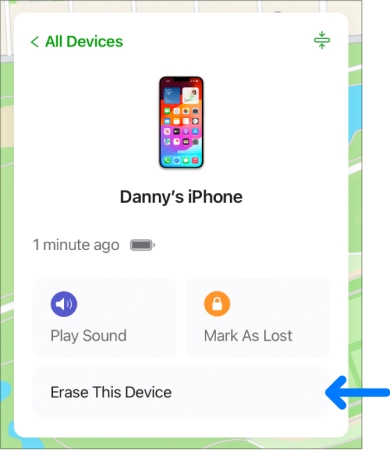
Step 1. Log into icloud.com by entering your Apple ID and password.
Step 2. Select Find My and click on the All Devices button on the top of the screen.
Step 3. Click on your device and click on the Erase This Device button.
Step 4. Tap Erase and enter your Apple ID password. Then your screen passcode will be removed.
Method 4. Erase Screen Passcode via Find My App
With the support of the Find My app, you can control and manage all the Apple devices where you use the same Apple ID. In the Find My app, you can reset your iPhone or iPad to factory settings to delete the screen passcode. Follow the below steps to remove the passcode.
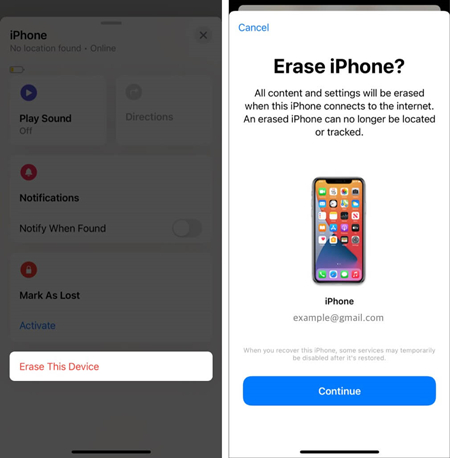
Step 1. Run the Find My app on your Device and tap on Devices.
Step 2. Select your Device and tap on Erase This Device, then tap on Continue.
Step 3. Enter your trusted phone number and tap on Erase.
Step 4. Enter your Apple ID password and tap on Erase again to confirm.
Part 4. Conclusion
A greyed‑out Turn Passcode Off option usually means your iPhone is following extra security rules from features, profiles, or payment cards. By checking things like Face ID, Stolen Device Protection, work or school accounts, MDM, and Wallet, you can often fix the issue directly in Settings. If that fails, using iCloud, the Find My app, iTunes, or MagFone iPhone Unlocker lets you remove the passcode completely, just remember this may erase your data, so back up first whenever possible.

Dylan Jones
Editor in chief





