








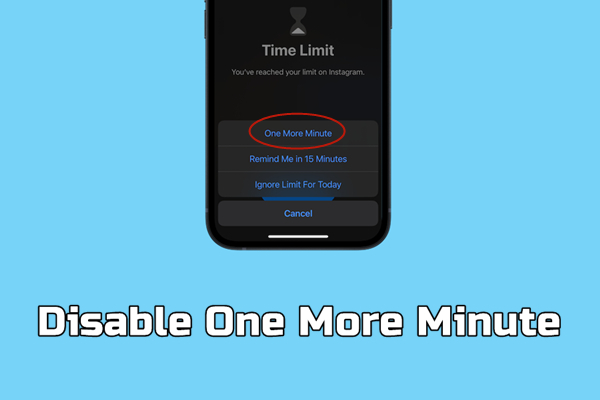
It sounds ridiculous that having set all the App and Time restrictions, kids can still continue using apps that are limited. That's because Apple adds the One More Minute feature in Screen Time. Tapping the One More Minute button can extend the duration of use of the iPhone. Many parents want to use the Screen Time feature to control the usage of their child's iPhone, but the One More Minute feature disrupts their plans. If so, can this option be disabled? In this article, we'll talk about how to disable One More Minute on Screen Time.
- Part 1. What Is Screen Time One More Minute?
- Part 2. How to Disable One More Minute On Screen Time
- Part 3. How to Block Screen Time One More Minute for Child [Family Sharing]
- Part 4. Bonus Tip: Disable Screen Time on iPhone without Passcode
- Part 5. Conclusion
Part 1. What Is Screen Time One More Minute?
What is One More Minute on Screen Time?
The One More Minute feature in Screen Time is designed to give users an extra 60 seconds to wrap up their activity before the app becomes inaccessible. However, this feature can be problematic for parents who rely on Screen Time to regulate their children's digital habits. It provides an easy loophole that children can exploit to exceed screen time limits, thereby reducing the effectiveness of parental controls. Thus, most parents consider it an issue.
Is it possible to remove One More Minute on Screen Time?
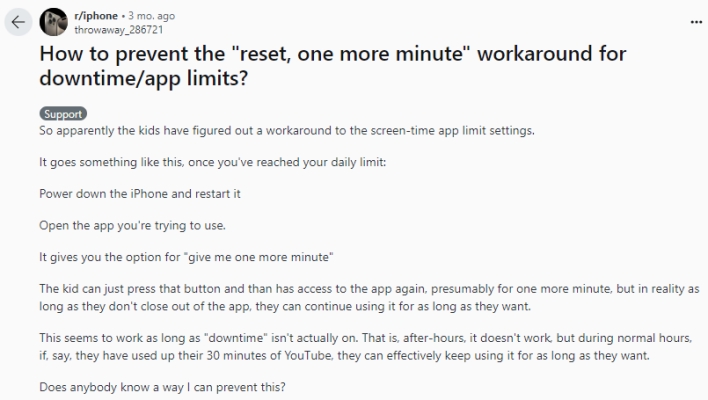
Some users have reported that the One More Minute option allows continued access beyond the intended minute in the Apple Community and Reddit. In this case, users can still use their device with the One More Minute option, although they set a time limit. So many parents wonder whether it is possible to disable One More Minute in Screen Time. In fact, there is no way to turn the One More Minute feature off on the iPhone.
Part 2. How to Disable One More Minute On Screen Time
Screen Time One More Minute cannot be removed. But this option will be disabled once you tap it. If you want to block extra mobile use, you can set up Block at End of App Limits, Block at Downtime, and Screen Time lock. Follow the steps below one by one.
Step 1. Set Up App Limit and Enable Block at End of Limit
When the limit expires, you can tap on One More Minute, Remind Me in 15 Minutes, or Ignore Limit for Today to easily bypass the Screen Time limits and continue using the iPhone. But if you turn on Block at End of Limit, you can only ask for one more minute or enter the Screen Time passcode.
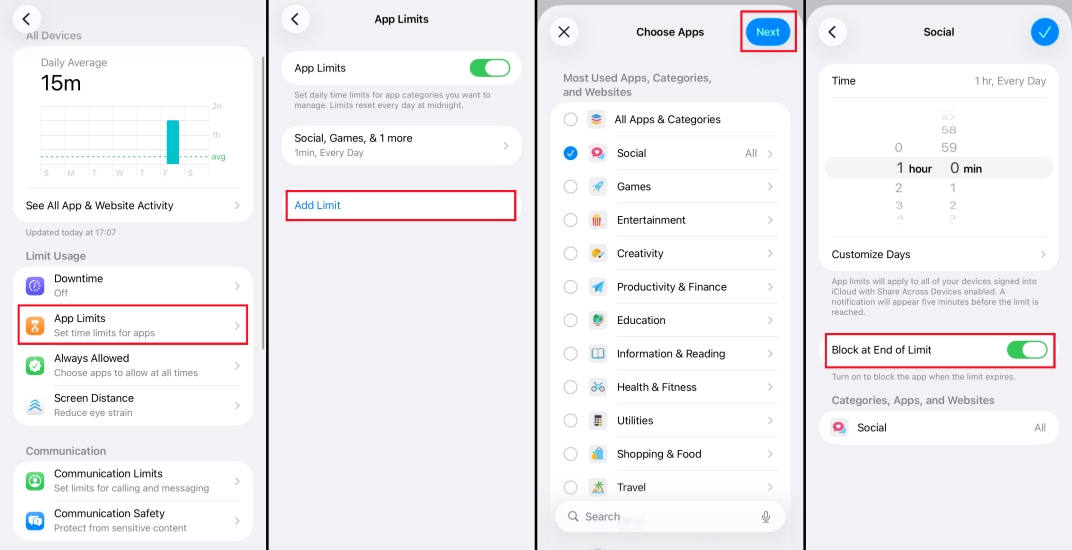
Step 1. Open Settings on your iPhone and tap Screen Time.
Step 2. Tap App Limits and tap Add Limit to customize your time limits.
Step 3. Also enable Block at End of Limit.
Method 2. Set Up Downtime and Block at Downtime
Downtime settings will also trigger time limits and the One More Minute option. If you set up Downtime, you need to enable Block at Downtime as well. During downtime, only calls, messages, and apps you choose to allow are available.
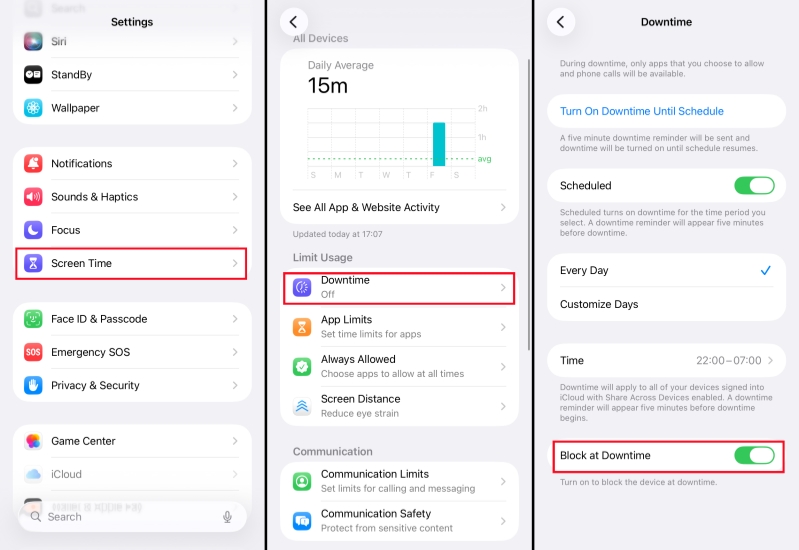
Step 1. Go to Settings and select Screen Time, then tap Downtime.
Step 2. Toggle Scheduled on and set your preferred downtime.
Step 3. Enable Block at Downtime to avoid additional app use.
Method 3. Lock Screen Time Settings
When App Limits and Downtime are successfully set, the next step is to lock these settings. With a Screen Time passcode set up, you will be required to enter the passcode to access the iPhone when the time expires.
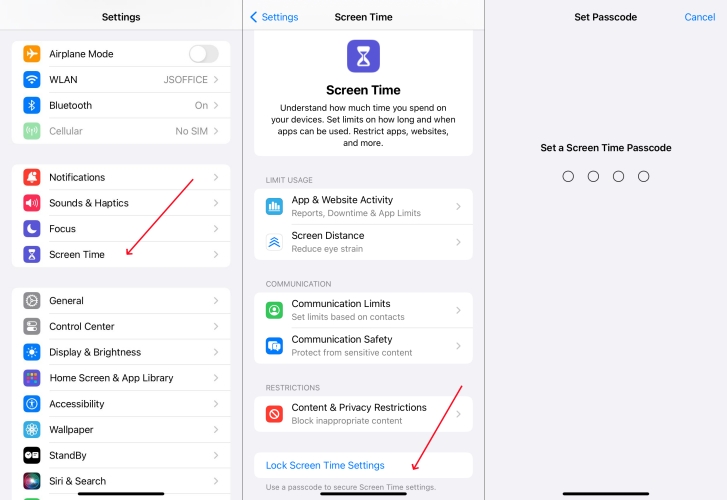
Step 1. In Settings on your iPhone, select Screen Time and tap Use Screen Time Passcode.
Step 2. Enter the Screen Time passcode you want to set for your child's iPhone, then enter it again.
Step 3. Enter an Apple ID to recover the Screen Time passcode if you forgot it.
Part 3. How to Block Screen Time One More Minute for Child [Family Sharing]
For Family Sharing members, the family organizer can manage Screen Time settings via Family Sharing. If you want to disable One More Minute for your child or restrict your child's use strictly, you can follow the steps below.
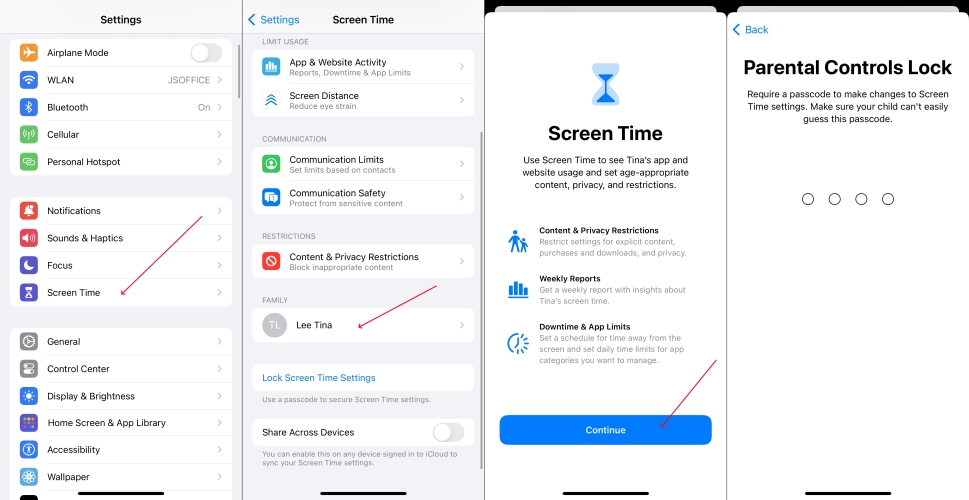
Step 1. Launch Settings and tap Screen Time.
Step 2. Under Family, tap your child's name.
Step 3. Follow the prompts to set up parental controls and set a Screen Time passcode.
Step 4. Tap App Limits and set up app limits for apps. Also enable Block at End of Limit.
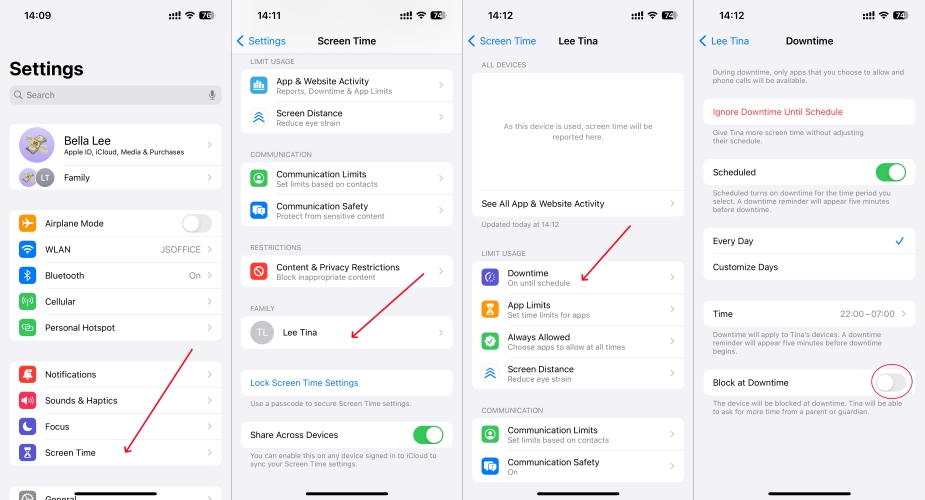
Step 5. Tap Downtime and set up a schedule; also enable Block at Downtime.
Part 4. Bonus Tip: Disable Screen Time on iPhone without Passcode
With the above methods, you can do something to disable One More Minute on Screen Time. However, some users want to get rid of One More Minute and access their iPhone without any limitation. In this case, you can turn Screen Time off on your iPhone with the passcode. If you forgot your Screen Time passcode, you can try using an Screen Time remover to fix this issue.
MagFone iPhone Unlocker is an almighty and professional unlocking tool, enabling you to remove various screen locks on the iPhone, iPad, and iPod touch. Beyond that, this tool can delete Screen Time, Apple ID, and MDM restrictions without a passcode and without data. If you are eager to delete time limit on your iPhone, you can consider using MagFone iPhone Unlocker.

MagFone iPhone Unlocker
Bypass Screen Time limits on iPhone and iPad without passcode and without data loss.
Step 1 Connect iPhone to Computer and Run MagFone
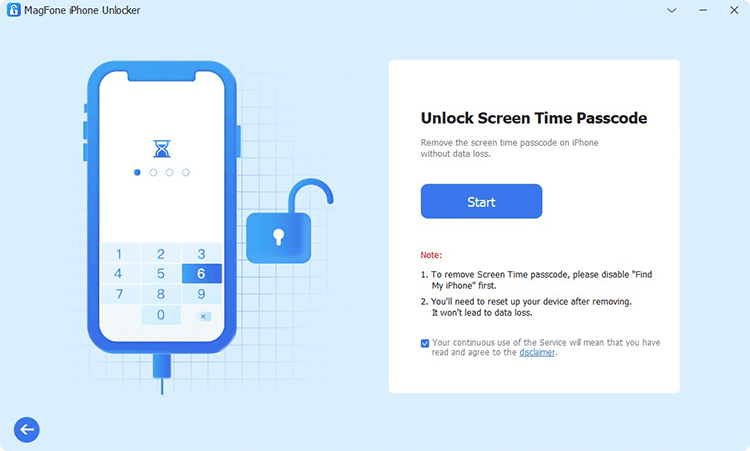
Start by running MagFone iPhone Unlocker on your computer, then connect your iPhone to a computer through a USB cable. On the main interface of MagFone software, select the Unlock Screen Time Passcode option and click the Start button.
Step 2 Remove Screen Time on iPhone without Passcode
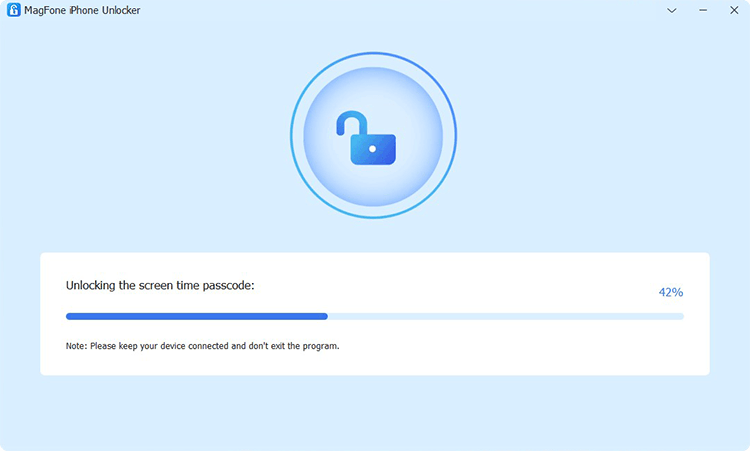
Go to disable the Find My feature on your iPhone first if you have turned it on. Simply tap Settings > [My Device] > Find My, then toggle Find My iPhone off. If you don't turn Find My on, you can directly skip this step and click the Unlock button.
Part 5. Conclusion
The above are the possible methods of disabling One More Minute on Screen Time. If you want to remove the One More Minute option on your child's iPhone, then you can try the aforementioned methods. By the way, you can use MagFone iPhone Unlocker to delete Screen Time on your iPhone without knowing the passcode.

Dylan Jones
Editor in chief




