








Most of you are usually stuck on the Google account verification screen after resetting an Android phone. This situation can be frustrating, especially if you no longer remember the original Google account details or purchase a second-hand device. In this case, a third-party FRP bypass tool like addROM Bypass could an ideal way for FRP bypass without a password. This guide explains what addROM FRP Bypass, how it works, its limitations and risks, and what safer alternatives you should consider before trying any FRP bypass method.
- Part 1. What Is addROM FRP Bypass?
- Part 2. Does addROM FRP Bypass Really Work?
- Part 3. How to Use addROM Bypass Android 14/13/12/11
- Part 4. What If addROM FRP Bypass Doesn't Work?
- Part 5. Conclusion
Part 1. What Is addROM FRP Bypass?
addROM FRP Bypass is an online platform where to access a collection of FRP bypass APK files and resources. These files claim to help users bypass Google account verification by allowing temporary access to device settings or system apps during the setup process. It is important to understand that addROM FRP Bypass APK is not an official Google or Android service. These APKs provided by addROM FRP Bypass typically aims to:
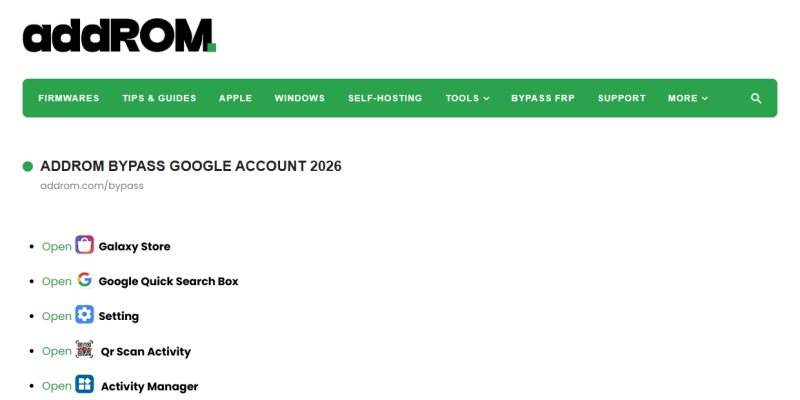
- Launch a browser or system app during the setup process
- Install a small APK file
- Gain limited and temporary access to device settings
- Allow the user to add a new Google account
addROM FRP Bypass is not associated with Google or Android manufacturers. And its effectiveness depends on device model, Android version, and security patch level. Reportedly, addROM FRP Bypass works on:
| Supported Android Versions | Android 5.0-9.0 |
| Supported Android Devices | Samsung, Xiaomi, Vivo, Oppo, Motorola |
Part 2. Does addROM FRP Bypass Really Work?
addROM FRP Bypass is often claimed to support Android 5.0 to Android 9.0, but there is no reliable evidence that it consistently works on newer Samsung, Xiaomi, or other models running Android 10 and above. The reasons for its less effective on newer Android devices is due to security patch level. Google frequently patches these loopholes. This results in addROM FRP Bypass may stop working at any time.
Unlike other FRP bypass tools such as vnROM FRP Bypass and GsmNeo FRP Tool, there is no discussion of addROM FRP Bypass APK yet. It isn't able to get a verification from real users whether addROM FRP Bypass actually works on those Android devices. However, we have tested addROM FRP Bypass APK on some Android devices like Samsung, Oppo, Vivio, and Xiaomi. The success rate of addROM FRP Bypass APK is unstable.
To conclude, addROM FRP Bypass may seem like a fix, but it is unreliable and risky, especially on modern Android devices. For newbies, the process of bypassing FRP with addROM FRP Bypass APK is a bit complicated. Either benefits or drawbacks of addROM FRP Bypass would be acceptable to you.
 Professional Benefits
- Benefits
- Work on older Android versions
- Not require a computer in some cases
- Free access to APK files

- Fail on newer Android versions
- Security risks from unknown APK sources
- No official support or guarantees
- Possible legal concerns if misused
Part 3. How to Use addROM Bypass Android 14/13/12/11
Before attempting any FRP bypass tool, including addROM FRP Bypass APKs, it is necessary to understand the real risks such as potential malware risks, exposure of personal data, and system instability after bypass attempts. Not mind the risks, follow this detailed instruction to bypass FRP with addROM FRP Bypass on a Motorola phone.
📝Preparation for Using addROM FRP Bypass:
A stable WiFi connection
A second Android device (optional)
A locked Motorola phone
Step 1 Connect to WiFi Network
Power on your Motorola phone and follow onscreen instructions until the Connect to WiFi screen appears. Select a WiFi network to connect and go back to the Hello screen. Tap Emergency call to load the emergency dial screen, then double tap the emergency info bar at the top. Tap the edit icon in the top-right corner and select Owner name or Add contact.
Step 2 Access Keyboard Settings
When the keyboard appears, tap and hold the globe icon until a small menu pops up. Select the last option related to language settings. Tap the prominent colored button to add keyboard and select a language with the arrow icon. On the next screen, tap three vertical dots in the top-right corner. Then select Help & feedback.
Step 3 Access the Chrome Browser
In the Help & feedback screen, use a search bar to type Use Morse code. Tap the Use Morse code search result and find a YouTube video to play. Tap the video title to open the YouTube app. In the top right corner, tap the profile icon and select Settings. Then go to History & privacy or about and tap YouTube Terms of Services. Wait to launch the Google Chrome browser.
Step 4 Download addROM FRP Bypass
Tap Accept & continue > No thanks to enter into the browser, then navigate to addrom.com/bypass. On the addROM bypass page, download Google Account Manager and FRP Bypass APK. Go to install Google Account Manager first. Tap Settings > Allow from this source > Back > Install to install Google Account Manager. Then install FRP Bypass APK.
Step 5 Use addROM FRP Bypass to Bypass FRP
After installation completes, tap Open to open FRP Bypass APK. On the password entry screen, tap the three vertical dots in the top right corner. Then you'll be redirected to a Google sign-in page. On the Google sign-in screen, enter Google account credentials you know. Wait to complete the sign-in, then the screen will close automatically.
Step 6 Restart Your Motorola Phone
Press and hold the Power button on your Motorola phone, then select Restart. After your device reboots, proceed through the initial setup steps again. Once reaching the account verification page, enter Google account credentials you've entered in Step 4. Tap Next and complete all setup steps. Finally, you will reach the phone's home screen.
Part 4. What If addROM FRP Bypass Doesn't Work?
Most users search for addROM FRP Bypass because they want to regain access to an Android phone locked by Google account verification without a password. However, addROM is one of several possible solutions, and not always the safest or most reliable. If you're looking for a more structured, reliable way to regain access to a locked Android device, MagFone Android Unlocker is a well-known tool that many users consider as an alternative to addROM FRP Bypass APK.
MagFone Android Unlocker is designed to help users remove screen locks like PIN, pattern, password, fingerprint, and face lock on dozens of Android devices when you can't get past the lock screen. Also, if your Android phone is locked by Google account verification, MagFone Android Unlocker can help you bypass Google Factory Reset Protection. The following are main differences between MagFone Android Unlocker and addROM FRP Bypass.
| Features | MagFone Android Unlocker | addROM FRP Bypass |
|---|---|---|
| Primary Purpose | Comprehensive Android unlocking solution | Web-based Google FRP bypass |
| Supported Lock Types | FRP, PIN, Pattern, Password, Fingerprint, Face Lock | FRP only |
| PC Required | ✔️ | ❌ |
| Ease of Use | Guided step-by-step interface | Manual navigation required |
| Android Version Support | Android 5 to newer versions | Android 5–9 |
| Brand Compatibility | Samsung, Xiaomi, Redmi, Oppo, Vivo,Realme, Motorola, and more | Samsung, Xiaomi, Vivo, Oppo, Motorola |
| Success Rate Stability | High and consistent | Depends on firmware and patch |
| Risk of Patch Failure | Lower | Higher on newer updates |
| Technical Skill Needed | Low to moderate | Moderate to high |
How to Bypass FRP Lock with MagFone Android Unlocker
Unlike addROM FRP Bypass which relies on installing an APK during device setup, MagFone Android Unlocker works on Windows and Mac computers, using a guided process to detect your phone and remove locks more directly. Here is how to bypass FRP on Android devices with MagFone Android Unlocker in several clicks.

MagFone Android Unlocker
Remove multiple kinds of screen locks on over 5000 Android devices and delete Google FRP lock without a password.
Step 1 Connect an Android Phone to MagFone
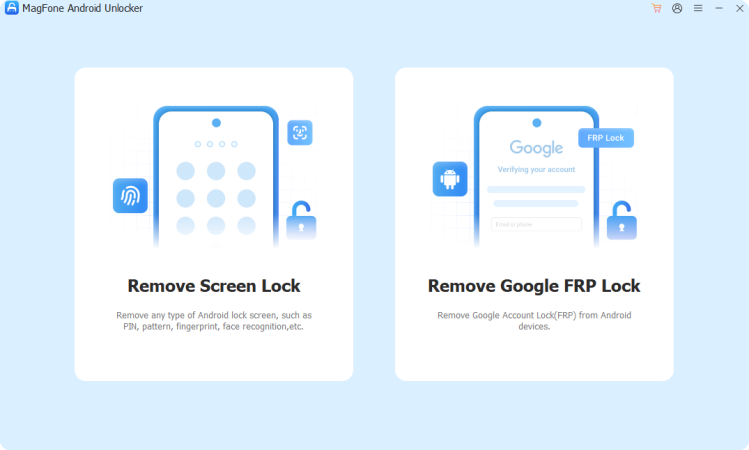
Download and install MagFone Android Unlocker, then run it and select Remove FRP Lock on the main interface. Use a USB cable to connect your Android phone to the computer.
Step 2 Wait for Detection and Select Android Version
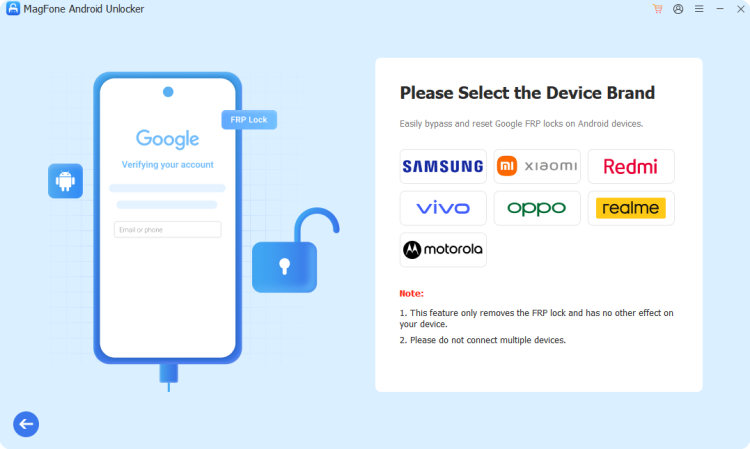
Wait for MagFone Android Unlocker to detect your device. If it fails to recognize your device, select your device brand and choose All Android Versions from the three options.
Step 3 Remove Google FRP on Android Phone
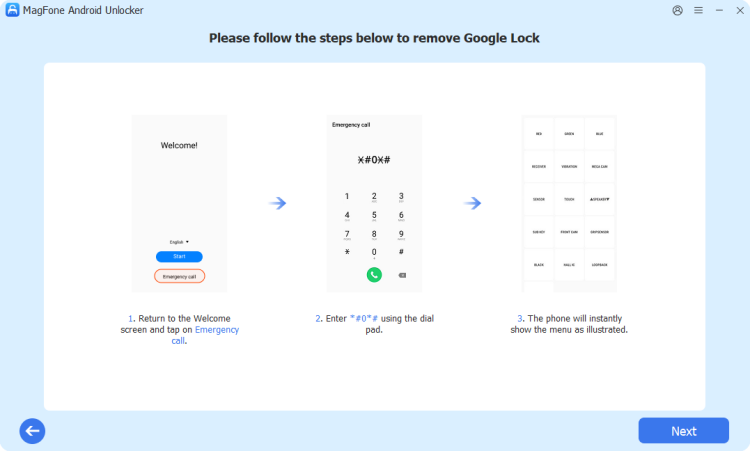
Proceed with the onscreen instructions on your device, then go back to click the Next button. In the removal process, tap Allow on your device to enable USB debugging.
Part 5. Conclusion
addROM FRP Bypass may appear attractive due to its free access. But it comes with security risks and legal concerns and may no longer work on newer Android devices. For most users, professional FRP bypass tools like MagFone Android Unlocker offers a more robust, guided, and beginner-friendly alternative to APK-only FRP bypass methods like addROM FRP Bypass. addROM FRP Bypas should only be considered as a last resort and only if you fully understand the risks involved.

Dylan Jones
Editor in chief





