








Android Utility Tool is an all-in-one utility program, helping Android users repair system issues, unlock screen locks, and bypass FRP protection. Many users may want to download the latest version for free. But before downloading and installing it for use, you should know whether this tool is right for you. This comprehensive guide will make a full introduction of Android Utility Tool, including its functions and limitations, for your reference.
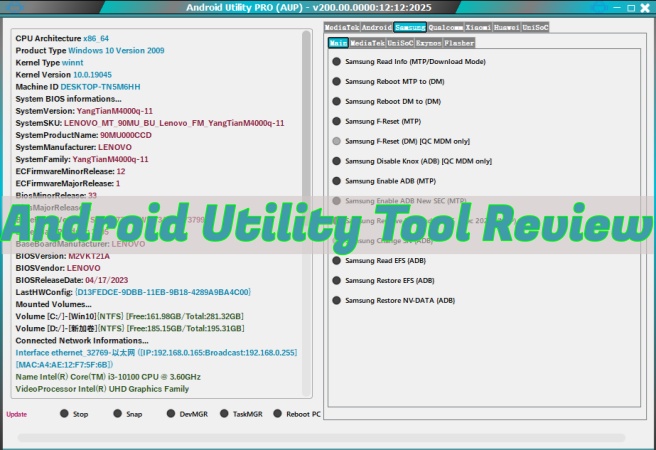
🚨 Where to download Android Utility Tool V200.01.0001?
Android Utility Tool V200.01.0001 is the latest version released in January. The latest version brings many meaningful improvements, including fully offline operation. If you have the demand to bypass FRP protection on a Samsung phone, Android Utility Tool V200.01.0001 is available now. It is easy to download it from third-party websites like Advanced Settings. Know more details about downloading and installing Android Utility Tool V200.01.0001 from the below content.
- Part 1. What Is Android Utility Tool?
- Part 2. How to Download Android Utility Tool
- Part 3. How to Use Android Utility Tool for FRP Bypass
- Part 4. Better Option than Android Utility Tool FRP Bypass
- Part 5. Conclusion
Part 1. What Is Android Utility Tool?
Android Utility Tool is a service utility designed for Windows-based system that helps to flash the firmware, unlock screen locks, and bypass the Factory Protection Lock on different Android devices. Packed with cutting-edge features, Android Utility Tool is highly regarded by Android users. Before downloading and installing it for use, have a comprehensive understanding.
1.1 Key Features of Android Utility Tool
As a well-known, open-source software, Android Utility Tool helps Android users repair, flash, and reboot issues on their devices. It supports many popular Android models and the latest Android version. Let's look into its main features.
- Bypass FRP Locks: Bypass Factory Reset Protection with ADB, MTP, or Fastboot modes.
- Unlock Various Locks: Remove carrier and screen locks on main Android phone brands.
- Reset Firmware: Flash new firmware and factory reset devices to restore full functions.
- Diagnose Devices: Read detailed information and check the storage health of the device.
1.2 Compatibility of Android Utility Tool
As an all-in-one utility for Android devices, Android Utility Tool brings many useful features. Also, it needs to clearly know the compatibility of the tool before use. Here is the device compatibility and system version of Android Utility Tool.
| Supported Android Brands | Samsung, Motorola, Xiaomi, Huawei, Nokia HMD, TCL, Blu, Celero, OPPO, Vivo, RealME, and more |
| Supported Android Versions | Android 13 to Android 16 |
| Operating System | Windows 10, Windows 11 |
1.3 Limitations of Android Utility Tool
None of the tools are perfect, including Android Utility Tool. Although Android Utility Tool brings lots of conveniences, it still has certain limitations. Following are the pros and cons of Android Utility Tool. Know more about Android Utility Tool, not limiting to its functions.
 Pros
Pros- No smart card required
- Support most popular Android brands
- Free to download and install for use
- Offer multiple functions

- Only run on Windows PC
- Require some technical skills
- Exist software conflicts
- Bring unknown security risks
- Void the manufacturer's warranty
1.4 FAQs about Android Utility Tool
-
Is Android Utility Tool a free tool?
Yes, Android Utility Tool is available for free download and use. It is a multi-brand mobile flash tool. But it needs a password like mfdl to unzip the compressed document and then get the installation package to install.
-
Is it safe to use Android Utility Tool?
As a tool only available on third-party platforms, Android Utility Tool would bring some security risks to your computer. When you use it to fix some phone issues or bypass device locks, it may cause software conflicts or void the device's warranty.
-
Does Android Utility Tool work on all devices?
No, Android Utility Tool only supports mainstream Android brands like Samsung, Xiaomi, Vivo, OPPO, TCL, Nokia, RealME, Blu, and so on. If you are using niche brands, you may not be able to use this tool for sure.
-
Is Android Utility Tool FRP bypass useful?
Yes. The FRP Bypass feature of Android Utility Tool is useful and recommended by some Android users. If you forget your Google account credentials or buy a second-hand device with the FRP lock, you can use this tool to bypass FRP lock without a password. But you should have some technology skills and assume certain safety risks while using it.
Part 2. How to Download Android Utility Tool
Now that you have a basic understanding of Android Utility Tool, you can decide whether to download it for use or not. If you choose to download and install it on your computer, pay attention to the fact that there is no official website. Currently, you can only find it from a forum or file-sharing site, and download the firmware package for installation.
2.1 List of Android Utility Tool Download Free
There are many versions of Android Utility Tool, and these are not a final release. The updates of Android Utility Tool may continue. Here is a list of Android Utility Tool downloads. You can choose the latest version or one compatible with your device to download.
2.2 How to Install Android Utility Tool Latest Version
You can download and install Android Utility Tool from many different resources, as there is no official download website. Try to find a credible forum or file-sharing website to download and install successfully. Here is where to download and install Android Utility Tool's latest version.
| Software Version | Android Utility Tool V200.01.0001 (Offline) |
| File Size | 322MB |
| Developer | Mofadal Mohammed |
| Operating System | Windows 10, Windows 11 |
| File Type | ZIP |
| Archive Password | mfdl |
| Release Date | January 8, 2026 |
| Download Source | Advanced Settings |
Step 1. Find the archive files of Android Utility Tool on a third-party site like Advanced Settings.
Step 2. Before downloading, disable the antivirus software to prevent the files from being locked.
Step 3. Download the package to your computer and enter the password to extract the ZIP file.
Step 4. Open the destination folder and start to install it on the computer.
Due to the high security risk and complex procedures of Android Utility Tool, MagFone Android Unlocker is better suited for beginners. And the easy guide with several steps will help users bypass the FRP lock quickly and safely.
Part 3. How to Use Android Utility Tool for FRP Bypass
One of the most popular features in Android Utility Tool is to help users to bypass FRP lock on Android devices. Here we will take an example of how to bypass Factory Reset Protection on Samsung phones running Android 16.
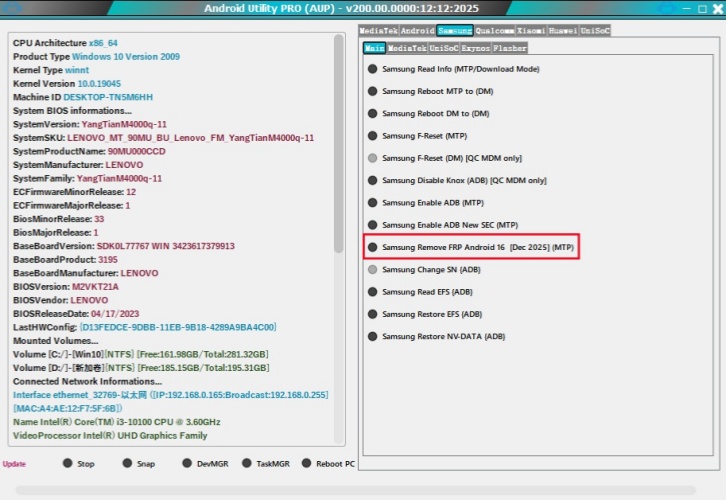
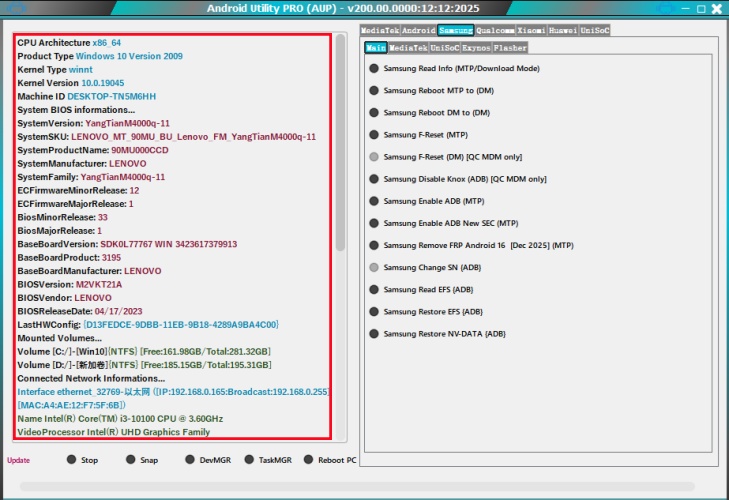
Step 1. Open Android Utility Tool and click Samsung > Main.
Step 2. Select Samsung Remove FRP Android 16 [Dec 2025] (MTP).
Step 3. Connect your Samsung phone to your computer using a USB cable.
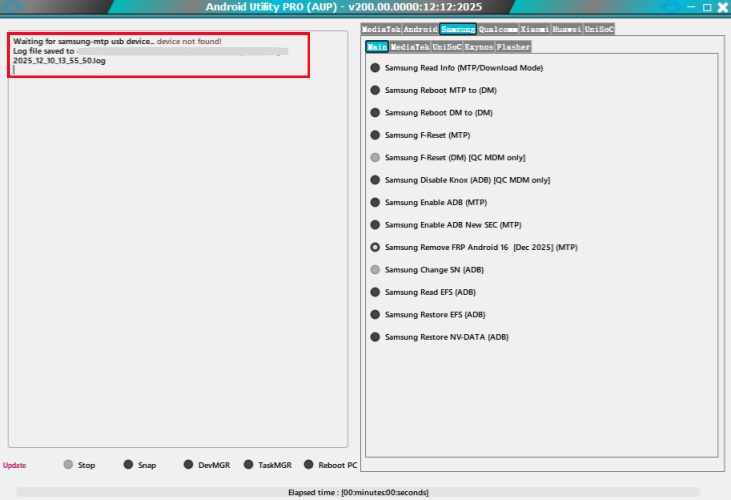
Step 4. Make your device connect to a WiFi network.
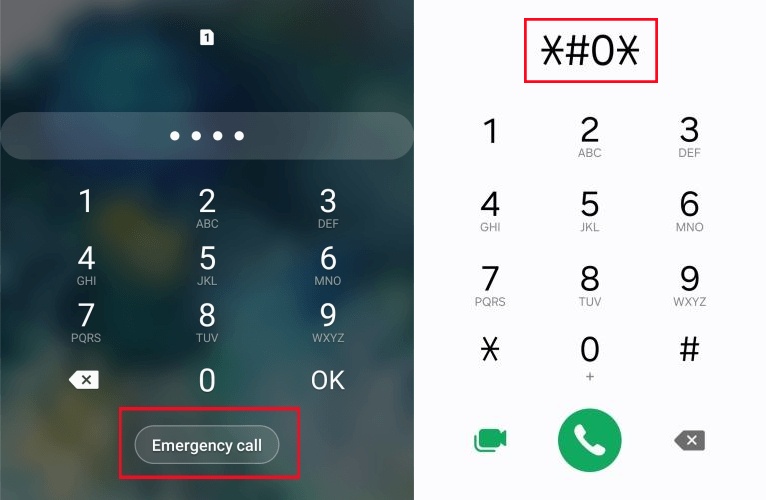
Step 5. Restart your device and tap Emergency call in the Welcome interface.
Step 6. Dial *#0* and allow Android Utility Tool to access your data.
Step 7. Wait to remove the FRP lock on your device for several minutes.
Part 4. Better Option than Android Utility Tool FRP Bypass
Android Utility Tool may not be right for all users with FRP removal needs. On the one hand, Android Utility Tool isn't fully compatible with all Android versions; on the other hand, it is not friendly to newbies due to its complicated interface and operating process. If you want to look for a safer, high success rate, and user-friendly third-party tool, MagFone Android Unlocker is a better alternative for you to bypass FRP lock.
4.1 Android Utility Tool vs MagFone Android Unlocker
Unlike the complex interface of Android Utility Tool, MagFone is suitable for newcomers. Simple instructions and easy operating steps guide users to bypass the FRP lock easily. Here is a comparative sheet of the main differences between Android Utility Tool and MagFone Android Unlocker.
| Features | Android Utility Tool | MagFone Android Unlocker |
|---|---|---|
| Android Brands | Samsung, Motorola, Xiaomi, Huawei, Nokia HMD, TCL, Blu | Samsung, Xiaomi, Vivo, Motorola, Oppo, Redmi, Realme |
| Success Rate | Low | High |
| User-friendly | ❌ | ✔️ |
| Device Compatibility | Android 13 to Android 16 | Android 5 to Android 16 |
| Operating System | Only Windows OS | Windows OS and Mac |
| Security Risk | High | Low |
4.2 Bypass Google FRP with MagFone Android Unlocker
MagFone Android Unlocker, a powerful and professional program, guides you through easy steps and clear instructions to bypass FRP lock. If you are interested in MagFone, follow the steps to bypass the FRP lock successfully.

MagFone Android Unlocker
Remove multiple kinds of screen locks on over 5000 Android devices and delete Google FRP lock without a password.
Step 1 Connect Your Phone to A Computer
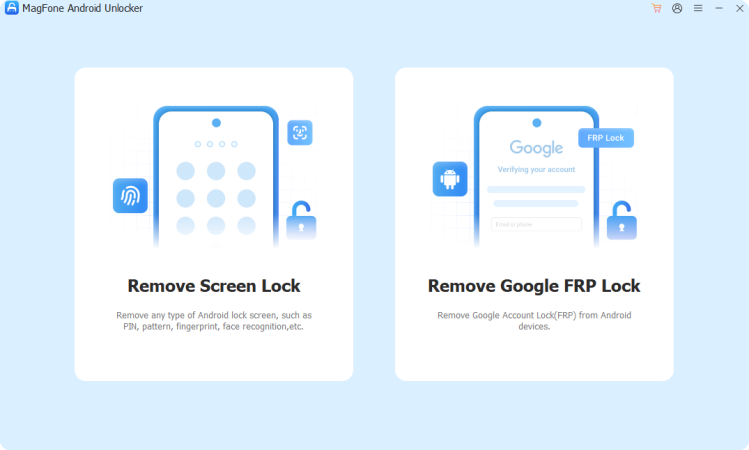
Download and run MagFone Android Unlocker. When it's done, choose Remove FRP Lock. Then MagFone will detect your phone brand and version automatically.
Step 2 Start to Bypass FRP Lock
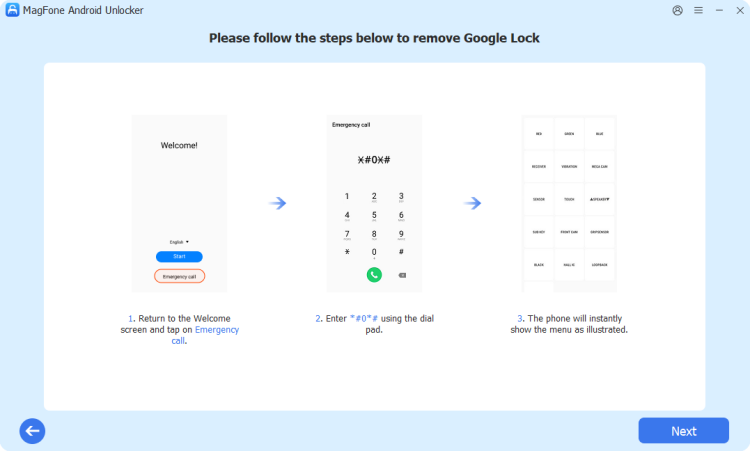
Follow the steps on the interface, step by step, to operate your phone. Click Next and then wait for MagFone to bypass FRP lock quickly.
Step 3 Remove FRP Lock Easily
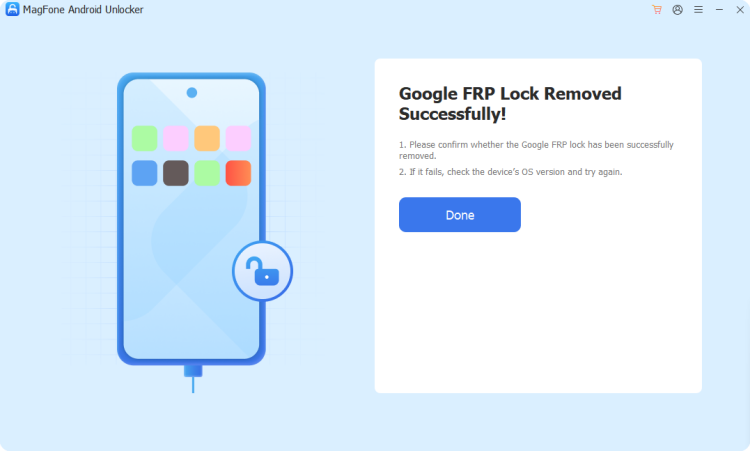
After operating, the FRP lock will be removed successfully. You can unplug the USB cable and set up your phone with a new Google account.
Part 5. Conclusion
Android Utility Tool is a great solution for repairing system issues, unlocking screen locks and bypassing FRP lock on Android devices, but it is limited to phone brands and Android versions. Especially for beginners, it may be a bit difficult to use. While MagFone Android Unlocker can guide you clearly and easily, you can bypass the FRP lock with simple steps. Download and install it right now!

Dylan Jones
Editor in chief





