








Mobile Team Official is a website and online resource that emerged around 2023, focusing on Android repair, FRP-related guides, APK resources, and device troubleshooting. It was created to help users and technicians deal with account verification and access problems after factory resets. Its resources mainly target older Android phones and provide different software-based approaches for specific models. In this guide, we'll take a closer look at Mobile Team Official and put its FRP bypass claims to a real test.
- Part 1. What Is Mobile Team Official FRP Bypass?
- Part 2. Where to Download the Mobile Team Official APK?
- Part 3. Mobile Team Official FRP Bypass Real Test
- Part 4. Best Alternative to Mobile Team Official FRP Bypass
- Part 5. Conclusion
Part 1. What Is Mobile Team Official FRP Bypass?
Factory Reset Protection, or FRP, is an Android security feature that asks for the previously synchronized Google account after a factory reset. Mobile Team Official provides APKs and tutorials that have historically attempted to navigate around this verification through device-specific software and system functions.
Part 2. Where to Download the Mobile Team Official APK?
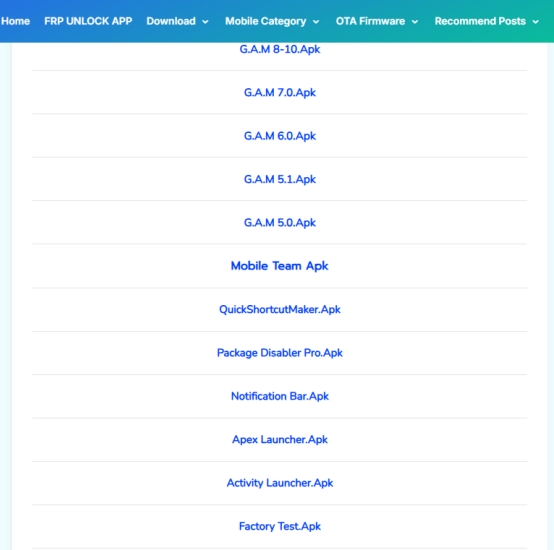
You can get the Mobile Team Official APK files directly from the official website. The available resources are designed for a wide range of Android devices, supporting Android 5 through Android 15 with security patches released from 2018 to 2024.
Part 3. Mobile Team Official FRP Bypass Real Test
A real-world test is more valuable than simply repeating claims about an APK. Compatibility can vary depending on the Android version, security patch, manufacturer, and device configuration. For our test, we used a Vivo smartphone running Android 12 to see how the APK performs in an actual device environment.
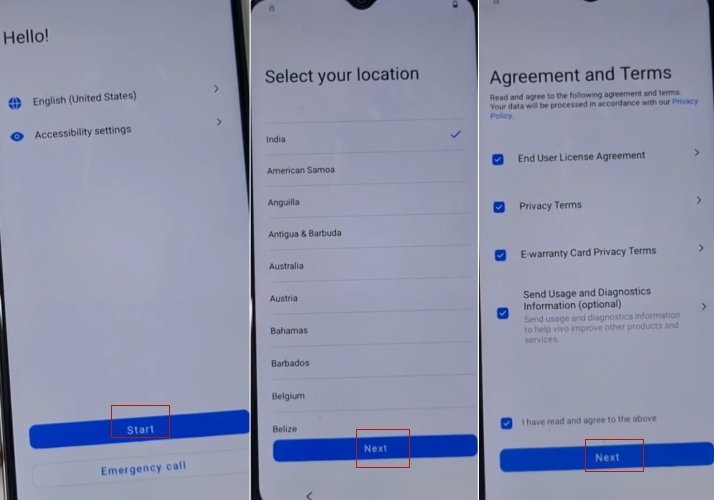
Step 1. On the Hello screen, tap Start and Next. Agree to the terms, then connect the device to a network.
Step 2. Return to the Hello screen and open Accessibility settings. Select TalkBack, then turn on Use TalkBack.
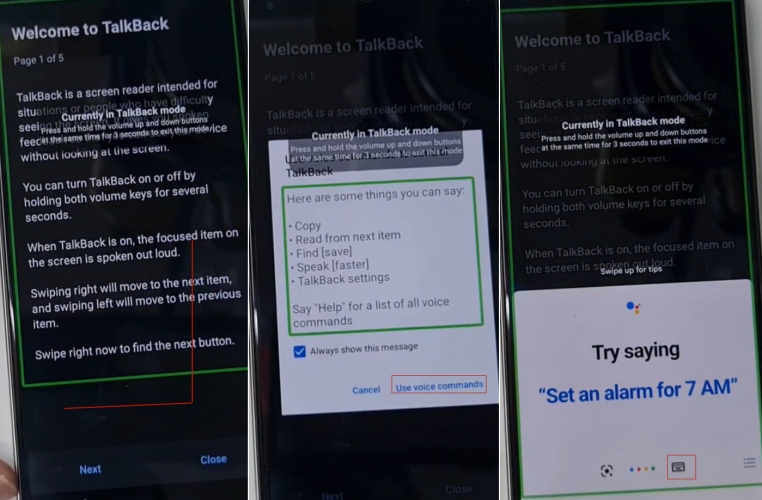
Step 3. Open the voice command feature by swiping right and then up several times until the Android Accessibility page appears.
Step 4. Select Use voice commands, then tap the keyboard icon. Press and hold the Volume Up and Volume Down buttons together for about 3 seconds to disable the shortcut.
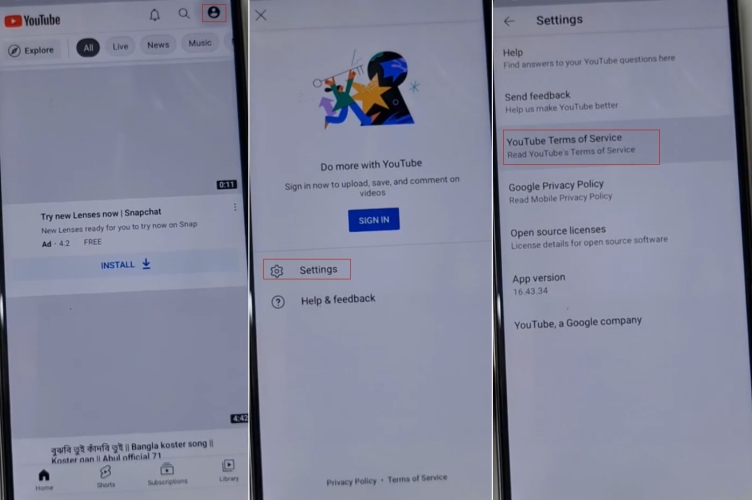
Step 5. Next, type Open YouTube and search for it. Open YouTube, tap your profile > Settings > About, and then select YouTube Terms of Service.
Step 6. Tap Accept & continue, followed by No thanks. You can then use the search bar at the top to look for Mobile Team Official.
Step 7. From there, tap the available Mobile Team Official APK to proceed with the FRP bypass process on the Vivo phone.
Part 4. Best Alternative to Mobile Team Official FRP Bypass
Before choosing another Android unlocking solution, it helps to weigh the practical advantages and disadvantages of Mobile Team Official. The following summary highlights the main points users should consider when deciding whether its APK-based approach is appropriate for their particular device and situation.
 Pros
Pros- Free resources are available
- Offers model-specific tutorials
- Supports some older Android versions
- Provides multiple APK-based utilities

- Limited compatibility with newer Android
- APK security cannot always be guaranteed
- Success varies between device models
- The page may contain advertisements
The main weakness of Mobile Team Official is also its biggest limitation: the benefits depend on older, device-specific methods and compatibility. MagFone Android Unlocker is a more structured alternative for users seeking Android unlocking assistance, with a desktop-based workflow designed to make the process easier to follow. Still, users should verify supported models and follow the software provider's current instructions.

MagFone Android Unlocker
Remove multiple kinds of screen locks on over 5000 Android devices and delete Google FRP lock without a password.
Step 1 Connect Phone and Launch the Tool
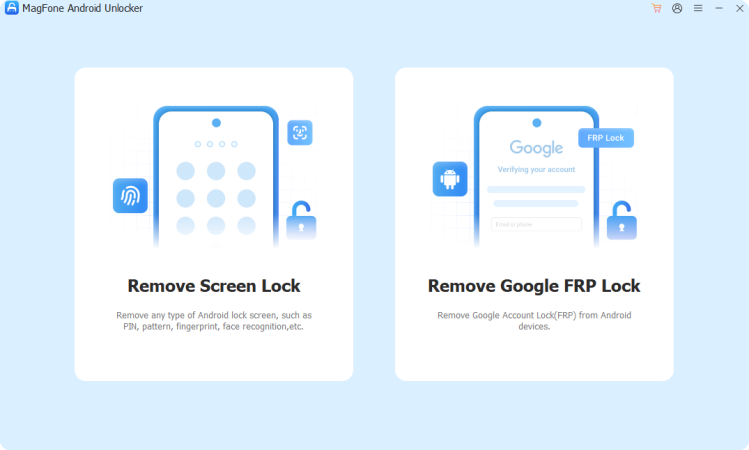
Download, install, and open MagFone Android Unlocker on your computer. Connect your Samsung device using a USB cable, then choose the Google FRP removal option from the software's main menu.
Step 2 Provide the Correct Device Details
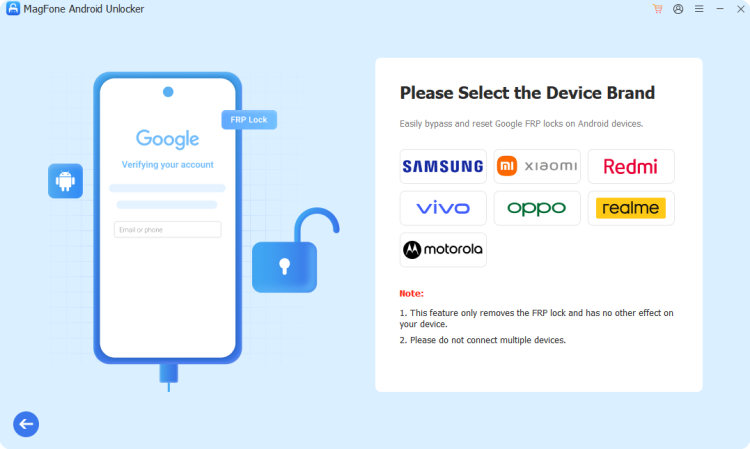
Let the program recognize your connected phone. If it cannot identify the device automatically, choose the appropriate brand and Android version manually. Check the details, then click the corresponding button to continue.
Step 3 Follow the Unlocking Instructions
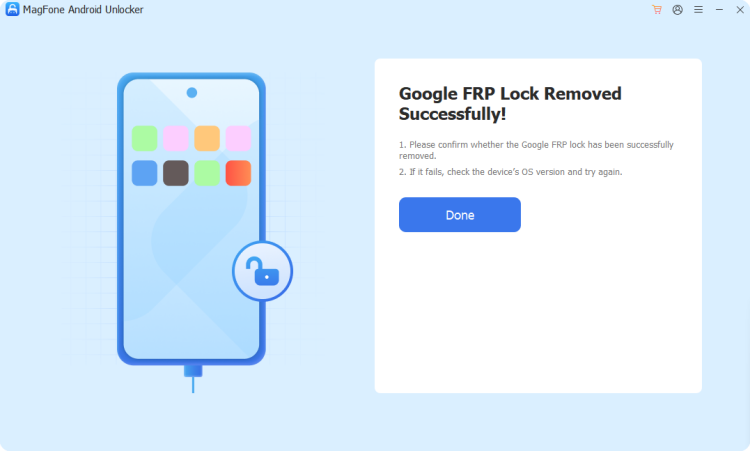
MagFone will provide instructions based on your device configuration. Complete each step shown on both the phone and computer carefully. After the procedure finishes, the program will indicate whether the FRP removal was completed successfully.
Part 5. Conclusion
MobileTeamOfficial remains a recognizable source of Android APK resources and FRP-related tutorials, particularly for older devices. However, its effectiveness is increasingly limited by modern Android security. Our review suggests checking compatibility carefully before using any APK.

Dylan Jones
Editor in chief





