








Getting locked out of a Samsung device due to Factory Reset Protection can be frustrating, especially when you can't remember the linked Google account. Many users search for solutions like Odin FRP bypass or how to bypass FRP lock with Odin, hoping for a quick fix. Odin is often mentioned in Samsung repair communities as a flashing utility, but it requires caution. This guide explains everything clearly, including risks, steps, and safer alternatives for modern devices today.
- Part 1. Common Questions About Odin FRP Bypass
- Part 2. Pros and Cons of FRP Bypass Using Odin
- Part 3. How to Bypass FRP Lock with Odin Tool
- Part 4. Odin vs. MagFone Android Unlokcer: Which Is Right for You?
- Part 5. Conclusion
Part 1. Common Questions About Odin FRP Bypass
Odin FRP bypass refers to using the Odin flashing tool to install firmware files that may help restore access on Samsung devices locked by FRP. Below are some frequently asked questions about bypassing FRP using Odin and related methods you may also want to know. Let's check them out.
01Who Should Choose Odin FRP Bypass?
Odin FRP bypass is best for advanced Samsung users or technicians who understand firmware flashing. It suits people who know model numbers, binary versions, and AP/BL/CP/CSC files. It's not great for beginners because incorrect flashing can lead to boot loops or permanent system issues on devices.
02How Does Odin FRP Bypass Work?
It works by entering Download Mode and flashing compatible Samsung firmware using Odin. In some cases, users try using a specific FRP bypass file for Odin to overwrite system partitions. However, success depends heavily on exact firmware matching and device compatibility.
03Is Odin FRP Bypass Free and Safe to Use?
Odin itself is free, but safety depends on the files used. While the tool is widely available, downloading random FRP bypass Odin file download packages can be risky. Incorrect or modified firmware may damage the device, so only verified Samsung firmware should ever be used.
Part 2. Pros and Cons of FRP Bypass Using Odin
Before using Odin, it is important to understand both the benefits and risks of this flashing-based approach. Many users searching for how to use Odin to bypass FRP assume it is a one-click solution, but it is not. Odin requires precision, correct firmware selection, and technical awareness. Below is a clear summary of the advantages and limitations of the Odin FRP bypass method for Samsung devices running different Android versions today.
 Pros
Pros- Free Samsung flashing tool
- Supports firmware restoration
- Works on many devices
- Advanced repair flexibility

- Requires exact firmware match
- Risk of device bricking
- Not beginner-friendly process
- Fails on new security patches
Part 3. How to Bypass FRP Lock with Odin Tool
If you decide to try bypassing FRP with Odin, you must follow a structured flashing process carefully. This method involves Download Mode, firmware files, and a Windows PC setup. A simple step-by-step guide is provided below to help you understand the basic Odin workflow clearly.
Step 1. Download the compatible Samsung FRP reset firmware or service files for your specific device.
Step 2. Download and install the Odin flash tool on your Windows computer. Also, install the latest Samsung USB drivers to ensure your device can be detected properly.
Step 3. Power off your Samsung phone and boot it into Download Mode. The key combination varies depending on the device model, so make sure to check the correct method for your device.
Step 4. Run the Odin tool as Administrator on your Windows PC. Connect your Samsung device using a USB cable and wait for Odin to automatically recognize it.
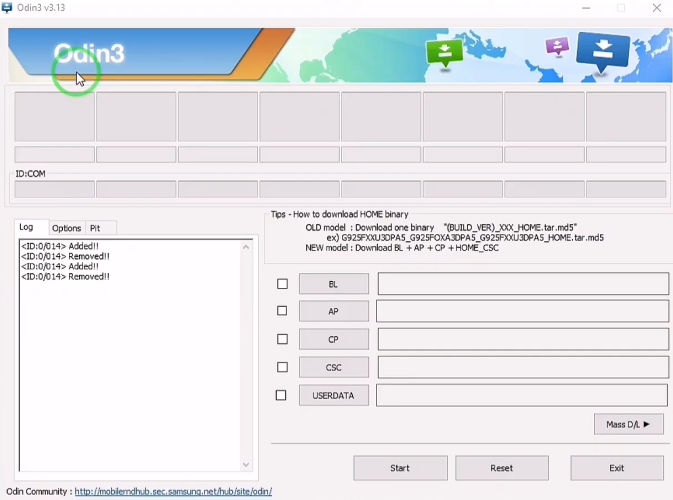
Step 5. In the Odin interface, click the corresponding tabs such as AP, BL, CP, and CSC, then browse and import the matching firmware or FRP reset files you downloaded.
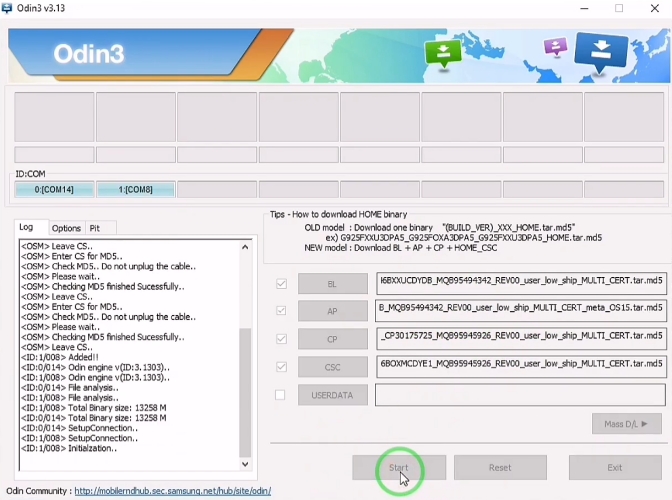
Step 6. After confirming that all files are correct, click the Start button to begin the flashing process. Keep the phone connected and avoid disconnecting the USB cable or closing Odin during the operation.
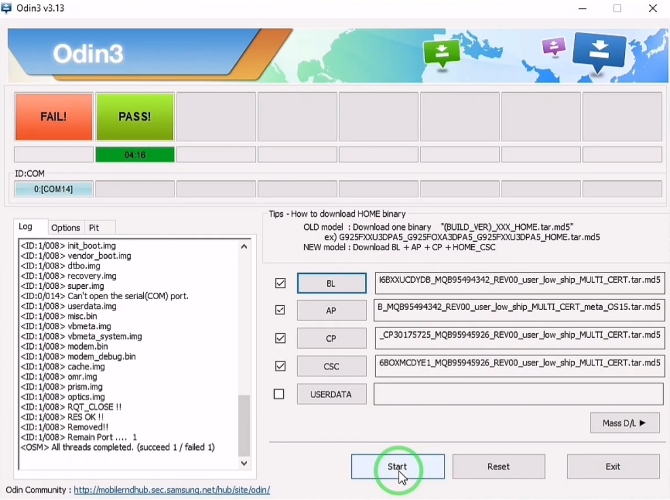
Step 7. Once the flashing process is finished, Odin will display a PASS message. Allow your Samsung device to restart automatically and complete the setup process.
Part 4. Odin vs. MagFone Android Unlocker: Which Is Right for You?
There are several alternatives to Odin when dealing with FRP locks, especially for users who prefer simpler solutions. Tools like how to bypass FRP lock with Odin workflows are technical, while MagFone Android Unlocker offers guided unlocking. Below, we compare who should use Odin and who should consider the alternative tool.

Who Should Choose Odin?
Odin is ideal for advanced users who understand firmware structures and want full control over flashing. It suits technicians who can manually handle the FRP bypass file for Odin download packages and troubleshoot errors. It is not recommended for casual users due to its complexity and risk level.
Who Should Choose MagFone Android Unlocker?
MagFone Android Unlocker is better for beginners who want a guided process. It provides step-by-step unlocking without requiring firmware knowledge. Users who do not understand Odin flashing or want an easier experience should choose this option instead of manual bypass FRP using Odin methods.
Therefore, if you want a quick and reliable solution, MagFone Android Unlocker is an excellent choice. It can not only bypass FRP locks but also remove screen locks when you forget your password. With its user-friendly interface and efficient unlocking process, here's how to unlock FRP using MagFone Android Unlocker.

MagFone Android Unlocker
Remove multiple kinds of screen locks on over 5000 Android devices and delete Google FRP lock without a password.
Step 1 Connect Device and Launch Software
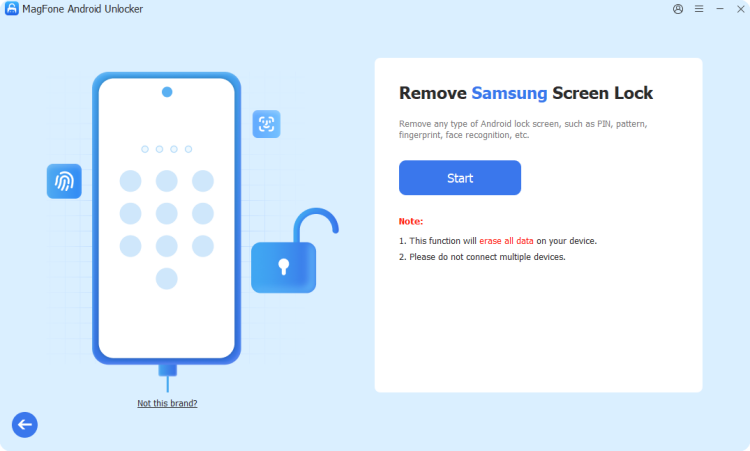
Download, install, and launch MagFone Android Unlocker on your computer. Then, connect your FRP-locked Android phone or tablet to the PC using a compatible USB cable. Once the device is connected, select the Remove Google FRP Lock option from the main interface to start the unlocking procedure.
Step 2 Detect Device and Confirm Details
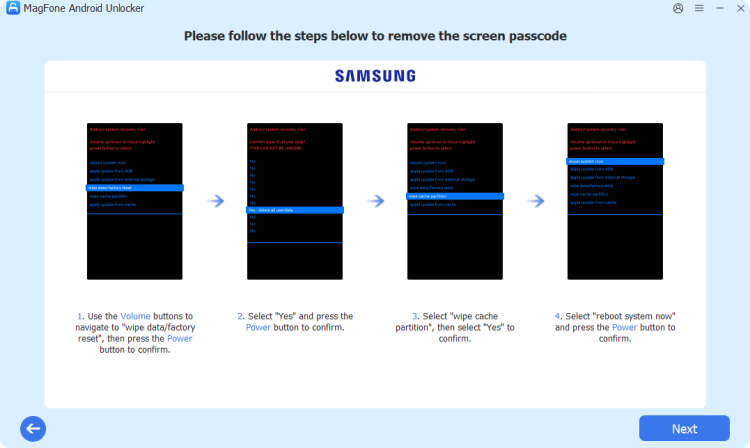
Allow the software to automatically detect your Android device information. If the device details are not recognized correctly, manually select the appropriate device brand and Android version from the available options. After verifying that all information is accurate, click the Start button to proceed.
Step 3 Follow Instructions and Unlock FRP

MagFone Android Unlocker will provide customized on-screen instructions based on your specific device model and Android version. Carefully follow the prompts displayed on both your computer and smartphone. Once the process is completed successfully, the program will notify you that the Google FRP lock has been removed.
Part 5. Conclusion
Odin FRP bypass remains a powerful but advanced method for Samsung users dealing with FRP locks. While it supports deep firmware flashing, it requires accuracy and technical knowledge. Mistakes can lead to system failure or bricking. For beginners, safer tools or account recovery methods are recommended. Always verify firmware compatibility before using Odin FRP bypass or any FRP bypass Odin file download resources online today.

Dylan Jones
Editor in chief





