








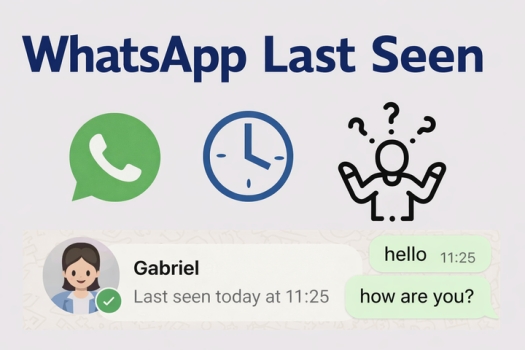
Last seen is one of the key privacy settings on WhatsApp, but many users don't fully understand what it actually means or how it works. This confusion can easily lead to misunderstandings, for example, assuming someone is blocking you because their Last seen time is invisible. In this guide, we'll explain what Last seen means on WhatsApp, how to see and hide it, and how to read WhatsApp messages without changing Last seen.
- Part 1. What Does Last Seen on WhatsApp Mean?
- Part 2. How to See and Hide Last Seen on WhatsApp
- Part 3. Why Do Some WhatsApp Contacts Not Show Last Seen
- Part 4. How to Read WhatsApp Messages Without Changing Last Seen
- Part 5. FAQs about WhatsApp Last Seen
- Part 6. Conclusion
Part 1. What Does Last Seen on WhatsApp Mean?
As one of the privacy settings, WhatsApp Last seen refers to the time when a user Last opened WhatsApp and successfully connected to the internet. It's important to note that Last seen is not the same as read receipts. It is just a timestamp that shows the account's most recent active status.
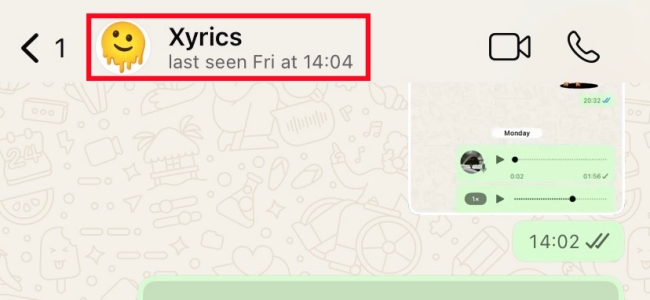
So even if you see a contact showing their recent Last seen, you can't tell if they've viewed your messages, let alone if they intend to ignore replies. WhatsApp does not directly tie Last seen to specific chat behavior.
Apart from Last seen, there are two other WhatsApp status indicators you can view under a contact's name in the chat window. These indicators help you keep track of your contact's current activity in the conversation.
| WhatsApp Last Seen Meaning | |
|---|---|
| Last seen at | When the contact stopped using WhatsApp. |
| Online | The contact is using WhatsApp. |
| Typing/ Recording | The contact is typing a message or recording a voice message. |
Part 2. How to See and Hide Last Seen on WhatsApp
WhatsApp sets your Last seen status visible to your contacts by default. If nothing goes wrong, you can check Last seen on WhatsApp under the contact's name on the chat page. If you want to hide Last seen on WhatsApp, just adjust your WhatsApp privacy settings.
On iPhone:
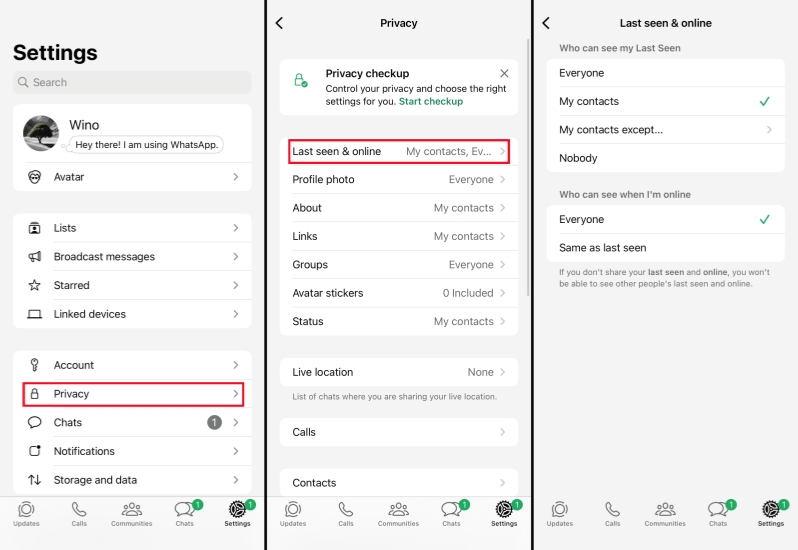
Step 1. Head for WhatsApp Settings > Privacy.
Step 2. Tap Last seen & online, and set who can see your WhatsApp Last seen and who can see your online status.
On Android:
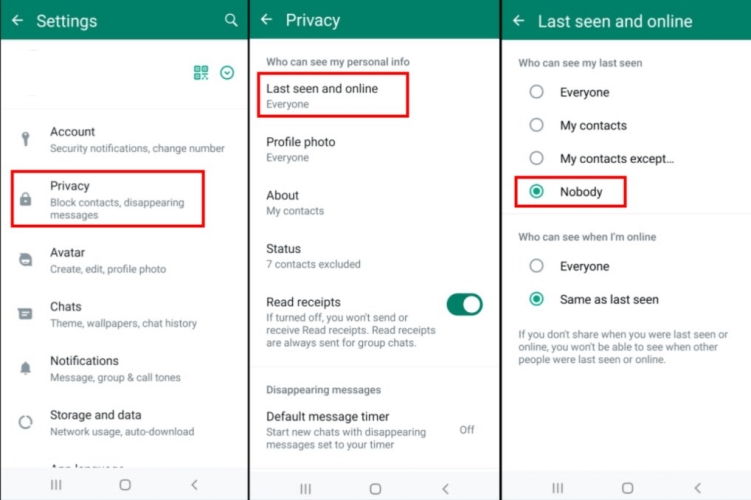
Step 1. Access WhatsApp and tap the triple-dot icon.
Step 2. Tap Settings > Privacy.
Step 3. Tap Last seen and online, and choose who can see your WhatsApp Last seen status.
On Web/Desktop:
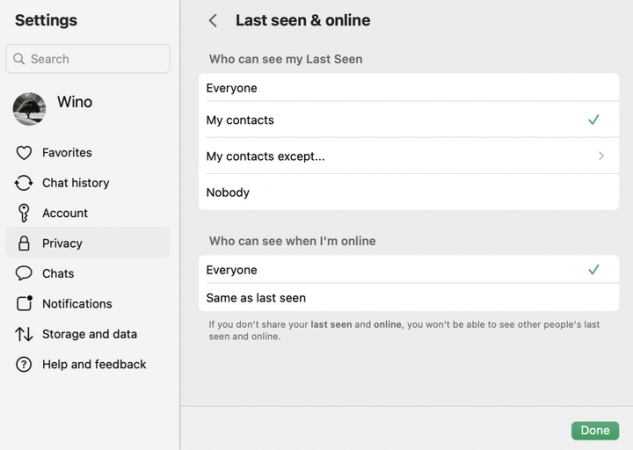
Step 1. Open WhatsApp on your desktop.
Step 2. Click the Settings icon and click Privacy.
Step 3. Click Last seen & online, then choose who can see your Last seen status on WhatsApp.
Part 3. Why Do Some WhatsApp Contacts Not Show Last Seen
Having tried to see someone's WhatsApp Last seen status, you may find that some contacts' Last seen statuses are not showing in WhatsApp. Don't be surprised. This is usually related to the privacy setting. In the following cases, you can't see Last seen on WhatsApp:
- When you have set nobody to see your Last seen status.
- The contact has set the Last seen & online status to nobody.
- You're blocked by the contact.
- You haven't saved them to your contacts.
- They haven't saved you as a contact.
- There is a temporary connection issue that leads to the Last seen on WhatsApp not showing.
Part 4. How to Read WhatsApp Messages Without Changing Last Seen
For users who are concerned about privacy and want to read WhatsApp messages without changing the Last seen time, MagFone WhatsApp Transfer can be a powerful affiliate tool. It not only helps you read WhatsApp messages without changing Last Seen or allowing the sender to know, but also serves as a professional WhatsApp data management utility, supporting data transfer between devices, backup, restore, and export of your WhatsApp chats. If you prefer not to update your Last Seen time while checking new messages, simply follow the step‑by‑step guide below to use MagFone Chats Transfer safely and effectively.

MagFone Chats Transfer
Easily back up and access all your important WhatsApp content to computers without loss or hassle — everything moves with you, just as it was.
Step 1 Launch MagFone Chats Transfer
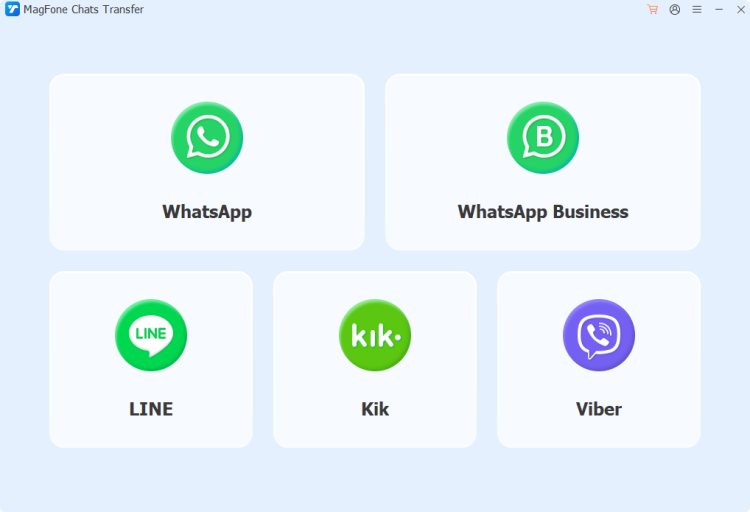
Start by downloading and installing MagFone Chats Transfer on your computer. During the process, you can connect your iPhone to your computer for further operation. Run this tool after installation.
Step 2 Back Up WhatsApp Messages
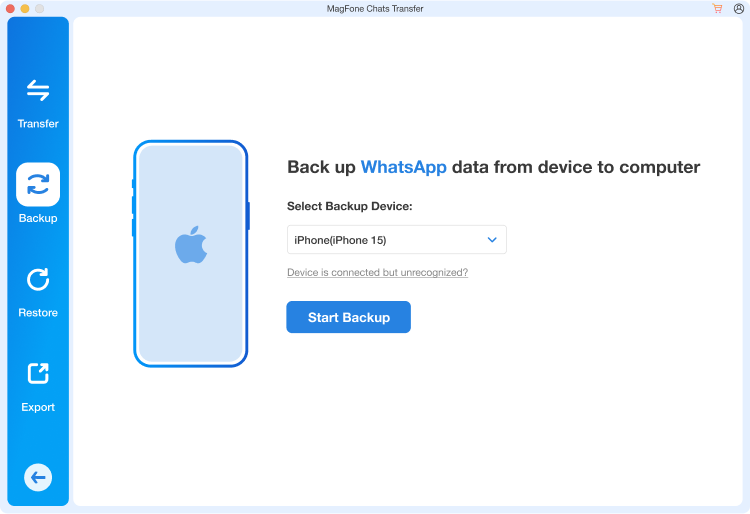
Click WhatsApp on the main interface, and you will be provided with four features. Click the Backup feature, then click Start backup to back up your WhatsApp messages.
Step 3 Read WhatsApp Messages without Changing Last Seen
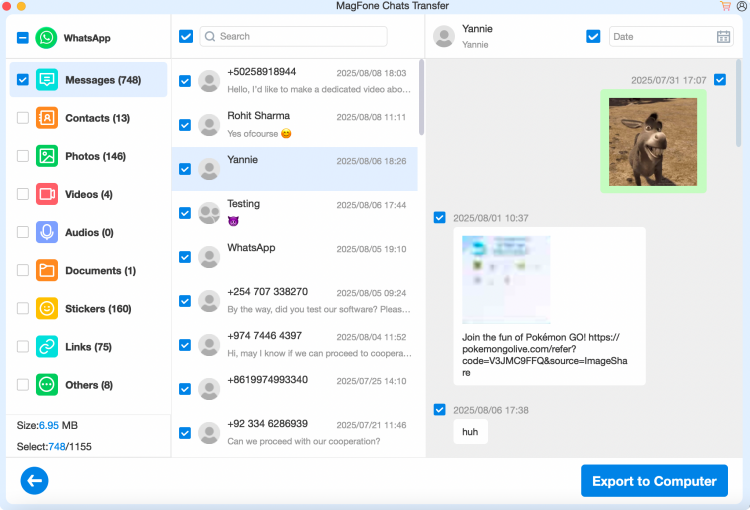
After the backup is completed, click Export. On this page, you can see the backup file. Click the View icon to read WhatsApp messages without changing the Last seen time.
Part 5. FAQs about WhatsApp Last Seen
Does Last seen on WhatsApp mean they opened your chat?
No. Last seen only indicates the Last time the other person opened WhatsApp, not that they opened your chat window or read your messages.
How to see someone Last seen on WhatsApp if hidden?
Officially, you can't see someone's Last seen time on WhatsApp if they've chosen to hide it. If you want to check a hidden Last seen on WhatsApp, you may need to look for additional help from third-party tools.
Can I still see Last seen if blocked on WhatsApp?
No. If you are blocked by someone, you will not be able to see their Last Seen, online status, avatar updates, or status updates.
Part 6. Conclusion
After reading this guide, you should now have a comprehensive understanding of WhatsApp's Last Seen feature. We hope it has answered your questions and helped you take more control over your online status. If you want to read WhatsApp messages without changing Last seen time, MagFone Chats Transfer is highly recommended as a helpful solution. What do you think about this privacy setting? Do you prefer to keep your Last seen visible or hidden? Share your thoughts and experiences in the comments below.

Edgar Davis
Editor in chief





