







Does your iPhone's WhatsApp screen go black when you launch the app, or during a video call? The WhatsApp black screen issue often appears suddenly yet consistently, making you worry about account abnormalities, data loss, or even serious hardware problems. In most cases, however, the black screen is not severe and is instead caused by app or system issues. In this guide, we'll walk you through several solutions to fix the WhatsApp black screen problem on your iPhone.

- Part 1. Why Is My WhatsApp Screen Black?
- Part 2. How to Back Up WhatsApp Before Fixing Black Screen
- Part 3. How to Fix iPhone WhatsApp Black Screen
- Part 4. Conclusion
Part 1. Why Is My WhatsApp Screen Black?
For the past week Whatsapp stopped working completely for me. As soon as I start it, there's nothing but a black screen which never changes."
I'm having an issue where my iPhone screen goes completely black while using WhatsApp. It happens consistently during WhatsApp voice calls, and sometimes while listening to long voice messages too. The screen won't turn back on unless I press a button."
When it comes to the iPhone WhatsApp black screen issue, the two most common cases occur when launching or having a video call. If the WhatsApp screen goes black when you launch it, it can be related to the following aspects:
Outdated WhatsApp or iPhone system:
There will be incompatibility between WhatsApp with your iPhone if the version is not updated.
Heavy WhatsApp cache and iPhone storage:
If WhatsApp has accumulated and occupied a large amount of your iPhone storage, it may crash and display a black screen.
Camera Obstruction or Insufficient WhatsApp Permissions:
If you find that your WhatsApp screen goes black during a video call, the most likely culprit is the front or rear camera is blocked, disabled, or being used by another app in the background. WhatsApp not having full access to the camera can also lead to a black screen.

MagFone iOS System Recovery
Fix various iOS system issues, such as WhatsApp not working and WhatsApp messages not delivered, without data loss.
Part 2. How to Back Up WhatsApp Before Fixing the Black Screen
Some solutions, such as offloading WhatsApp data or reinstalling WhatsApp on your iPhone to fix the black screen issue, can cause data loss. Therefore, it's recommended that you back up your WhatsApp data before taking any further action. If you're unable to access WhatsApp and back it up to iCloud, you may need a third-party tool like MagFone WhatsApp Transfer to help you create a backup of your WhatsApp data. MagFone WhatsApp Transfer provides a smooth way to transfer, back up, and restore WhatsApp data. Follow the steps below to back up your WhatsApp data when facing a black screen issue on your iPhone:

MagFone Chats Transfer
Efficiently back up and restore your WhatsApp content without loss or hassle — everything moves with you, just as it was.
Step 1 Download and Install MagFone Chats Transfer
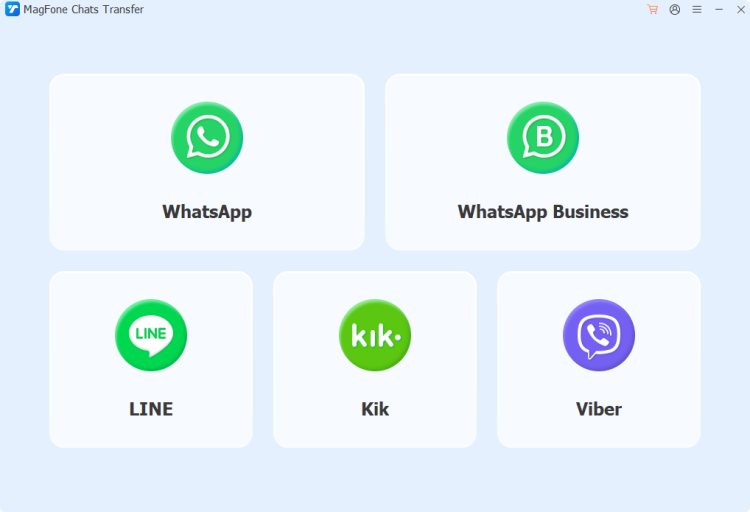
Prepared by downloading and installing MagFone Chats Transfer on your computer. Also, connect your iPhone to your computer using a compatible data cable. When you're ready, launch this program.
Step 2 Back Up WhatsApp Data
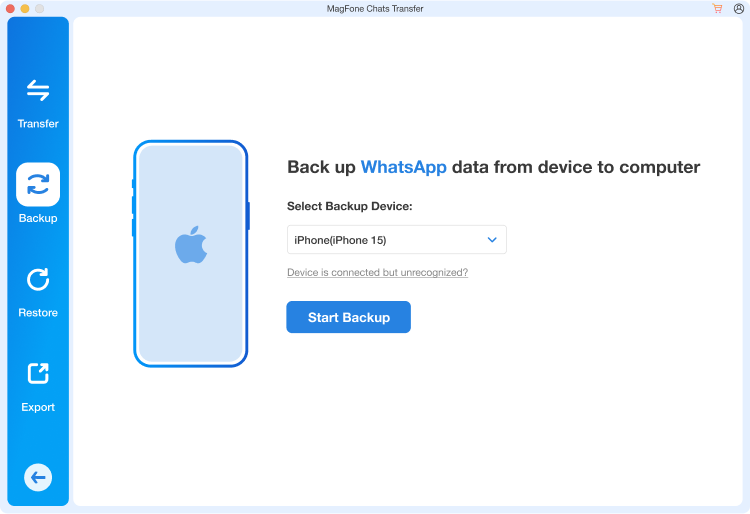
Click WhatsApp in the main interface, and you'll be provided with four options. Click the Backup option on the left. Then your iPhone information will be detected. Click Start Backup to back up your WhatsApp data from your iPhone to your computer.
Step 3 Complete WhatsApp Backup
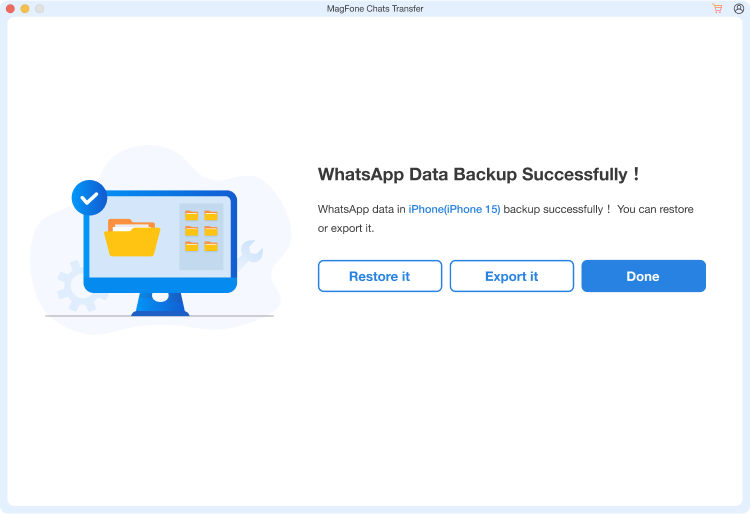
After the backup completed, click Done. Now you can walk through the methods in Part 3 to fix the iPhone WhatsApp black screen issue. If you want to recover WhatsApp data after fixing the black screen issue, you can click Restore and restore the backup to your iPhone seamlessly.
Part 3. How to Fix iPhone WhatsApp Black Screen
Once you have backed up your WhatsApp for data guarantee, you can follow the solutions in this part to fix the iPhone WhatsApp black screen issue.
Method 1. Check WhatsApp Settings
If WhatsApp doesn't have access to the camera or WLAN and cellular data use on your iPhone, it's likely that you face a black screen when launching it or during a call. You can check and adjust relevant settings for WhatsApp.
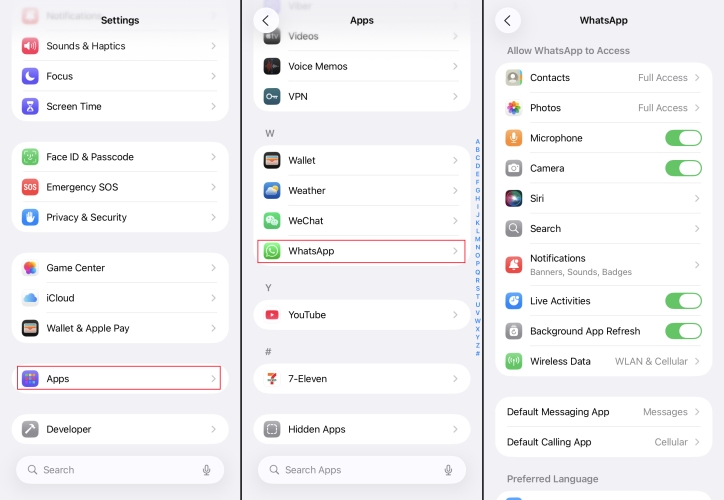
Step 1. Go to iPhone Settings > Apps.
Step 2. Find WhatsApp and check if you have enabled relevant permissions to ensure normal use.
Method 2. Switch Network Connection
A slow, unstable, or restricted network can prevent your WhatsApp from loading and working properly. Try switching from Wi‑Fi to mobile data or from mobile data to Wi‑Fi and then relaunch WhatsApp.
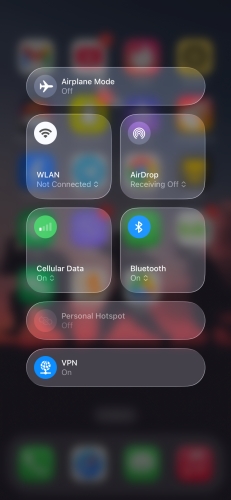
Step 1. Swipe from the upper-right screen to enter the control center.
Step 2. Connect to another WiFi or switch to a cellular data connection.
Method 3. Restart Your Phone
Temporary system caches or abnormal background processes may affect the normal operation of WhatsApp. Restarting your iPhone can refresh the system and close any background processes that might be conflicting with WhatsApp.
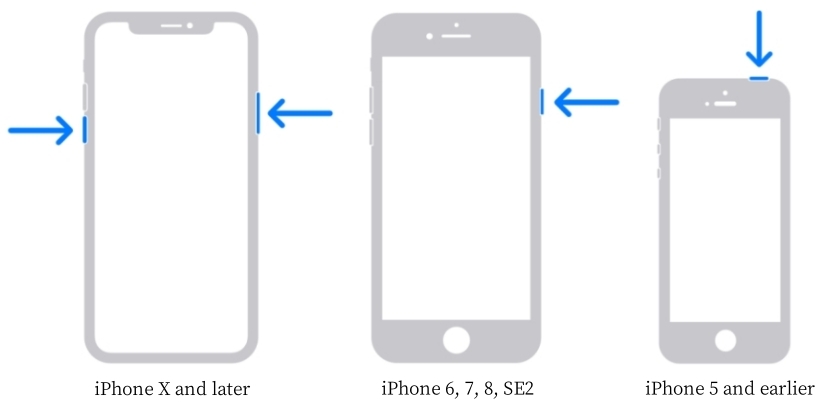
- iPhone X and later:
Step 1. Keep holding the power button and one volume button at the same time until the screen changes.
Step 2. Drag the slide to the right to shut down your iPhone.
Step 3. Long-press the power button to restart your iPhone.
- On models before iPhone X:
Step 1. Keep pressing the power button until the iPhone screen changes.
Step 2. Follow the on-screen instructions to shut down your iPhone.
Step 3. Long-press the power button to restart the device.
Method 4. Update WhatsApp
An outdated WhatsApp version can have bugs or compatibility problems that affect normal performance, including a black screen on the launch screen as well as a black screen during a video call.
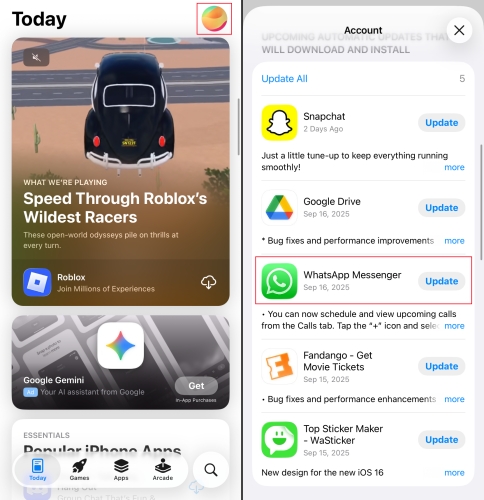
Step 1. Open the App Store and tap your Apple account profile.
Step 2. Scroll and check if WhatsApp is in the Update list. Tap Update if it's waiting for an update.
Method 5. Update iPhone System
It's a known issue that WhatsApp is not working on iOS 15.8.4, so if you are running the old version, it's suggested that you update your iPhone system to the latest version to avoid incompatibility and malfunction.

Step 1. Launch iPhone Settings and tap General.
Step 2. Tap Software Update and then tap Download Now or Install Now to upgrade the software system.
Method 6. Offload WhatsApp Data
Now that your WhatsApp is not accessible, you can't manage storage and data in WhatsApp settings. You can try offloading WhatsApp data in iPhone Settings, which will free up the storage used by the app while keeping its documents and data. This helps clear the faulty cache that may be causing the WhatsApp black screen.

Step 1. Head for iPhone Settings > Storage.
Step 2. Find and tap WhatsApp. Choose the Offload WhatsApp option to clear WhatsApp cache.
Method 7. Delete and Reinstall WhatsApp
When WhatsApp shows a persistent black screen on your iPhone and the methods mentioned above fail, the issue is often related to corrupted app files. Deleting and reinstalling WhatsApp can completely clear abnormal data and rebuild the app, thereby restoring normal display.
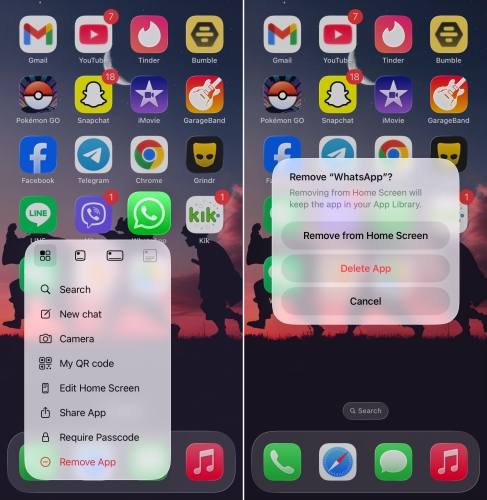
Step 1. Long-press WhatsApp on your iPhone home screen and tap Remove App.
Step 2. Choose Delete App to uninstall WhatsApp.
Step 3. Launch App Store and search for WhatsApp to reinstall it on your iPhone.
Method 8. Reset All Settings
If the black screen remains even after a full reinstall, the issue may be linked to your iPhone's system settings rather than WhatsApp itself. In that case, resetting all settings can help clear conflicting configurations without erasing your personal data.

Step 1. Open iPhone Settings and tap General.
Step 2. Tap Transfer or Reset iPhone > Reset > Reset All Settings.
Step 3. Enter your iPhone passcode to reset all settings.
Part 4. Conclusion
After trying the methods in this guide, you should be able to regain access to WhatsApp on your iPhone. If you suspect that a system issue on your iPhone is causing the WhatsApp black screen, you can also try MagFone iOS System to eliminate potential glitches. Regardless of which method you choose, creating a WhatsApp backup with MagFone Chats Transfer provides an extra layer of protection for your data.

Edgar Davis
Editor in chief





