








Is your WhatsApp chat list getting cluttered, but you don't want to delete any conversations? Many people choose to archive chats they aren't using at the moment but don't want to lose. But how exactly does archiving work on WhatsApp? Can others tell when you archive a chat? These questions can be confusing. In this guide, we'll explain everything you need to know about WhatsApp archived chats and guide you step by step on how to archive and unarchive WhatsApp chats, as well as how to safely back up your WhatsApp conversations.

- Part 1. What Happens When You Archive a Chat on WhatsApp?
- Part 2. How to Archive WhatsApp Chat
- Part 3. How to Unarchive WhatsApp Chat
- Part 4. Bonus Tip: Back up WhatsApp Chats
- Part 5. Conclusion
Part 1. What Happens When You Archive a Chat on WhatsApp?
Archiving a chat on WhatsApp essentially means temporarily hiding the conversation from the main chat threads, rather than deleting the chat history. Archiving is more of a chat management method, suitable for organizing chat lists and reducing clutter. When you see and tap the Archive option in WhatsApp, you may wonder:
-
Can people see when you archive a WhatsApp chat?
No. It's an operation only visible to you. The other person will not receive any notification, and they won't be able to know whether you have archived that conversation or not.
-
Can you receive calls from archived chats on WhatsApp?
Yes. Even if the chat has been archived, any voice or video calls made by the other person will still ring normally and will not be silenced or muted.
-
Can you receive messages from archived chats on WhatsApp?
Yes. Archiving chats does not prevent newer messages from being received, and you'll still receive messages from archived chats on WhatsApp.
-
Do you get notifications from archived chats on WhatsApp?
It depends on your WhatsApp settings. If Keep Chat Archived is turned off, when a new message comes, the chat will automatically unarchive and appear in the chat list while receiving a notification. If this feature is turned on, the chat will continue to be archived, but you may still receive message alerts if you're cued or replied.
Part 2. How to Archive WhatsApp Chat
For many people, WhatsApp chats are time-sensitive, and it's essential to keep a record for future reference. In such cases, archiving WhatsApp chats is very convenient, as it lets you remove these conversations from your main Chats list without losing any data. Here's how to archive WhatsApp chats on different devices:
Video Demo: How to Archive WhatsApp Chat

On iPhone:
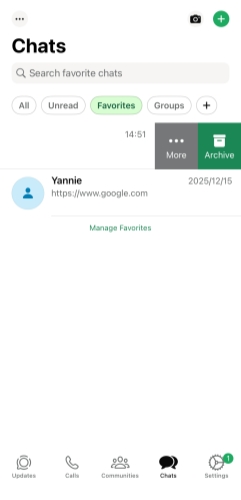
Step 1. Head for WhatsApp > Chats.
Step 2. Swipe left on the individual or group chat you want to hide and then tap Archive.
On Android:
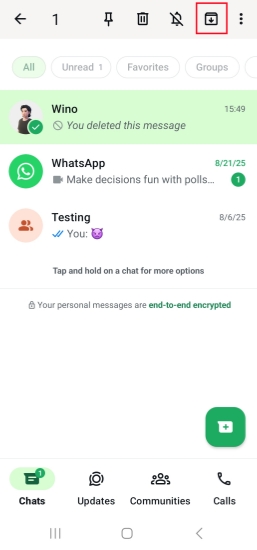
Step 1. Open WhatsApp and stay on the Chats page.
Step 2. Long-press the target chat, then tap the Archive icon to archive it.
On WhatsApp Web/Desktop:
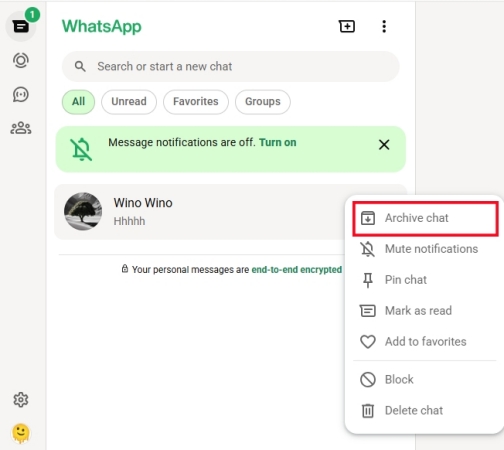
Step 1. Use WhatsApp on your phone to scan the QR code to sign into your account.
Step 2. Locate your mouse on the chat you want to archive and right-click the mouse.
Step 3. Click Archive to archive the WhatsApp chat.
📝How to Archive All Chats in WhatsApp
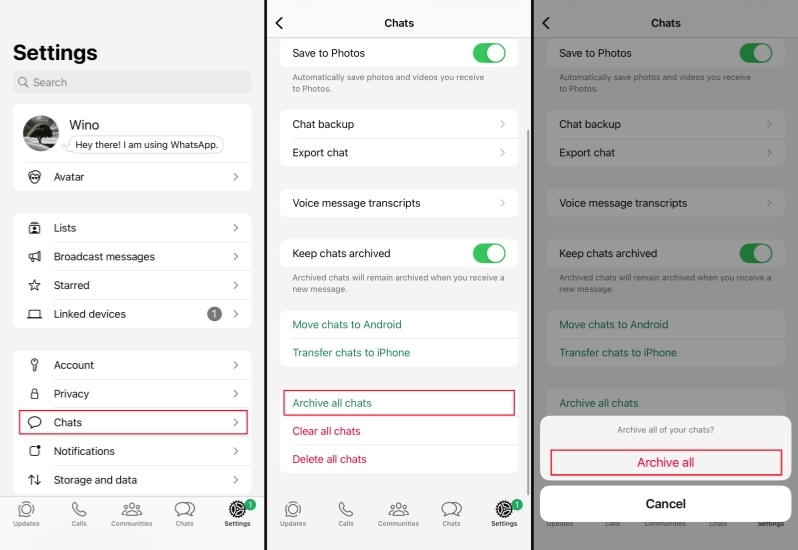
If you want to archive all your WhatsApp chats at once, there is an Archive all chats option on your phone. Just go to WhatsApp Settings > Chats on your phone and tap Archive all chats. Tap Archive all to confirm the operation.
Part 3. How to Unarchive WhatsApp Chat
Once a chat is archived in WhatsApp, it will be removed and collected in the Archived location at the top of the Chats page. If you want to see WhatsApp Unarchived chats, you can tap or click the Archived option to access them. Also, you can unarchive the WhatsApp chats at any time.
On iPhone:

Step 1. Find the archived WhatsApp chats in the Chats tab.
Step 2. Swipe left on the archived chat and tap Unarchive.
On Android:
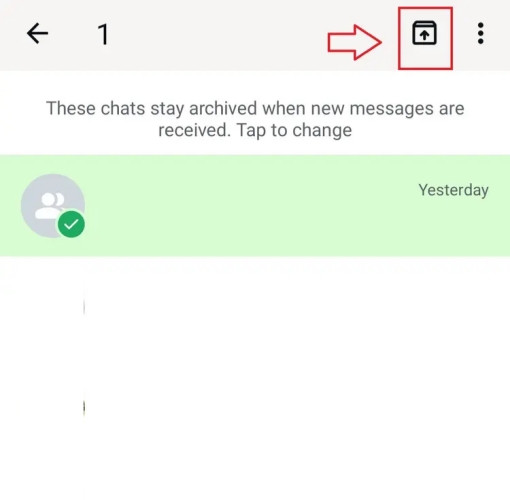
Step 1. Go to the WhatsApp Archived chats page.
Step 2. Tap and hold one chat, then tap the Unarchive icon to unarchive the WhatsApp chat.
On WhatsApp Web/Desktop:
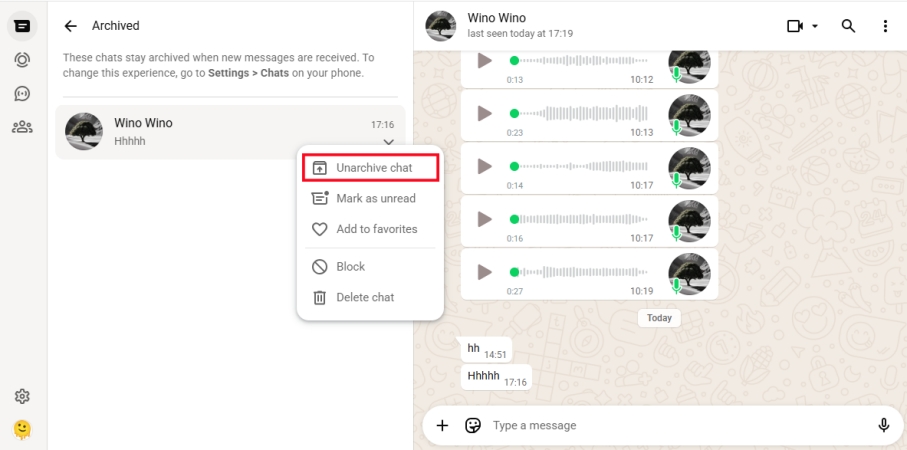
Step 1. Access the archived chats in WhatsApp.
Step 2. Locate your mouse on one archived chat, then right-click the mouse and choose Unarchive chat to remove it from the archived chats list.
Part 4. Bonus Tip: Back up WhatsApp Chats
For users who prefer to archive WhatsApp messages rather than delete them, it's understandable that you may not want to lose any data, even seemingly trivial information. In this case, MagFone WhatsApp Transfer is recommended to help keep your WhatsApp data safely recorded. As a professional WhatsApp data management tool, MagFone WhatsApp Transfer allows you to back up WhatsApp chats to your computer and transfer data across devices. Whether you plan to archive or delete WhatsApp chats, MagFone WhatsApp Transfer provides an extra layer of protection in case of accidental operations. Follow the steps below to back up your WhatsApp data and ensure a safer experience:

MagFone Chats Transfer
Efficiently back up your WhatsApp content without loss or hassle — everything moves with you, just as it was.
Step 1 Launch MagFone Chats Transfer
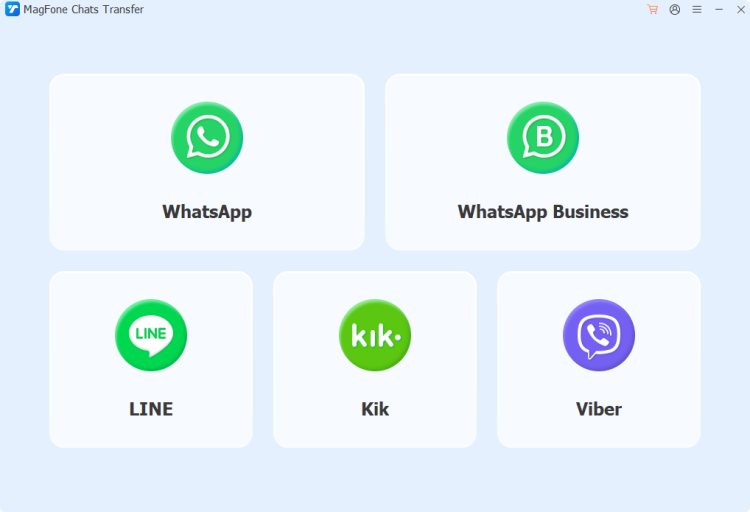
Download MagFone Chats Transfer on your computer, then install it. Connect your iPhone to your computer and launch the MagFone Chats Transfer.
Step 2 Back Up WhatsApp Archived Chats
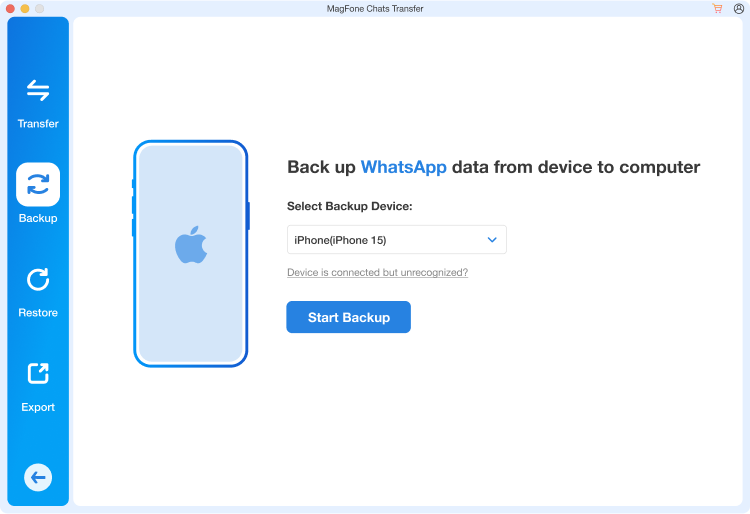
Click WhatsApp to forward. You will see four features on the next page. Click the Backup feature and check your device information. Then click Start Backup and enter your passcode on the device to back up your WhatsApp messages.
Part 5. Conclusion
Archiving WhatsApp chats is a simple yet powerful way to stay organized without sacrificing important conversations. By moving messages out of your main Chats list while keeping them safely stored, you can reduce clutter, focus on what matters most, and still access past discussions whenever you need them. In addition, backing up WhatsApp data with MagFone Chats Transfer helps ensure that your valuable information is always within reach, even if you delete or lose any WhatsApp chats.

Olivia Wood
Editor in chief





