








Have you ever experienced this frustrating moment, where your WhatsApp keeps crashing, or your WhatsApp messages are not delivered? And you have to reinstall it, but you are afraid of accidentally losing years' worth of chat history? Don't worry, WhatsApp data isn't as easily gone as you might think. With the right method, you can reinstall WhatsApp without losing any chat history. In this guide, we will introduce 5 methods for you to reinstall WhatsApp without losing data.
- Part 1. What Happens When You Uninstall WhatsApp?
- Part 2. How to Reinstall WhatsApp without Losing Data on iPhone
- Part 3. How to Reinstall WhatsApp without Losing Data on Android
- Part 4. Conclusion
Part 1. What Happens When You Uninstall WhatsApp?
If you uninstall WhatsApp on your device, then all the data will be deleted as well. And the operation is usually irreversible. So, if you want to uninstall and reinstall WhatsApp without losing data, the only solution is to have a backup of WhatsApp so that you can restore it on your phone after reinstallation. There are a few methods for iPhone and Android users to reinstall WhatsApp without data loss. You can switch to the corresponding part to read.
| Method | Data Maintain | Backup Readability | Issues When Restoring WhatsApp Data | Recommendation |
|---|---|---|---|---|
| iCloud | All WhatsApp data | ❌ | May stuck on restore from iCloud | ⭐⭐⭐⭐ |
| iTunes | Entire iPhone data | ❌ | Restore takes a long time | ⭐⭐⭐ |
| MagFone Chats Transfer | All WhatsApp data | ✔️ | No | ⭐⭐⭐⭐⭐ |
| Google Drive | All WhatsApp data | ❌ | Restore may fail | ⭐⭐⭐⭐ |
| Local Backup | All WhatsApp data | ❌ | Backup file can't be found | ⭐⭐⭐ |
Part 2. How to Reinstall WhatsApp without Losing Data on iPhone
Now that we know that the most feared thing when reinstalling WhatsApp is data loss, let's move on to how to reinstall WhatsApp on an iPhone while keeping all chat history intact.
Method 1. Reinstall WhatsApp without Losing Data via iCloud
You can try the official restore method to reinstall WhatsApp. WhatsApp supports iCloud backup, so users can restore WhatsApp data from iCloud to avoid data loss.
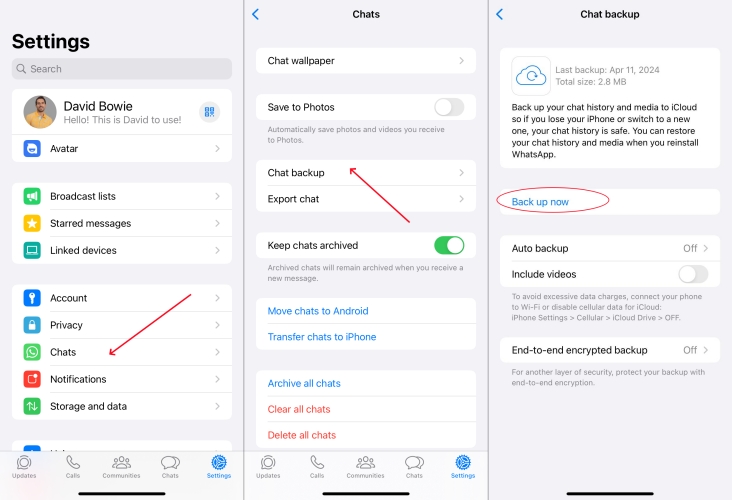
Step 1. Open WhatsApp and head for Settings > Chats > Chat backup.
Step 2. Click Back up now to back up your WhatsApp data to your iCloud.
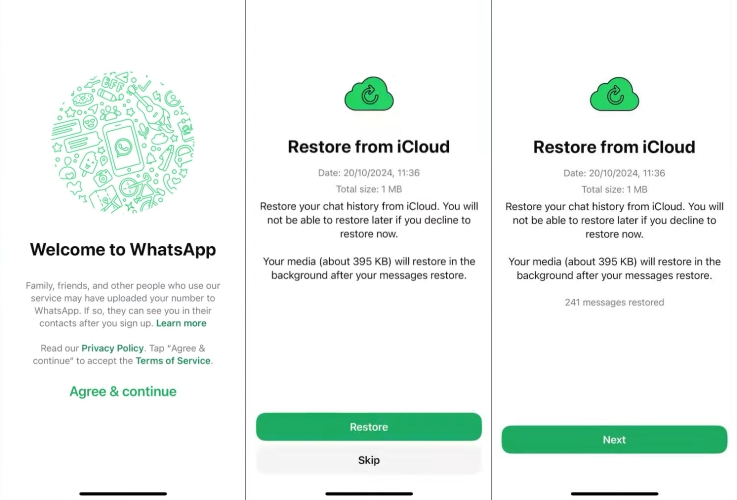
Step 3. Uninstall WhatsApp and reinstall WhatsApp on your iPhone.
Step 4. Enter your previous WhatsApp account number and follow the on-screen instructions to forward. When a restore from iCloud message is prompted, choose Restore to restore your WhatsApp data.
Method 2. Reinstall WhatsApp without Losing Data via iTunes
Another method is to reinstall WhatsApp and restore WhatsApp data via iTunes. This is more time-consuming because iTunes will back up your entire iPhone data. And you can't restore WhatsApp data separately from iTunes backup.
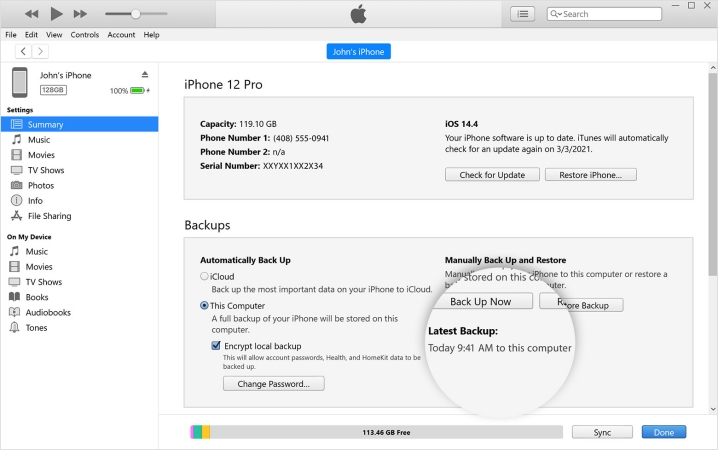
Step 1. Connect your iPhone to your computer using a data cable.
Step 2. Launch iTunes on the computer and click the device icon.
Step 3. Click Summary and then click Back Up Now to back up your iPhone data to your computer.

Step 4. Uninstall and reinstall WhatsApp on your iPhone, and then click Restore Backup to restore the iTunes backup on your iPhone.
Method 3. Reinstall WhatsApp without Losing Data via MagFone Chats Transfer
When trying to reinstall and restore WhatsApp from iCloud or iTunes, some users are reporting that WhatsApp is stuck on the restore from iCloud or iTunes screen. To avoid this unwanted situation, MagFone WhatsApp Transfer comes to the rescue. It's a versatile WhatsApp data management tool for backing up, restoring, transferring, and exporting WhatsApp chats. If you have to uninstall and reinstall WhatsApp in some cases, MagFone Chats Transfer offers an effective and safe way to back up and access your WhatsApp data. Without losing data and restoring stuck, let's see how to reinstall WhatsApp without losing data via MagFone Chats Transfer:

MagFone Chats Transfer
Efficiently back up and restore your WhatsApp content without loss or hassle — everything moves with you, just as it was.
Step 1 Launch MagFone Chats Transfer
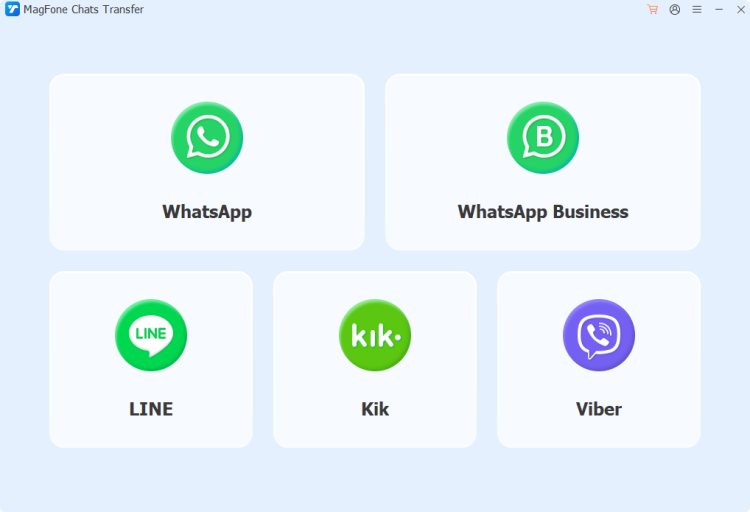
Start by downloading and installing MagFone Chats Transfer on your computer. At the same time, plug your iPhone into your computer using a compatible data cable. Click WhatsApp on the main interface for more options.
Step 2 Back Up WhatsApp Data
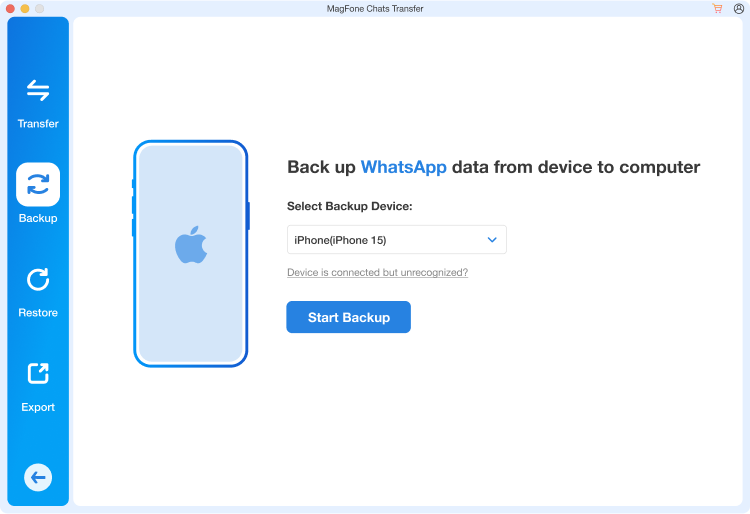
Click the Backup option on the left side, and you can see your iPhone has been detected. Confirm your device information and then click Start Backup to back up your WhatsApp data.
Step 3 Reinstall WhatsApp and Restore Data
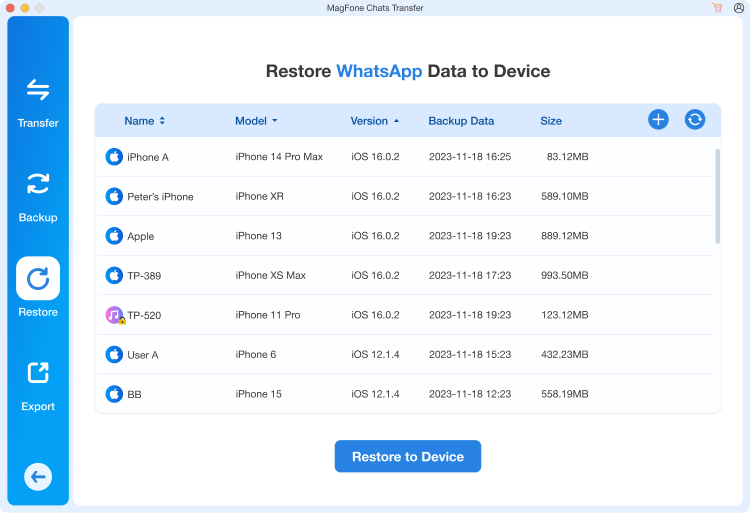
Once the backup is completed, click the Done option. Now, you can uninstall and reinstall WhatsApp on your iPhone. Click the Restore option on the computer. You can also click the view icon to access your WhatsApp data in the Restore page. Then tick the backup file and click Restore to Device to restore your WhatsApp data to your iPhone.
Part 3. How to Reinstall WhatsApp without Losing Data on Android
There are also several methods for Android users to reinstall WhatsApp without losing data. With Google Drive backup or local backup in the phone's internal storage, Android users can easily reinstall WhatsApp without data loss.
Method 1. Reinstall WhatsApp without Losing Data via Google Drive
WhatsApp allows Android users to back up WhatsApp data to Google Drive, so you can make a backup to your Google Drive in advance of uninstalling WhatsApp and then reinstall and restore WhatsApp data from the Google Drive backup.
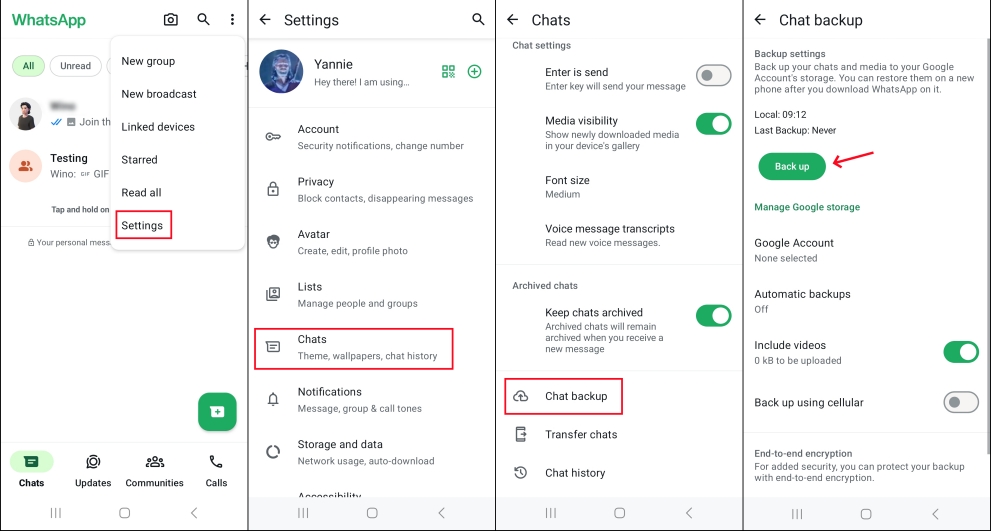
Step 1. Open WhatsApp and press the three-dot icon for more options.
Step 2. Head for Settings > Chats > Chat backup and tap the Back up button to back up your WhatsApp data to your Google Drive account.
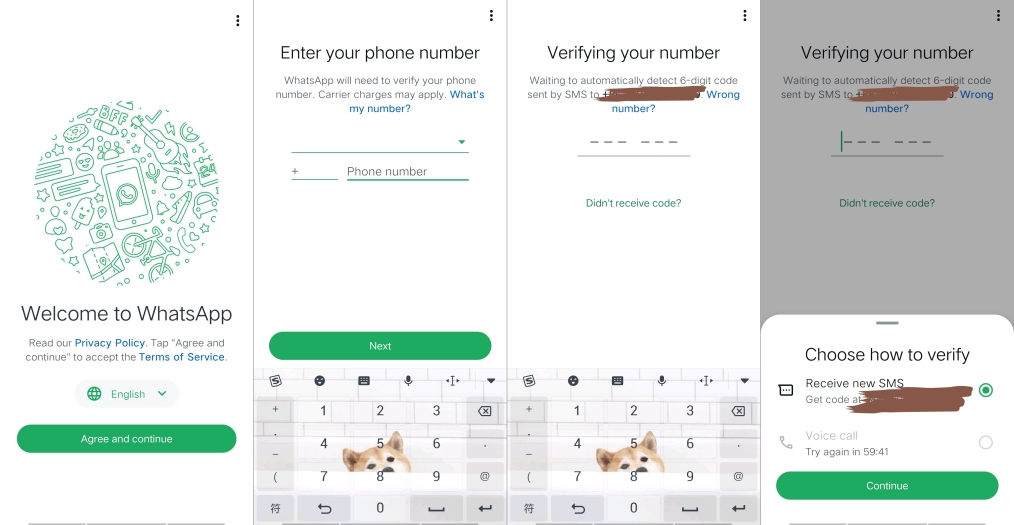
Step 3. Uninstall and reinstall WhatsApp on your device.
Step 4. Enter the same WhatsApp account and verify your number. Once there is a restore found, tap Restore to restore the backup from Google Drive.
Method 2. Reinstall WhatsApp without Losing Data via Local Backup
Android phones will back up app data on the internal storage by default. So you can also reinstall WhatsApp on Android without losing data via local backup. What you need to do is go to the File Manager to check the last backup data on your device. Find the path: Internal storage > Android > media > com.whatsapp > WhatsApp > Databases. You will find a backup file named msgstore-YYYY-MM-DD.db.crypt12 in this folder. Make sure the backup date is the latest so that you will not lose data after that date.
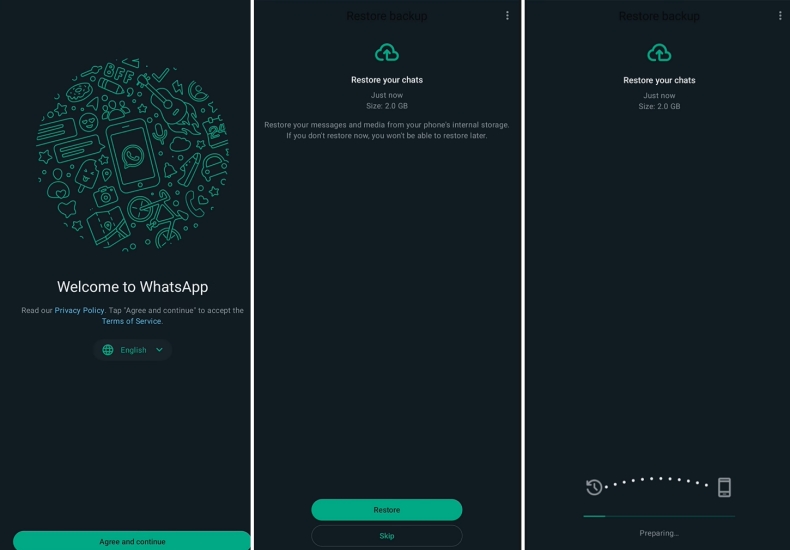
Step 1. Rename the msgstore-YYYY-MM-DD.db.crypt12 backup file to msgstore.db.crypt12.
Step 2. Uninstall WhatsApp and reinstall WhatsApp on your phone.
Step 3. Open WhatsApp, log in to your previous account, and verify your account.
Step 4. When WhatsApp finds an available backup from your phone's internal storage, tap Restore to restore your WhatsApp backup.
Part 4. Conclusion
For various unavoidable reasons or by accident, you might uninstall WhatsApp from your phone. Whether you use an iPhone or Android, reinstalling WhatsApp does not necessarily mean your data is lost, provided you follow the correct steps. Using MagFone Chats Transfer, cloud backups, or local backups, you can easily restore your chats and media after reinstalling and continue using WhatsApp as before.

Edgar Davis
Editor in chief




