








In many cases, we need to print out WhatsApp chats, whether it's to save important conversations, for proof of work, for legal forensics, or for document review. However, WhatsApp itself does not offer a direct print button, so many users don't know where to start. If you are looking to print your WhatsApp messages as a paper file, here are a few possible methods for you.

- Part 1. Official Ways to Export WhatsApp Chat to PC
- Part 2. How to Export WhatsApp Chat from Phone to PC
- Part 3. How to Export Chat from WhatsApp Web to PC
- Part 4. Which Is the Best Way to Export WhatsApp Chat to PC?
- Part 4. Conclusion
Part 1. Official Ways to Export WhatsApp Chat to PC
WhatsApp's official Export feature allows users to export WhatsApp chats in a readable format and can be sent or shared via email, Google Drive, or other applications. You can export WhatsApp chats via the Export chat feature to a PC easily. The requirement is to make sure you have logged into the corresponding email account on your computer so that you can check the exported WhatsApp chat on your computer.
Method 1. Export WhatsApp Chat to PC via Email (Android & iOS)
The most common official method is to export individual WhatsApp chats via email. Whether you're using an iPhone or Android phone, you can export and send the exported file to your email address and download it on your computer.
On Android
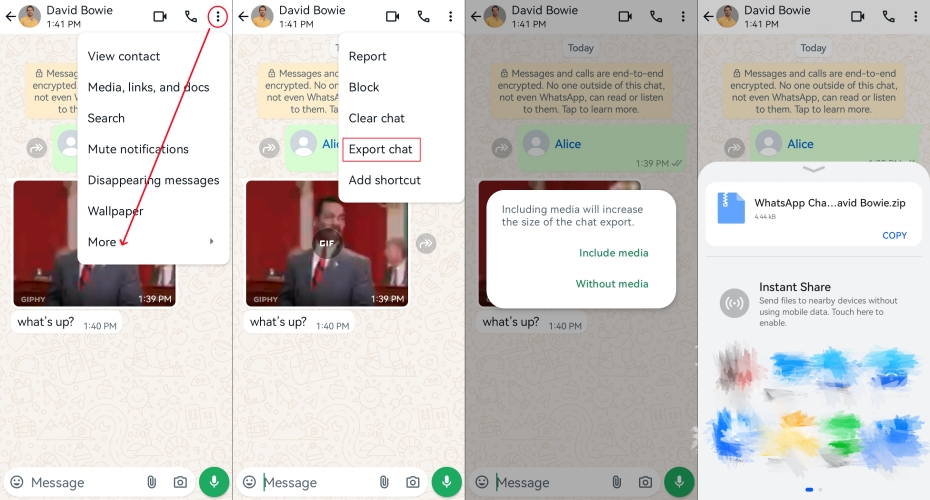
Step 1. Enter a chat in WhatsApp and tap the three-dot icon.
Step 2. Tap More > Export chat and choose Include media or not to export your WhatsApp chat.
Step 3. Choose Email to upload the exported chat to your email account.
Step 4. Access your email account on your computer to check the exported WhatsApp chats.
On iPhone
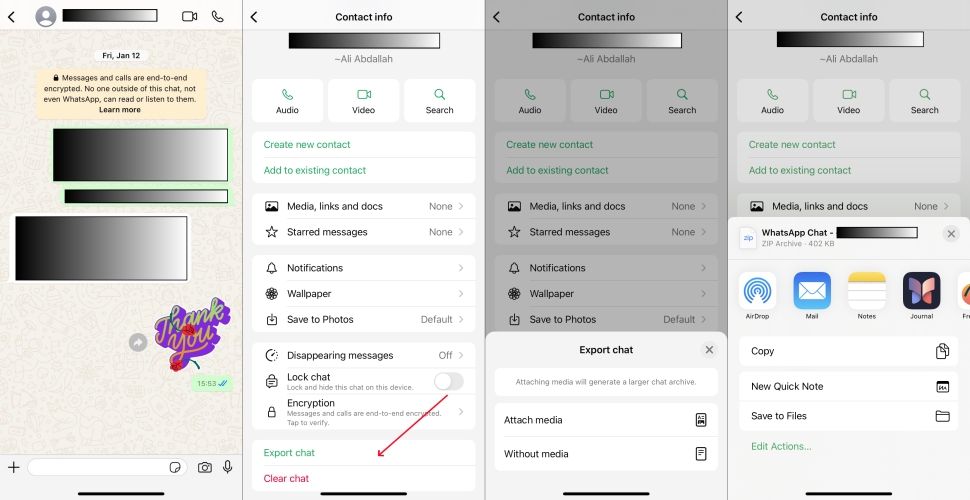
Step 1. Open WhatsApp and enter a WhatsApp chat page.
Step 2. Touch the WhatsApp profile picture to enter the information page.
Step 3. Tap Export chat and choose Attach media or not to export your WhatsApp chat. Then choose a mail app to send the exported chat.
Step 4. Log in to the corresponding email account on your computer to check the exported WhatsApp chat. You can download the exported chat file to your computer and then unzip the file to read the content.
Method 2. Export WhatsApp Chat to PC via Google Drive (Android)
Most Android users have enabled WhatsApp backup to Google Drive, so you can also export WhatsApp chats to a PC via Google Drive. And then download and check the exported chat on your computer.
Step 1. Open a chat in WhatsApp and tap the triple-dot icon to access More > Export chat.
Step 2. Choose Include media if you want to export both text messages and media.
Step 3. Choose Google Drive and tap Upload to upload the exported WhatsApp chat to your Google Drive.
Step 4. Navigate to the Google Drive website with your Google account. You can find the exported file and download it to your computer. Then unzip the file to read the contents.
Part 2. How to Export WhatsApp Chat from Phone to PC
If it's a single chat, the official methods seem sufficient. While in most cases, we need to export more than one WhatsApp chat. You may wonder if there is a more effective way to export WhatsApp chats to a PC. Absolutely, there is a way. In this part, you can find relevant methods.
How to Export WhatsApp Chat from iPhone to PC
Exporting WhatsApp chats to a PC by the official methods seems to be complex. Here, a user-friendly and easy-to-operate method is introduced, which is to use MagFone WhatsApp Transfer. What you need is only a data cable to connect your phone and computer. With this tool, exporting WhatsApp chats to a PC is more convenient than ever. Whether it's text messages or media, MagFone WhatsApp Transfer offers a safe and effective way to export WhatsApp chats from your iPhone to your PC. Besides, you can read the exported content on your computer directly without a process of decompressing. Here's how to export WhatsApp chats using MagFone Chats Transfer:

MagFone Chats Transfer
Efficiently back up and export your WhatsApp content without loss or hassle — everything moves with you, just as it was.
Step 1 Run MagFone Chats Transfer
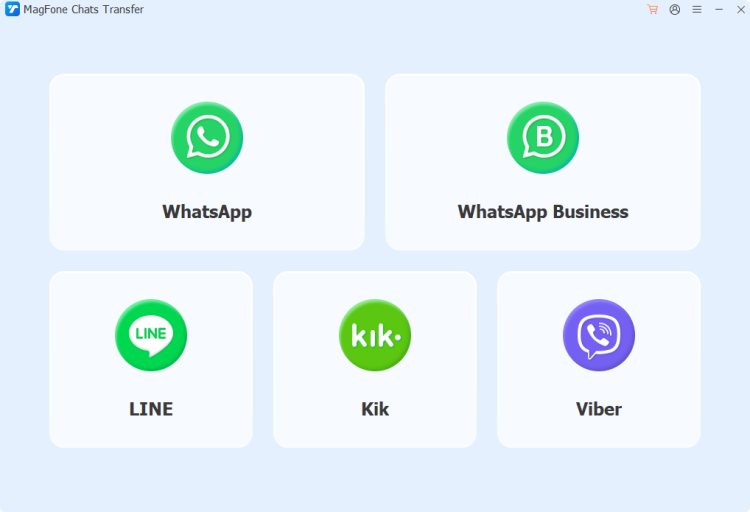
Download and install MagFone Chats Transfer on your computer. Also, use a compatible data cable to connect your iPhone to your computer. After the installation, run this tool.
Step 2 Back Up WhatsApp Chats
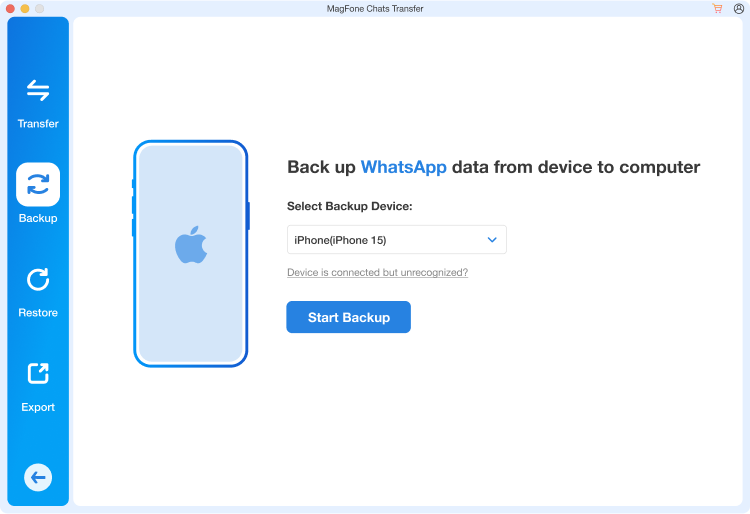
Click WhatsApp in the main interface and then pick the Backup feature on the left side. Once your device is detected, click Start Backup to back up your WhatsApp chats.
Step 3 Export WhatsApp Chats to PC
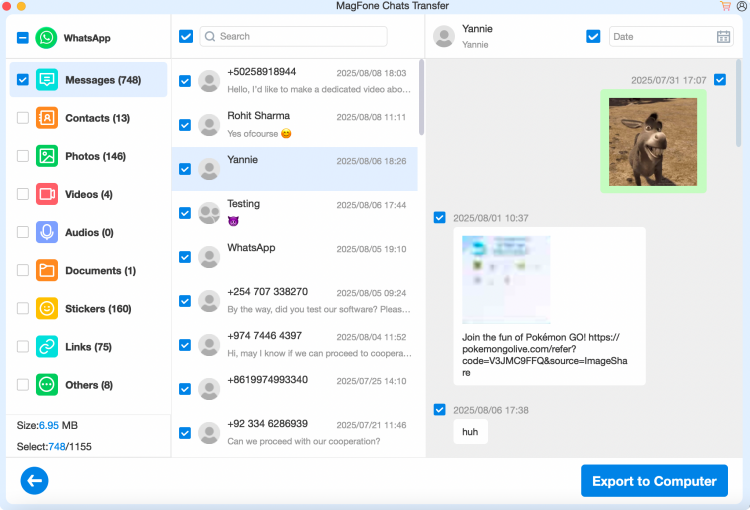
After the backup is completed, click the Export option. On this page, you can see all your WhatsApp chats, as well as different content classifications. You can tick the wanted WhatsApp chats and click Export to computer to export WhatsApp chats to a PC.
How to Export WhatsApp Chat from Android to PC
Unlike iPhones, the Android system allows users to access WhatsApp folders through the File Manager. So, you can connect your phone to your computer and go to the following directory:

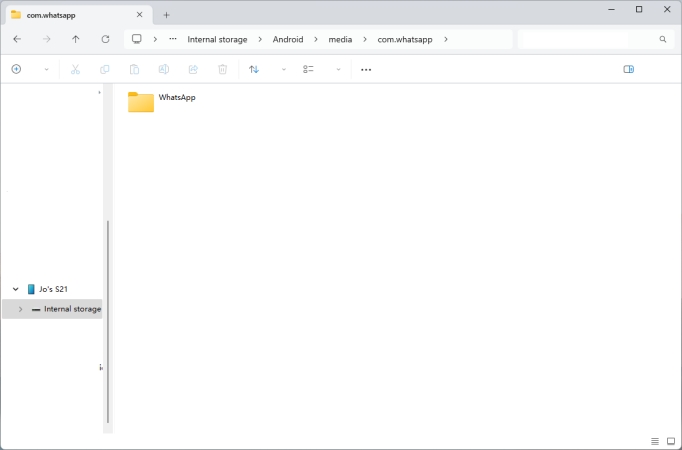
In this way, you can copy media content directly to your computer, including photos, voice notes, videos, documents, etc. The limitation is that you are unable to export chat text content.
Part 3. How to Export Chat from WhatsApp Web to PC
There is no Export chat option on WhatsApp web, so you need a Chrome extension to help you. A Chrome extension can help you export and download WhatsApp chats in formats such as HTML, CSV, and TXT. You can add WAexport to your Google extension list and utilize it to export chats from WhatsApp web.

Step 1. Log in to your WhatsApp account on WhatsApp web and open a WhatsApp chat.
Step 2. Click the Extension icon and then click WAexport. Set the export preference and click Download to export your WhatsApp chats from WhatsApp web to PC.
Part 4. Which Is the Best Way to Export WhatsApp Chat to PC?
After learning about several ways to export WhatsApp chats to your computer, you may have noticed that there are significant differences among them. Here is a more intuitive table to help you define the best method for you.
| Method | Exportability | Decompression | Operation | Best For |
|---|---|---|---|---|
| Text messages and media | Require | Moderate | Export single chat | |
| Google Drive | Text messages and media | Require | Moderate | Export single chat |
| MagFone Chats Transfer | Text messages and media | No | Easy | Bulk export |
| File Manager | WhatsApp media | No | Easy | Export media |
| Chrome Extension | Text messages and media | No | Easy | Export single chat |
Part 5. Conclusion
Exporting WhatsApp chats to a computer is much more convenient and efficient for memory recording and storage saving. Whether you want to export all your WhatsApp chats to a computer at once, export media files, or save the complete message content to your computer, Magfone Chats Transfer is the most reliable choice, allowing you to control your WhatsApp chat data at all times.

Edgar Davis
Editor in chief





